


Key Takeaways
- Gmail has no built-in date-based archive button — use search operators to find emails by date or age.
- before:YYYY/MM/DD finds emails before a specific date; older_than:Nm or older_than:Ny finds emails older than N months or years.
- Combine operators for precision: label:work before:2025/01/01 or from:sender older_than:1y.
- After searching, check the top-left checkbox to select all matching emails, then click Archive.
- Gmail's native auto-archive filter only applies to new incoming emails — not existing ones.
- Clean Email's Auto Clean rules can archive old emails automatically and apply to existing messages too.
By archiving emails instead of deleting them, you can declutter your Gmail inbox without losing any messages. Archived emails stay accessible in All Mail and can be found on iPhone whenever needed.

Archive Gmail Emails by Date or Age
While Gmail does provide a Search feature with options to find emails within the last day, week, or month, it doesn't offer a built-in way to archive emails older than a specific date or timeframe all at once.
Instead, you'll use a search operator to find messages and then archive all emails before a certain date. Here's how:
- Go to the Search box at the top and enter one of the following:
- For emails before a certain date, use before: with the date. For instance, before:2025/01/01 finds messages before January 1, 2025.
- For emails after a certain date but before another, use after: and before: with the dates. For example, after:2024/12/01 before:2025/01/01 finds messages from December 2024.
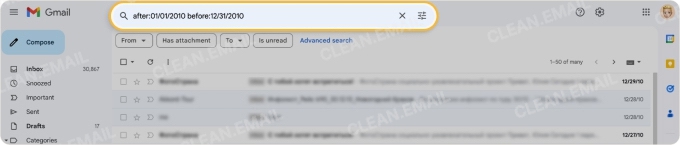
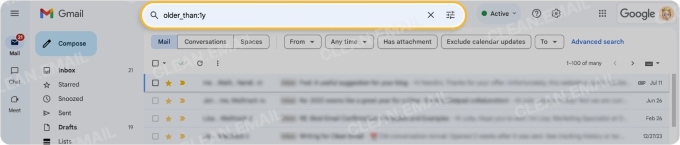
- For emails older than a timeframe, use older_than: with the timing. For example, older_than:6m finds messages older than 6 months, and older_than:1y finds messages older than 1 year.
- Once you locate the emails you want to archive, mark the checkbox on the top left to choose all messages. A prompt will appear to select all conversations matching the search — click it to select everything.
- Click the Archive button in the toolbar.
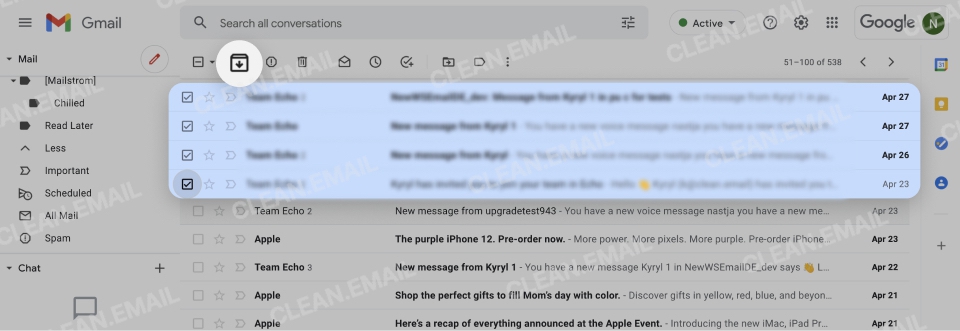
To see your archived messages, you'll also need to use a search operator as Gmail doesn't provide an Archive folder — type in:archive in the search bar or browse All Mail.
Set Up an Automatic Gmail Filter for Older Than
You may want to automatically archive old emails in Gmail on an ongoing basis. While Gmail does have an auto-archive filter option, it only works on new incoming messages — not existing ones already in your inbox.
With Clean Email's Auto Clean feature, you can create rules that work on both new and existing messages:
- Select Auto Clean in the menu and choose Create Rule or the plus sign.
- Name the rule and include any additional conditions for matching messages.
- Pick Old Mail and use the subsequent drop-down list to choose a timeframe.
- Select Archive for the action and turn on the Apply to existing messages toggle.
- Choose Create Rule.
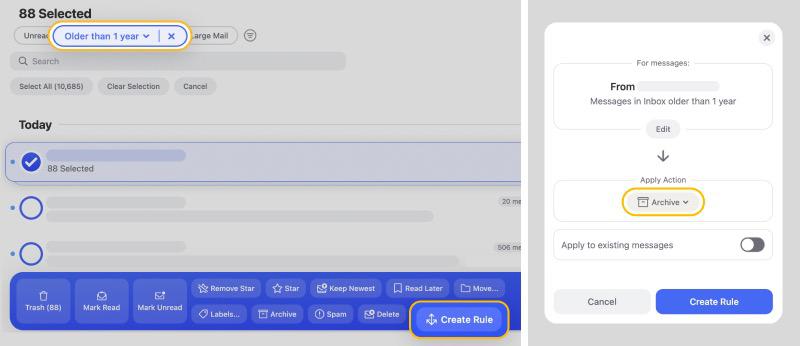
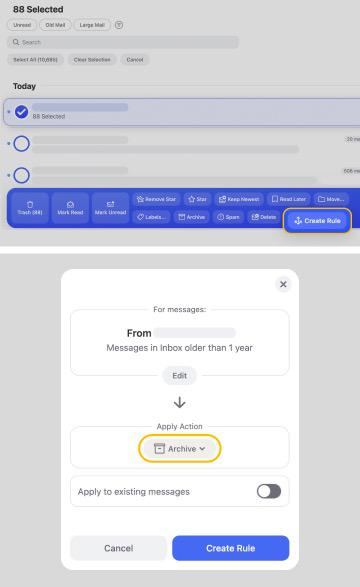
To see your archived messages, simply select the Archive folder in the menu.
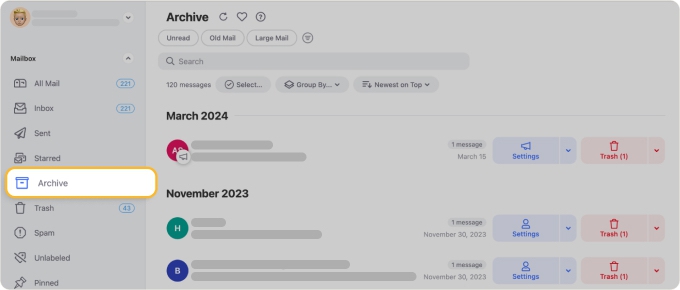
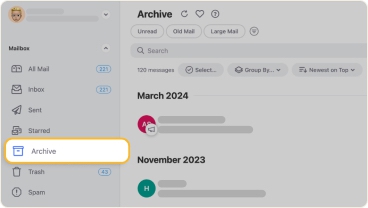
💡 Tip: You can pause, edit, or delete your archive rule at any time by going to Auto Clean in the menu.
More Ways to Archive Old Emails in Gmail
Maybe you want Gmail to archive emails older than a specific date but also match another condition like a label, sender, or keyword. You can combine search operators to get more precise results:
- For emails with a label, add label:[label name] before the date search operator.
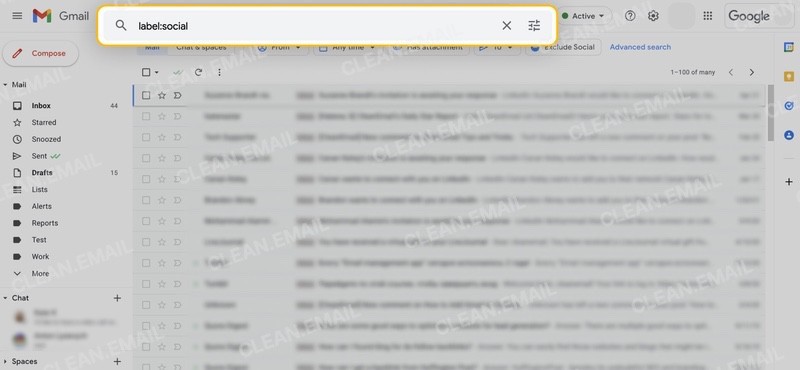
- For emails from a sender, add from:[sender] before the date search operator.
- For emails with a keyword in the subject, add subject:[keyword] before the date search operator.
As an example using the above, entering label:work before:2025/01/01 finds messages with the Work label before January 1, 2025.
Then, select the emails and choose Archive in the toolbar. For more ways to target specific messages, see our full guide on how to filter emails in Gmail.
Simpler Archiving With Clean Email
While using search operators in Gmail isn't necessarily difficult, it can feel cumbersome — especially when you want to archive by age across multiple senders or labels at once.
The Old Mail filter lets you select emails by age directly from a dropdown — no operators required. Head to your Inbox, All Mail, or any folder and use the drop-down box at the top to select an age.
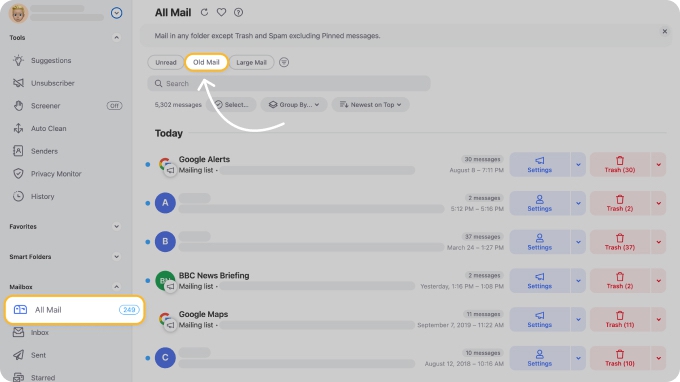
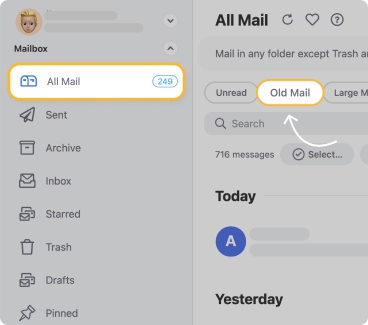
Additionally, you can use Smart Folders to quickly find and archive related Gmail messages — grouped by category, sorted Oldest on Top, and archived in one click.
Conclusion
When you want to archive old Gmail emails, search operators like before: , older_than: , and combinations with label: or from:are the most flexible native approach. Select all matching results and hit Archive to clear them from your inbox in one go.
For ongoing automatic archiving — including rules that apply to existing messages — an Auto Clean rule handles this without requiring you to repeat the search manually each time.












