


How to Archive Emails on Mail.com
Steps:
- Select an email.
- Click Archive.
The message is removed from Inbox and stored in the Archive folder.
How to Find Archived Emails in Mail.com
To access archived emails:
- Open the Archive folder in the sidebar
- Or search by keyword or sender
There’s no advanced archive filtering.

How to Unarchive Emails on Mail.com
Unarchiving requires:
- Opening the Archive folder
- Selecting the email
- Moving it back to Inbox manually
No bulk unarchive rules exist.
Limitations of Mail.com Archiving
Mail.com does not support:
- Auto-archiving by sender
- Date-based archiving
- Smart folders
Everything is manual.
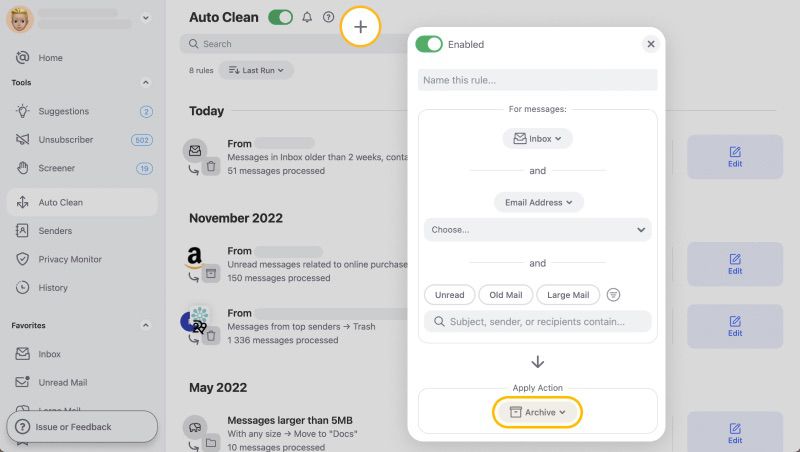
Using Clean Email for Smarter Archiving
Clean Email enables:
- Automatic archiving by sender
- Archiving emails older than a set year
- Reviewing archives in grouped views
Once set up, it quietly maintains inbox balance → Try it for Free
Pros and Cons
Pros:
✅ Simple and predictable
✅ Keeps emails accessible
Cons:
❌ No automation
❌ Manual management only
Final Thoughts
Mail.com archiving works—but it’s static. In 2026, smarter archiving saves time and mental load. Clean Email adds that missing layer without changing how Mail.com stores your mail.












