


Key Takeaways
- Archive rather than delete emails in Gmail to keep those messages for later. Archived emails are still stored in Gmail and can be found in All Mail.
- Bulk archive all emails in your Gmail Inbox for a fast cleanup or select specific messages to archive by condition like sender, label, status, or date.
- Select emails in Gmail to archive by searching for them, marking the Select checkbox, clicking the “Select all messages” link, and pressing the Archive button.
- Consider alternative solutions to bypass Gmail’s default 50-email page limit using third-party complementary tools like Clean Email.
Archive All Emails in Gmail at Once: Core Method
Managing a large volume of emails takes time and effort. So, when you want to hold onto the messages in your Inbox for later, instead of deleting them, archiving is the perfect solution.
With this core method, you can bulk archive all Gmail Inbox emails.
- Enter the search operator in:inbox into the Search field at the top and press Enter or Return.
- Mark the Select checkbox on the top left to choose all emails.
- Click the link that appears to Select all conversations that match this search.
- Select the Archive button in the top toolbar.
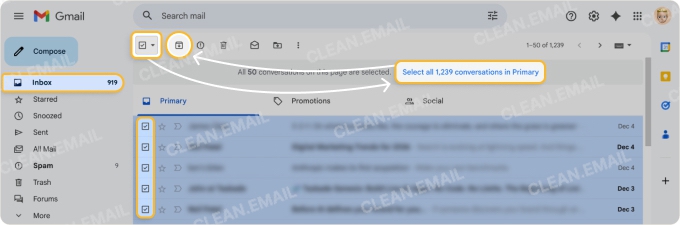
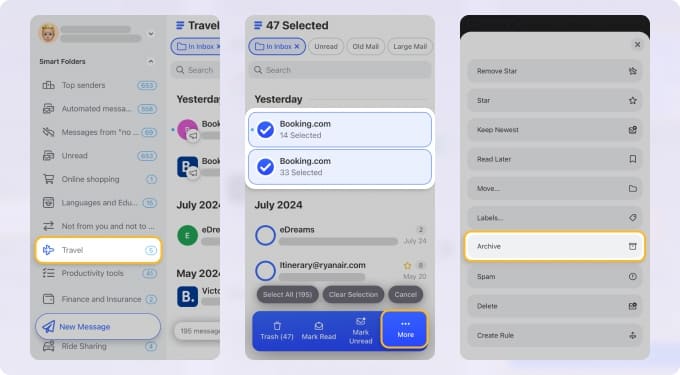
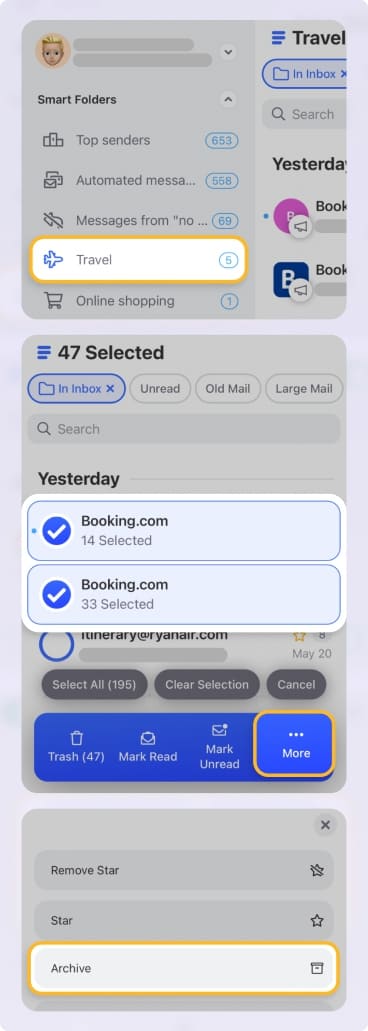
As you’ll notice with the above, it’s a multiple-step process due to Gmail’s default limit of 50 messages per page. Using tools like Clean Email, you don’t have to worry about page limits, on the web or your mobile device.
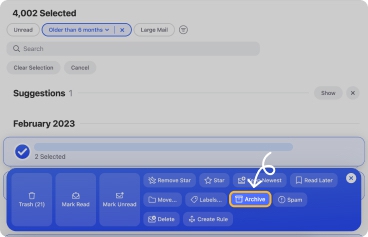
Clean Email lets you select all Gmail emails and act on them in bulk with less steps.
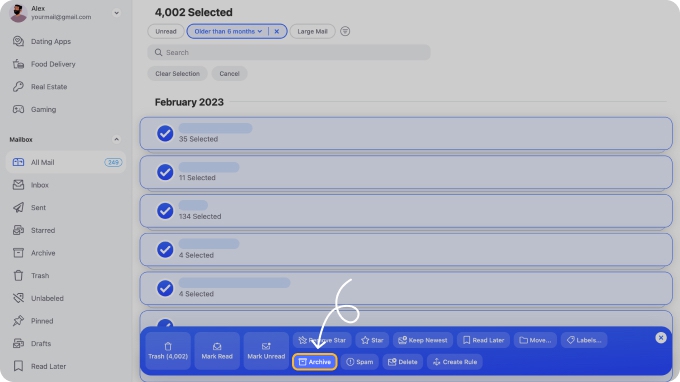
Bulk Archive Gmail Emails Based on Condition
While archiving all emails in your Inbox is ideal for some scenarios, you may want to be more particular about the messages you save for later. Learn how to mass archive emails in Gmail based on sender, label, status, or date.
Tip: To archive emails automatically instead of manually, consider creating auto-archive rules in Gmail.
By Sender
When the email thread comes to an end or you’ve unsubscribed from a mailing list, you can archive all related messages based on the sender.
- Do one of the following to locate the emails by sender:
- Open the search options by clicking the icon on the right of the Search box, enter the sender in the From field, and click Search.
- Enter the from: search operator followed by the sender in the Search box and press Enter or Return. For example, from:john or from:john@gmail.com.
- Mark the Select checkbox on the top left.
- If applicable, click the link that appears to Select all messages that match this search.
- Select the Archive button in the top toolbar.
By Label
If after you apply a label, you want to remove those emails from your Inbox but keep them for later, you can archive all messages containing a particular label in Gmail.
- Enter the label: search operator followed by the label in the Search box and press Enter or Return. For instance, label:social or label:work.
- Mark the Select checkbox on the top left.
- If applicable, click the link that appears to Select all messages that match this search.
- Select the Archive button in the top toolbar.
By Read/Unread Status
For a quick email declutter and cleanup, you may want to store messages based on whether they are read or unread. This is handy for messages you’ve been copied on and/or those that don’t require any action.
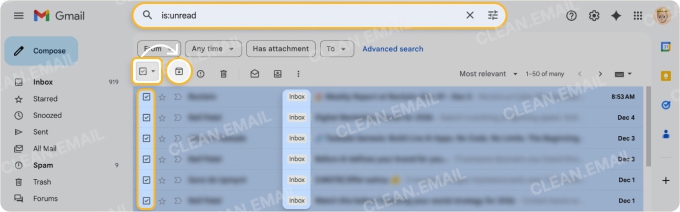
- Enter the is:read or is:unread search operator in the Search box and press Enter or Return.
- Mark the Select checkbox on the top left.
- If applicable, click the link that appears to Select all messages that match this search.
- Select the Archive button in the top toolbar.
Before a Date
One of the best ways to clear out your Gmail Inbox is to archive emails before a specific date. These older, outdated messages may be of use later. So rather than delete them, you can archive them in bulk.
- Enter the before: search operator followed by the date in the Search box and press Enter or Return. For example, before:2025/12/31, using the date format YYYY/MM/DD.
- Mark the Select checkbox on the top left.
- If applicable, click the link that appears to Select all messages that match this search.
- Select the Archive button in the top toolbar.
How to Mass Archive Emails in Gmail on Mobile
If you have your Android or iOS device handy, you can bulk archive emails on your phone as well.
- Use one of the above-mentioned search operators or a built-in filter to find the emails you want to store.
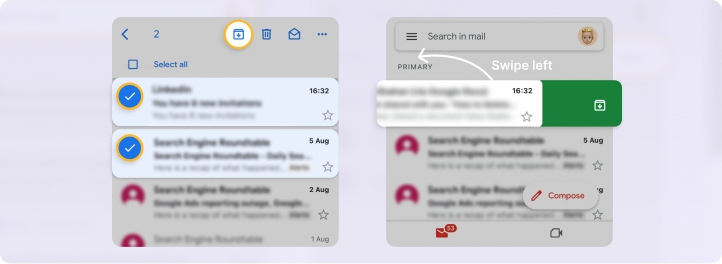
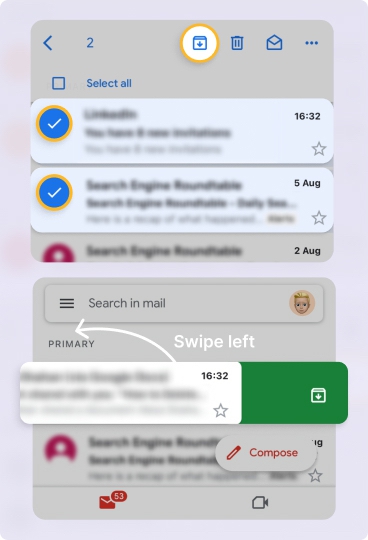
- Long-press an email and mark the Select All checkbox on the top left.
- Scroll to the bottom to load more messages and mark the Select All checkbox again.
- Continue until you’ve selected all emails.
- Tap the Archive button in the top toolbar.
Remember, you can also use Clean Email on your mobile device to bulk archive Gmail emails without worries of continuous scrolling to load more messages.
Conclusion
By moving messages out of your Inbox, you can focus better on the emails you need but still access those archived messages anytime.
And for simplifying the mass archive process, try Clean Email for free and check out its efficient selection and archive options on both desktop and mobile.












