


Key Takeaways
- What it is: A summary view that pulls to-dos and catch-up topics out of your Primary tab. It doesn't delete, archive, or unsubscribe from anything.
- Who gets it: US users with the language set to English, on Google AI Plus, Pro, or Ultra, or on an eligible paid Workspace plan. Business Starter, Enterprise Starter, and AI Pro for Education come later.
- How to turn it off: On the web, go to Settings → See all settings → Inbox and uncheck Show AI Inbox. The Gmail mobile apps have no separate switch for it.
- What to avoid: Turning off all of Gmail's smart features also removes the Primary, Social, and Promotions tabs and package-tracking cards.
- Where it falls short: It only reads the Primary tab, it can come up empty, and it does nothing about the clutter itself.
- If you want AI to actually clean Gmail: Gemini's side panel can archive or delete with your confirmation. For bulk unsubscribing and rules that keep running, you need a dedicated tool.
📌 Author's Note: I've followed AI Inbox since Google first showed it to trusted testers in January 2026, and I've compared it with the AI features in Outlook, Apple Mail, Yahoo Mail, and the main AI-first email apps. All availability, settings, and pricing information is current as of October 20, 2026. Google labels AI Inbox a beta, so menus may move.

What Is AI Inbox in Gmail?
For twenty years, Gmail has shown your mail the same way: newest at the top, oldest at the bottom. The tabs, stars, and importance markers helped, but the job was always yours. You opened each email and decided what it meant.
AI Inbox changes that. Gemini reads your incoming mail first and gives you a briefing. You don't scroll through 40 new emails. You see a short list of things that need you and a few summaries of everything else.
The view has two sections:
- Suggested to-dos. Action items pulled from your email, with the important part in bold, like a credit card payment due Friday or a form your kid's school needs back. Each to-do has buttons such as View or Reply, and you can tick it off with Mark done.
- Topics to catch up on. Short summaries of updates scattered across threads, like an upcoming trip, a restaurant booking, or an order that's ready for pickup. The Workspace version also summarizes long work threads, including recent decisions and status changes.
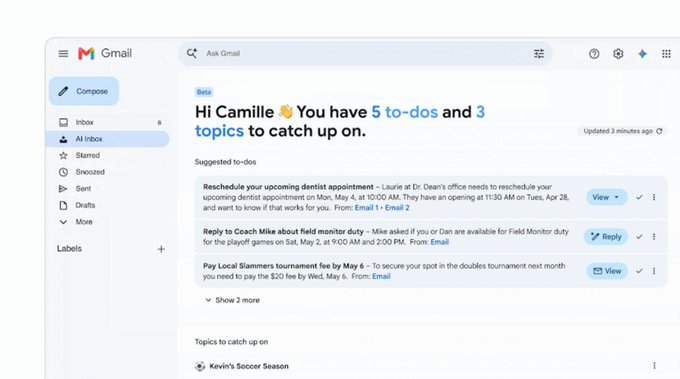
AI Inbox in Gmail on the web. Image: Google
What it doesn't see matters just as much. According to Google's help page, AI Inbox:
- uses only messages in your Primary tab, not Social or Promotions
- skips spam and anything you've archived, deleted, muted, or snoozed
- doesn't support attachments, delegated inboxes, or encrypted email
📌 Note: In other words, AI Inbox is a reading layer. It changes how you look at your mail. It doesn't change what's in your mailbox. Every newsletter, promo, and notification is still there, still counting against your 15 GB of free storage.
What the AI Inbox interface looks like on desktop and mobile
On a computer, AI Inbox appears in the left panel, right above Inbox. It opens with a greeting, a count of new items, and the time of the last refresh. There's a Refresh button at the top, and a View all link at the bottom shows everything Gemini generated, including items it decided not to display.
In the Gmail app for Android and iPhone, you open it from the menu at the top left (Menu → AI Inbox). Some testers also saw it as an extra button in the bottom navigation bar. You pull down to refresh.
Gmail AI Inbox News: From Testers to Everyone Who Pays
If you've been searching for AI Inbox news and getting contradictory answers, that's because the rules changed four times in ten months. Here's the timeline as I've tracked it:
| Date | What happened |
|---|---|
| January 8, 2026 | Google announces "Gmail is entering the Gemini era", powered by Gemini 3. AI Inbox goes to trusted testers only. AI Overviews for threads, Help Me Write, and Suggested Replies become free for everyone in the US. |
| March 31, 2026 | AI Inbox opens as a beta for Google AI Ultra subscribers in the US. |
| May 2026 | AI Inbox reaches the Gmail apps for Android and iOS, still for Ultra. |
| May 19, 2026 (Google I/O) | Access expands to Google AI Pro and AI Plus subscribers. Google adds action buttons, document links in to-dos, "mark all as read," and Gmail Live, a voice assistant for your inbox. |
| October 12, 2026 | Rollout begins for paid Workspace domains on Rapid Release (up to 15 days to appear). |
| October 26, 2026 | Rollout starts for Workspace domains on Scheduled Release. |
📌 Note: The October Workspace update has one detail that explains a lot of frustrated searches: there's no admin control for AI Inbox. IT can't turn it off for the company. It simply appears in the menu for eligible users.
If you were a trusted tester and still don't have it, or your spouse has it and you don't, you're not imagining things. Google's own community forum is full of threads like that. Rollouts are gradual, and Google says it can take up to seven days for your first to-dos and topics to show up.
How to Get AI Inbox in Gmail
AI Inbox doesn't have an "enable" button. If you're eligible, it appears. Here's what has to be true:
| Requirement | Personal Gmail account | Work or school account |
|---|---|---|
| Plan | Google AI Plus, Pro, or Ultra | Business Standard or Plus, Enterprise Standard or Plus, Frontline Plus (Starter and Education editions later) |
| Location and language | US, English | US, language set to English (US) |
| Settings | "Smart features in Google Workspace" and "Smart features in other Google products" turned on | Same |
| Wait time | A few hours after turning on smart features, up to 7 days for content | Up to 15 days after your domain's rollout starts |
How to turn on AI Inbox in Gmail
- On your computer, open Gmail and click Settings (the gear icon) → See all settings.
- On the General tab, scroll to Google Workspace smart features and click Manage Workspace smart feature settings.
- Turn on Smart features in Google Workspace and Smart features in other Google products, then click Save.
- Open the Inbox tab in settings and make sure Show AI Inbox is checked.
- Go back to your inbox and click AI Inbox in the left panel. Click Refresh if it looks empty.
On Android or iPhone, open the Gmail app, tap the Menu icon at the top left, and choose AI Inbox.
Why don't I see AI Inbox in Gmail?
If you're paying and it's still missing, check these in order:
- Your plan. Google One storage plans (like 2 TB) don't include it. You need a Google AI plan.
- Your country and language. It's US and English only for now.
- Your smart features. Both Workspace-level smart feature settings need to be on.
- Your account. If you use several Google accounts, make sure the eligible one is selected.
- Time. Give it up to a week after you change settings, or up to 15 days after a Workspace rollout begins.
- Your admin. On some Workspace plans, Gemini features themselves can be disabled by your organization, even though AI Inbox has no separate switch.
How to Turn Off AI Inbox in Gmail
This is where most of the searches around AI Inbox come from, and it's the part Google explains least clearly. There are three levels, and I'd only recommend the first one for most people.
Option 1: Hide AI Inbox (desktop)
- Open Gmail on your computer.
- Click Settings → See all settings.
- Open the Inbox tab.
- Uncheck Show AI Inbox.
- Scroll down and click Save Changes.
AI Inbox disappears from the left panel. Your regular inbox, tabs, and filters stay exactly as they were. This is the cleanest way to remove AI Inbox from Gmail and get your inbox back to normal.
Option 2: On Android and iPhone, just don't tap it
As of October 2026, the Gmail mobile apps don't have their own Show AI Inbox switch. Google's help page for Android only explains how to open it, and when a user asked on the Gmail Community forum how to hide it on Android, even after disabling smart features, nobody could point to a setting. AI Inbox never replaces your regular inbox, so the app still opens to your mail as usual.
📌 Tip: Try unchecking Show AI Inbox on the web first, then restart the app. Settings that sync to your account may also apply on your phone, but Google doesn't promise it, so check your own app.
Option 3: Turn off Gmail's AI completely (and know what you lose)
If your goal isn't just to remove AI Inbox but to stop Gemini from reading your email at all, you need to turn off smart features. Be careful here: Gmail has three separate smart feature switches, and they don't do the same thing.
| Setting | What turning it off removes |
|---|---|
| Smart features in Gmail, Chat, and Meet | The Primary, Social, and Promotions tabs, Smart Compose, Smart Reply, and summary cards for travel and package tracking |
| Smart features in Google Workspace | Gemini summaries, drafts, and AI Inbox; Gmail events in Calendar; personalized Drive search |
| Smart features in other Google products | Gmail info in Maps, Wallet passes, and Personal Intelligence in the Gemini app and Search |
To turn off Gemini and AI Inbox without losing your tabs, turn off only Smart features in Google Workspace and Smart features in other Google products:
- Open Settings → See all settings → General.
- Scroll to Google Workspace smart features and click Manage Workspace smart feature settings.
- Turn off both toggles and click Save.
📌 Note: Many guides tell you to uncheck Smart features in Gmail, Chat, and Meet as well. Do that, and your mail lands in one long list with no Promotions tab to catch the noise. If you've ever wondered why "turning off AI" made your inbox messier, that's why. More on how the tabs work in our guide to Gmail categories.
Is Gmail's AI Inbox Worth It? My Honest Take
I went into AI Inbox expecting another sparkle button I'd ignore. It's better than that, but I wouldn't build my day around it either.
What it gets right:
- It finds the email you'd miss. The best example I've read is from Android Authority's hands-on test: AI Inbox surfaced a parking warning hidden behind the subject line "A new post has been added to the wall." No filter would ever catch that.
- It reads the body, not just the subject. That's why it can pull "payment due Friday" out of a bill that just says "Your statement is ready."
- It takes seconds. You glance at it a few times a day and close it.
What it gets wrong:
- It's inconsistent. Testers report empty lists on days that weren't empty, and two people getting the same email with only one of them seeing it flagged. I wouldn't trust it with anything I can't afford to miss.
- It only reads the Primary tab. If Gmail sorted your flight change or your kid's school newsletter into Promotions or Updates, AI Inbox won't see it.
- You can't steer it. There's no way to say "always show this sender" or "never show that one." You can only give a thumbs-down and hope.
- It sees more than it shows. Google's help page says to-dos and topics "may be generated and used to optimize your experience, but not shown." If you care about what AI does with your mail, that sentence is worth reading twice. For a deeper look at Gemini and privacy, I've covered how safe Gemini AI is separately.
- It doesn't reduce anything. This is my biggest issue. AI Inbox is a better way to look at a full inbox. The inbox stays full.
💡 So my verdict is: AI Inbox is a nice digest for a busy Primary tab. It doesn't fix the reason the inbox is busy.
Can AI Clean Up My Gmail Inbox?
Yes, but not with AI Inbox. AI Inbox only summarizes. If you want AI to actually archive, delete, or stop mail, you have three options right now.
1. Gemini in the Gmail side panel. With an eligible Google AI or Workspace plan, you can ask Gemini to archive, delete, label, star, or mark emails as read. According to Google's help page, it asks you to confirm before anything changes, you get 60 seconds to undo, and it won't process a request that matches more than 10,000 threads. It can't create new labels, mark emails as spam in bulk, unsubscribe you, or set up a rule for future mail. It's good for one-off sweeps like "delete all shipping notifications older than a year." I cover more examples in my guide to Gemini AI for Gmail.
2. A general AI assistant connected to your mailbox. ChatGPT and Claude can now connect to email through connectors and MCP servers. What they can do depends entirely on the connection. Some can only read, and some can also send mail on your behalf, which is a lot of trust to hand over. Before you connect anything, read what AI can access when you connect ChatGPT or Claude to Gmail.
3. A dedicated cleanup tool, with or without AI. Tools built for cleanup handle what Gemini can't: bulk unsubscribing, cleaning tens of thousands of emails by sender, and rules that keep working on new mail. I compare the options in my AI email cleanup guide.
Rethinking the AI Inbox Market: Where Google Fits Now
Here's what I find most interesting about AI Inbox. It isn't new as an idea. Superhuman, Shortwave, and a dozen startups have sold "AI decides what matters" for years. What's new is that the company that owns your mailbox now does it inside Gmail, for anyone already paying for Gemini.
That changes how I think about the whole market. Today, I'd sort AI email tools into four groups.
1. AI built into your email provider. Gmail's AI Inbox, Copilot in Outlook, Apple Intelligence in Mail, and Yahoo Mail's Priority inbox. They're convenient because there's nothing to install, and you've already trusted the provider with your mail. The downside is that each one works only in its own app and only shows you mail. None of them cleans up the backlog.
2. AI-first email apps. Superhuman and Shortwave replace the Gmail interface with their own, and AI is part of every step: split inboxes, auto-labels, summaries, and drafts. The catch is price and commitment. You move your whole workflow into a new app. And this category is getting squeezed. Notion shut down Notion Mail on September 22, 2026, and Shortwave dropped its free plan, now starting at $30 per user per month. When Gmail gives you summaries and to-dos natively, "we summarize your inbox" stops being enough to justify a new app.
3. AI assistants that sit on top of your inbox. Cora, Inbox Zero, and Fyxer don't replace Gmail. They sort, screen, brief, or draft in the background and leave you in the app you already use. Most of them overlap with AI Inbox on summaries and prioritizing, so their value now depends on what Google can't do: work across Outlook and other providers, catch mail outside the Primary tab, or let you set the rules yourself.
4. Bring your own AI. This is the newest group, and the one I'm watching most closely. Instead of buying an AI inside an email app, you connect the assistant you already use, like ChatGPT or Claude, to your mailbox through MCP (Model Context Protocol). The AI becomes the interface, and the email tool does the work.
Here's how the main options compare as of October 2026:
| Tool | Type | Works with | What the AI does | Can it clean up mail? | Price |
|---|---|---|---|---|---|
| Gmail AI Inbox | Built in | Gmail only | To-dos and topic summaries from the Primary tab | No | Included with Google AI Plus, Pro, Ultra, or paid Workspace (US) |
| Gemini in Gmail | Built in | Gmail only | Summaries, drafts, search, archive/delete/label on request | One-off sweeps, up to 10,000 threads | Google AI or Workspace plan |
| Copilot in Outlook | Built in | Outlook / Microsoft 365 | Prioritizes and triages mail; inbox agent features in preview | Limited, via rules | Microsoft 365 Copilot license |
| Apple Mail (Apple Intelligence) | Built in | Any account in Apple Mail | Priority Messages, summaries, categories, mostly on-device | No | Free on supported Apple devices |
| Superhuman | AI-first app | Gmail, Outlook | Split Inbox, Auto Labels, Auto Archive, summaries, drafts | Single-sender unsubscribe, no bulk cleanup | $33/user/mo (annual) |
| Shortwave | AI-first app | Gmail and Workspace only | AI filters, summaries, drafting, AI search | Limited | From $30/user/mo, 14-day trial |
| Cora | Assistant layer | Gmail and Workspace only | Keeps mail you must answer, drafts replies, briefs the rest twice a day | No, and only handles mail that arrives after signup | From $20/mo, 7-day trial |
| Inbox Zero | Assistant layer | Gmail, Outlook | AI labels, drafts, cold-email blocker, bulk unsubscribe | Yes | From $20/user/mo (free only if self-hosted) |
| Clean Email + AI assistant | Bring your own AI | Gmail, Outlook, Yahoo, iCloud, AOL, IMAP | ChatGPT, Claude, or Codex runs Clean Email's tools on your request | Yes: bulk cleanup, unsubscribing, ongoing rules | Free for up to 1,000 emails, then paid plans |
📌 Note: Prices are what each vendor's site showed in September and October 2026 for US customers. Check before you buy, because this market reprices often.
Strengths and weaknesses, as I see them
Built-in AI wins on convenience and loses on control. Google decides what's important, and you can't tell it otherwise. It's also locked to one provider. If you have a Gmail account and an Outlook account, you get two different AIs with two different ideas of "important."
AI-first apps are the most polished, but you pay for the whole app to get the AI. With summaries now built into Gmail and Outlook, I'd only switch if you love the app itself, not just the AI. My Shortwave review and Superhuman review go into the details.
Assistant layers are the most direct competitors to AI Inbox, and the good ones answer it with control: your rules, your providers, your backlog. Cora is a nice example of the honest version. It never sends or deletes and says plainly that it only handles new mail. If you're comparing organizers specifically, my roundup of the best AI email organizers covers more of them.
Bring-your-own-AI is the most flexible and the least mature. The risk is in the connection, not the AI. A connector that can send email or permanently delete is a connector that can do damage when the AI misunderstands you. That's why I care less about which assistant you use and more about what the connection lets it do.
How I'd Use ChatGPT or Claude to Clean Up Gmail With Clean Email
Clean Email is free to try: it processes up to 1,000 emails at no cost, and connecting it to your AI assistant takes a couple of minutes.
Where AI Inbox helps you read your mail, Clean Email helps you get it under control: bulk cleaning by sender, the Unsubscriber, Auto Clean rules, and the Screener for unknown senders.
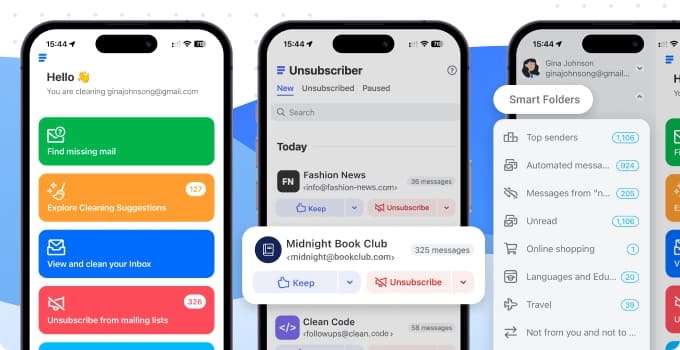
Now you can connect it to ChatGPT, Claude, or Codex and run those same tools by asking in plain language. Your assistant becomes the interface, and Clean Email does the work.
In practice, it looks like this:
- "Who sends me the most email I never open?" The assistant pulls your senders and subscriptions, with volume and how many you've read.
- "Unsubscribe me from the shopping newsletters but keep Amazon order updates." It shows you the exact list and the number of messages, and nothing happens until you approve.
- "From now on, keep only the latest email from each delivery service." It builds a real Auto Clean rule that keeps working on new mail. You can see it, edit it, and pause it in Clean Email later.
- "Clean up my Outlook account the same way." One connection covers every mailbox you've added to Clean Email, whether it's Gmail, Outlook, Yahoo, or iCloud.
What matters most to me is what the connection can't do:
- It can't write or send email. There's no send tool at all.
- It shows you the change before it happens. For changes to your mailbox, you see the account, the target, the action, and how many messages it affects, and you approve or deny it in the chat. If you deny it, nothing runs. You can also set your assistant to ask permission before every Clean Email tool.
- It works mostly from metadata. It finds and groups mail by sender, subject, and recipient instead of reading every message body.
- You can check what happened. Every action shows up in Clean Email's Action History.
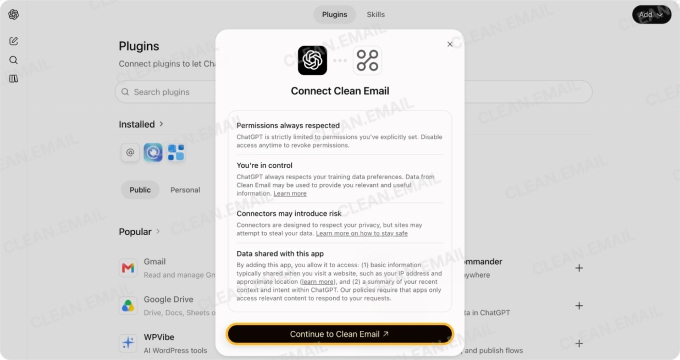
📌 Note: The key difference is control. AI Inbox decides on its own what to show you. With Clean Email, the AI proposes, you approve, and a predictable rule engine does the work.
To get started, follow the instructions for connecting AI assistants to add Clean Email to ChatGPT, Codex, or Claude.
What AI Inbox Means for Senders and Inbox Placement
If you send email for a business, AI Inbox adds a new layer to inbox placement. Reaching the inbox is no longer enough. For AI Inbox users, your email now has to:
- land in the Primary tab. AI Inbox ignores Promotions and Social completely, so a promo that lands in Promotions won't appear as a to-do or topic.
- say clearly what you want. To-dos come from explicit actions and dates, like "renew by November 3." Vague emails get summarized away or skipped.
- not look like spam. Spam is filtered out before AI Inbox ever sees it.
There's no "AI solution" that guarantees placement in AI Inbox. The basics still decide it: authentication, sending reputation, and email people actually open.
Who Should Use Gmail's AI Inbox?
| Use AI Inbox if you... | Look elsewhere if you... |
|---|---|
| already pay for Google AI or a paid Workspace plan | are outside the US or use Gmail in another language |
| get important mail mixed in with notifications in your Primary tab | want fewer emails, not a summary of them |
| want a quick daily briefing without installing anything | manage Outlook, Yahoo, or iCloud accounts as well as Gmail |
| don't mind Gemini reading the full text of your messages | want to decide the rules yourself, or keep AI out of your mail entirely |
Gmail AI Inbox Verdict
AI Inbox is the most important change to how Gmail displays mail since tabs arrived in 2013. It also tells me where the market is heading: summaries and to-do lists are becoming a standard feature rather than a reason to switch apps.
But in my opinion, AI Inbox answers the wrong half of the problem. It helps you read a crowded inbox faster. It doesn't make the inbox less crowded, and it doesn't let you set the rules. If you have it, try it for a week and decide whether it saves you time. If it doesn't, uncheck Show AI Inbox and move on. And if what you really want is for AI to clean up Gmail, look for a tool that lets your assistant act, asks before it does anything, and keeps working after you close the chat.
FAQs
Why do I have an AI Inbox in Gmail?
It appeared because your account became eligible: you're in the US, using English, and on a Google AI plan or a paid Workspace plan. Google doesn't require you to opt in, and Workspace admins have no control that turns it off. Your regular inbox is still there.
How do I get my Gmail inbox back to normal?
On a computer, go to Settings → See all settings → Inbox, uncheck Show AI Inbox, and click Save Changes. Don't turn off "Smart features in Gmail, Chat, and Meet" unless you also want to lose the Primary, Social, and Promotions tabs.
Can I turn off AI Inbox in the Gmail app on Android or iPhone?
Not with a separate setting as of October 2026. Hide it on the web, then check your app. Even when it's visible, it doesn't replace your inbox, so you can ignore it.
Do I have to have AI on Gmail?
No. You can hide AI Inbox, and you can turn off Gemini features by switching off "Smart features in Google Workspace" and "Smart features in other Google products." Some basic AI, like spam filtering and tab sorting, is part of how Gmail works and stays unless you disable smart features in Gmail itself.
Is Gmail's AI Inbox free?
No. Free Gmail users get AI thread summaries, Help Me Write, and Suggested Replies, but AI Inbox requires Google AI Plus, Pro, or Ultra, or an eligible paid Workspace plan.
Does AI Inbox read my emails?
Yes. It reads the content of messages in your Primary tab to find to-dos and topics. Google says it doesn't use personal Workspace content to train its AI models, and the feature runs under Google Cloud terms.
Does AI Inbox delete or archive emails?
No. It only shows to-dos and summaries. Marking a topic as read does mark the related emails as read in your inbox, but nothing is moved or deleted.
Can ChatGPT clean up my Gmail?
On its own, no. Connected to a tool that can act on your mailbox, yes. With Clean Email connected, ChatGPT or Claude can find your biggest senders, unsubscribe you, clean in bulk, and create rules for future mail, and you review each change before it runs.
Is there a free AI inbox organizer for Gmail?
Few good ones are fully free. Most AI organizers either have a short trial or a free tier with limits. Clean Email's free plan covers up to 1,000 emails, and you can connect it to Claude's free plan, which allows one custom connector. In ChatGPT, adding a custom connection may require Developer mode, depending on your plan and version.