


Feeling Overwhelmed by Inbox Clutter?
Important messages from clients, friends, or billing services often get buried under newsletters and social updates. As volume grows, manual sorting becomes unsustainable, leaving you stuck between deleting everything or constantly playing catch-up.
Gmail’s rolling out new AI tools — thanks to Gemini — to help users regain control of their inboxes. But many already use inbox management apps like Clean Email to effortlessly handle low-priority messages, organize clutter in bulk, and automatically sort recurring emails.

What's New: AI Sorting Emails in Gmail?
Google is deploying its own AI — Gemini — to bring order to the chaos. The goal is to create an inbox that anticipates your needs and surfaces what matters most. When it comes to inbox management, here’s what it all looks like:
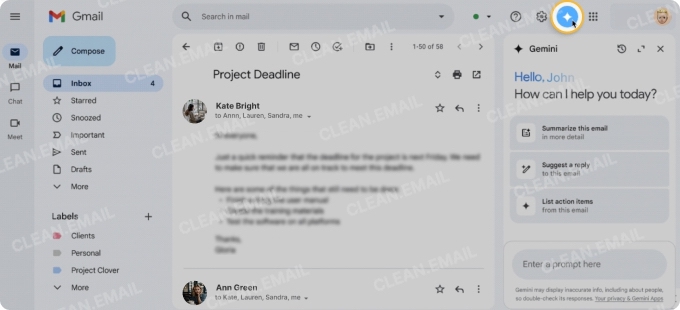
Gemini in Gmail
Gemini powers smart replies, suggesting contextual replies so you can respond faster, and drafts new emails from a single prompt. You can even polish rough notes into a message that follows the tone you want.
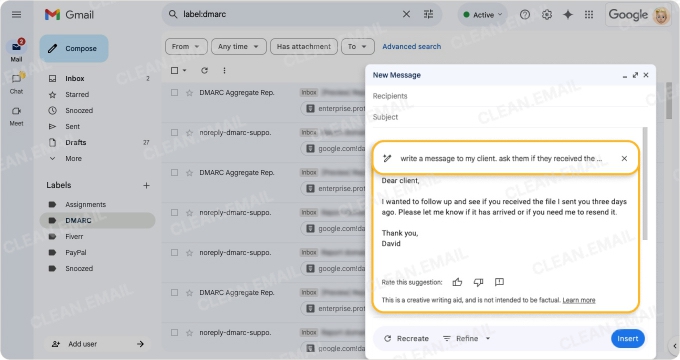
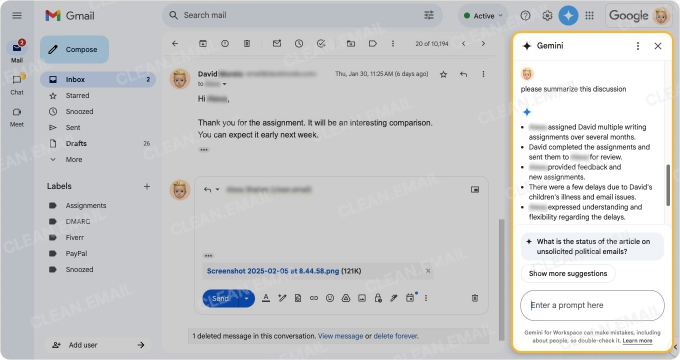
Gemini can also summarize long email threads with a click so you can quickly catch up on key points and action items.
Gmail Cleanup Services With AI
You can make the most of Gemini by asking it to cleanup your inbox. Try typing “delete all unread newsletters from the last six months” or something similar, and it will give you the string of keywords to put in the search box.
(newsletter OR newsletters OR subscription) is:unread newer_than:6m
💡 Tip: You can use this query directly in the Gmail search bar. After running the search, you can then select all the results and choose the Delete option to perform the action you requested.
While this isn’t as automatic as a one-click maneuver, it can help move cleanup from a manual, click-intensive task to a simple instruction.
Manage Subscriptions
If you think putting in a command through Gemini in Google is already a pretty nifty feature, wait until we drop this “secret” feature. Well, it’s not really a secret — just sort of hidden. This feature is found on the left side panel of your Gmail app’s web version.
If you click More, there appears a dropdown that has the magic words: Manage subscriptions.
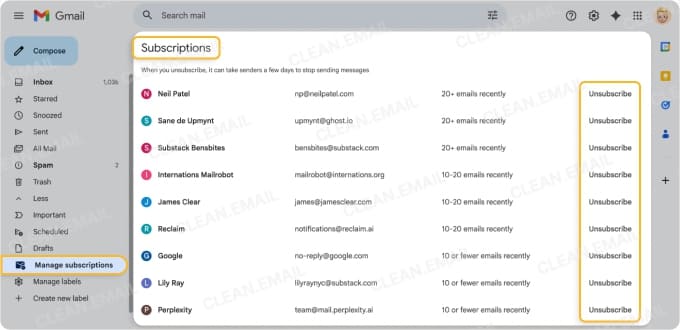
Clicking it will give you the full list (and a centralized view) of all your subscriptions — and the option to unsubscribe from each in one click. So instead of hunting down unsubscribe links in individual emails, you can see a list and (in theory) manage it from one place.
⚠️ Limitations we found: You can’t unsubscribe from multiple subscriptions at once, and some subscription emails do not appear in this section, especially if they lack a List-Unsubscribe header or an unsubscribe link in the email content.
AI-Powered Tabs
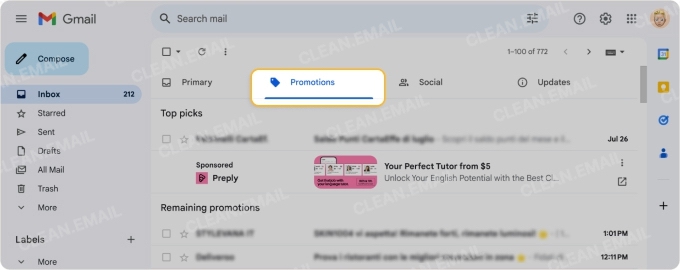
The familiar Primary, Social, and Promotions tabs are getting smarter. The AI now learns from your behavior — like moving an email from Promotions to Primary — to better categorize future messages.
Smarter Search
If you search through Gemini on the side panel, you could find what you’re looking for in seconds. No need to scour through your inbox for the confirmation number of your purchase from 10 months ago!
Where Gmail's AI Cleanup Tools Still Struggle
For all its intelligence and handy features, Gmail’s AI isn’t perfect.
Users still report messy inboxes where important messages are miscategorized and promotional emails slip into the Primary tab. The system is a black box; you don’t always know why it made a certain decision, and its choices can feel unpredictable.
The new Manage Subscriptions feature often fails to identify all recurring mailings, especially from smaller senders. And if you want to tidy up your inbox from unread messages from those subscriptions, you can’t really delete them off the face of your inbox.
Bulk actions — especially in AI sorting and filtering with Gmail — remain limited. You can give a command on the web, but the mobile app experience lags behind, offering fewer robust options for mass organization.
📌 This is where the Clean Email app fills in the gaps: it gives users a unified view of all subscription emails, lets them unsubscribe and delete messages in bulk, and applies consistent auto-labeling and filtering rules across accounts. This is something Gmail’s native UI doesn’t yet offer. It puts the user, not the algorithm, in command.
How Does User Control Shape Gmail's AI Through Feedback?
Every time you archive, delete, or star an email that the AI miscategorized, you’re providing a crucial piece of feedback. This is the core of the human-in-the-loop system: the AI makes its best guess, and you correct it.
Over time, this training is supposed to refine its accuracy and make Gmail’s inbox automation a total dream.
Many of these advanced features, particularly those powered by Gemini, are part of Google’s Workspace Labs, requiring users to opt in.
The experience may also differ depending on whether you are a free user or have a paid Google One or Workspace plan, creating inconsistencies in what tools are available.
AI and Privacy — Can They Go Hand in Hand?
To sort your email, Google’s AI needs to read it. There’s no way around it (at least for now).
While Google assures users that this process is secure and anonymous, the idea of an algorithm analyzing the content of every message — and potentially feeding it into the AI-verse — can be unsettling. (Relying completely on an AI to decide what’s important also introduces the risk of it getting things wrong with significant consequences.)
This is something Clean Email is proud of — it doesn’t read the contents of your email. Rest assured, your data privacy is secure with Clean Email.
What About Limitations in Access to Features?
The features that we’ve described aren’t available to everyone at once. Google uses phased rollouts, often prioritizing paid Workspace customers.
So you might read about a game-changing new tool only to find it’s not yet active on your account.
When Does Clean Email Enter the Picture?
While Gmail’s AI works to automate your inbox from the inside, Clean Email provides a powerful control panel that works alongside it. Available on macOS, mobile apps for Andorid and iOS, and the web, it offers features built for cleaning up your emails quickly and efficiently:
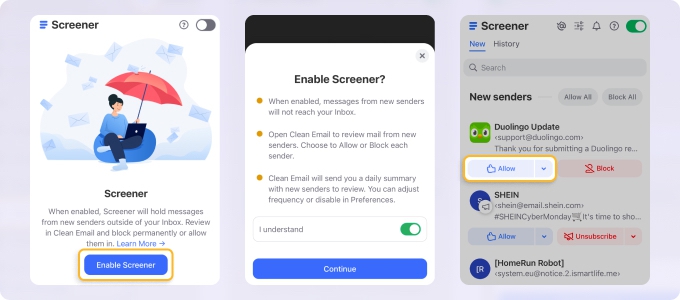
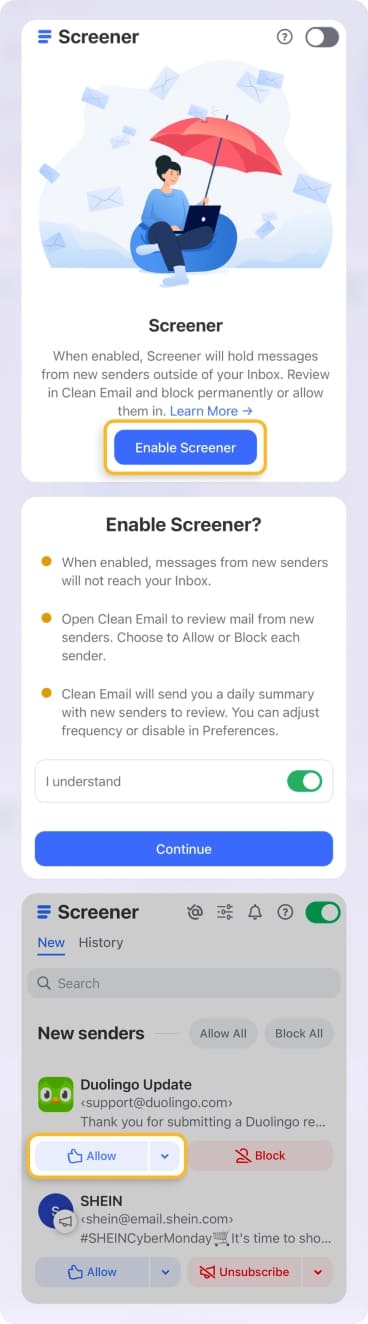
- Screener: This feature holds all emails from first-time senders in a single location, letting you decide whether to allow them into your inbox — or block them forever.
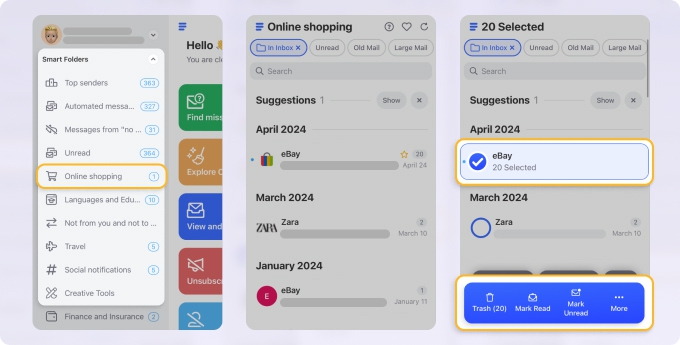
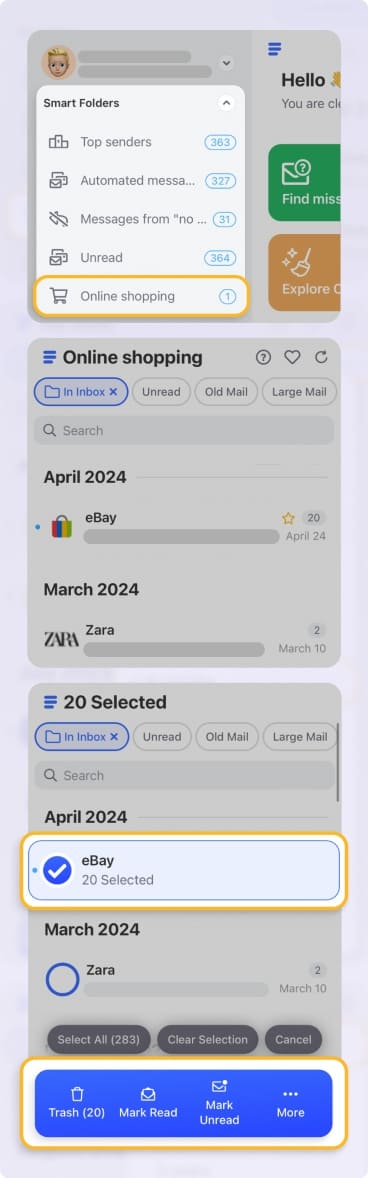
- Smart Folders: Clean Email automatically bundles similar types of emails, like notifications from project management tools, financial statements, or travel confirmations into easy-to-review and act on folders.
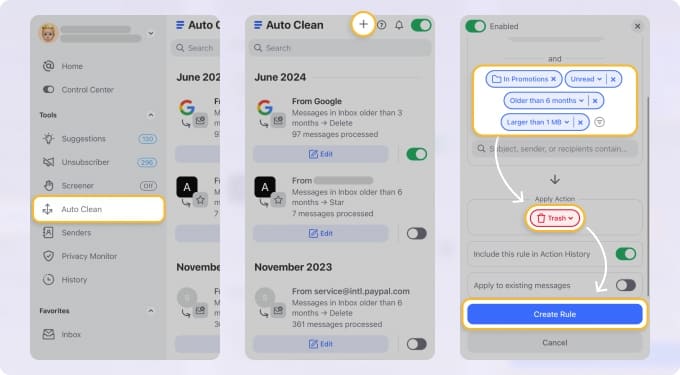
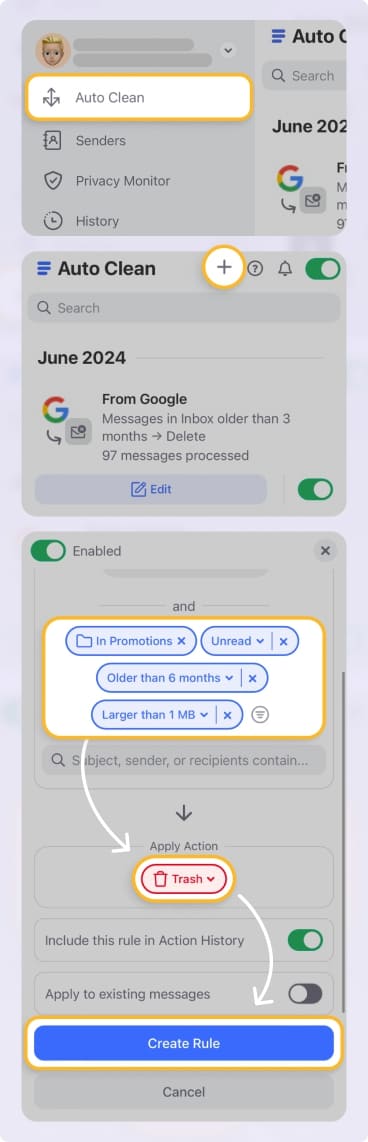
- Auto Clean: This feature creates powerful, permanent rules to automatically archive, delete, or move emails that match specific patterns.
- Unsubscriber: This is the nuclear option for unwanted mail. It identifies all your subscriptions and lets you unsubscribe from dozens of lists in minutes, without ever opening a single promotional email.
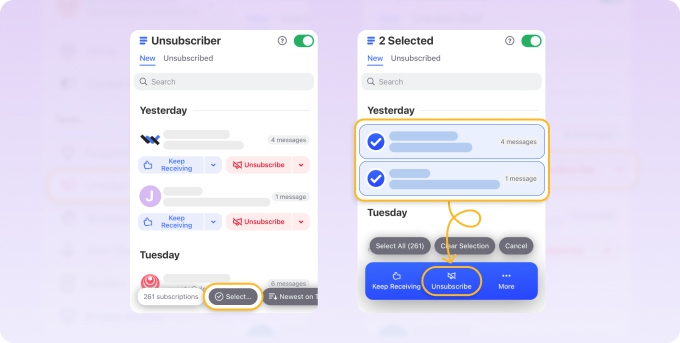
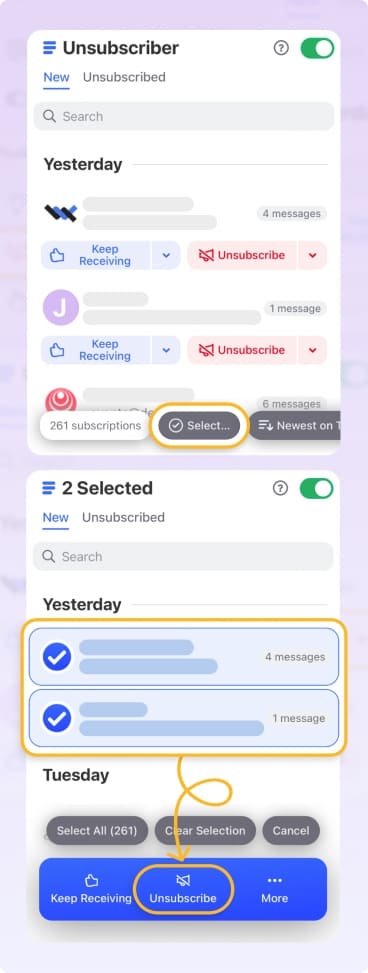
Gmail gives you some AI sorting — Clean Email gives you full control over what stays, what doesn’t reach your inbox, and what disappears.
The Future Is Smart, but Control Is Now
So which is more effective when it comes to inbox management: Clean Email or Gmail’s Gemini?
Gmail’s AI tools are a promising development in the fight against digital clutter. An inbox that is smart enough to organize itself is no longer a far-off dream. But these tools are still evolving, and their effectiveness depends on your willingness to constantly train the algorithm — and pay for Google One or Workspace access.
The good news is you don’t have to wait for the AI to get it right. By combining the passive sorting of Gmail’s AI with the active, rule-based control of Clean Email, you can achieve a state of inbox zero — and total email bliss — today.
📌 Read more: Use AI to Clean Up Your Email Quickly and Efficiently.












