How I Chose Email Cleanup Apps
When it comes to email management, declaring an app as the absolute "best" can be subjective, as individual preferences and specific needs vary widely. What works seamlessly for one person might not necessarily be the perfect fit for another.
For this comparison, I reviewed the most popular email cleaner apps available on the market today, looking for the ones that truly help reduce inbox clutter.
With this in mind, here are primary pain points and which app(s) addresses that need:
- Large old inbox backlog: Clean Email or Mailstrom
- Conversational cleanup without switching email clients: Clean Email through AI assistants such as ChatGPT or Claude
- Subscription overload: Leave Me Alone
- Incoming-email prioritization: SaneBox
- Quick cleanup on Apple devices: Chuck
- Quick archive-or-keep triage: Triage
- Occasional cleanup inside Gmail on eligible accounts: Gemini
- Gmail cleaner app for productivity and AI organization: Shortwave
- Premium, speed-focused professional workflow: Superhuman
- AI client with security-oriented features and basic cleanup: Canary Mail
- Cross-platform inbox, tasks, and email organization: BlueMail
- AI-driven ongoing inbox automation: Inbox Zero
Next is a quick side-by-side comparison of the apps to see how they differ before reading the full reviews:
| Tool | Best for | Bulk cleanup | Unsubscribe | Ongoing automation | AI capability | Platforms/providers | Pricing | Main limitation |
|---|---|---|---|---|---|---|---|---|
| Clean Email | Large old inbox backlog and ongoing cleanup, in the app or through AI assistants | Strong — grouped cleaning, bulk delete, bulk unsubscribe, Cleaning Suggestions | Yes, one-by-one and bulk unsubscribe | Yes, cleanup automations, Auto Clean rules, Smart Folders for automatic filtering | Rule-based, metadata-based cleanup engine; optional AI Assistants connection lets ChatGPT or Claude request grouped reviews, supported actions, and Auto Clean rule proposals | Web, Mac, iOS, Android / IMAP providers | Starting at $9.99/mo, $29.99/yr | Feature-rich interface takes time to understand |
| Mailstrom | Large old inbox backlog with simple functionality | Strong — sender, subject, size, and category-based bulk actions | Yes, one-by-one and bulk unsubscribe | Yes, for moving, blocking, and custom filters for Expire | Not traditionally, relies on matching patterns, intelligent grouping, and analyzing metadata | Web / IMAP providers | Starting at $9/mo, $59.95/yr | Limited automation, custom rules mainly sender- or subject-based, organization focuses on Inbox messages |
| Gemini | Occasional cleanup inside Gmail | Moderate: archive, delete, and label on request in eligible accounts; requests over 10,000 threads aren’t processed | No dedicated unsubscribe tool | No, acts on existing messages on request | Yes, search, summaries, and organizational actions where available | Web (Gmail side panel) / Gmail | Included with eligible Google AI and Workspace plans | Organizational actions may not be available in every account |
| SaneBox | Incoming-email prioritization | Moderate — includes Deep Clean, but cleanup is not the main focus | Yes, auto-unsubscribe, bulk unsubscribe | Yes, for continuous folder directing, automated reminder and snooze, and automatic inbox filtering | Yes, for automatic prioritization and sorting along with email summaries and automated folders | Web, iOS / IMAP providers | Starting at $9.49/mo | Expensive if you need the full feature set |
| Chuck | Quick cleanup on Apple devices | Moderate — good for fast mobile cleanup, weaker for very large inboxes | Yes, one-by-one and bulk unsubscribe | No, uses manual processing | Yes, AI-powered predefined filters for inbox triage | iOS, iPadOS, Mac / IMAP providers | Free, $5.99/mo, $49/yr | Better for fast Apple-device cleanup than automation, rules, and cross-platform management |
| Shortwave | Gmail-focused productivity and AI organization | Weak — not built for mass deletion or unsubscribing | Yes, one-by-one | Yes, automatic bundling and organizing | Yes, but only for drafting replies, summarizing threads, and scheduling | Windows, Mac, iOS, Android / Gmail | Starting at $18/mo | Automation and organization features Gmail-focused, not a dedicated mass-cleanup or broad subscription-management tool |
| Superhuman | Premium, speed-focused professional workflow | Weak — not a true bulk cleaner | Not traditionally, extracts unsubscribe links for manually opting out | Yes, automated sorting and prioritizing, auto-label, auto-archive | Yes, but only for auto-drafts and instant replies, email summaries, ask AI, write with voice | Windows, Mac, iOS, iPadOS, Android, Chrome extension / Gmail, Outlook | Starting at $30/mo | Not a dedicated bulk-cleanup tool, less suitable for deleting thousands of messages, broad unsubscribe management, or automating cleanup |
| Canary Mail | AI client with security-oriented features and basic cleanup | Moderate — Bulk Cleaner, sender/domain blocking | Yes, one-click unsubscribe | Yes, prioritizing and sorting | Yes, bulk cleanup along with email writer, thread summaries, AI chat | Windows, Mac, iOS, Android / IMAP providers | Free, starting at $3/mo or $100 one-time | Cleanup tools are secondary to AI email client features |
| BlueMail | Cross-platform inbox, tasks, and email organization | Light to moderate — clusters, unsubscribe, unified inbox | Yes, one-click unsubscribe | Yes, imports existing rules, automatic sorting | Yes, but only for smart composing, thread summaries, (with paid plan) GemAI Hub and Convos | Windows, Mac, Android, iOS, Linux / IMAP, POP3, Exchange, ActiveSync | Free, starting at $4.99/mo | Not built for aggressive old-inbox cleanup |
| Triage | Quick archive-or-keep triage | Light — archives unread emails, does not delete them | Yes, by archiving | No, uses manual processing | No, manual and gesture-based tool | iOS / IMAP providers | Free, $9.99/yr | Only archives, does not delete messages, iPhone-only |
| Leave Me Alone | Subscription overload | Weak — only allows for unsubscribing | Yes, one-by-one and (with paid plan) bulk unsubscribe | Yes, for newsletter Rollups, Priority Senders, and Screening for unwanted emails | No, the app uses a preset rule-based approach | Android / IMAP providers | Starting at $19/wk or $9/mo | Mostly for unsubscribe management, Android-only |
| Inbox Zero | AI-driven ongoing inbox automation | Moderate — bulk cleanup options include unsubscribe and archive | Yes, one-by-one and bulk unsubscribe | Yes, for labeling, archiving, and organizing | Yes, but only for creating rules, tackling existing emails, and as an assistant for meetings, events, and attachments | Windows, Mac, iOS, Android / Gmail, Outlook | Free, starting at $20/mo | Requires broad inbox access, more complex than basic cleaner or unsubscribe management app |
📌 Note: All above and below pricing information is current for the U.S. as of this writing. Please verify costs and plan inclusions at the time of purchase as these may change at any time, and also review for any differences per region.

The Best 12 Apps to Clean Up Email Inbox
1. Clean Email
Pricing: Free trial available. Paid plans start at $9.99/mo or $29.99/yr.
Works on: Web, Mac, iOS, Android
Best for
Clean Email clears large, overloaded inboxes and maintains them long-term with automation instead of repeated manual cleanup sessions. The app supports multiple providers and offers its entire feature set on every device for rule-based and algorithmic organization.
Features & how they actually worked
Clean Email works especially well for inboxes loaded with newsletters, shopping emails, social notifications, and years of unread promotions.
The first thing I noticed was how much easier it felt to clear emails in groups, rather than individually. And applying bulk actions allowed me to perform a faster, smoother cleanup.
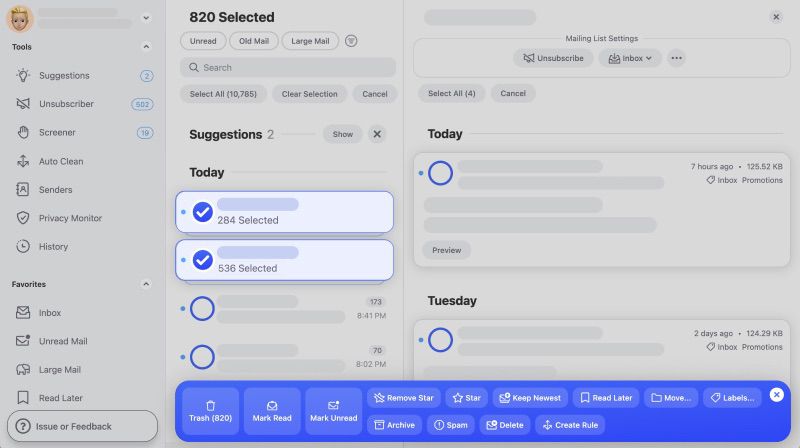
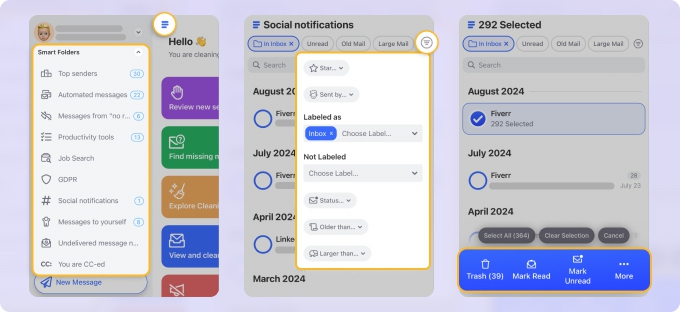
I mostly used sender groups and Smart Folders to find and delete old promos, “Your order has shipped” updates, and other random notifications that had been sitting in my inbox for years.
The Unsubscriber feature was one of the tools I ended up using the most. Some apps only redirect you to external unsubscribe pages, but here the process felt much faster. I selected a bunch of subscriptions, and the app sent all the unsubscribe requests for me.
Clean Email also has features like Cleaning Suggestions and Auto Clean that reminded me of intelligent filtering systems rather than traditional AI.
The Cleaning Suggestions were quite useful, especially for spotting low-priority emails that were safe to remove in bulk. And creating Auto Clean rules was a simple process that’s ideal for managing both my new and existing emails long-term.
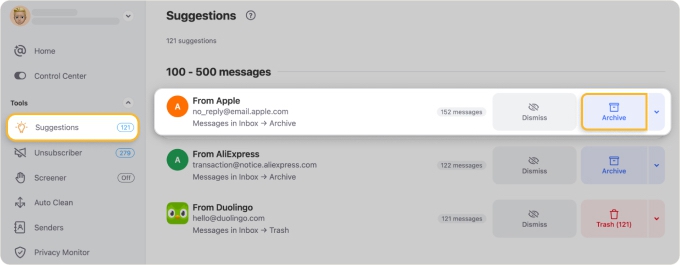
Compared to simpler cleanup apps, Clean Email felt more complete and useful for ongoing cleanup automation rather than one-time deletion. I also liked that most cleanup actions felt reversible and easy to review before applying them.
Cleanup through AI assistants
Clean Email can also be operated from ChatGPT, Claude, or another currently supported AI client through its AI Assistants connection. The assistant is only the plain-language interface. Clean Email’s rule-based, metadata-based engine still performs the cleanup, and the connection doesn’t write, send, or summarize emails.
The workflow starts with choosing the mailbox you want to manage and asking for a read-only assessment of cleanup opportunities. Then you review the message groups, affected counts, and proposed actions before applying a supported action. Auto Clean rules for future messages are a separate step, so review each rule on its own. Whether your AI client asks for approval depends on the action and the permissions you’ve set.
Example prompt: “Using Clean Email, show me five cleanup opportunities in this mailbox. Include the message groups, counts, and suggested actions. Do not change anything yet.”
Setup steps for each client are in our guide to connecting Clean Email to AI assistants.
Try Clean Email for free on the web, Mac, iOS, or Android.
Limitations
- The interface felt slightly overloaded during the first setup. There are many tools, views, and automation options, so it took more time to understand fully compared to lightweight apps like Chuck Email or Triage.
- Some automation settings (like setting up the Keep Newest feature) were buried deep in the interface.
Privacy and email access
Clean Email connects to supported email providers through secure OAuth authentication and supports major IMAP services including Gmail, Outlook, Yahoo, AOL, and iCloud.
Based on the company’s privacy documentation, user data is not shared or sold to advertisers, and most inbox organization tools rely on automated handling. Clean Email only accesses metadata and headers for feature processing. If you connect an AI assistant, the metadata returned to the chat, including subject lines, is also processed by that AI provider under its own policies.
- Over a dozen tools designed to help clean, delete, and organize email
- Supports automation rules
- Advanced email filtering
- Optional cleanup through AI assistants like ChatGPT and Claude
- No native app for Windows
- Interface can take time to fully understand
2. Mailstrom
Pricing: Free trial available. Paid subscriptions start at $9/month or $59.95/year for one email account and also include Chuck Pro for iOS cleanup (below).
Works on: Web
Best for
Mailstrom is a manual-first bulk-cleanup tool with basic rule-based automation. It is particularly useful for grouping and processing large numbers of messages by sender, subject, size, date, and other attributes.
Features & how they actually worked
When I tested Mailstrom, it immediately felt different from automation-based apps like Clean Email because the focus was much more on manual inbox sorting.
I mostly used the Sender, Subject, and Size filters to sort through old emails. The sender grouping worked especially well for cleaning years of accumulated promos and old forum notifications.
I liked how visual the cleanup process felt: emails were grouped into manageable bundles before I deleted or archived them.
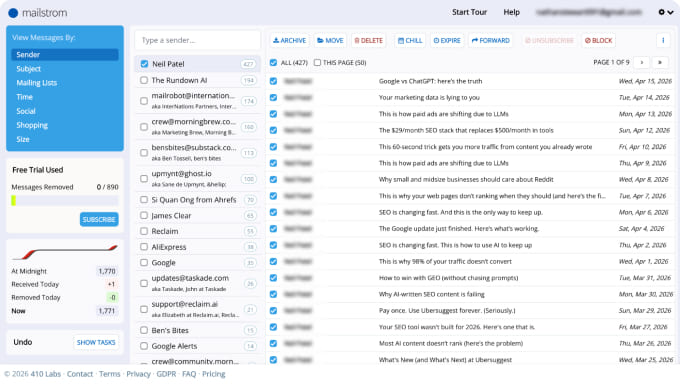
The unsubscribe feature worked reasonably well, but it felt more manual overall. I also noticed that Mailstrom focuses less on long-term inbox automation and more on helping users process existing clutter efficiently.
Mailstrom does offer custom rule creation for filtering and automatically moving incoming emails to folders, which is a plus. It also gives you features like Chill for delaying emails and Expire for erasing stale messages along with the ability to block future matching emails.
Limitations
- Mailstrom’s automation is more limited than dedicated automation-focused tools. Its custom rules are mainly sender- or subject-based, and its organization focuses on Inbox messages rather than every mailbox folder.
- The interface also looked slightly dated compared to some modern email cleanup apps.
- The unsubscribe process was slower when handling a large number of subscriptions.
Privacy and email access
Mailstrom works with most major IMAP email providers, including Gmail, Outlook, Yahoo, AOL, and iCloud, but it does not support POP accounts.
The service connects to email accounts through OAuth for supported providers. According to the company’s privacy information, Mailstrom does not sell personal data and focuses mainly on inbox organization and management.
- Multiple ways to sort your inbox
- Easy to apply same action to multiple messages
- Custom rules for filtering and moving emails
- Automated features that delay emails and erase outdated messages
- Limited automation rules for ongoing email cleanup
- Not a downloadable app
- Can’t unsubscribe from multiple or all subscriptions at once
- Interface looks slightly dated
📌 Learn more in our detailed Clean Email vs. Mailstrom comparison.
3. Gemini
Pricing: Included with eligible Google AI and Google Workspace plans. Google AI Pro costs $19.99/month or $199.99/year.
Works on: Web, through Gmail’s Ask Gemini side panel
Best for
Gemini is best for Gmail users who want AI help finding messages, summarizing conversations, and deciding what to clear out without connecting another service. However, before relying on it as your regular Gmail cleaner app, it’s worth checking which organizational features are available in your account first.
Features & how they actually worked
Gemini works directly inside Gmail, so you can ask questions about your inbox without switching to a separate app. Its search and summary features can help you locate older conversations or understand a lengthy thread before deciding whether to keep it.
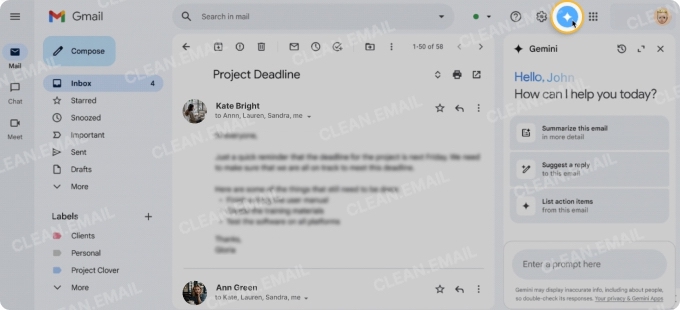
Google also documents organizational actions, including archiving, deleting, applying existing labels, changing read status, and starring messages. Where available, these actions require you to review the matching emails or confirmation card and approve the request.
However, my experience was different. During testing in Gmail’s Ask Gemini side panel, Gemini could find and summarize messages but refused to archive, delete, or label them directly, saying it did not have permission.
Gemini helped me find messages to clear out, but I had to archive, delete, or label them myself in Gmail. Since its organizational features may not be available to everyone, check what works in your account before relying on it for cleanup.
Limitations
Gemini’s usefulness as a cleaner tool depends on which features actually work in your account. If direct actions are unavailable, it serves mainly as an assistant for finding and reviewing emails rather than completing the cleanup.
For accounts with organizational actions, Google lists additional restrictions: requests matching more than 10,000 email threads are not processed, labels must already exist, and Gemini cannot mark multiple messages as spam.
As an inbox cleaner app, I’d consider it more useful for cleanup on request than for maintaining an inbox automatically. These actions handle existing messages; ongoing filtering and subscription management still require Gmail’s other tools or a dedicated app.
Privacy and email access
Gemini works directly within Gmail and can process email content to answer questions and summarize conversations.
Google states that Gemini in Gmail uses Workspace content to respond to prompts without using that content to train or improve its generative AI models. These protections differ from the policies covering the standalone Gemini app and Google’s experimental programs.
- Built directly into Gmail
- AI search and summaries help with reviewing messages
- Supports plain-language cleanup requests
- Organizational features may not be available to all users
- Gmail-only cleanup
- Requests matching more than 10,000 threads are not processed
- Limited options for ongoing cleanup automation
4. SaneBox
Pricing: Free trial available. Paid subscriptions start at $9.49/month, $4.54/month biyearly, or $5.42/month yearly for one email account.
Works on: Web, iOS
Best for
SaneBox is best for people overwhelmed by incoming messages with adaptive sorting into folders. It’s useful for reducing distractions and identifying lower-priority mail while less suited for bulk unsubscribe and large-scale historical deletion.
Features & how they actually worked
While testing SaneBox, it felt less like a traditional email cleaner and more like an inbox filtering system that quietly reorganizes emails in the background.
Instead of focusing mainly on bulk deletion, the app tries to reduce distractions by moving lower-priority emails out of the main inbox automatically.
At first, the folder system felt slightly confusing because SaneBox creates several new folders like SaneLater, SaneNews, and SaneCC. But after a few days, the logic started making more sense, especially for separating newsletters, CC emails, and low-priority notifications from important conversations.
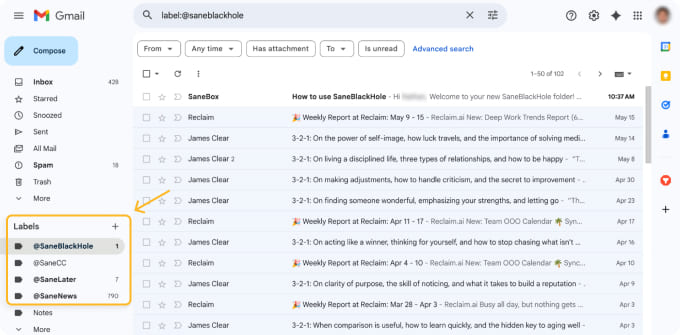
SaneBox also includes features like Deep Clean, which helps identify old or large emails for bulk cleanup. I found this useful for quickly spotting space-consuming emails with attachments, although the cleanup tools themselves felt less advanced than apps focused primarily on mass deletion.
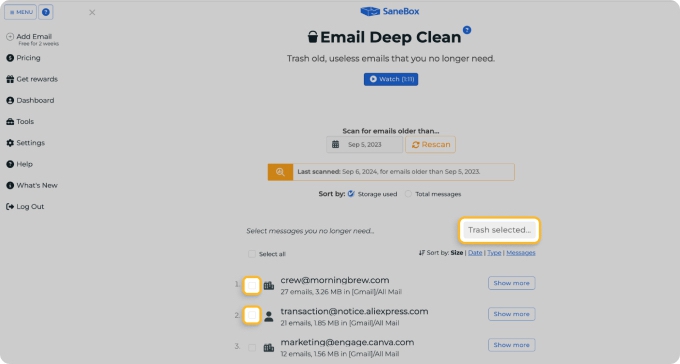
The company presents SaneBox as an AI-powered email organizer, but in practice, the experience felt closer to smart filtering and behavior-based sorting than modern generative AI.
The system gradually adapts based on how emails are moved between folders.
SaneBox also appeared to be more focused on reducing inbox distractions than aggressively deleting emails.
Limitations
- The free trial includes all features, but after that, many advanced tools become limited to the more expensive plans, especially if you want the full SaneBox experience.
- SaneBox works best over time rather than immediately. The filtering improved after several days of use, but the first experience felt less predictable while the system was still learning inbox habits.
- Users looking mainly for bulk unsubscribe or mass deletion tools may also find the cleanup features more limited compared to apps like Clean Email or Mailstrom.
Privacy and email access
SaneBox works with most IMAP email providers, including Gmail, Outlook, Yahoo, and iCloud.
The service connects through secure authentication methods supported by the email provider. According to the company’s privacy documentation, SaneBox encrypts and only stores your account credentials in order to scan necessary data including senders, subject lines, and dates. Your message content and attachments are not stored.
- Email Deep Clean to remove unneeded emails in bulk
- Real-time email prioritization
- Adapts to your habits by training folders for auto-sorting
- Advanced snooze features
- Requires setup process to use
- Limited email filtering options for bulk email cleanup
- Doesn’t really unsubscribe from newsletters
📌 Check out the detailed review of SaneBox.
5. Chuck
Pricing: Free version available for one email account with limited functionality. Chuck Pro is $5.99/month or $49/year for all features.
Works on: iOS, iPadOS, Mac
Best for
Chuck is an Apple-focused email-cleanup app for quick batch processing. It combines swipe-based cleanup with on-device AI suggestions that help users identify messages they may want to delete, archive, or act on.
Features & how they actually worked
The email experience in Chuck felt much lighter and faster than similar email apps. Instead of opening a dashboard full of filters and settings, the app offers quick bulk actions directly from iPhone. And Chuck also works as a full email client.
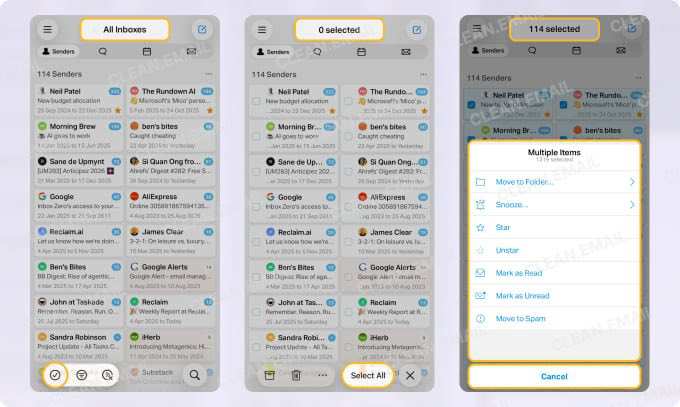
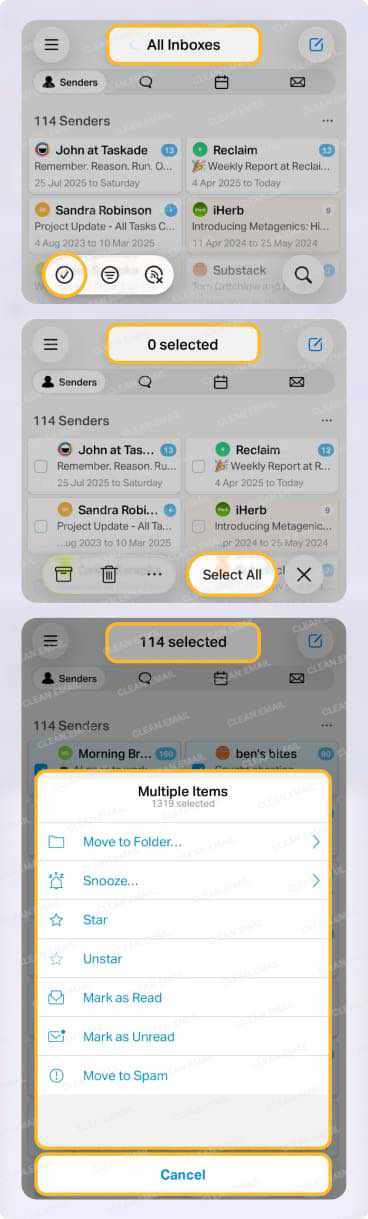
I mainly used it to clean promotional emails, old notifications, and unread updates during short sessions throughout the day. The swipe-based interface made the cleanup process feel much less tedious than desktop-heavy tools.
Chuck uses “on-device AI” to display emails that you’d most likely delete which speeds up inbox triage. I could open the app for a few minutes, clear batches of old emails, and leave without feeling stuck organizing the inbox for half an hour.

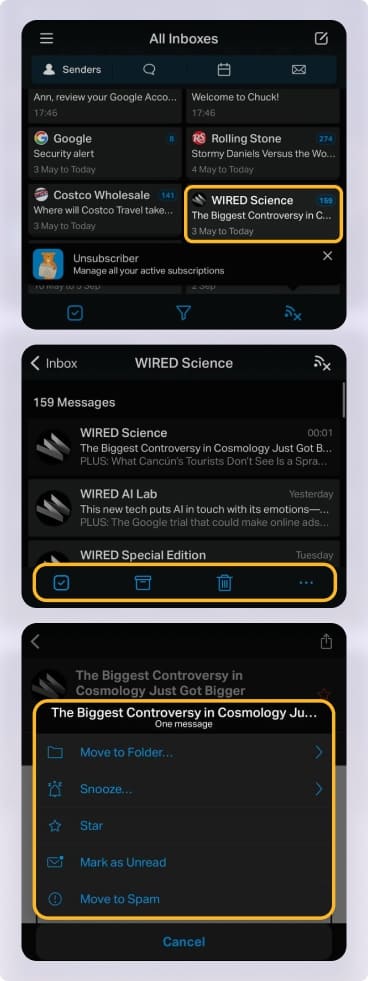
The filtering and unsubscribe tools worked well for basic cleanup tasks, although the experience felt much simpler than apps like SaneBox or Canary Mail.
Limitations
- Since Chuck processes emails locally and my inbox was still inflated with old emails, cleanup sessions became a little slower than I expected.
- For use on Mac desktop, you must have an Apple Silicon Mac and download the iPad app version; otherwise, use the web version of Chuck.
- Chuck is better for fast Apple-device cleanup sessions than for complex web-based automation, multi-condition rules, or cross-platform inbox management.
Privacy and email access
Chuck Email works with most major IMAP email providers, including Gmail, Outlook, Yahoo, AOL, Office365, Fastmail, Comcast Xfinity, and iCloud Mail.
Chuck says email and AI processing occur on-device and that it does not store email content or message metadata on its servers.
- Free-for-life version is available
- Combines multiple accounts in a single inbox
- Offers most common email management features
- No email deletion during unsubscribing, requiring manual cleanup
- Limited automation tools
- Download for macOS uses the iPad app version and requires an Apple Silicon Mac
📌 Take a look at more in our Chuck app review.
6. Shortwave
Pricing: Both Individual and Business plans available with free trials. Individual plans include a free version with limited features and AI usage or $18/month for expanded tools. Business plans start at $30/month.
Works on: Windows, Mac, iOS, Android
Best for
Shortwave is a Gmail-focused AI email client with inbox organization, AI summaries, drafting, search, scheduling, and natural-language AI filters. It is better for changing daily email workflow than for deleting years of accumulated promotions and notifications.
Features & how they actually worked
Shortwave felt very different from traditional email cleaner apps. It is closer to a Gmail replacement than a cleanup add-on, so the whole experience depends on whether you like its workflow.
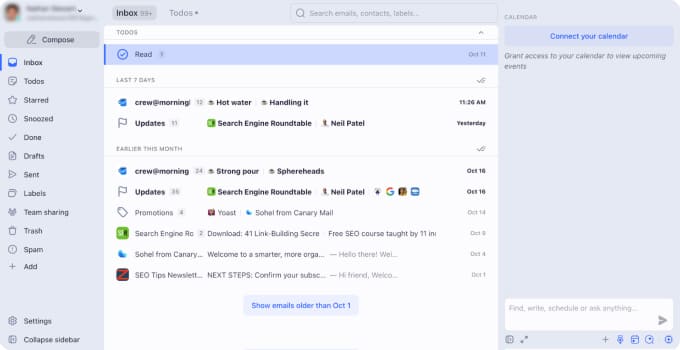
The app organizes email around bundles, splits, stars, todos, and scheduled delivery. I mostly used the Stars feature, it worked quite well for quick follow-ups I wanted to keep visible, while Todos felt better for longer threads that needed a real next step.
Shortwave’s AI can summarize long threads, draft replies, suggest responses, help with search, and assist with scheduling. The summaries were useful, but I still found myself reopening threads because the AI sometimes removed context that mattered.
Shortwave also offers custom filter creation using natural language for ease of use. You can automatically label, star, archive, and ultimately, organize emails.
Overall, Shortwave is more focused on changing how Gmail is organized and used day to day rather than on bulk inbox cleanup.
Limitations
- Shortwave’s automation and organization features are Gmail-focused. It is not a dedicated mass-cleanup or broad subscription-management tool for mixed-provider inboxes.
- The advanced features make sense after some use, but at first the workflow felt more demanding than simpler cleanup apps.
- Shortwave can organize email well, but it does not replace tools designed for auto-deleting, archiving, or unsubscribing from recurring unwanted emails.
Privacy and email access
Shortwave is built primarily for Google accounts. Its documentation says users can connect to some other providers through forwarding and SMTP, but Microsoft 365 and Exchange are not supported.
Because Shortwave uses AI features for summarization, drafting, search, and organization, users should review its privacy and AI data settings before connecting a work inbox or sensitive account.
- Lots of sorting and labeling options
- Stars and Todos for inbox management
- Advanced tools like Inbox Splits, bundles, and delivery schedules
- AI Assistant for routine email tasks
- Only works with Gmail
- Steep learning curve
- Basic automation rules
📌 Read more in our detailed Shortwave Email review.
7. Superhuman Mail
Pricing: Starter plan is $30/month or $25/month yearly; Business plan is $40/month or $33/month yearly.
Superhuman Suite plans are also available that include Mail, Grammarly, Docs, and Go, with a free version and paid plans starting at $15/month or $12/month annually.
Works on: Windows, Mac, iOS, iPadOS, Android, Chrome extension
Best for
Superhuman is best for Gmail and Outlook users who process high volumes of email and value speed, keyboard shortcuts, AI drafting, summaries, search, and prioritization.
Features & how they actually worked
Superhuman markets itself as a fast email client with built-in AI and smart email management features. It helped me move through important emails quickly, but it was not built for deleting thousands of old messages or unsubscribing from many senders at once.
The most useful cleanup-related feature was Split Inbox. I could separate important emails from less urgent ones, although it required manual setup.
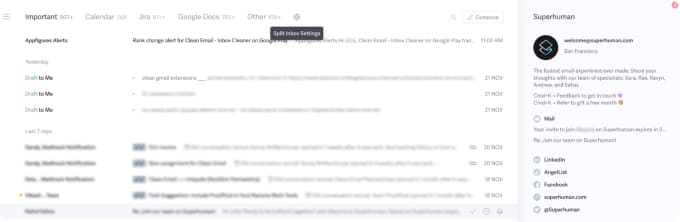
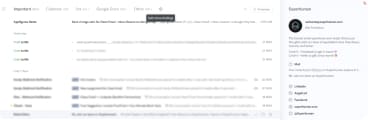
The unsubscribe and block options were helpful for obvious distractions, but they felt basic compared to other apps.
Superhuman’s AI features are more advanced than simple email filtering. It can summarize threads, draft replies, suggest responses, and help search across old conversations. These AI summaries were the most useful for cleanup because they helped me decide faster whether to reply, archive, or keep a thread visible.
Compared to Shortwave, Superhuman felt more focused on speed and shortcuts, even though it required more active use and did not sort emails in the background.
Limitations
- Superhuman is not a dedicated bulk-cleanup tool. It is less suitable for deleting thousands of older messages, broad unsubscribe management, or automating cleanup of recurring inbox clutter.
- For casual inbox cleanup, it may be too expensive. Superhuman makes more sense for people who handle a lot of email every day and can benefit from faster replies, shortcuts, and AI summaries.
Privacy and email access
Superhuman connects to Gmail and Outlook accounts and works as a full email client, so it needs broad access to your mailbox.
The company mentions encryption, enterprise controls, and SOC 2 Type II compliance. It collects account details like email, name, and phone number and its AI features also process email content for summaries, replies, and search. Users with sensitive inboxes should carefully review the privacy policy before connecting an account.
- AI productivity features
- Distraction-free interface
- Split Inbox for customized sections
- Send Later, Undo Send, calendar management, and team collaboration features
- Pricey subscription plans
- Limited to Gmail and Outlook email accounts
- No free trial or free plan
📌 Check out more in our Superhuman Email review.
8. Canary Mail
Pricing: Free version available with limited features. Growth paid plans start at $3/month yearly or a one-time cost of $100 for AI Copilot and additional features. Pro+ plans start at $10/month yearly or a one-time cost of $300 for the enhanced security features. Both paid options have a free trial.
Works on: Windows, Mac, iOS, Android
Best for
Canary Mail is a multi-platform email client with AI Copilot suitable for summaries, drafting, priority handling, sender/domain blocking, and basic bulk cleanup. It’s better for those who want AI and email-client features than for those who want a dedicated cleanup-only product
Features & how they actually worked
Canary Mail is a secure AI email client that can help reduce inbox clutter, but its cleanup tools are not as deep as those in apps built mainly for managing inbox clutter.
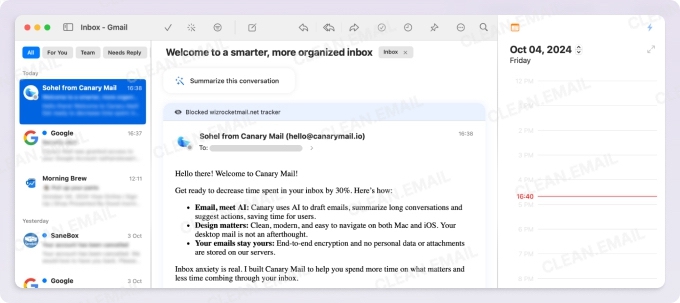
For cleanup, I used Bulk Cleaner to select and remove groups of emails at once. It worked fine for basic cleanup, especially when I wanted to clear obvious clutter quickly.
The block sender and block domain options were useful to stop unwanted emails. I liked this more than the basic unsubscribe in cases where the sender looked suspicious or kept sending messages after I had already tried to unsubscribe.
The AI Copilot was the main feature that stood out. It can summarize long emails, help draft replies, and highlight important messages. For cleanup, summaries were useful because they made it faster to decide whether a message was worth keeping, replying to, or deleting.
For users looking for the best AI cleaner app for iPhone, Canary Mail is a more accurate match because it offers you both inbox cleanup and AI summaries directly from the mobile app.
Limitations
- Canary Mail’s cleanup tools are useful, but are secondary to the AI and secure email features.
- The app also has more features than a simple cleaner, so it can feel excessive if all you want is to delete old promos and reduce inbox volume.
- Some of the more useful AI tools, smart features, and security options require a paid plan.
Privacy and email access
Canary Mail works with most major email providers and supports multiple accounts in a unified inbox.
Privacy is one of Canary Mail’s stronger points. It emphasizes security-oriented features, including PGP, SecureSend, and phishing protection on applicable plans. Users handling regulated or highly sensitive email should verify the current privacy, security, and contractual terms before connecting an account.
- Robust AI-powered tools for email prioritization and cleanup
- Secure with data encryption and SecureSend
- Basic cleanup tools plus strong AI features
- Steeper learning curve due to its feature-rich interface
- Not as many inbox automation options as in other apps
9. BlueMail
Pricing: Free plan available. Paid plans start at $4.99/month or $3/month yearly and include a free trial. Prices shown on the website vary by region and appear in your local currency.
Works on: Windows, Mac, Android, iOS, Linux
Best for
BlueMail is best for users who want a unified inbox across providers. It’s useful for clustering, task management, basic unsubscribe, and AI-assisted writing/summaries, but not a dedicated tool for aggressive historical inbox cleanup.
Features & how they actually worked
BlueMail is a powerful email app with cleanup and task management features built in.
The most useful feature for inbox cleanup was Get Stuff Done. Instead of leaving action-related emails in the inbox, I could turn them into tasks and move them out of the way. This worked well for emails like invoices to review, appointments to confirm, or messages I needed to answer later.
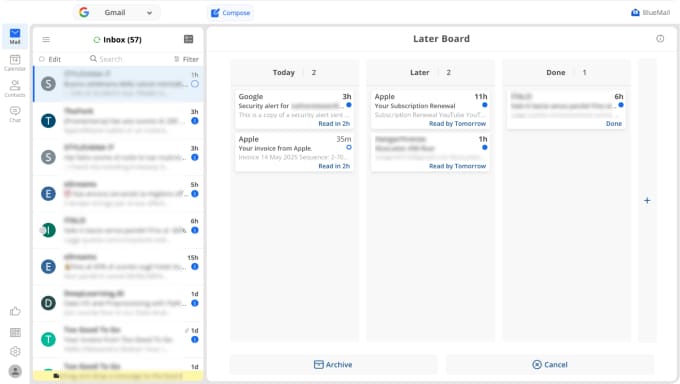
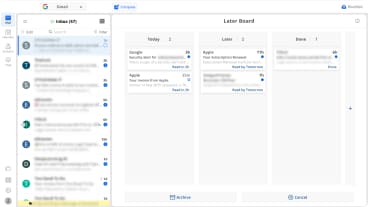
Clusters grouped similar emails in my inbox by sender or type, which made it easier to review repeated messages without manual scrolling. This worked well for newsletters, but I sometimes found grouped emails harder to skim quickly when several senders were mixed together.
The Unified Inbox was helpful when working with several accounts because it put everything in one view. This made BlueMail feel more practical than apps that only work with Gmail or Outlook.
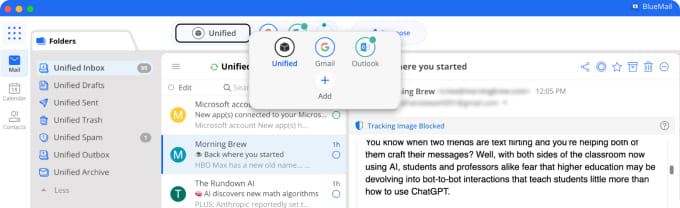
BlueMail also includes One-Tap Unsubscribe, and with paid plans, GemAI for summaries and drafting. The unsubscribe feature was useful for reducing future newsletter clutter. But BlueMail did not feel like the right tool for deep cleanup of old emails already sitting in the inbox.
Using this app makes the most sense for users who keep emails in their inbox because they still need to revisit them and take action.
Limitations
- BlueMail is not built for aggressive cleanup. It does not offer the same level of bulk cleanup or long-term automation as dedicated email cleaning apps.
- The AI features were useful, but they did not feel as central or polished as Canary Mail’s AI tools.
Privacy and email access
BlueMail supports most major email providers and protocols, including IMAP, SMTP, Exchange ActiveSync, and POP3.
The broad provider support is a major advantage, especially compared to Gmail- or Outlook-only tools. BlueMail also offers security features such as PGP encryption and business-focused controls on higher plans.
Its GemAI features (available with a paid plan) process email content for summaries and drafting, so this is worth considering for sensitive work inboxes.
- Built-in task management
- Unified inbox for multiple accounts
- Clustering email groups by type or sender
- AI assistant
- No automation rule setup
- Limited unsubscribe tools
10. Triage
Pricing: Free version available with a paid plan to unlock additional features for $9.99/year.
Works on: iOS
Best for
Triage is best for quick unread-email decisions through a swipe/card interface. It’s useful for archive-or-keep workflows but not appropriate for deep cleanup, storage reduction, bulk unsubscribe, or complex automation.
Features & how they actually worked
Triage shows unread emails as a stack of cards with a quick decision for each message: archive it, keep it, or open it.
This worked best for short cleanup sessions. I could go through unread emails quickly without getting pulled into the full inbox. The card format made the process feel lighter than scrolling through a long message list.
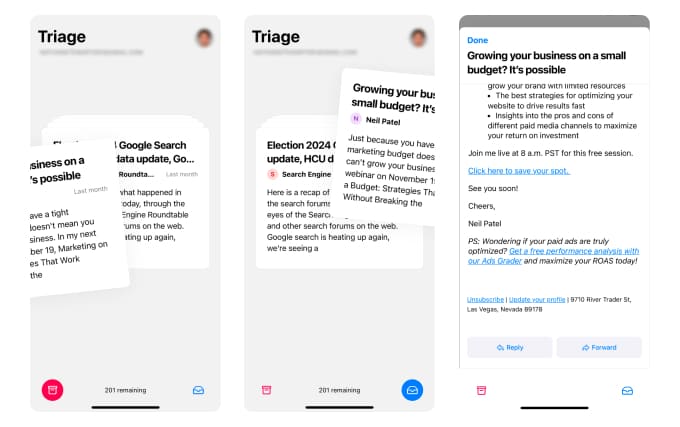
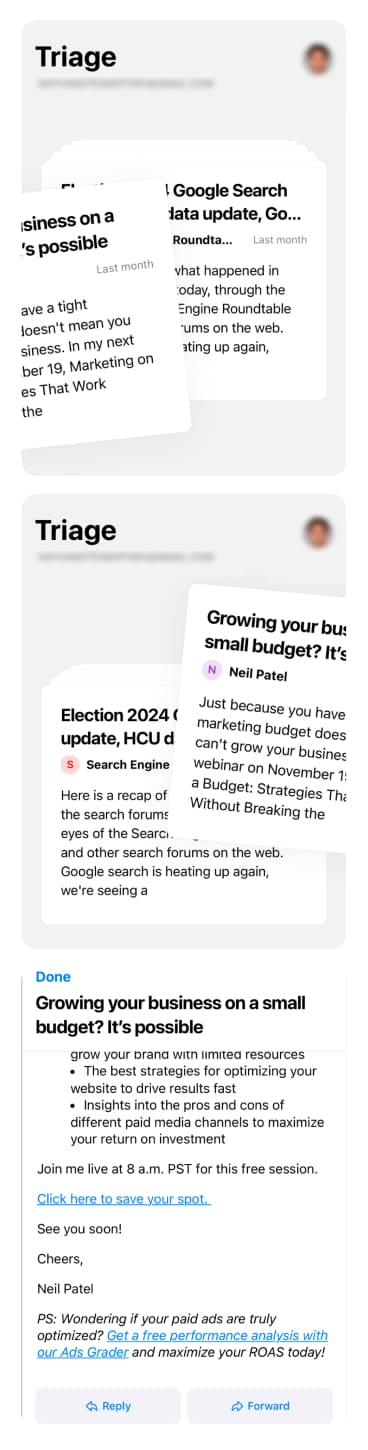
The important limitation is that Triage archives messages; it does not delete them. This makes the inbox look cleaner, but it does not remove old emails from the account or free up storage. For actual deletion, bulk unsubscribe, or deeper cleanup, it is much weaker than many other cleanup tools on the list.
Compared to Chuck, Triage felt even more minimal, with fewer cleanup options, but better suited to quick unread-message decisions.
Limitations
- Triage is not a deep cleaner. It does not delete emails, unsubscribe from senders in bulk, create automation rules, or organize old messages into folders.
- It is also iPhone-only, which makes it a poor fit for users who prefer desktop cleanup or need Android support.
- The app is useful for getting unread emails out of sight, but it does not solve the “years of old email” problem on its own.
Privacy and email access
Triage supports major IMAP email accounts, including Gmail and iCloud, but its privacy-first design also means it has fewer cloud-based automation and AI features than many other email cleanup tools.
Triage says email content stays on-device. It uses iCloud/CloudKit to synchronize limited app metadata, such as preferences and selected-account details, across devices.
- Simple swipe function to remove or save messages
- Lets you read and reply directly from the app
- Prioritizes privacy with secure on-device data processing
- Free to use, with optional paid features
- Only archives messages, leaving the storage cluttered
- No advanced features like automation or bulk email cleanup
- Free version adds a “Sent with Triage” signature to replies
- iPhone-only compatibility
11. Leave Me Alone
Pricing: Free trial available to unsubscribe from 10 emails with no other features. Paid plans include a Seven-Day Pass for a week of unlimited unsubscribing for $19 or subscriptions starting at $9/month or $7.50/month yearly for the additional features.
Works on: Android
Best for
Leave Me Alone is best for reducing ongoing subscription and promotional email. It’s suitable for those who want to unsubscribe or receive lower-priority subscriptions in a digest, but it’s not a full email client or advanced bulk-cleanup platform.
Features & how they actually worked
The main feature of Leave Me Alone is the Unsubscriber tool which is easy and intuitive. Once I connected my email account, the app scanned my mailbox and displayed all of my subscriptions. I then simply swiped left to unsubscribe or right to keep.
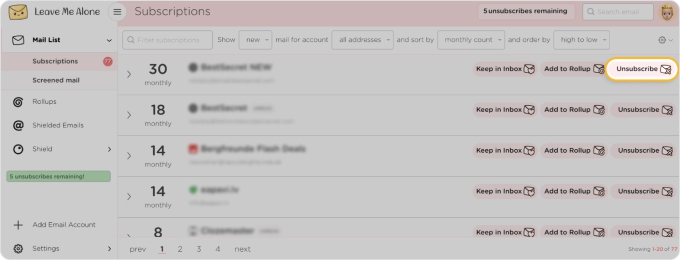
If you don’t mind subscribing to the top tier plan, you’ll like the Rollups for combining newsletters from one or more email accounts into digests that you can read on your own schedule.
You’ll also appreciate the Spam Blocker to reduce the junk now and with continuous learning and Do Not Disturb for scheduling when your emails appear in your Inbox.
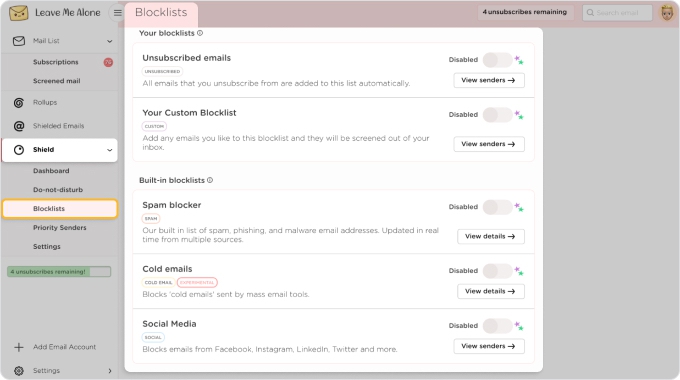
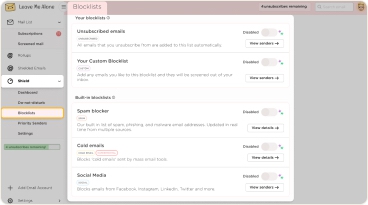
While Leave Me Alone accomplishes its goal of helping users unsubscribe and providing a few other useful features, it doesn’t offer other cleanup tools for ridding your mailbox of accumulated clutter.
Limitations
- Leave Me Alone is designed for subscription management, not for cleaning large historical mailboxes by sender, attachment size, date, or custom automation rules.
- The app’s “free trial” only allows for unsubscribing from 10 emails; not for trying any of the other features.
Privacy and email access
Leave Me Alone works with most IMAP accounts including Gmail, Outlook, Yahoo Mail, iCloud Mail, and more.
For features like Unsubscriber and Screener, the app only stores the necessary metadata, not message content. For other tools such as Rollups and Spam Blocker, Leave Me Alone accesses and may store content for processing these features. The company states that it does not share or sell user data.
- Finds and lists all subscriptions quickly
- Lets you unsubscribe or keep using a simple swipe
- The pay-once and subscription plans allow for more than one email account
- Only available for Android
- Must subscribe to a paid plan to try any features beyond unsubscribing
📌 Look at our comparison of Leave Me Alone vs. Clean Email for more.
12. Inbox Zero
Pricing: Free trial available. Paid plans start at $20/month or $18/month yearly.
Works on: Windows, Mac, iOS, Android
Best for
Inbox Zero is best for Gmail and Outlook users who want AI-driven inbox organization and ongoing automation. It’s useful for labeling, organizing, drafting replies, blocking cold email, and reducing clutter over time. Because it’s more sophisticated than a basic email cleaner, there’s potential for complexity making it less suitable for a simple one-time cleanup.
Features & how they actually worked
When I first connected to Inbox Zero, the app began organizing my emails with labels which was super helpful.
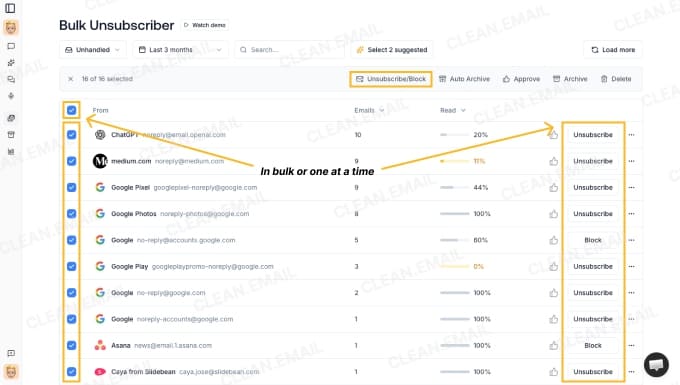
I was then able to start cleaning by immediately reviewing and Unsubscribing from newsletters that I don’t read. The app let me unsubscribe one at a time or in bulk, and also gave me the option to block certain newsletter senders.
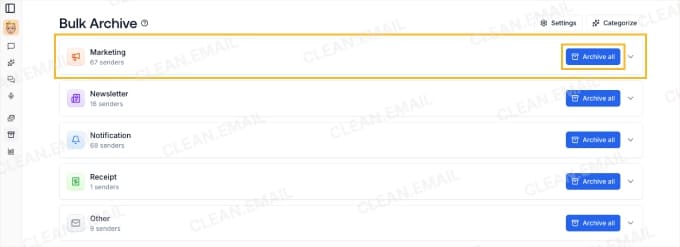
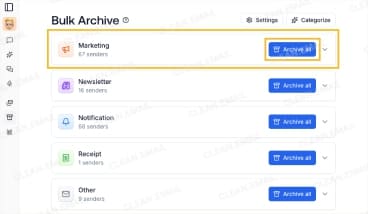
Next, I checked out the Bulk Archive feature which lets you view messages by label and archive all emails for a clean sweep. Archiving is ideal for emails you want to keep, but it would be nice if there was an option to delete the messages instead.
I then looked at the Analytics which is a good way to see the number of emails you’re receiving for a timeframe of your choice and grouped by day, week, month, or year. This is useful to see where most of the clutter comes from.
Those are the three main cleanup tools offered by Inbox Zero. The rest of the features are specific to mailbox management and AI assistance for meeting briefs, calendars, attachments, and the like.
Limitations
- Inbox Zero requires broad inbox access and is more involved than a basic cleaner or subscription-management app. It is best for ongoing inbox automation rather than a quick one-off cleanup session.
- It’s unclear how to create mailbox rules for continuous decluttering. You can do this using the Chat feature, which is an AI bot, but I had to check the Help section to determine this.
- The app cannot automatically delete emails that arrive. It can only trash existing messages in the inbox using an AI instruction.
Privacy and email access
Inbox Zero supports Gmail, Google Workspace, and Outlook email accounts.
The app accesses, stores, and transfers various data for processing of its features. Email account data includes content, metadata, and account settings, and usage data includes information about how you use their website and services.
For authentication, Inbox Zero uses OAuth tokens and API access tokens, and the app is SOC 2 Type 2 compliant, open-source with its code on GitHub, and provides a self-hosted option.
The company’s policy mentions that email content is not retained past what’s needed to provide the requested features.
- Offers bulk unsubscribing
- Provides bulk archiving
- Displays analytics that show frequent email senders
- Only works with Gmail and Outlook
- Limited cleanup tools
- No free plan
AI Email Cleaners vs. Email Agents
While the apps above focus on cleaning, sorting, and organizing emails, a newer category has started to appear: AI-native email agents. These are not email cleanup tools in the traditional sense. They are assistants that read your inbox, understand context, and take action on your behalf.
AI email agents can do things like summarize lengthy threads, draft replies, triage incoming emails, and search with natural language. What they cannot do well yet is bulk cleanup, mass unsubscribe, work with mixed providers, and apply long-term inbox automation rules.
AI email agents make the most sense for:
- High-volume professional inboxes where reply speed matters
- Sales, recruiting, and client-facing roles with repetitive email patterns
- Anyone who spends more than an hour per day on email
- Users who already have a clean inbox and want to keep it that way
They are less useful for people whose main problem is years of old promos, newsletters, and notifications. For that, a dedicated email cleanup tool is still the faster and cheaper starting point.
A middle option is connecting an AI assistant to a dedicated cleaner. With Clean Email’s AI Assistants connection, you can ask ChatGPT or Claude for cleanup recommendations in plain language, while Clean Email’s cleanup engine and Auto Clean rules handle the actions you choose.
Final Thoughts
Many people may not need an “email cleaner.” They might need bulk cleanup, prioritization, or a better workflow — and those are very different problems. The right choice depends on what makes your inbox feel out of control.
For large backlogs of old promos, newsletters, notifications, and unread emails, a dedicated cleanup tool is the best starting point. Clean Email works best for bulk cleanup and long-term automation, while Mailstrom makes more sense for manual sorting and reviewable bulk actions. If you’d rather ask for cleanup in plain language, Clean Email can also be directed from ChatGPT or Claude while you keep your current email app.
If incoming email is the bigger problem, SaneBox is better for prioritization because it moves low-priority messages out of the way automatically. For quick iPhone cleanup, Chuck and Triage are useful, but they are not ideal for deep inbox cleaning.
Apps like Shortwave, Superhuman, and BlueMail are better for active email management than mass cleanup. They can help with summaries, follow-ups, tasks, and inbox structure, but they are not the first tools I would choose for deleting thousands of old emails.
My final recommendation is simple: Choose the app based on your main pain point.
Read more:
FAQs
What is the best email cleaner app for iPhone?
The best email cleaner app for iPhone depends on your needs. Clean Email is a powerful inbox cleaner for iPhone that is great for bulk cleanup and automation, Chuck is perfect for quick mobile cleanup, and Triage is useful for simple swipe-based iPhone mailbox clearing.
What is the best email cleaner app for Android?
Some of the top email cleaners for Android include Clean Email for bulk cleaning and automation, Shortwave for Gmail cleaning and productivity, and Leave Me Alone for subscription clear-out and email management.
What is the best email cleaner app for Mac?
A few notable email cleaners for Mac include Clean Email for mass cleanup and ongoing automation, Canary Mail for AI tools and basic cleanup, and Inbox Zero for bulk cleanup.
What is the best Gmail inbox cleaner?
Clean Email is the best Gmail cleanup tool in this comparison for bulk cleanup and ongoing automation, with Smart Folders, bulk unsubscribing, and Auto Clean rules. It can also be used from ChatGPT or Claude through its AI Assistants connection. Gemini is a convenient alternative for occasional cleanup directly in Gmail on eligible accounts, while Shortwave is better suited to daily email organization and productivity.