


Why your inbox stays full even after deleting emails
You may have deleted emails, but your storage is still full because email service providers manage deletions differently. Here’s what happens:
1. Deleted emails aren’t permanently removed
Does deleting emails free up space? Not all the time and instantly. To better understand why, we should firmly establish “What does deleting an email do?”
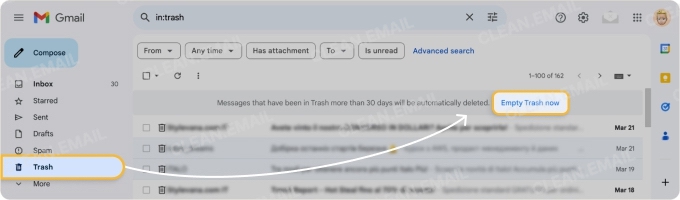
Deleted Gmail and iCloud messages go to the Trash and Bin folders, respectively, where they stay for 30 days unless you manually empty them.
Meanwhile, Outlook messages stay in the Deleted Items or Junk folder for 14 days (or depending on your settings) before going to the hidden Recoverable Items folder, where they permanently disappear.
📌 Note: Archiving emails isn’t the same as deleting them. It only “hides” messages, but the contents, including attachments, don’t leave your account.

2. Attachments continue taking up storage
Emails with large attachments will consume storage space once they move to the Trash, Junk, or Recoverable Items folder. The same thing applies in the Sent or Archived folders.
💡 How much space does an email take up? Its text content alone is typically 100KB and below. However, attachments like images and videos can reach 20 to 25MB.
3. Trash and spam don't automatically empty themselves
Like messages in the Trash folder, unwanted emails land in the Spam folder and are typically held for another 30 days.
Although you can auto-delete Gmail and Outlook messages, you have to manually clear the Trash and Spam folders regularly to prevent messages from taking up space.
4. Other "data" can increase your mailbox size
The storage of Gmail, Outlook (both offer 15GB for free), and iCloud (just 5GB unless you get a paid storage subscription) covers more than just email messages:
- For Google: Uploads to Drive and Google Photos, as well as WhatsApp backups.
- For Outlook: Contacts, calendar items, chats, and Personal Storage Table (PST) and Offline Storage Table (OST) files, which archive mailbox data or make it accessible offline.
- For iCloud: Backup files and photos saved on iPhone.
Platform-specific reasons your mailbox shows “full”
After discussing what happens on most platforms, let's explore how specific mailboxes interpret available space to settle the issue of "Why won't my storage go down," even after manually deleting hundreds of messages.
Gmail
Here's why your Gmail says “storage is full” after deleting everything:
- Gmail messages with a specific label (or several) can still exist in "All Mail"
Because labels are mere tags, deleted emails may still reside in All Mail—your true source in Gmail—even if you remove the label.
- Gmail's built-in search hides your heaviest files
By default, search results exclude what's inside your Trash or Spam folders. You must refine your search and enter "in:anywhere" to include them.
- Gmail can experience sync lag related to storage
Another possible reason why your Gmail is still full after deleting messages is that it can take 48 hours or up to seven days (for large deletions) for your storage status to update.
iCloud/iPhone
On iCloud and iPhone, the response to "Can deleting emails help with storage?" depends on the email's location and how your device caches it.
- Sync issues may prevent deletion
Because synchronization results take time to show on iCloud storage, a file deleted on one device may not immediately disappear on another.
- The iCloud and iPhone keep caches and databases for messages
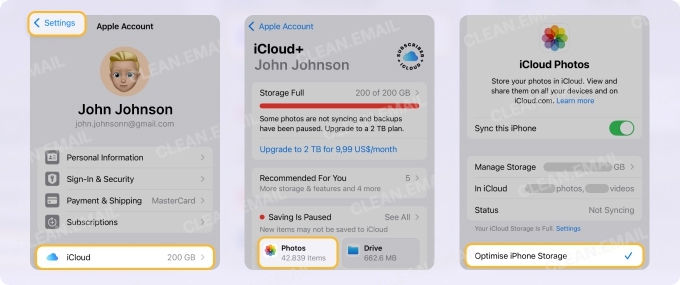
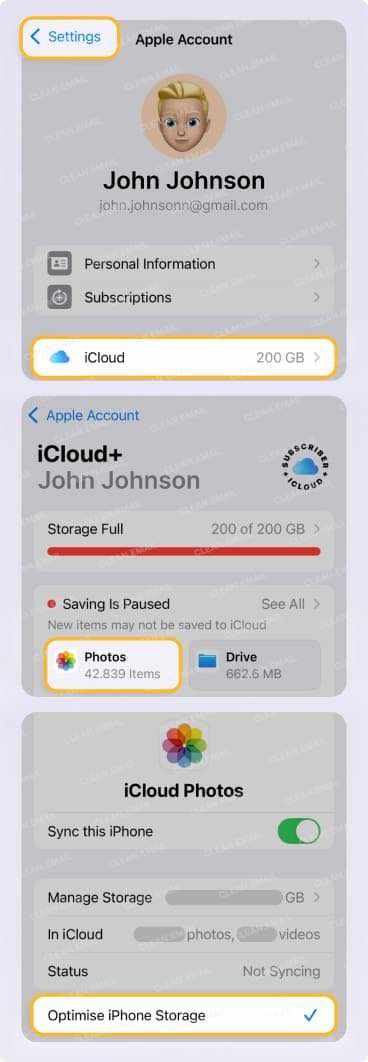
iCloud storage can be filled with data fragments from deleted messages, making your inbox look full. Deletions don’t free up storage space immediately and may require restarting your phone or enabling “Optimize iPhone storage.”
Outlook
Due to Outlook's unique storage characteristics, the answer can be "no" to the question "Does deleting emails clear storage?" on the platform. Here are some reasons why:
- Data can be “hidden” in folders other than "Deleted Items"
Outlook can store data in folders other than "Deleted Items," which aren't visible to users. They include:
- Subfolders in the Recoverable Items Folder (Purges, Versions, Audits, SubstrateHolds, and Calendar Logging)
- Sync Issues folder, which saves the messages created when Outlook fails to sync with your mail server
- Chat History, which stores conversations on Microsoft Teams
- The Cached Exchange Mode can make your inbox appear artificially full
Outlook creates an .ost file containing your mailbox contents (emails, contacts, and calendar), which is saved on your computer, allowing you to view them offline.
However, this OST file can make the copy up to 80% larger than the mailbox size reported on the server because it caches deleted and sent items.
- PST and OST file sizes keep growing unless "compacted"
Outlook’s PST and OST files only “compact” this data when your unused or "white space" reaches around 20%, as the process can slow down its operations.
- Unlike Gmail, Outlook's 15GB storage is for emails only
Outlook offers free, separate 5GB storage on OneDrive for other files.
How Clean Email Helps Free Up Storage
Online solutions like Clean Email offer a range of features that automate email management, including freeing up your inbox storage. The good news is Clean Email can work with Gmail, Outlook, and iPhone/iCloud across all platforms, including Mac desktops, mobile devices, and the web.
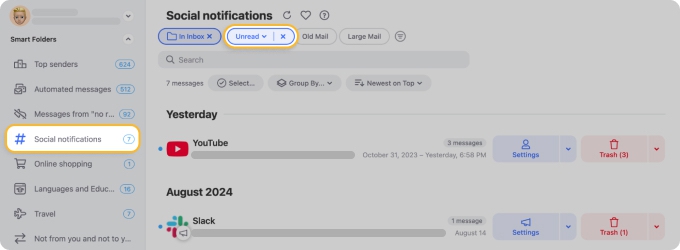
Smart Folders
Clean Email groups emails according to various criteria using Smart Folders. To declutter your inbox:
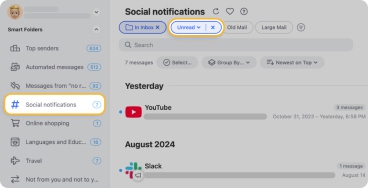
- Prioritize scanning folders such as Marked as deleted, Unusual Senders, and Social notifications. Also, consider deleting promotional emails and irrelevant newsletters.
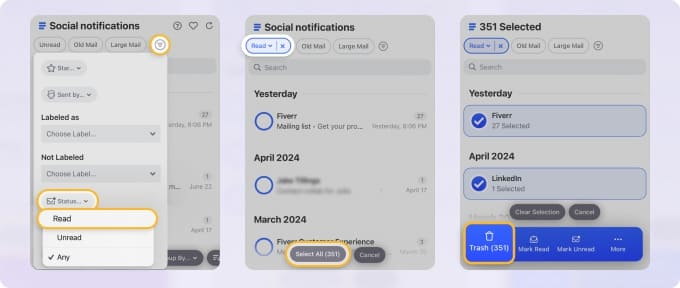
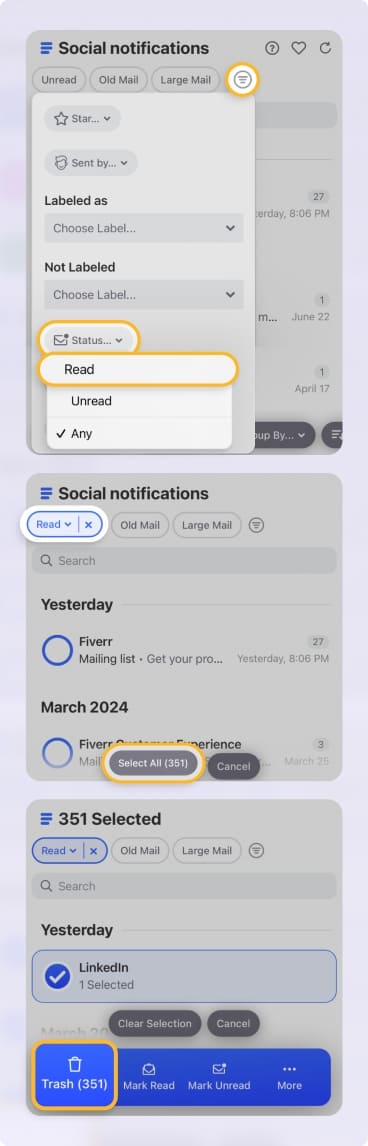
- Bulk-remove dozens or hundreds of messages by sender, file size, or other segment when you click the funnel button at the top of the page (beside the Large Mail button) and select an option.
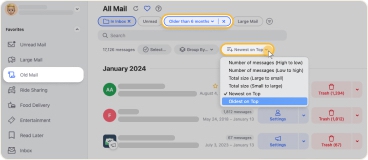
- “Should I delete old emails?” In most cases, yes, as this buildup can slow down your mailbox’s loading time. Do this instantly on Clean Email by tapping the Old Mail button at the top of the page (beside the Unread button) or the Group by button below the search bar, then tap Date.
Auto Clean
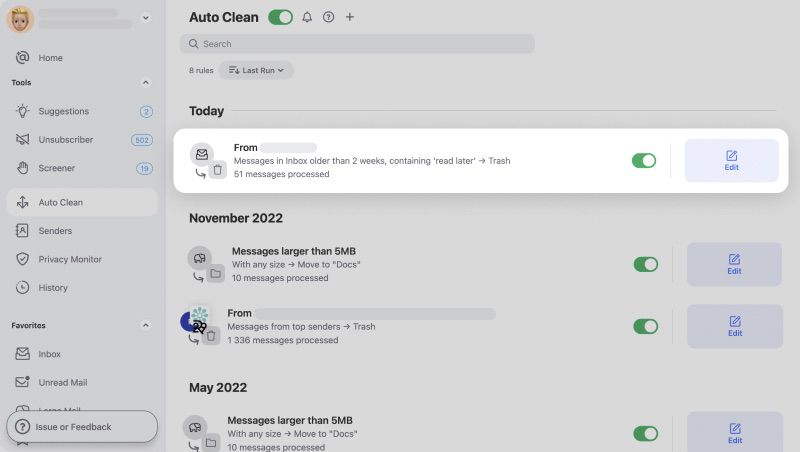
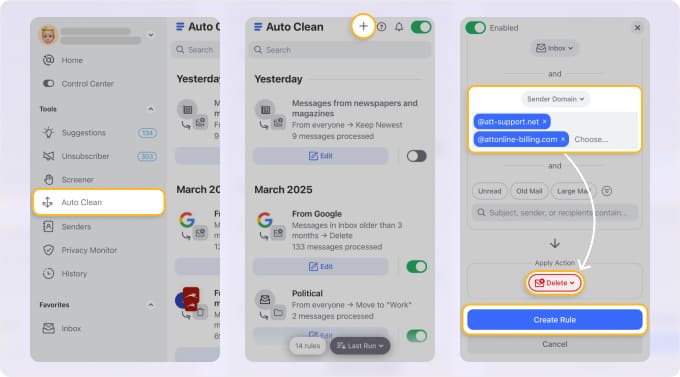
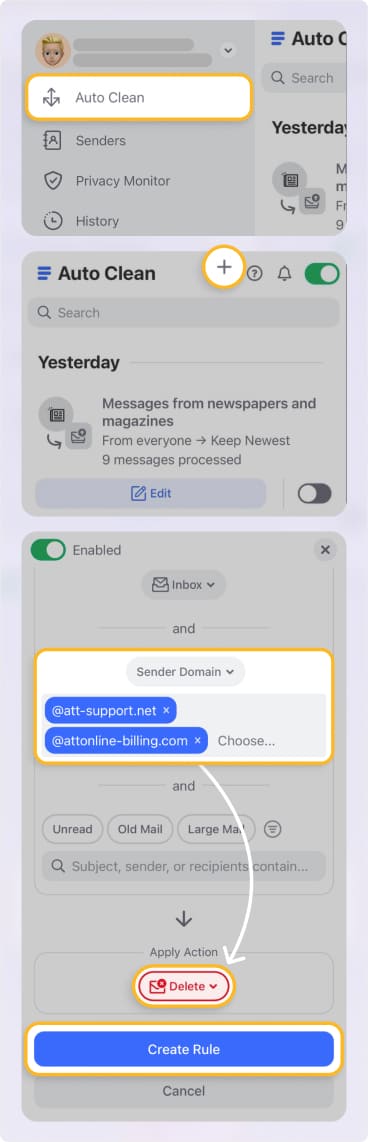
Auto Clean allows Clean Email users to create rules that automatically delete emails based on location (folder), sender status, size, or age.
📌 Note: Emails sent to "Trash" or “Spam” are still recoverable. Selecting “Delete” will permanently remove them from your inbox.
Unsubscriber and Screener
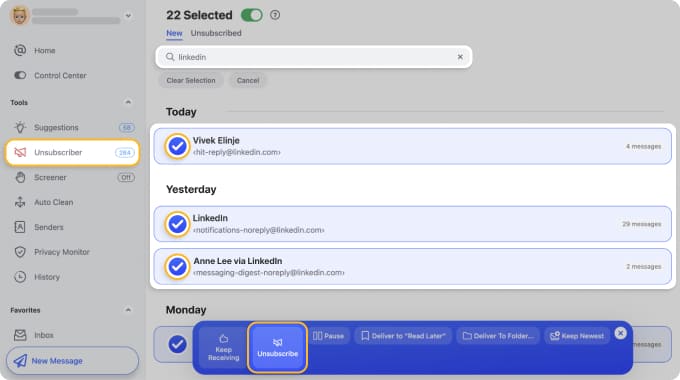
Clean Email's Unsubscriber tool lets you stop receiving unwanted emails from your specified senders, even in bulk.
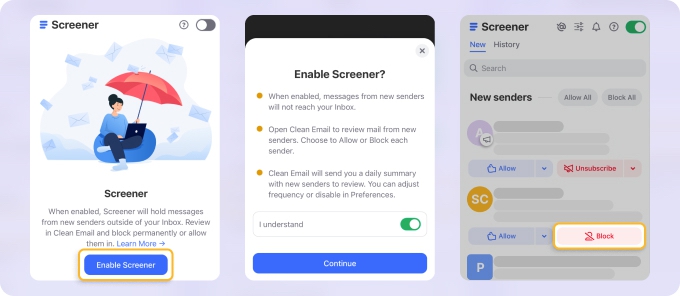
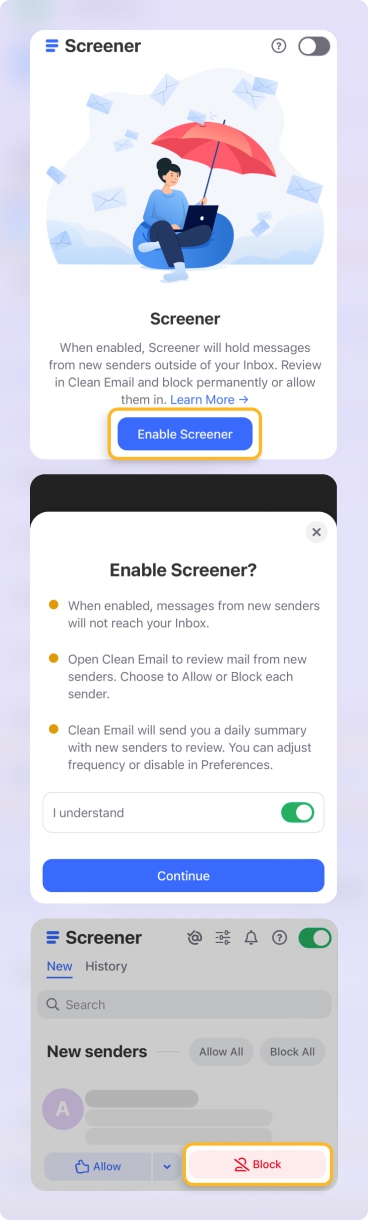
At the same time, you can block suspicious senders and prevent spam from reaching your inbox by using Screener.
How to Prevent Your Inbox From Getting Full Again
By this time, we can establish that the answer to "Does deleting emails clear storage?" is only "sometimes." After freeing up space, the next challenge is to keep your inbox from gradually ballooning again. Achieve long-term storage management with these simple habits and settings.
1. Follow a deletion routine
One productivity step is to set a weekly schedule to empty the Trash and Spam folders and delete old Sent mails. Remove messages with heavy attachments after downloading the files you need.
Check Gmail’s built-in filters to delete emails by file size in Gmail or delete emails by age in Gmail, so you can group messages by size, date, sender, or subject and remove them in bulk.
For Outlook and iPhone/iCloud, review their native filtering options to organize messages by sender or subject before deleting them.
2. Create folders for essential emails
Transfer important emails (booking information, purchase confirmations, and billing updates) to specific folders. Download attachments to your computer and then delete the email.
3. Review storage hogs outside your inbox
Check storage outside your mailbox every few months:
- Google Drive and Google Photos
- iPhone/iCloud device backups
- Outlook’s data files (“Compact” OST/PST files by going to Outlook’s Account Settings → Data Files tab → Settings)
Reducing Inbox Size: Beyond Simple Deletion
Deleting emails isn’t enough to free up mailbox space. We also need to manage the amount of data carried by attachments, hidden folders, and allied storage.
Practicing inbox management routines, including using tools like Clean Email, can prevent storage issues from coming back.












