


How to Change Swipe Settings in Gmail on Android
Changing the swipe actions in Gmail on Android takes only a minute. And remember, if you set a swipe gesture and find that another would be more useful, you can change it easily.
- Tap the hamburger icon (three lines) on the top left to open the menu.
- Select Settings.
- Pick General settings.
- Choose Swipe actions.
- Tap Change above Right swipe, Left swipe, or each to pick an action.
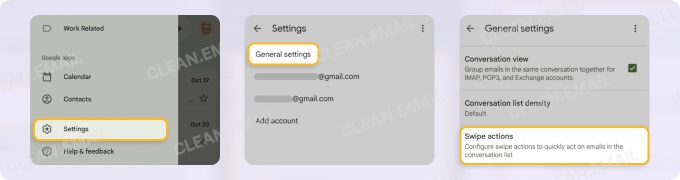
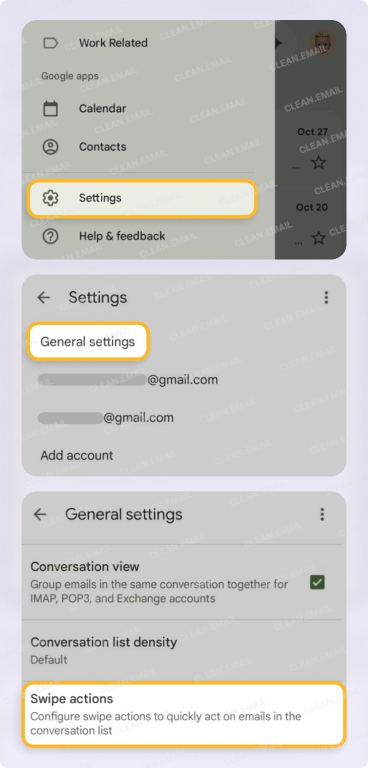
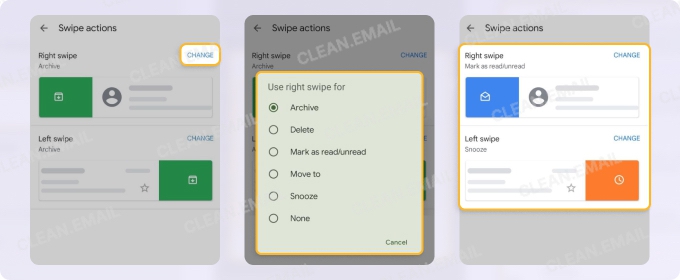
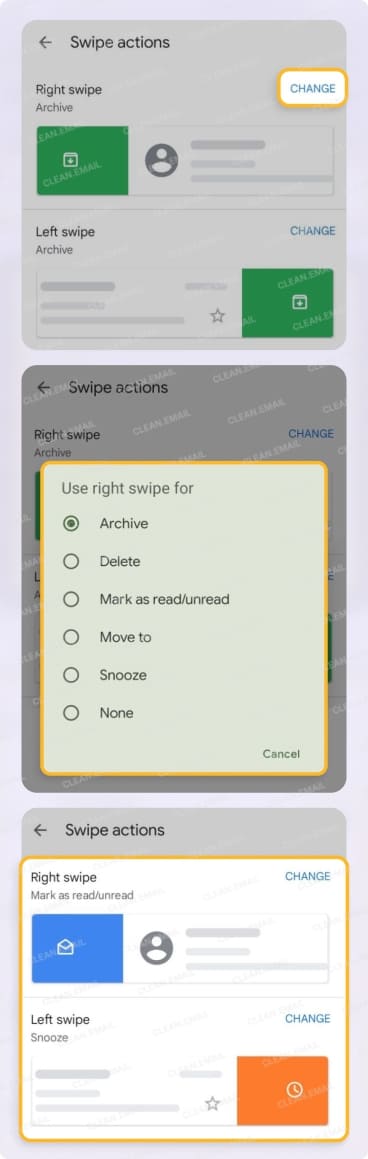
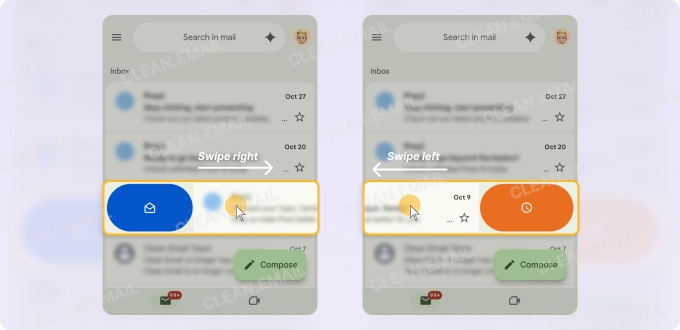
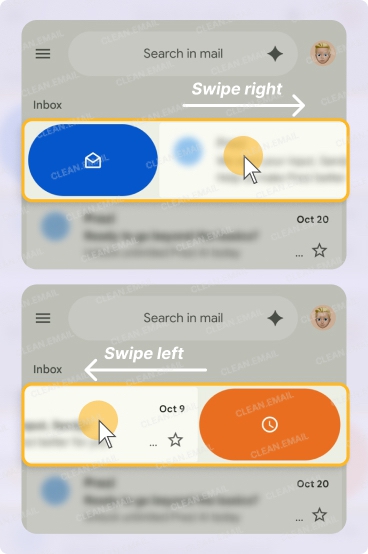
You can then give your swipe gestures a try. Swipe an email right and/or left to perform your selected action. Notice the icon and colored background which correspond to the assigned action.

How to Change Swipe Settings in Gmail on iPhone and iPad
While slightly different from Gmail’s interface on Android, you can change the swipe actions on both iPhone and iPad the same way.
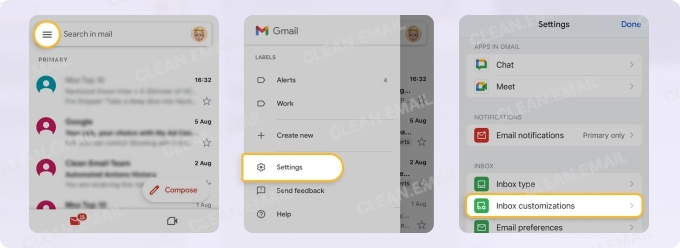
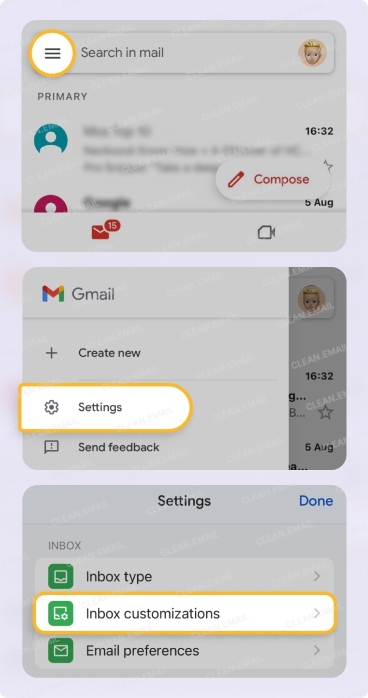
- Tap the hamburger icon (three lines) on the top left to open the menu.
- Select Settings.
- Pick Inbox customizations in the Inbox section.
- Choose Mail swipe actions.
- Tap Right swipe, Left swipe, or each to pick an action.
- Select Done.
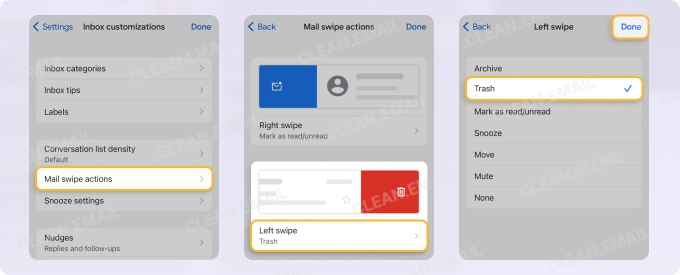
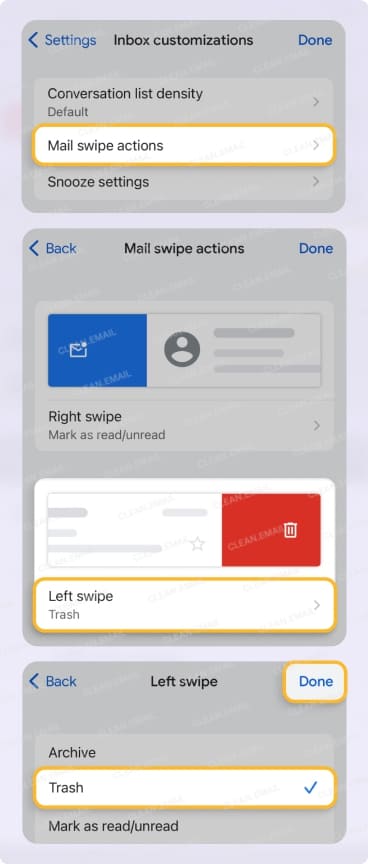
Again, you can test out the swipe gestures you select and adjust them if you like. You’ll also see the icons and colored backgrounds that match the actions, just like on Android.
How to Use Swipe Actions in Gmail
To use swipe actions in Gmail on your mobile device, you just slide an email in your message list from right to left or left to right to apply an action. There’s no need to open the email and find the action you want, so you can perform a fast inbox triage.
This time-saving feature is also customizable. For instance, you can choose to swipe right to delete and left to move or swipe right to snooze and left to archive. The choice is yours.
By default, the swipe actions are set to Archive in Gmail, but you have several other useful options. The available actions include:
- Archive: Archives the email instead of deleting it.
- Delete or Trash: Deletes the email by sending it to the trash.
- Mark as read/unread: Marks a read email as unread or vice versa.
- Move to: Moves an email by applying a label.
- Snooze: Snoozes an email for a date and time you select.
- Mute (iPhone and iPad only): Mutes an email thread by archiving it.
- None: Applies no action.
What to know:
📌 The available actions may differ if you connect a non-Google email account in the Gmail app.
📌 If you have two or more Google accounts connected in the Gmail app, the swipe actions you select apply to all accounts on that particular device.
📌 The swipe actions you set up are device-specific, not account-specific. For example, if you set swipe to delete on iPhone for your Gmail account, you can set swipe to archive for the same Gmail account on iPad.
📌 Swipe gestures are available for your inbox, custom labels, and limited other labels like Starred and Spam.
Go Beyond the Swipe with Clean Email
Swipe actions in Gmail are super handy when you want to handle one email at a time on your mobile device. But this isn’t always the most effective way to manage your messages, especially if you have a chaotic and cluttered inbox.
To complement the swipe gestures by using bulk actions and automations for long-term management, consider Clean Email for Gmail.
Clean up thousands of emails at once
Rather than archiving or deleting one message at a time, you can select multiple or all emails and apply an action. Best of all, you don’t have to keep scrolling to load and select more messages like in the Gmail app.
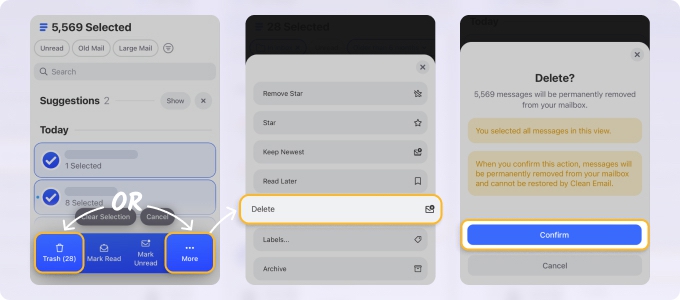
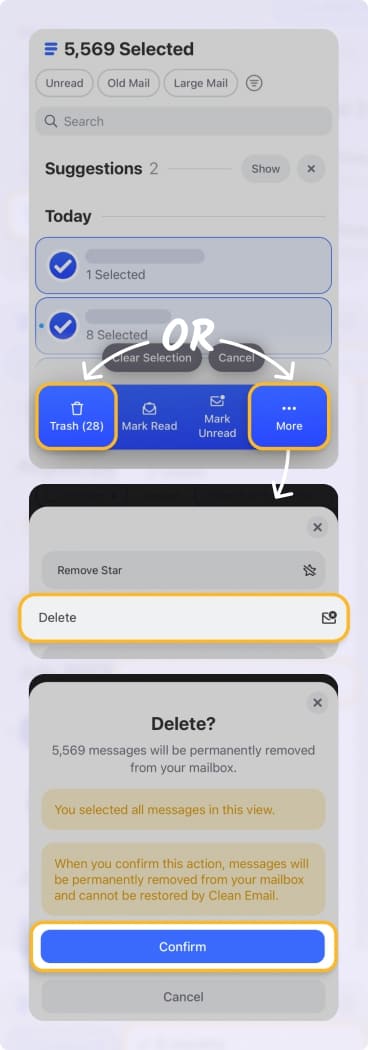
Use actions unavailable for swiping
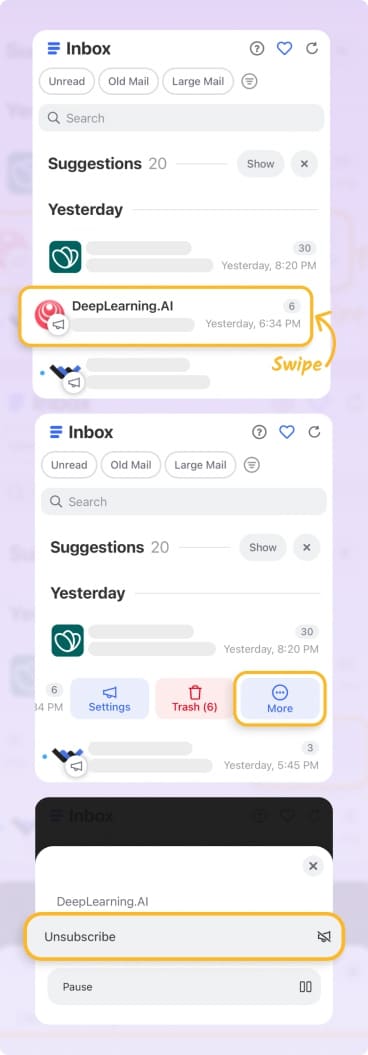
As mentioned earlier, you have a select set of actions you can use with swipe gestures in Gmail. If you want to unsubscribe from emails, mark spam, block a sender, or apply a flag, you have to open the message and find the action. But with Clean Email, you can choose most any action when swiping an email in your message list.
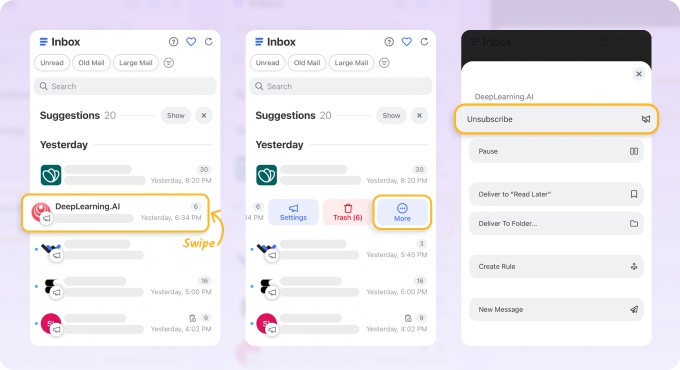
Clean Email is safe to use and committed to your privacy and security. It works on the web, Mac desktop, and mobile and is compatible with all IMAP service providers.
Conclusion
Swipe actions in Gmail make it easy to handle messages on your mobile device. As you peruse your inbox, you can quickly archive, delete, move, or snooze an email without taking the time to open it and find the action you need.
💡 Read more: Declutter Your Gmail Inbox: a Weekend Reset Plan.












