Key Takeaways
- Successfully switching from Yahoo Mail to Gmail involves a three-step process: Prepare, Migrate, Complete.
- Prepare your Yahoo mailbox before moving by unsubscribing, deleting, and cleaning up your emails using Yahoo Mail’s built-in features and supplementary apps like Clean Email.
- Migrate your Yahoo Mail account using Gmail’s import tool, automatic forwarding, or a third-party tool.
- Complete the process by notifying contacts, updating linked accounts, and keeping your Yahoo Mail account active during the transition.

Phase 1: Clean Up Yahoo Before You Move to Gmail
One of the most important things you can do before migrating is to clean up your Yahoo Mail account. You don’t want to bring years of clutter to a new mailbox. Start fresh by performing the following before you switch from Yahoo to Gmail.
Unsubscribe from newsletters, marketing messages, promotions, and other bulk mail you don’t want. Get detailed help with how to unsubscribe from emails on Yahoo. For those subscriptions you want to continue, you can re-register or update them with your Gmail address.
Clean up Yahoo Mail by deleting emails you won’t need again or archive those you want to keep for reference. Be sure to do this before Yahoo Mail’s 20 GB storage limit causes an issue.
Decide which folders to move and be choosy as Gmail does have a limitation (described in Phase 2 below). You may be able to eliminate some folders ahead of time by removing the outdated emails they hold.
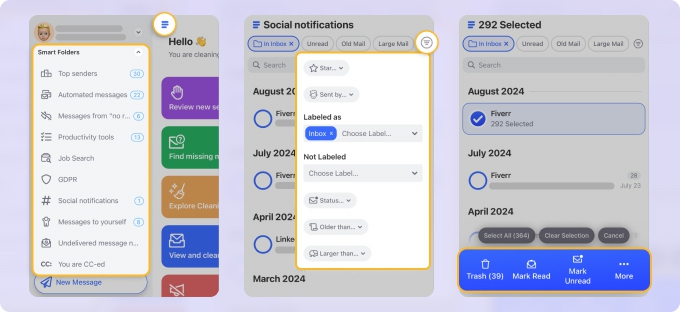
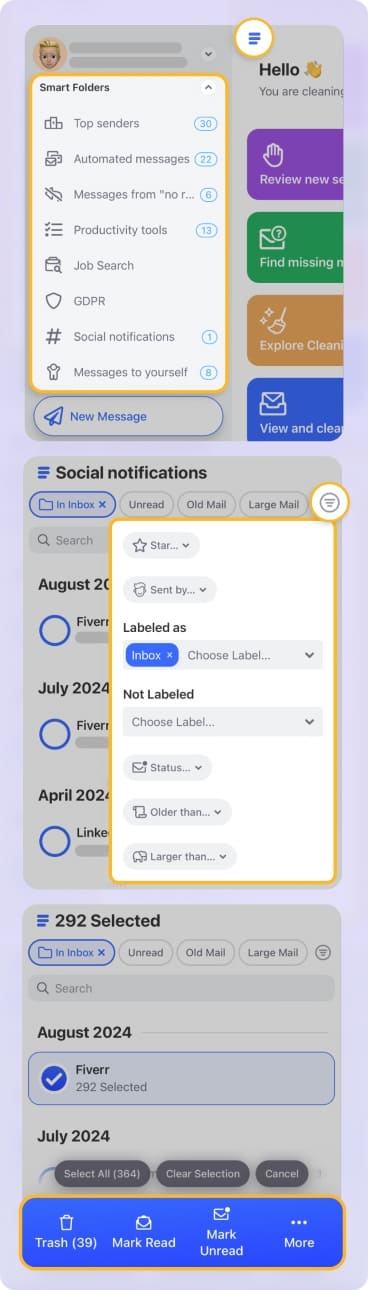
Use Clean Email to bulk process emails by category with Smart Folders. These pre-made folders automatically filter related messages like Travel, Real Estate, Job Search, Top Senders, and more, with the option to act on these emails in bulk.
Phase 2: The Migration — Methods and Their Real Limitations
Once you’ve performed a solid cleanup of your Yahoo mailbox, it’s time to make the move. You have a few different options for migrating to Gmail.
Gmail's Built-In Import Tool
An obvious choice to transfer Yahoo emails to Gmail is with Gmail’s built-in import tool. This service uses IMAP or ShuttleCloud to move your existing emails, and it continues to import messages sent to your other account for 30 days.
⚠️ Warning: The import tool does not import folders or labels! To avoid losing messages, you can manually forward the emails from your folders in Yahoo to Gmail.
To use the import tool:
- In Gmail, select Settings → See all settings.
- Go to the Accounts and Import tab.
- Select Import mail and contacts.
- Enter your Yahoo email address and click Continue.
- Choose Continue and Agree to begin the process.
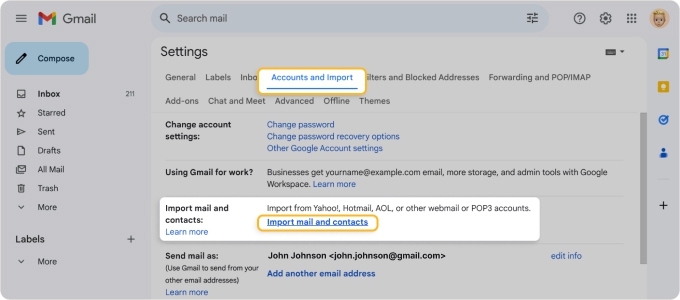
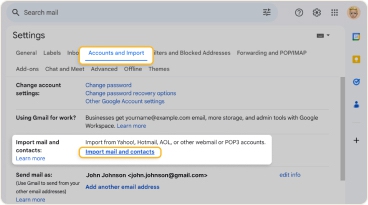
You may be prompted for a Yahoo app password for Gmail to access your account. Follow the steps below to generate this password.
- In Yahoo, select your profile icon on the top right and pick Manage your account.
- Go to the Security tab.
- Choose External connections on the left.
- In the External connections section, select App passwords and click Create app password to the right.
- Follow the prompts to generate an app password and click Done when you finish.
Depending on the size of your Yahoo mailbox, it can take from hours to days for the full import to complete.
Yahoo Mail Automatic Forwarding
While you can manually forward emails from Yahoo Mail to Gmail, you can also take a look at the automatic forwarding option. You simply enable forwarding in the Yahoo Mail settings, enter your Gmail address, and verify the destination email address.
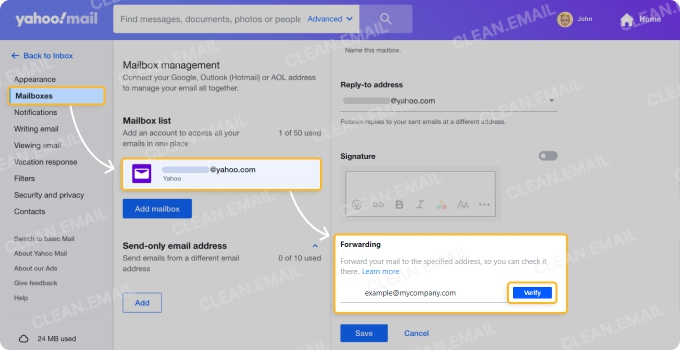
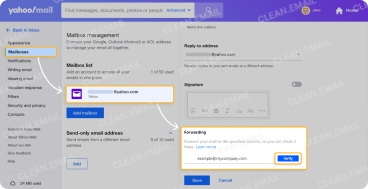
Once free to users, this service now requires a Yahoo Mail Plus subscription. Depending on your region, plans start at around $5 per month.
Third-Party Migration Tools
If you have a hefty Yahoo mailbox or must transfer your custom folders from Yahoo Mail to Gmail, consider a third-party migration tool. These typically make the process smoother and let you move items not included with Gmail’s import tool; however, they come with a price tag.
You can check into options like VaultMe or BitRecover which offer affordable services. Just be sure to review pricing, what’s included, how long it takes, and other details.
Phase 3: After You Switch From Yahoo Mail to Gmail
The work isn’t done after you migrate Yahoo Mail to Gmail. Remember, you’ve likely given your Yahoo email address to others for various things.
Notify your contacts: Send a simple email from Yahoo providing people with your new Gmail address. You should do this before deactivating your account.
Keep Yahoo active for at least 90 days: Because services like banks, social media, and subscriptions have your Yahoo address, let incoming mail forward to your new Gmail account and check Yahoo Mail periodically while you update your accounts.
Update linked accounts: Provide your new address to entities that currently have your Yahoo email address on file. Prioritize banking, government, subscriptions, and social media accounts.
The account recycling risk: When Yahoo accounts are deactivated and left inactive, the Yahoo Terms of Service states that it may eventually reassign the username to a new user. That new user can receive emails meant for you, including password reset links. Either keep the account active or be methodical about updating each service before closing the account.
Once you complete the migration, take a bit of time to organize Gmail and the transferred emails. You can create labels, set up automated filters, and choose a suitable inbox type.
Check out our complete guide to organizing Gmail for tips and suggestions.
Recommendations
If you’re wondering the best way to move from Yahoo to Gmail given the options mentioned here, consider the following recommendations:
- Use Gmail’s import tool if you clean up your Yahoo Mail account first and don’t need the contents of your folders.
- Use the automatic forwarding if you want to keep Yahoo Mail open and don’t mind paying for the Yahoo Mail Plus subscription.
- Use a third-party tool if you want to migrate all Yahoo Mail folder contents, attachments, and structure.
This option provides the simplest way to transfer your emails.
This method lets you use both accounts until you’re ready to close out Yahoo completely.
This choice may provide additional benefits such as backups and support depending on the service you pick.
Conclusion
Now that you know how to transfer Yahoo Mail to Gmail, you can begin the process more confidently.
Clear your mailbox using Yahoo’s features along with Clean Email to help to speed up the cleanup. Choose the migration method that best suits your needs. And finally, take care of the post-migration items to ensure a smooth transition.