


Before Removing a Gmail Account From Your Phone
Whether you want to remove your Gmail account for privacy concerns, are tired of managing multiple email accounts, or would like to simply start over using a different email address, here are a few things to keep in mind.
Removing a Gmail/Google account on iPhone or Android:
- Only deletes it from your device; you can still access your account via the web.
- Removes all related data stored on your device, such as contacts and emails.
- May sign you out of other Google apps like YouTube, Maps, and Photos.
If you still want to remove Gmail from your mobile device, we’ll walk through the steps below for both iPhone and Android.
⚠️ We strongly suggest that you back up any data you want available for the account in another location before you remove it from your phone.

How to Remove a Gmail Account From iPhone
Whether you’ve been using Gmail’s official mobile app or Apple’s Mail app for your Gmail account, here’s how to remove Gmail from your iPhone.
How to Remove a Gmail Account From the iPhone Gmail App
Deleting an account from the Gmail app on iPhone is simple and takes only a handful of steps.
- Open the Gmail app on your iPhone.
- Tap your profile icon on the top right.
- Select Manage accounts on this device.
- Choose the Remove from This Device for your Gmail account.
- Confirm with Remove.
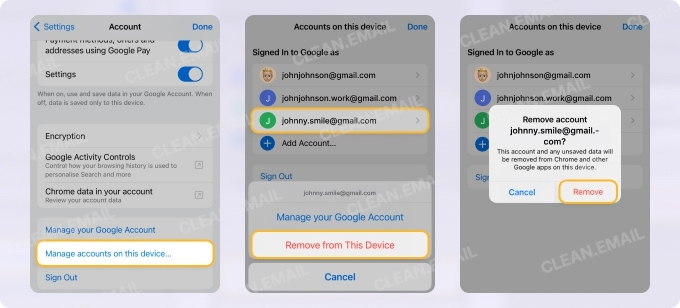
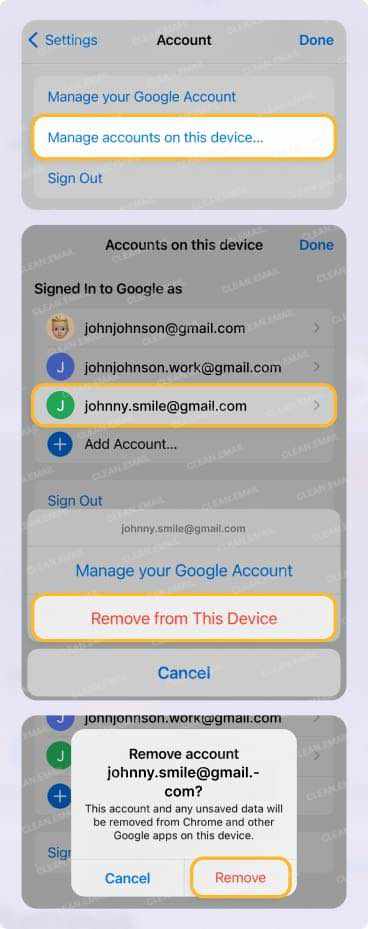
Repeat this process if you want to remove another account from the Gmail app.
How to Remove a Gmail Account From the iPhone Mail App
Just as easy as deleting an account from the Gmail app, you can remove one from Apple Mail on iPhone. These steps let you keep Gmail on your phone, but remove it from Mail — in case you change your mind later or want to continue using other services connected to the account.
- Open the Settings.
- Select Apps and choose Mail.
- Pick Mail Accounts.
- Tap the Gmail account you want to remove from Mail.
- Turn off the Mail toggle and optionally those for Contacts, Calendars, and Notes per your preference.
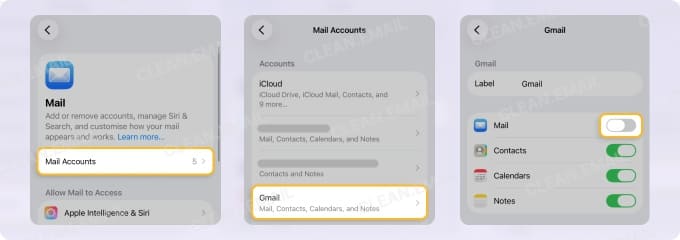
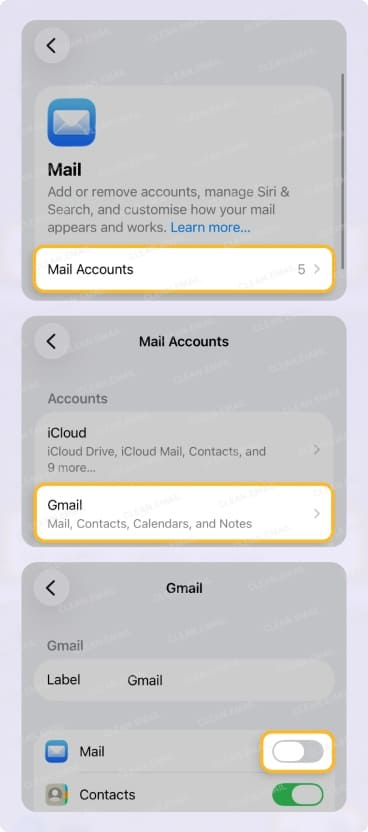
Repeat this process if you want to remove another account from Mail.
How to Remove a Gmail Account From the iPhone Settings
If you prefer to remove Gmail from your iPhone altogether, rather than just the Gmail or Mail app, you can do so in your Settings.
- Open the Settings.
- Select Apps and choose Mail.
- Pick Mail Accounts.
- Tap the Gmail account you want to remove from your device.
- Select Delete Account.
- Confirm with Delete From My iPhone.
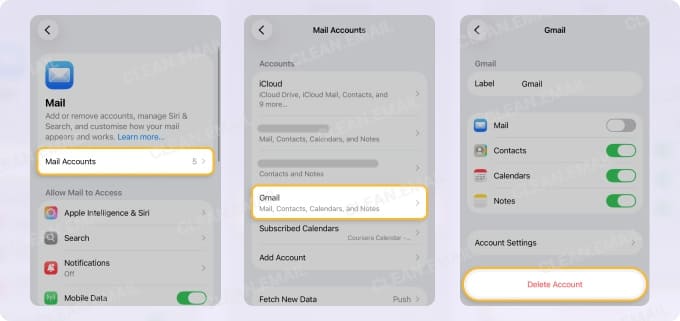
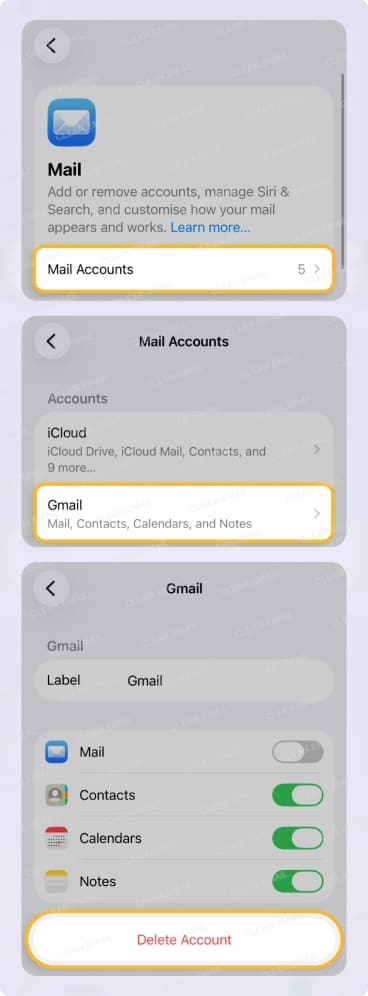
Repeat this process if you want to remove another account from your device.
💡 As an alternative, you can consider supplementary tools like Clean Email to improve the manageability of your Gmail account rather than removing it.
How to Remove a Gmail Account From Android
Because Android is Google’s operating system, you might be using Gmail out of convenience. However, you can opt for a different email app and remove Gmail from Android.
How to Remove a Gmail Account From the Android Gmail App
Like on iPhone, you can delete an account from the Gmail app on your Android device.
- Open the Gmail app on your Android phone.
- Tap your profile icon on the top right.
- Select Manage accounts on this device.
- Choose the Gmail/Google account.
- Tap Remove account and confirm.
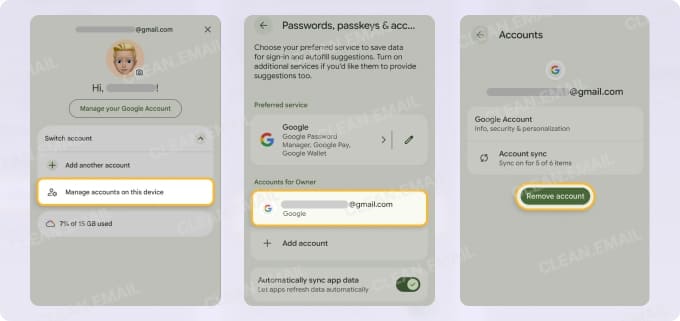
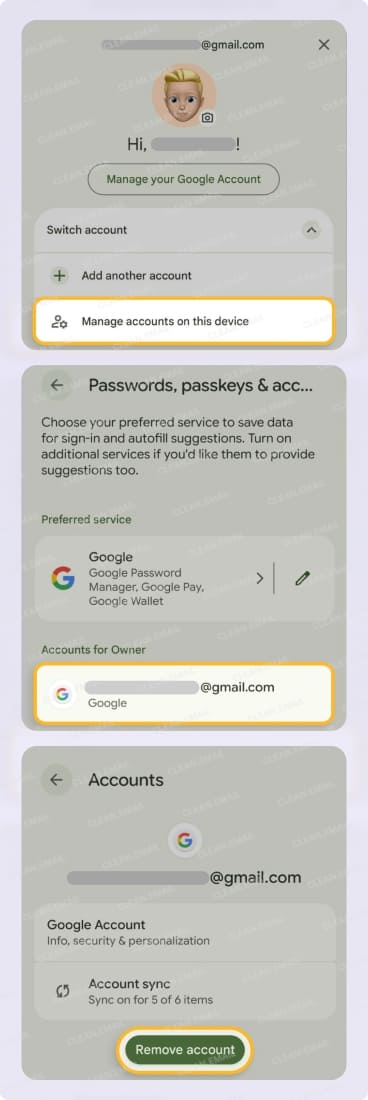
Repeat this process if you want to remove another account from the Gmail app.
How to Remove a Gmail Account From the Android Settings
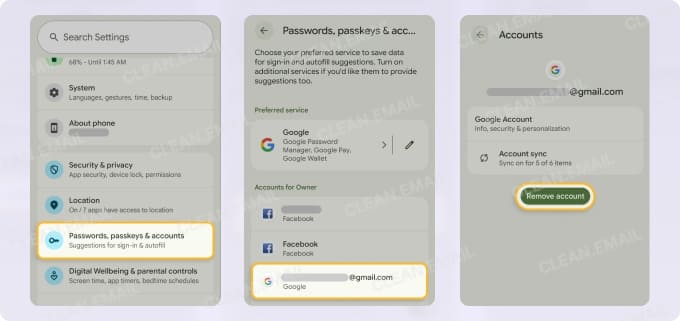
Once you delete your account from the Gmail app, you can remove it from your Android phone completely. Just keep in mind that this removes your Google account and thus, signs you out of other Google services on your device.
- Open the Settings.
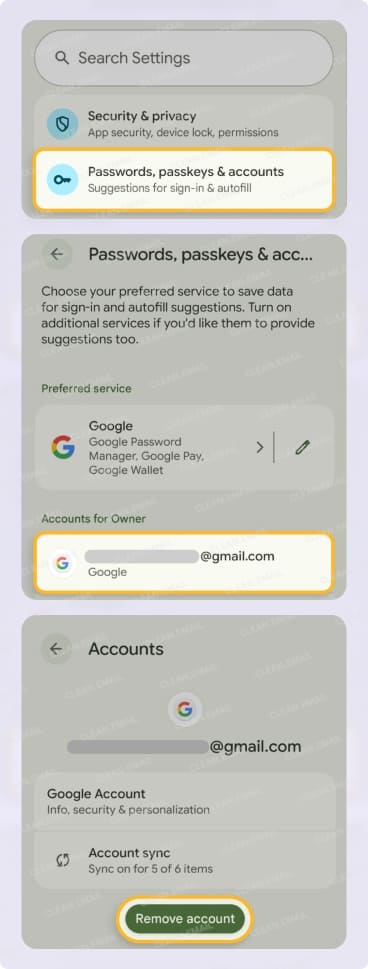
- Select Passwords, passkeys & accounts. Depending on your device, you may see a different setting such as Users & accounts, Manage accounts, or Passwords, passkeys & accounts.
- Choose the Gmail/Google account.
- Tap Remove account and confirm.
- If prompted, enter your password or PIN. This may be required if it’s the only Google account connected to your Android device.
Repeat this process if you want to remove another account from your device.
After Removing a Gmail Account From Your Phone
Once you remove your Gmail account from your iPhone or Android device, you can still access your emails via Gmail on the web — unless, of course, you plan to stop using Gmail altogether.
However, if your goal is to reduce inbox clutter or improve manageability, removing your Gmail account from your phone may not be necessary. In some cases, organizing your mailbox more effectively can solve the underlying issue.
Clean Email works alongside Gmail and helps structure your inbox through bulk actions and automated rules. This allows you to reduce clutter, manage multiple accounts more efficiently, and maintain control without disconnecting your account from your device.
It’s available as a mobile app, on macOS, and as a web app for any IMAP service provider.
Conclusion
It only takes a minute to remove a Gmail account from your phone, but it helps to know what actually happens. The account disappears from your device, not from Google itself. Your emails and data stay safe in your account.
Before you do it, make sure you’ve saved anything important. This way, you won’t lose messages, contacts, or files you still need.
If you change your mind later, you can still open Gmail in a browser or add the account back to your phone. It simply depends on how you want to use your email going forward.












