


Download All Attachments From a Single Email in Gmail
📌 Short answer: For one message, use Gmail’s built-in Download all attachments button to get a ZIP instantly; for multiple messages, use the forward-as-attachment method; and for a full-account backup, use Google Takeout (which takes longer but exports everything).
If the files you want to download are all within a single email, you can save the files to your computer from Gmail in just a few steps.
- Sign into Gmail and open the email containing the attachments.
- Click the Download all attachments button (down arrow) at the bottom of the email body.
- Open your Downloads folder or browser download location to access the ZIP file.


📌 Note: You can also save the files to Google Drive instead of your local device. This is convenient if you want to download all photo attachments in Gmail for simple sharing via Google Drive later.

Download All Attachments From Multiple Emails in Gmail
Maybe you have multiple messages or threads containing the files you want to download. Luckily, you don’t have to find and open each separate message in Gmail to save the attachments. Instead, you can use a workaround.
- Sign into Gmail and locate the emails with one of the following:
- Click the Show search options button, select Has attachment, and press Search.
- Enter the search term: has:attachment in the Search box and press Enter or Return.
- When you receive the results, use the checkboxes to select all emails containing the attachments.
- Open the More menu (three dots) in the toolbar or right-click.
- Choose Forward as attachment.
- Send the email to yourself.
- Click the Download all attachments button when you receive the email.
- Open your Downloads folder or browser download location to access the ZIP file.
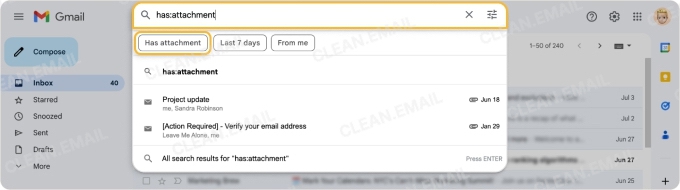
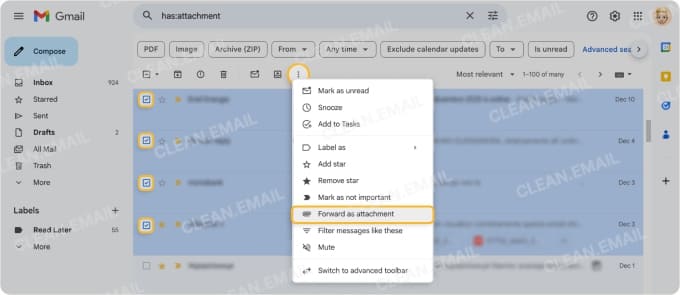
💡 Tip: Because the message you forward to yourself as an attachment will be sizeable, learn additional ways to send large files via email.
Download All Email Attachments in Gmail (Entire Mailbox)
Do you want to perform a one-time cleanup by saving all files to your device and then deleting the attachments from Gmail? If you want to download all attachments from your entire mailbox, you have a couple of options.
Google Takeout
Google Takeout is a free tool you can use to obtain your data from various Google services like Gmail, Google Photos, Google Drive, and YouTube. With it, you can download a copy of all email data including attachments.
- Visit Google Takeout and sign into your account.
- Click Deselect all at the top.
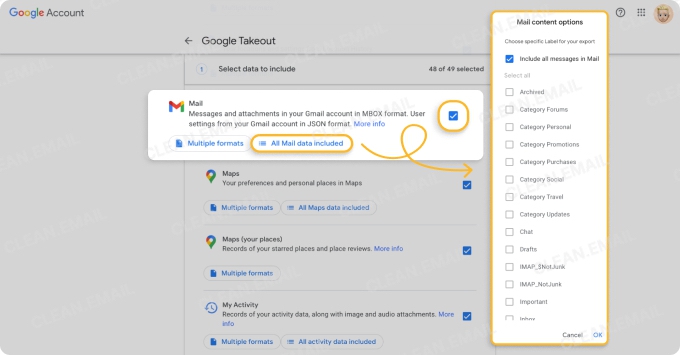
- Scroll down and check the box for Mail along with any other data you’d like.
- Optionally, select All Mail data included to pick specific labels for the export.
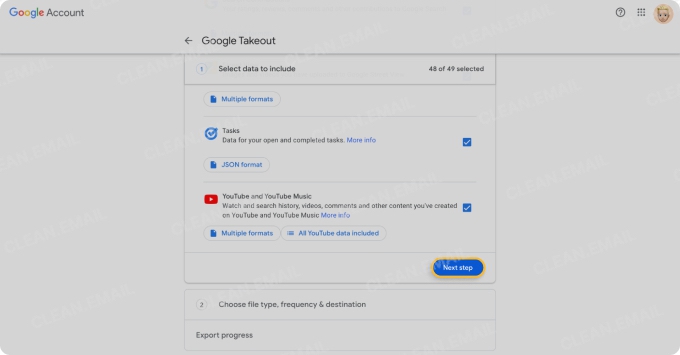
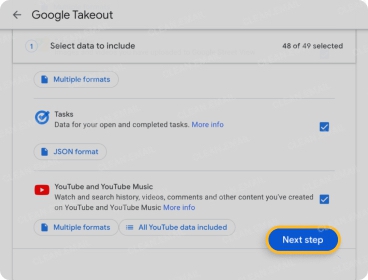
- Click Next step.
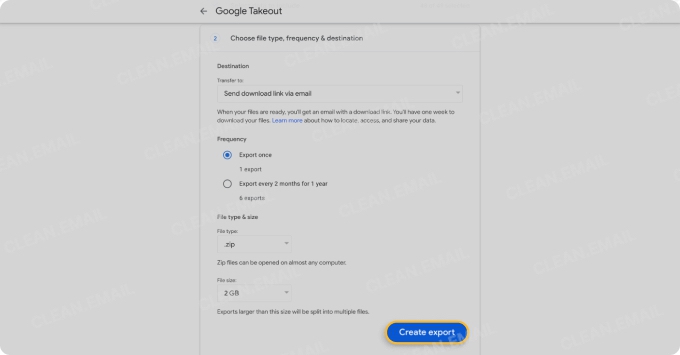
- Adjust the Destination, Frequency, and File type & size per your preferences.
- Click Create export.

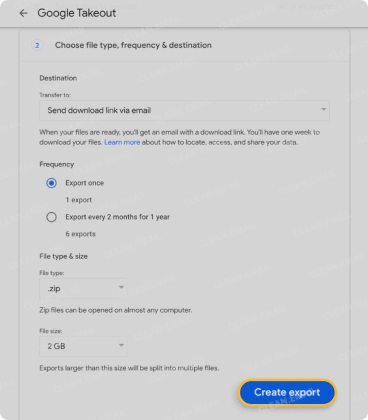
Note that it can take hours or even days to receive the data, depending on your mailbox size.
Third-Party Tools
Another option is to use a third-party app. The ability to download email attachments from Gmail is a feature of many backup tools, making this a good option if you’re interested in saving additional data.
Here are a few data backup tools you can review to get started:
| Availability | Cost | Extras |
|---|---|---|
| Web-based | Free for 50 emails per month with plans starting at $59.99 yearly |
|
| Windows and Mac | $29 for Windows or Mac |
|
| Windows and Mac | $29 for Windows $39 for Mac |
|
Download All Attachments in Gmail on Android
If you’re using Gmail on your Android phone and want to download attachments to that device, your options are unfortunately limited. There isn’t currently a “download all attachments” button like in Gmail’s web application.
Instead, you must download files and photos one-by-one. To save time down the road, you can also enable the automatic download feature which works for future messages when you’re connected to Wi-Fi.
Download Attachments From an Email
- Launch the Gmail app on Android.
- Open the email containing the attachments.
- Tap the Download button (down arrow) on the attachment.
- Repeat until you’ve downloaded all attachments.
Download Attachments Automatically
- Launch the Gmail app and open the left-hand Menu.
- Select Settings.
- Choose your account.
- Check the box for Download attachments in the Data Usage section.
📌 Note: After you download attachments on Android, whether manually or automatically, open Files and choose Downloads. You can then view, share, move, or copy a file.
Post Download Cleanup with Clean Email
Once you save the files you need, the next step is clearing the original messages. Gmail can do this manually, but it becomes slow when you need to process large batches of messages with attachments.
Clean Email is safe to use and gives you a faster delete flow for attachment-heavy email groups so you can remove the source messages right after backup and reclaim space with fewer manual steps, and it’s available on macOS, iOS, Android, and as a web app.
Conclusion
Whether you need a quick ZIP from one message, a workaround for many emails, or a complete mailbox export, Gmail gives you multiple ways to download attachments at once.
Pick the method that matches your scope, save your files first, and then clean up the original messages so your mailbox stays organized.












