


How Do I Delete All Promotions in Gmail? Quick Steps
Here are detailed steps to clean up promotional emails in Gmail on the web:
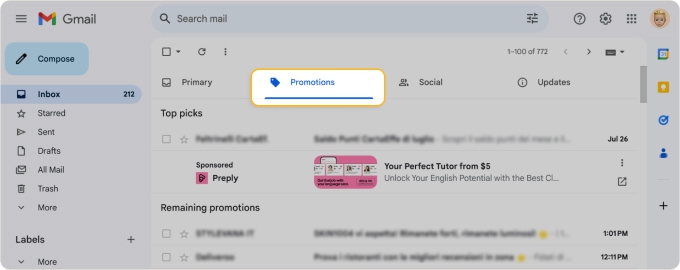
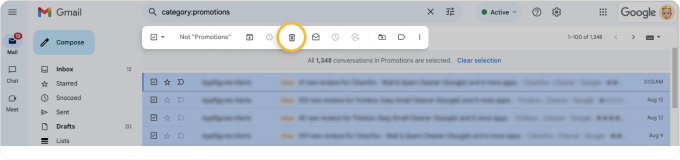
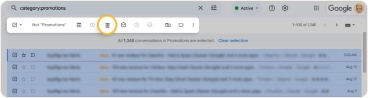
- Go to the Promotions tab.
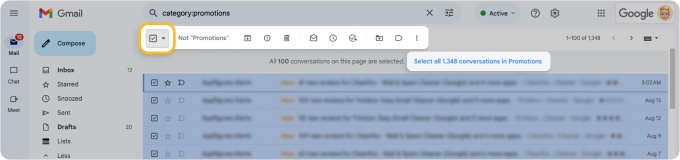
- Mark the Select checkbox on the top left.
- To select more than the first 50 or 100 messages (by default), click the Select all X messages in Promotions link.
- Click Delete in the toolbar.
To clean up promotional emails in Gmail on mobile:
- Use the hamburger icon on the top left to pick the Promotions category.
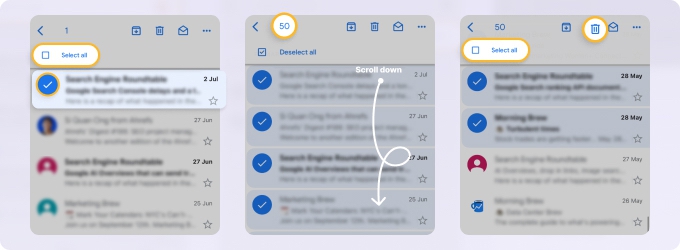
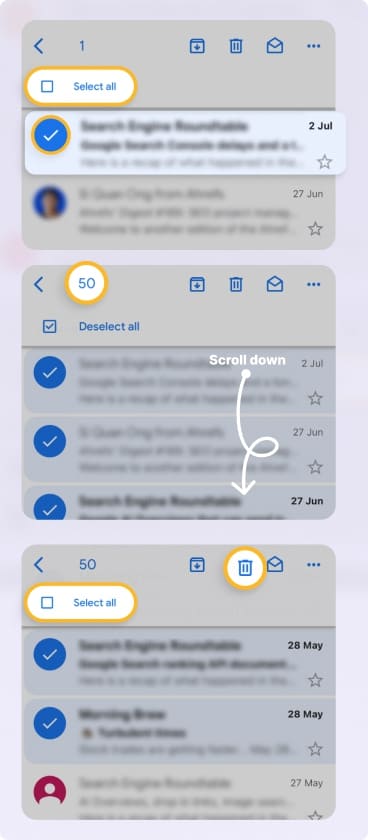
- Long-press any email in the results.
- Mark the Select all checkbox at the top.
- To choose more than the first 50, scroll to the bottom to load additional messages.
- Tap Select all at the top again.
- Select the Delete icon in the toolbar.

How to Delete Specific Promotions in Gmail
Some promotional emails are useful, especially if you look forward to online sale announcements or news from your favorite websites. With this in mind, you may only want to remove all Gmail emails from a certain sender, with a keyword, or in a date range.
On the web:
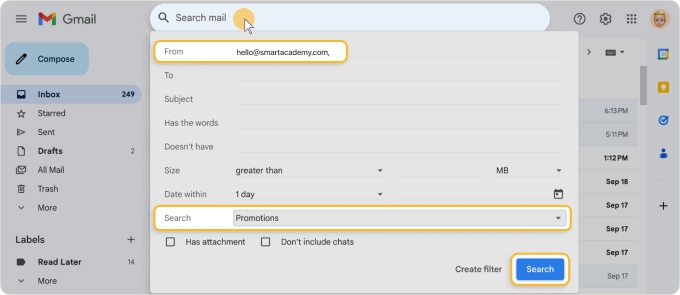
- Click the Show Search Options button on the right of the Search box at the top.
- Enter the criteria into the corresponding field. For example, use the From field to enter a sender.
- Select Promotions in the Search drop-down box.
- Click Search.
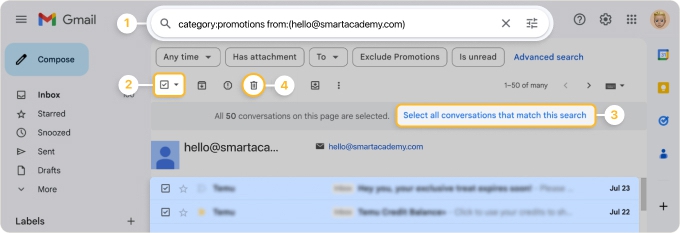
- Mark the Select checkbox on the top left and, if applicable, select more than the first 50 or 100 messages by clicking the Select all conversations that match this search link.
- Click Delete in the toolbar.
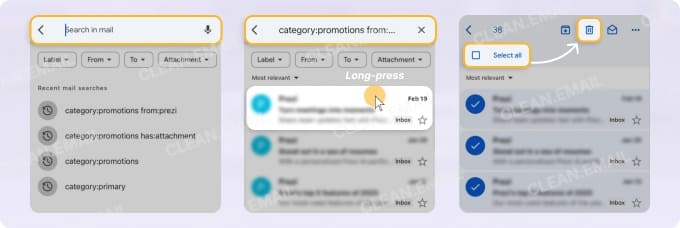
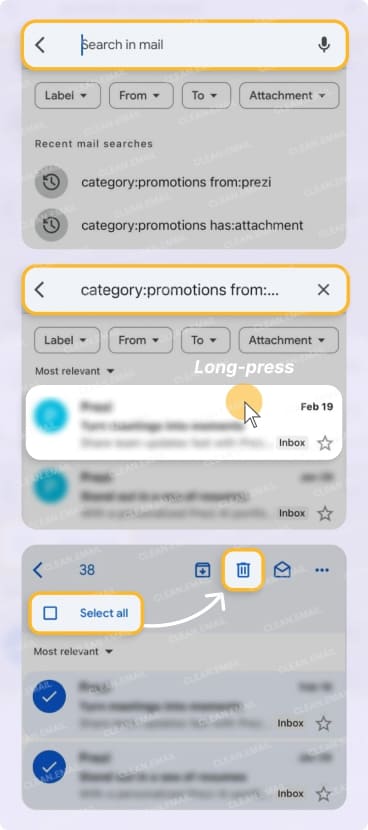
In the mobile app:
- Tap inside the Search in mail field at the top.
- Enter a combination of search operators. For instance, you can use category:promotions from:[sender] to find promotional emails from a particular sender.
- Long-press any email in the results.
- Mark the Select all checkbox and, if necessary, scroll to the bottom to load additional messages.
- Select more emails or choose Select all again.
- Tap the Delete icon.
How to Automatically Delete Promotions in Gmail
To save time and get rid of promotional emails automatically, you can mass delete Gmail emails using filters on the web. Keep in mind that you can’t currently create filters in the Gmail mobile app.
- In Gmail on the web, click the Show Search Options button on the right of the Search box.
- Enter the criteria into the corresponding field. Remember, without criteria, the filter applies to all promotions.
- Select Promotions in the Search drop-down box.
- Click Create filter.
- Check the Delete it box.
- Click Create filter.
Get Rid of All the Promo Emails Fast with Clean Email
Gmail has limitations when it comes to bulk actions and automation, especially on mobile. Clean Email provides a solution with bulk selection, automation, and other tools to delete thousands of emails fast on both web and mobile.
- Group promotional emails automatically to save time finding and deleting them.
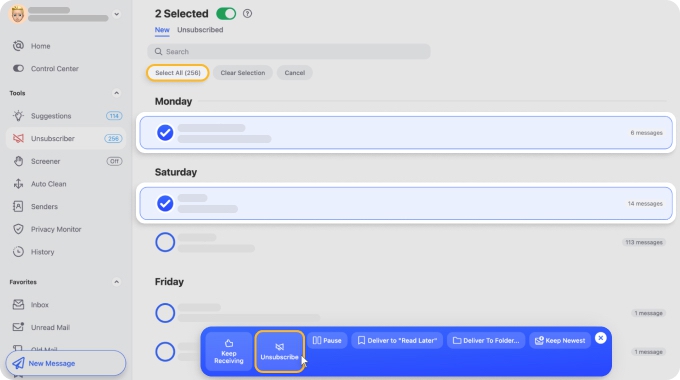
- Unsubscribe and delete simultaneously to stop promotional messages long-term.
- Prevent future clutter with a host of tools and automations for advanced mailbox management.
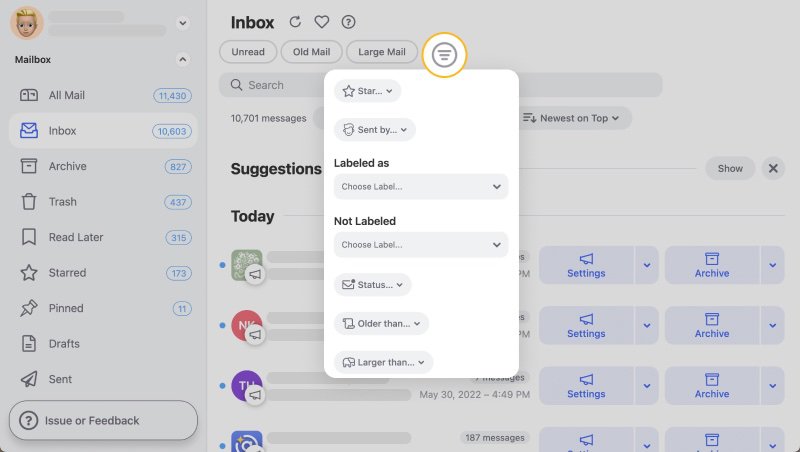
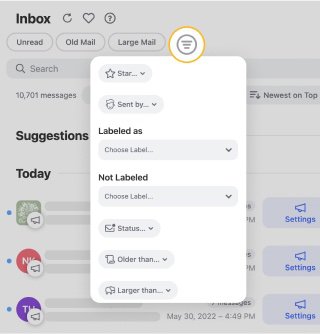
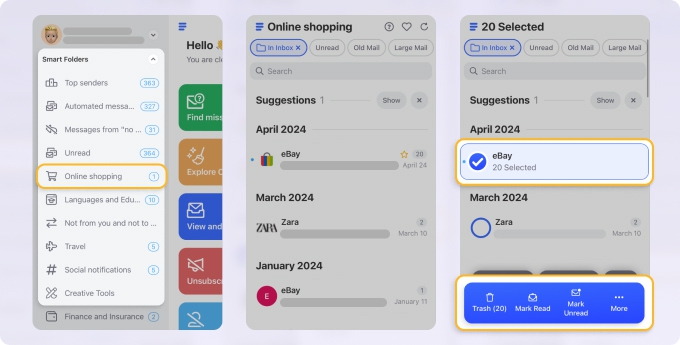
To clean up promotions in Clean Email:
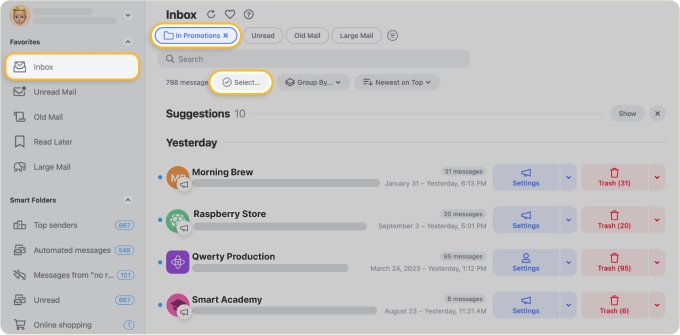
- Launch Clean Email on the web or on your smartphone (it works similarly).
- Select Inbox in the left-hand menu.
- Click the Open Menu button (funnel icon) at the top and choose Promotions under Labeled as.
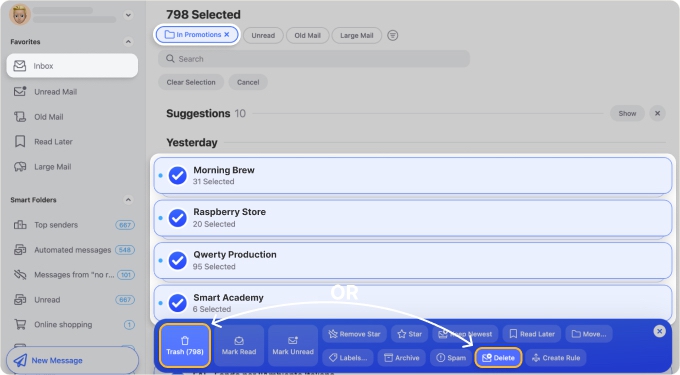
- Pick Select at the top and then Select All or mark the individual messages.
- Choose Delete (permanently remove) or Trash (move to Trash) at the bottom and confirm.
Troubleshooting Promotional Email Deletion
Running into problems finding or properly deleting Promotions in Gmail? Here are a few common issues and how to correct them.
Don’t see the Promotions tab in Gmail?
You only see this tab if you use Default for the Inbox Type and have Promotions marked. To learn more about this Inbox Type and its limitations, look at how to use Gmail’s categories.
Promotional emails still appearing after deletion?
When you delete thousands or tens of thousands of emails in Gmail, it takes time for the server to process this action. Wait 10 minutes or so, refresh the page in your browser, and check again.
Emails marked as Promotions when they’re not?
If you spot an email using the Promotions category that you believe is not a promotional message, you can move it to the Primary tab. This teaches Gmail to deliver the email to the Primary tab moving forward.
How to Move Emails from Promotions to Primary
Gmail comes with pre-set filters that identify which emails go into which tabs. However, this filter is not perfect, and as such, the wrong message can be sent to the Gmail Promotions folder.
Here is how to move emails from Promotions to Primary category (or vice versa):
- Log into your Gmail account on the web.
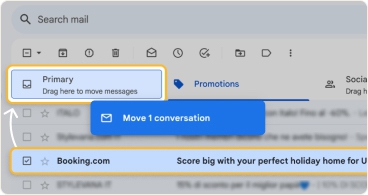
- Drag the message from Promotions and drop it into the Primary inbox.
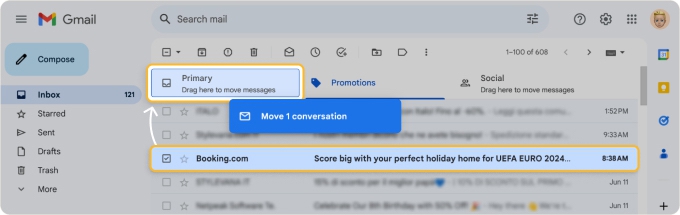
If you don’t have tabs on top, there’s another way:
- Select the message(s) you want to move and click the three dots at the top.
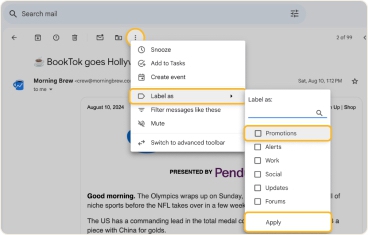
- Go to Label as and uncheck the Promotions checkbox.
- Click Apply.
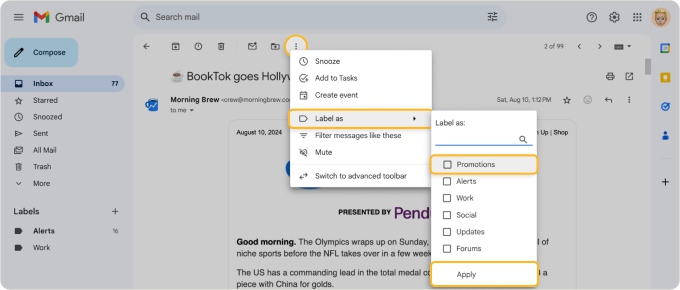
All the selected emails will be moved to your Primary inbox at once.
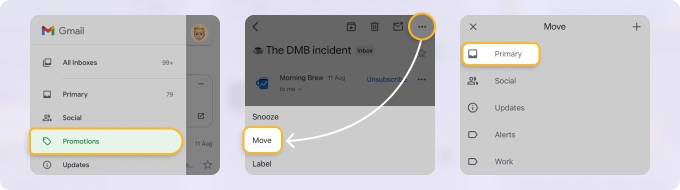
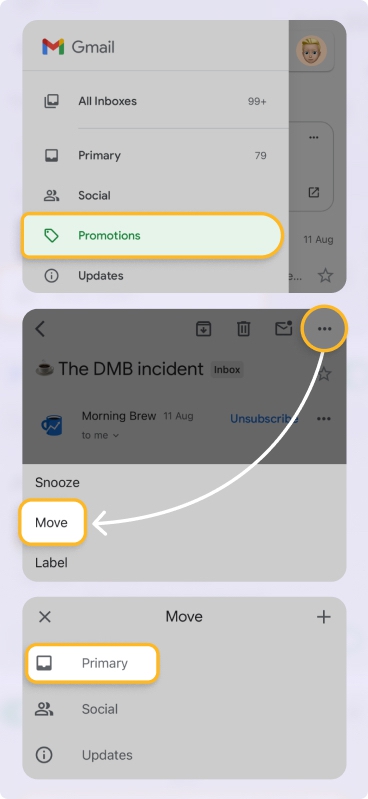
Move Emails from Promotions to Primary in Gmail App (iPhone and Android)
- Go to Promotions in the Gmail app.
- Open the email you want to move.
- Tap the three dots and choose Move.
- Choose Primary as the destination and you’re done!
How to Turn Off Promotions Tab in Gmail
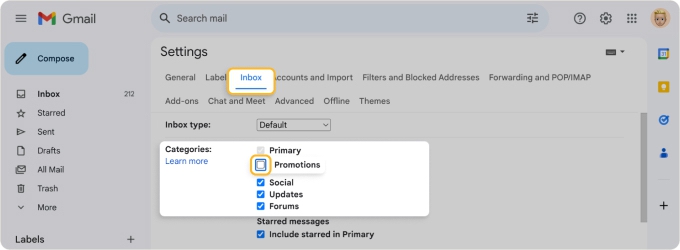
Disabling the Promotions tab removes the separate category view, so all messages will be sent to Primary:
- Click the Settings icon next to your profile picture.
- Now click See all settings.
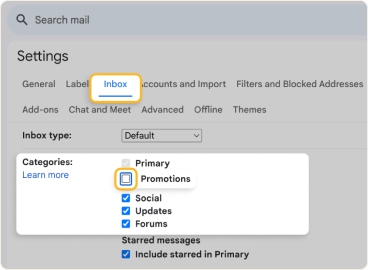
- Find the Inbox section.
- Uncheck the Promotions box.
- Scroll and click Save.
By stopping promotions in Gmail, you ensure that no essential message gets lost in the flurry of promotional emails after being misclassified by Gmail.
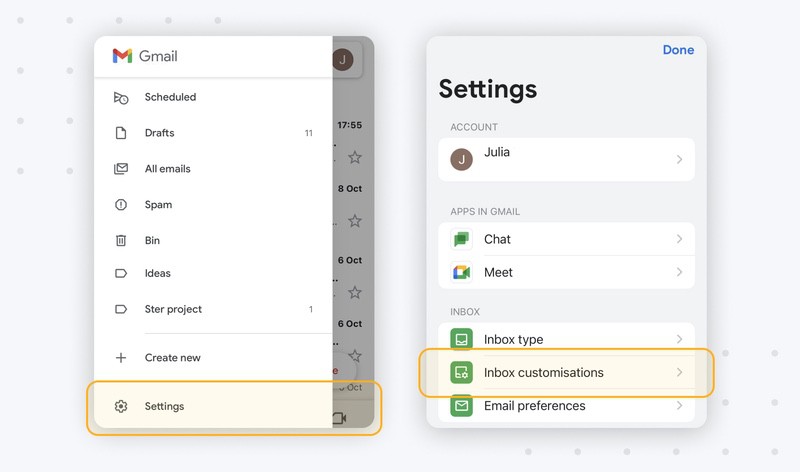
How to stop promotions in Gmail on iPhone and Android
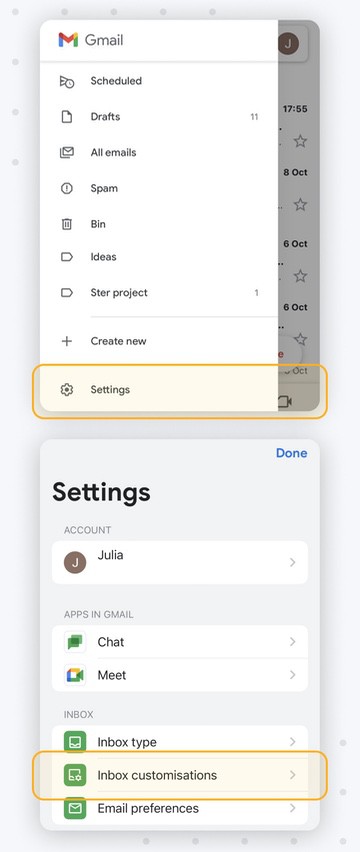
- Launch the Gmail app on your mobile device.
- Tap the hamburger menu icon.
- Tap Settings near the bottom.
- Navigate to the Inbox customizations section.
- Go to Inbox categories.
- Disable the Promotions category.
- Tap Done when finished.
How to Stop Promotional Emails in Gmail to Prevent More
- Unsubscribe from unwanted newsletters: Regularly unsubscribe from promotional emails you no longer need.
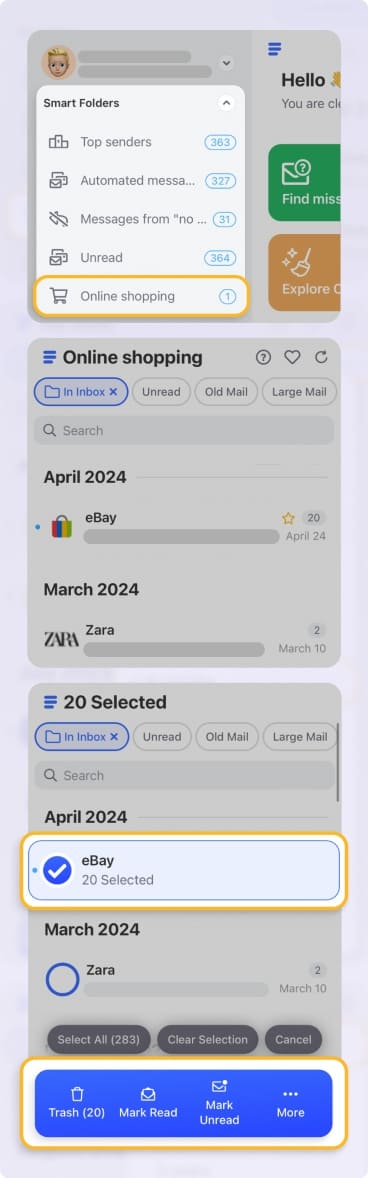
- Use smart filters: Don’t rely only on Gmail's default categories. Clean Email provides 30+ Smart Folders that automatically group and organize your emails, including Online Shopping, Seasonal Sales, and Deals.
- Mark emails as spam: Report unwanted promotions as spam to train Gmail’s filter system.
- Block specific senders: Block Gmail senders whose advertising emails keep filling your inbox.
- Use a dedicated email address: Sign up for promotional emails using a secondary email to keep your primary inbox clean.
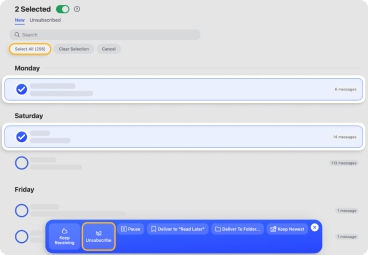
With Clean Email, you can opt to unsubscribe from promotional emails in bulk (in Gmail, you can only unsubscribe from newsletters one by one).
FAQs
Where is the Promotions tab in Gmail?
On desktop, you can find all tabs underneath the search tab. On the Gmail mobile app, you will have to select the menu bar at the top left corner to see the various tabs.
How do I stop emails from going to Promotions in Gmail?
You can manually move emails from Promotions to Social or Primary categories to ensure all future messages enter the new tab. You can also remove the Promotions tab from settings.
How do I delete all categories in Gmail?
On the web, simply select Settings beside the profile image → select ‘See all settings’ → Inbox, and deselect the categories you no longer need. Keep in mind that you can remove all categories except Primary. When others are removed, all emails will go into the Primary category.
How do I unsubscribe from all promotional emails in Gmail at once?
To unsubscribe from all promotional emails in Gmail at once, you need to use the Clean Email app, as the Gmail app doesn't have an option to unsubscribe from all at once—you need to unsubscribe one by one.
Why do some important emails go to Promotions?
Gmail automatically categorizes emails based on content, sender reputation, and formatting. Marketing-style messages or emails from mailing lists are more likely to be placed in Promotions. Moving the email to Primary or adding the sender to contacts helps train Gmail to categorize it correctly.
Can I move multiple emails from Promotions to Primary at once?
Yes, Gmail allows you to select multiple messages and change their label in bulk. Select the emails, open the options menu, and remove the Promotions label. All selected emails will then appear in the Primary inbox.
How do I stop receiving promotional emails?
You can always block or mark promo emails as spam to stop receiving them. You may also want to turn off notifications for online shopping websites or unsubscribe from them entirely.












