


Key Takeaways
- Message Recall works only if you have a Microsoft 365 or Exchange work or school account, and the recipient must be in your organization.
- Personal Outlook.com and Hotmail accounts can’t use recall. Their only option is Undo Send, which must be turned on before you click Send.
- New Outlook puts Recall Message on the opened message’s ribbon. Classic Outlook keeps Recall This Message under Actions and has no Undo Send.
- The Message Recall Report shows, for each recipient, whether the recall succeeded, is pending, or failed.
- Clean Email can’t recall or unsend email, but it can keep the inbox you work from smaller.

Recall vs. Undo Send: Which Feature Can You Use?
Only a Microsoft 365 work or school account can use Message Recall. A personal account, on the other hand, can’t use Message Recall in any version of Outlook. Instead, users with personal accounts can use Undo Send.
| Outlook app and account | Message Recall | Undo Send |
|---|---|---|
| New Outlook with a work or school account | ✅ Yes, for recipients in your organization | ✅ Yes |
| New Outlook with a personal account | ❌ No | ✅ Yes |
| Classic Outlook | ✅ Yes, with a work or school account | ❌ No, use Delay Delivery instead |
| Outlook.com | ❌ No | ✅ Yes |
| Outlook mobile (iOS and Android) | ❌ No | ❌ No |
Because of the divide between work/school and personal accounts, “can you unsend an email in Outlook” has two answers:
- “Yes, after delivery.” (With a work account and a colleague as the recipient)
- “Yes, before delivery.” (If Undo Send was already on)
How to Recall an Email in New Outlook
Open the message from Sent Items in a separate window and select Recall Message. This works only when you and the recipient both have Microsoft 365 work or school accounts in the same organization.
- Select Sent Items in the folder pane on the left.
- Double-click the sent message to open it in a separate window.
- Select Recall Message:
- With the Classic Ribbon it’s a Recall message button in the Respond group.
- In New Outlook for Windows, the opened message window uses the Simplified Ribbon by default, where Recall message is located under More options in the Respond section.
- Click OK in the confirmation dialog.
- Open the Message Recall Report that arrives in your Inbox and select its link to see the result.
The steps for how to recall an email in new Outlook also work in Outlook on the web, the browser version for work and school accounts. New Outlook gives personal accounts no recall at all; they rely on Undo Send instead.
💡 Good to know: Outlook for Mac has recall from version 16.94. In the opened sent message, select Recall, or Control-click the message and choose Recall. Legacy Outlook for Mac doesn’t support it. If you don’t see the option, you may need to add it first in More (…) → Customize Toolbar.
How to Recall an Email in Classic Outlook
Double-click the message in Sent Items and choose Recall This Message from the Actions menu on the Message tab. You need an Exchange or Microsoft 365 work or school account, and the reading pane doesn’t offer the command.
- Select Sent Items in the folder pane.
- Double-click the message you want to recall.
- Select Recall This Message:
- With the Classic Ribbon, select Actions → Recall This Message in the Move group of the Message tab. Microsoft’s instructions call the Actions button More Move Actions.
- With the Simplified Ribbon, select More commands (…) on the Message tab, point to Actions, and select Recall This Message.
- Choose Delete unread copies of this message or Delete unread copies and replace with a new message, then click OK.
- If you chose to replace it, edit the new version and click Send.
The first option only removes the message. The second removes it and then sends your corrected version as a normal new email, which is handy when you forgot an attachment.
Despite the word “unread,” cloud-based recall in Exchange Online also removes opened copies unless your admin has switched that off.
⚠️ Important: Microsoft says recall doesn’t work in Classic Outlook when it runs in Online mode or when your profile holds more than one Exchange account. In either case, recall the message from Outlook on the web instead.
How to Use Undo Send in Outlook.com and New Outlook
Turn on Undo Send in Settings → Mail → Compose and reply, and Outlook holds each message for the delay you choose before it goes out. This is how to unsend an email in Outlook for personal accounts, and work accounts in New Outlook use the same steps.
- Click Settings (the gear icon) at the top of the window.
- Go to Mail → Compose.
- Under Undo send, choose a delay of up to 10 seconds (you can go up to 30 seconds, but it’s not recommended).
- Click Save.
After that, every time you click Send, an Undo prompt appears at the bottom of the message list for the length of the delay. Click Undo while it’s visible and the email stays with you.
Think of the undo send Outlook offers as a short hold on the message. Until the countdown ends, nobody has received the email, and once the prompt disappears, so does your chance to stop it.
Can You Recall an Email in Outlook Mobile?
The Outlook app for iOS and Android has no Undo Send, and it can recall a message only from a work or school account: open the message in Sent, tap More options (…), and tap Recall.
Personal accounts have no recall to fall back on. To unsend email, Outlook needs Undo Send running before you tap Send, and the app doesn’t have it, which leaves a short correction email as the fastest fix.
What Happens After a Recall?
A Message Recall Report email arrives in your Inbox within a few minutes, with a subject that starts “Message Recall Report for message” and ends with your original subject line.
Select View Message Recall Report in it to open the status page in your browser, and sign in with your work account if asked.
The Recall Report will show the status of your message:
| Status | What it means |
|---|---|
| Succeeded | The message was deleted from that recipient’s mailbox |
| Pending | The recall is still in progress for that recipient |
| Failed | The recipient still has the message |
Recall commonly fails when the email was already opened, sent outside your organization, or moved by a rule. Additionally, cloud-based recall in Exchange Online can’t delete opened copies if an admin blocks the feature.
Why Outlook Recall Is Not Working
Recall problems usually come down to the account type or to where the message went after delivery.
Recall Message Button Missing
Outlook offers recall only to Microsoft 365 or Exchange work and school accounts, never to Outlook.com, Hotmail, or Gmail.
On a work account, double-click the message so it opens in its own window, because Classic Outlook hides Recall This Message in the reading pane. When the command still doesn’t appear, your organization may have turned recall off, and only IT can change that.
Recall Failed
When the report says Failed, that recipient still has the email. Common causes are a mailbox outside your organization, a manual forward or forwarding rule, an opened copy in an organization that blocks read-message recall, and a message older than the age limit your admin set.
Send a correction to everyone marked Failed.
Recall Pending
Most Pending statuses resolve within minutes. Microsoft says statuses for a few hundred recipients can take up to five minutes to update and the largest lists up to 30 minutes, while a recall that can’t run right away keeps retrying for 24 hours.
Check the report link again later, and send a correction only if the status turns to Failed.
Recipient Is Outside the Organization
Outlook’s Message Recall can’t reach a mailbox outside your Microsoft 365 organization. Mail sent to Gmail or another company stays delivered.
Cross-tenant recall between two Exchange Online organizations is the one exception, and it works only when the recipient’s admin has explicitly allowed yours. Otherwise, a follow-up email is the fix.
Email Was Already Read
Opened messages survive a recall when your admin has disabled read-message recall or when your organization still uses the older client-based recall, which removes only unread copies.
Neither setting can be changed from Outlook itself. If the report says Failed, assume the recipient saw the message and follow up directly.
Undo Send Button Disappeared
Undo stays on screen only as long as the delay you picked, and a short setting can make it vanish before you react.
If it never appears, open Settings → Mail → Compose and reply and check that Undo send still has a delay saved. Switching back to Classic Outlook removes it too, because the classic app doesn’t support Undo Send.
Deleting From Sent Items Does Not Unsend the Message
Deleting a sent email removes your copy only, because the recipient’s copy lives in their own mailbox. It can even get in the way, since a recall starts from the original in Sent Items.
On a work account, move a deleted message back from Deleted Items first and then run the recall.
Alternatives When Recall Is Unavailable
When recall isn’t an option, send a correction right away, then set up a delay so the next mistake gets caught before it leaves.
A correction email works for any account and recipient. Reply in the original thread and put the fix in the first line.
For future messages, Undo Send is the lowest-effort protection in New Outlook and Outlook.com. I’d turn it on before anything else, since a few seconds of waiting on every message is easy to live with.
For a longer delay send, Outlook relies on two older settings in the classic app. On an Exchange account, hold a single message by selecting Options → Delay Delivery and setting a time next to Do not deliver before. To hold every message, add a rule with the defer delivery by a number of minutes action, which accepts 1 to 120 minutes and needs Outlook to stay open.
💡 Our Outlook tips and tricks include a tip on scheduling messages for later.
Can Clean Email Recall or Unsend Outlook Emails?
While Clean Email cannot recall or unsend messages, it can help you manage your inbox more efficiently and reduce the chances of sending an email by mistake.
Try Clean Email for free on the web, macOS, or mobile. Its Smart Folders automatically organize messages into categories such as Online Shopping and Social Notifications, making it easier to find, review, and respond to the emails that matter.
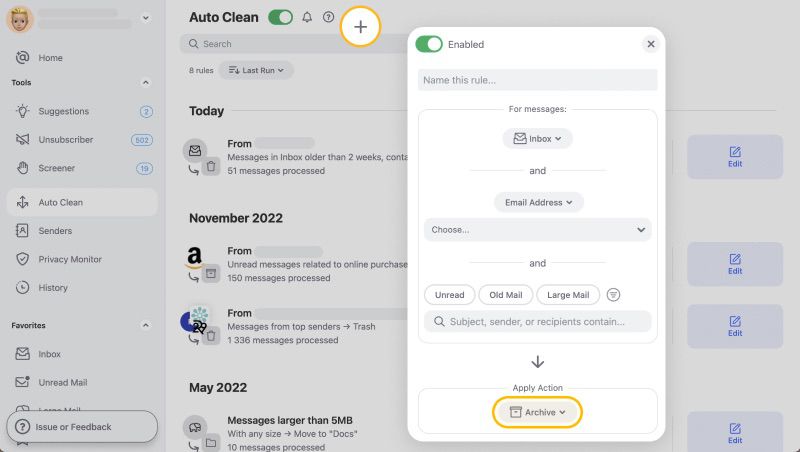
To clean up your Outlook mailbox effectively, Auto Clean automatically applies your chosen rules to incoming messages, keeping clutter under control.
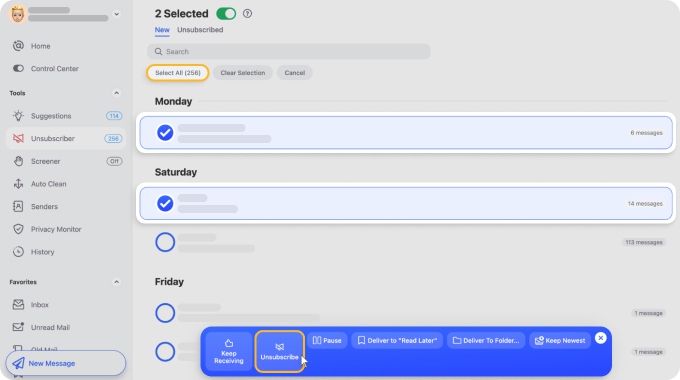
Meanwhile, Unsubscriber helps you stop unwanted newsletters and mailing lists, reducing unnecessary emails and making your inbox easier to manage.
FAQs
Can you recall an email in Outlook after it has been read?
Sometimes. Exchange Online’s cloud-based recall can delete messages the recipient already opened, as long as your organization hasn’t turned that option off.
Can you recall an email sent to Gmail or Yahoo?
Not with Outlook’s recall, which stops at the edge of your Microsoft 365 organization. A copy delivered to Gmail or Yahoo stays where it landed. If you send from those services yourself, see our guides to recalling an email in Gmail and recalling one in Yahoo Mail.
Does the recipient know when you recall an email?
Not by default. With cloud-based recall, the recall email Outlook sends behind the scenes is intercepted by Exchange and never reaches the recipient, and a successful recall removes the original without notice. Admins can turn on recipient alerts for all recalled messages or only for read ones.
How long do you have to recall an email in Outlook?
Exchange Online accepts recalls for messages up to 365 days old by default, and admins can set the limit anywhere from 5 minutes to 10 years. Speed still matters, because a recipient can forward the email at any moment. The Undo Send window is only as long as the delay you chose.
Can you unsend an email in Outlook Mobile?
No. Neither the iOS nor the Android app has an Undo Send delay, and a message leaves the moment you tap Send. Messages from a work account can still be recalled from Outlook on the web or the desktop app.
What does “Recall pending” mean?
It means Exchange hasn’t finished processing that recipient. After 24 hours of retries, a copy that’s still there is marked Failed.
Does deleting a sent email unsend it?
It doesn’t. Deleting it from Sent Items removes your copy, and the recipient’s copy stays where it is.


