


What You Need Before Using Copilot in Outlook
Before we go deeper into this how to use Microsoft Copilot in Outlook tutorial, we need to confirm that your account and software meet a few requirements. The good news is that Copilot availability has expanded significantly, and you may already have access without realizing it.
Here's who can use Copilot in Outlook:
- Microsoft 365 Personal and Family subscribers get basic Copilot features included with their subscription.
- Copilot Pro subscribers pay $20 per month as an add-on for more advanced capabilities and deeper integration across all Microsoft 365 apps.
- Business users with Microsoft 365 Copilot pay $30 per user per month, which requires an underlying E3, E5, Business Basic, Business Standard, or Business Premium subscription.
- Copilot Business tier is available at $21 per user per month for smaller organizations with up to 300 users.
In addition to the right subscription, you also need a supported version of Outlook:
| Platform | Copilot Supported | Notes |
|---|---|---|
| New Outlook for Windows | ✅ Yes | Receives new features first |
| Outlook on the web | ✅ Yes | Full feature support |
| Classic Outlook for Windows | ⚠️ Limited | Features arrive 3 to 12 months later |
| Outlook for Mac (new version) | ✅ Yes | Must use the new Outlook interface |
| iOS and Android mobile apps | ✅ Yes | Core features available |
If you're still running the classic Outlook desktop client, you'll need to switch to the new version by clicking the "Try the new Outlook" toggle in the upper right corner of the window. Microsoft is gradually phasing out AI capabilities for the older interface.
One last limitation worth noting is that Copilot only works with mailboxes hosted on Exchange Online, which includes Outlook.com and Hotmail accounts for personal users. It won't function with on-premises Exchange servers, archive mailboxes, shared mailboxes, or delegate mailboxes.

Getting Started With Copilot in Outlook
Once you've confirmed your subscription and Outlook version are compatible, enabling Copilot takes just a few steps (but they're slightly different depending on which platform you're using).
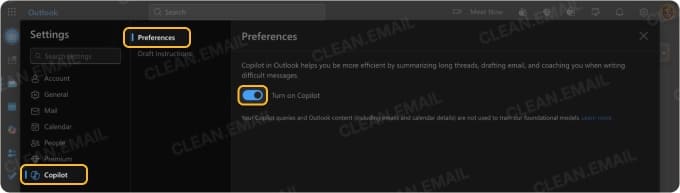
To enable Copilot in Outlook on the web:
- Click the Settings gear icon in the upper right corner.
- Navigate to the Copilot section in the settings menu.
- Toggle "Turn on Copilot" to enable it.
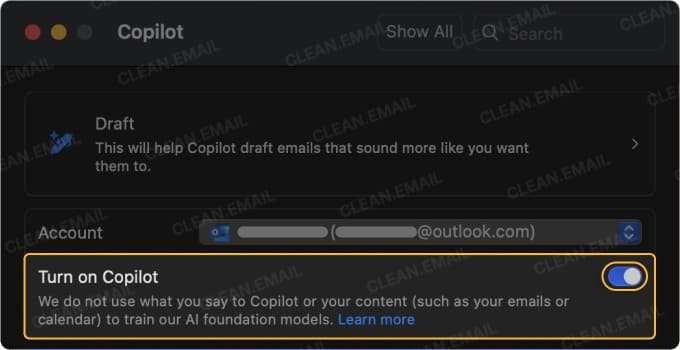
To enable Copilot in the new Outlook for Windows or Mac:
- Open Settings/Preferences.
- Find the Copilot section and navigate to it.
- Switch the toggle on for your account.
To enable Copilot on mobile (iOS and Android):
- Tap your profile icon in the upper left.
- Go to Settings.
- Locate the Copilot option and toggle it on.
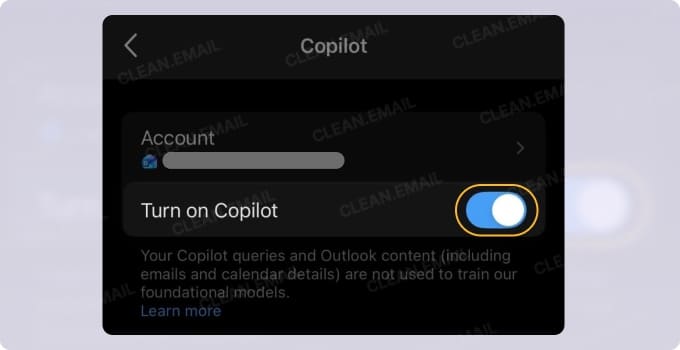
After enabling, you'll find Copilot accessible in two main ways:
- The first is through contextual buttons that appear when you're composing or reading emails. Look for the Copilot icon in the toolbar above your message, which gives you quick access to drafting assistance, summarization, and writing coaching.
- The second way is through the Copilot Chat panel, a sidebar that opens when you click the Copilot button in the upper right corner of the Outlook desktop window (Copilot opens as a dedicated app on mobile). This panel lets you type questions, choose from suggested prompts, and interact with the AI conversationally.
The contextual buttons are faster for specific tasks like drafting a reply, while the chat panel works better for open-ended requests or when you want to explore what Copilot can do. If you're looking to maximize productivity with AI tools, combining both approaches tends to yield the best results.
How to Use Microsoft Copilot in Outlook
Now that Copilot is enabled, there are several ways you can use it to manage your inbox and save time. We'll demonstrate these features using the macOS version of Outlook, but they work the same or very similarly in other versions too.
Drafting and replying to emails
Copilot's drafting feature generates complete email messages based on short prompts you provide. Instead of staring at a blank compose window, you describe what you want to say and let the AI produce a first draft.
To draft a new email with Copilot:
- Click New Mail to open a compose window.
- Click the Copilot icon in the toolbar.
- Select Draft with Copilot and enter a prompt describing your message (e.g., "Thank the team for finishing the project early and ask for their availability next week").
- Click the Generate button and wait for Copilot to produce a draft.
- Review the output, edit as needed, and send.
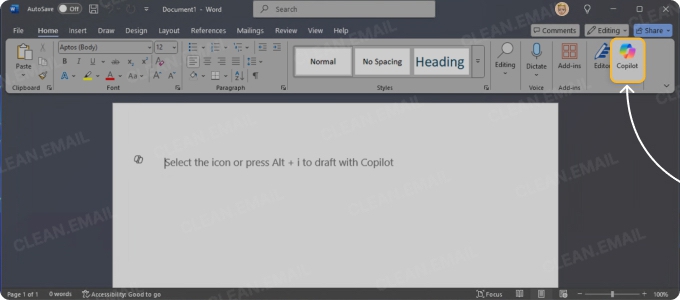
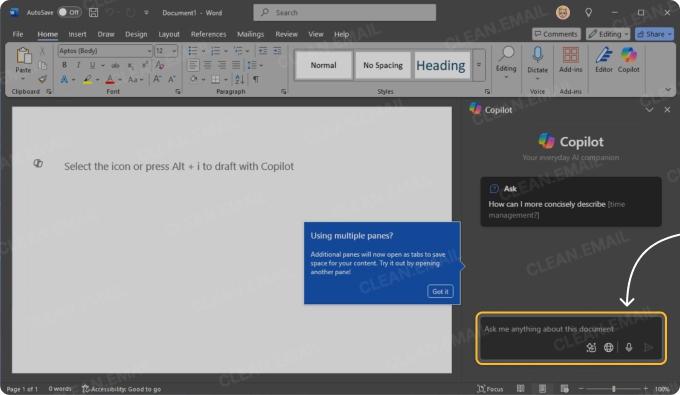
For replies, the process is similar. Open an email, click Reply, then use Copilot to generate a response based on the thread context. You can refine drafts by asking Copilot to make them shorter, longer, more formal, or more casual.
⚠️ Important: Never send a message that was generated by Copilot without reviewing it. It could be written in a style that doesn't align with your personal style, or it could even include inaccurate or downright wrong information.
Summarizing email threads
Long email chains with dozens of replies can take forever to read through. Copilot's summarization feature condenses these conversations into bullet points that highlight key decisions, action items, and important details.
To summarize a thread:
- Open the email conversation you want summarized.
- Look for the Summary by Copilot button at the top of the thread, or click the Copilot icon and select Summarize.
- Copilot will generate a condensed overview with numbered citations linking back to specific messages.
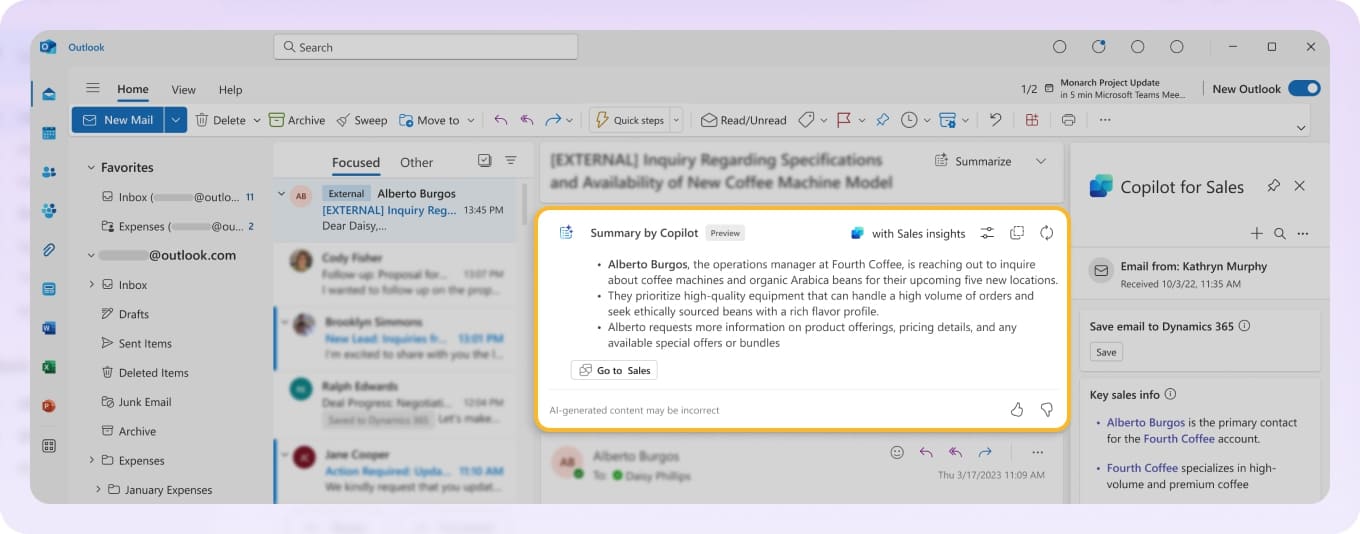
The summarization feature works best on long threads with many messages. Very short exchanges, on the other hand, may produce summaries that are just as long as the original, which defeats the purpose.
Of course, summarization only helps with threads worth reading in the first place. If your inbox is cluttered with promotional emails and newsletters, you'll still spend time sorting through noise to find conversations that actually matter.
💡 Cleaning up your Outlook mailbox beforehand with a safe tool like Clean Email makes it easier to apply Copilot's summarization to the messages you actually care about, and you can do this on macOS, mobile, or the web using the same set of features.
Coaching and tone adjustments
Copilot can also review emails you've already written and suggest improvements thanks to the Coaching feature, which analyzes your draft for tone, clarity, and how the recipient might perceive your message.
To use Coaching by Copilot:
- Write your email draft (or start with a Copilot-generated draft).
- Click the Copilot icon and select Coaching by Copilot.
- Review the suggestions Copilot provides for tone, clarity, and sentiment.
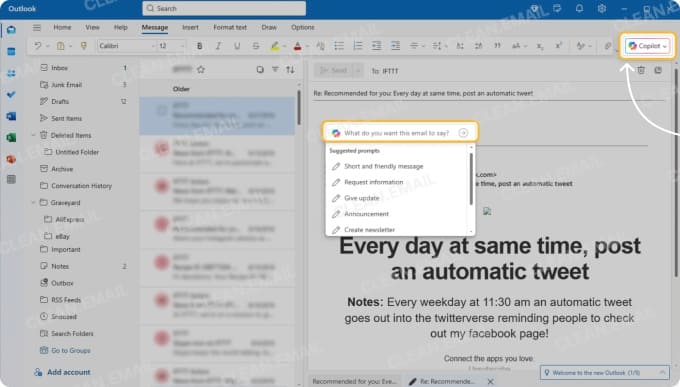
You can also adjust the tone of specific text by highlighting a section and asking Copilot to rewrite it. Options include making text more formal, casual, direct, enthusiastic, or concise.
Learning how to use Microsoft 365 Copilot in Outlook for coaching can genuinely improve your writing over time. By seeing what the AI suggests, you start to notice patterns in your own communication style that might need adjustment.
Inbox search and scheduling
The Copilot Chat panel functions as a conversational assistant that can search your mailbox, answer questions about specific messages, and help with calendar tasks.
💡 Here are some examples of what you can ask in Copilot Chat:
- "What are the action items from this conversation?"
- "Find emails from John about the budget from last month."
- "Schedule a 30-minute meeting with Sarah next week."
- "Set up an out-of-office reply for December 20 through 27."
For scheduling, Copilot checks availability and proposes times, then creates calendar events or meeting invites once you confirm. At the time of writing this article, Copilot scheduling works smoothly for one-on-one meetings, but it's better to do larger group scheduling using the standard calendar form.
💡 Tip: If you want to explore what else Copilot is used for across Windows and Office, then you should know that its capabilities extend to Word, Excel, PowerPoint, and other Microsoft apps.
Prioritizing your inbox
Copilot includes a Prioritize My Inbox feature that uses AI to identify which emails deserve your immediate attention.
To use Prioritize My Inbox:
- In Windows, click the arrow next to the Copilot button in the upper right corner and select Prioritize from the menu. On Mac, go to the What's New tab in the right pane, find Prioritize your mail, and click Try it.
- Follow the setup prompts and provide at least one high-priority instruction (e.g., "It's from my manager" or "It's about a customer complaint").
High-priority emails should now appear with an up arrow in your message list, and the first line of each email in your list should be replaced with a brief AI-generated summary.
While Prioritize My Inbox helps surface what matters, Copilot won't bulk-delete old messages, unsubscribe you from mailing lists, or automatically archive newsletters you never read. For those Outlook email management tasks, dedicated inbox management tools fill the gap.
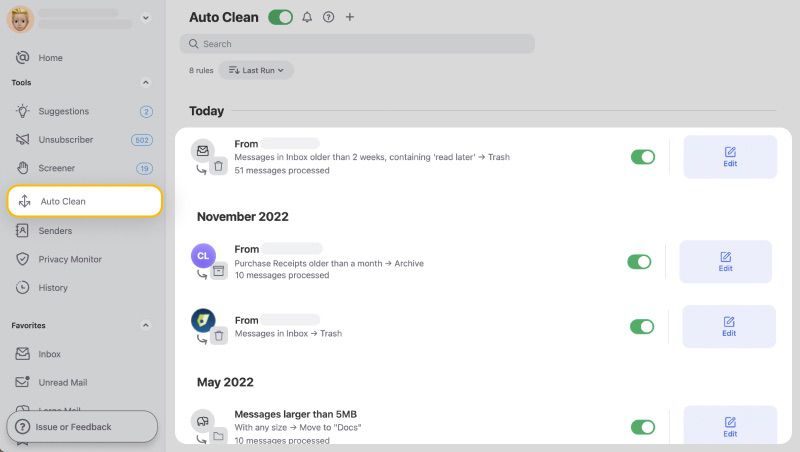
📌 Clean Email, for example, offers Auto Clean rules that automatically archive, delete, or move messages based on criteria you define.
Limitations to Keep in Mind When Using Copilot in Outlook
Now that you know how to use Copilot in Microsoft Outlook, you should also take a few minutes to understand its biggest limitations:
- Accuracy isn't guaranteed: Copilot occasionally produces awkward phrasing, misses important context, or generates information that sounds plausible but is simply wrong. This is an inherent limitation of the AI behind Copilot, and the best you can do is to always review all AI-generated content before sending or acting on it.
- Encrypted emails are off-limits: The AI can't process encrypted messages, S/MIME signed emails, or messages protected by certain Microsoft Information Protection labels. You'll probably agree that the existence of the limitation is a good thing.
- Bulk cleanup isn't part of the package: Understanding how to use Copilot in Microsoft Outlook effectively means accepting that it won't delete, archive, or organize large volumes of existing mail.
- Privacy considerations matter: Copilot processes your email content to generate responses and summaries. For enterprise users, Microsoft states that prompts and responses aren't used to train foundation models, but you should still be cautious with sensitive information.
For anyone learning how to use Microsoft Copilot with Outlook, keeping these limitations in mind helps set realistic expectations (we're not quite at the "Jarvis, handle my inbox" stage of AI assistants).
Final Words
Microsoft Copilot in Outlook can take over many of the time-consuming parts of email, such as drafting replies, summarizing long threads, and highlighting what needs attention. Once it’s set up, it becomes a practical assistant for everyday communication rather than something you need to actively manage.
At the same time, it’s important to use it with realistic expectations. Copilot works best when you review its output, give clear prompts, and apply it to the right tasks. It won’t replace your judgment or handle every aspect of inbox management, but it can significantly reduce the effort required to keep up with email.
Used consistently, Copilot helps you spend less time reading and writing emails, and more time focusing on the work behind them.
FAQs
Which versions of Outlook support Copilot?
Copilot works with the new Outlook for Windows, Outlook on the web, the new Outlook for Mac, and Outlook mobile apps for iOS and Android.
Can Copilot rewrite emails in any tone?
Copilot offers several tone options, including formal, casual, direct, enthusiastic, confident, and concise, so all major writing styles used in email communication are covered.
Is Copilot safe with private content?
For enterprise users, Microsoft states that prompts, responses, and data accessed through Copilot aren't used to train foundation models. Processing happens within the Microsoft 365 service boundary, and Copilot respects existing access permissions.
Does Copilot work with all email accounts (Gmail, etc.)?
Microsoft recently updated Copilot on Windows to connect directly with Gmail and Google Calendar, but the in-app Outlook features covered in this article (drafting, summarizing threads, coaching) only work with mailboxes hosted on Exchange Online, which includes Outlook.com and Hotmail accounts.
When might Copilot suggestions be wrong?
Copilot can produce inaccurate summaries when threads are very long or complex. It can also generate messages whose style doesn't match yours or whose tone is ambiguous. Always review Copilot's output before sending emails or making decisions based on its summaries.
What's the fastest way to learn Copilot in Outlook?
The best approach to learning Microsoft Copilot in Outlook (how to use it effectively) is simply experimenting with each feature as situations arise. Start with drafting assistance on a routine email, try summarizing a long thread you've been putting off, and explore the Chat panel when you have a few minutes.












