


What Is the "New Outlook" vs "Old Outlook"?
New Outlook is a completely rebuilt email client that launched in August 2024. Microsoft designed it to look and function identically whether you're on Windows, Mac, or accessing email through a browser using web-based technologies.
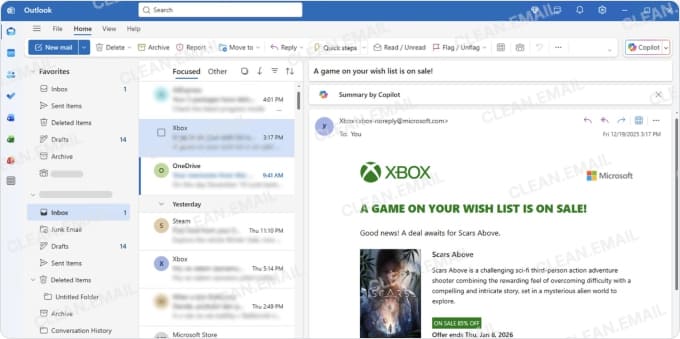
Old Outlook, now officially rebranded as "Outlook Classic," refers to the traditional desktop application that's been part of Microsoft Office since 1997 and is included with Office 2016, Office 2019, and Microsoft 365 subscriptions. If you're wondering, "What is Legacy Outlook?", then it's simply another name for the same Classic version, which Microsoft has committed to supporting until at least 2029.
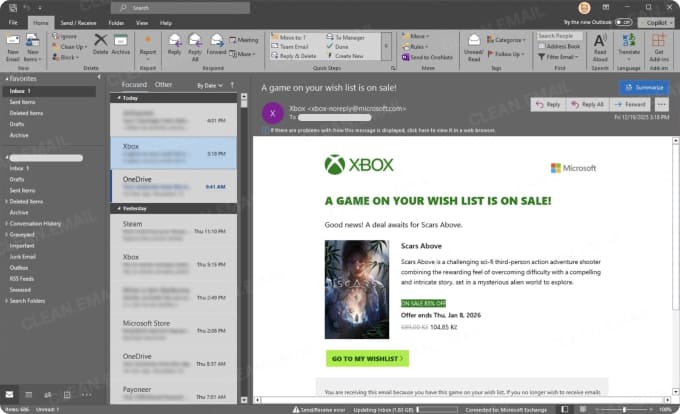
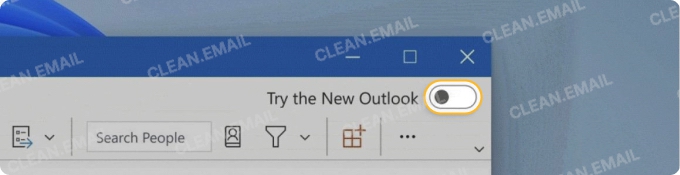
The easiest way to tell which version you have is to look for the toggle switch in the upper-right corner of your Outlook window. If you see "Try the new Outlook" there, you're running Classic Outlook with the option to test the new version. Already switched? The new Outlook displays a cleaner, more minimalist interface and lacks the traditional File menu entirely.
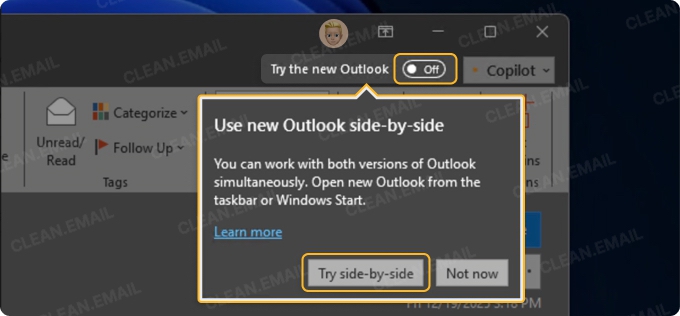
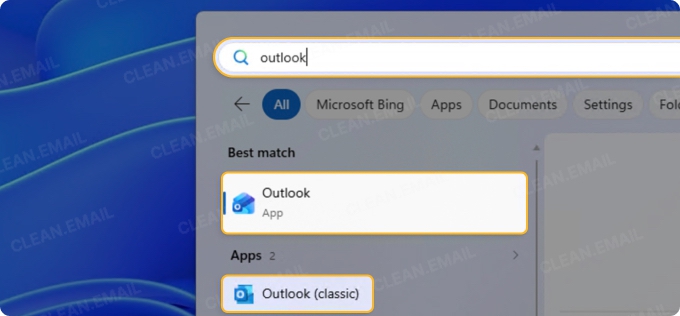
Another quick check that you can do is to open your Start menu and look at how Outlook appears. Classic Outlook shows up simply as "Outlook" or "Outlook (classic)" while the new version may display a "New" badge next to its icon.
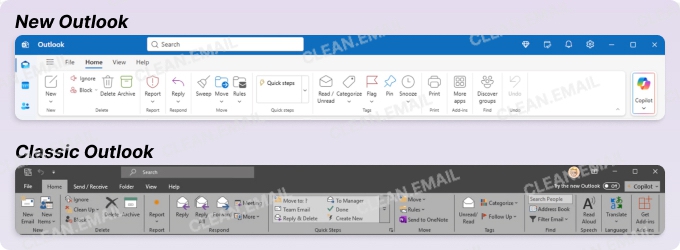
You can also tell by the ribbon. Classic Outlook features the familiar toolbar packed with buttons and options, while the new version uses a streamlined command bar with fewer visible controls. For a deeper look at what to expect from the redesigned interface, our honest New Outlook for Windows review covers the real-world experience.

New Outlook: Modern Features at a Glance
So what does the New Outlook actually bring to the table? Microsoft rebuilt the application from the ground up, and there are several major improvements that make it worth taking a closer look at.
A cleaner, more consistent interface
The New Outlook interface moves away from the dense, button-heavy ribbon that defined Classic Outlook for decades. Instead, you'll find a simplified toolbar with core commands and plenty of white space for good readability. The layout mirrors what you see in Outlook on the web to create a consistent experience across all your devices.
Navigation feels more intuitive too. Mail, Calendar, People, and Tasks all live in a left sidebar to make jumping between functions easier. You can also customize folder colors in the new version, which is something Classic Outlook never offered.
Faster performance
Because New Outlook processes most data in the cloud rather than locally, startup times have improved significantly. You won't wait for a massive OST file to load or watch the app crawl due to years of cached emails.
The only downside to the cloud-based nature of New Outlook is that you need a reliable internet connection to use the mail client as intended. The app caches recent messages for offline access, but it won't store your entire mailbox history locally like Classic Outlook does.
Deep Microsoft 365 integration
Microsoft built New Outlook to serve as a productivity hub with a built-in Teams integration that lets you schedule meetings, see presence indicators, and start chats without switching applications. There are also OneDrive and SharePoint connections, which make attaching cloud files painless.
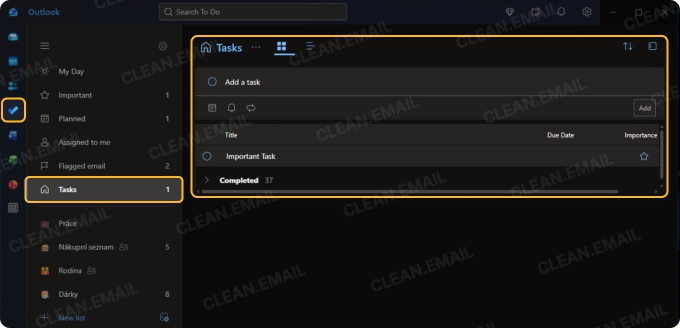
The app even syncs tasks with Microsoft To Do and pulls in your calendar events from across Microsoft 365. If you're already invested in the Microsoft ecosystem, the productivity integrations can really save you a lot of time.

Copilot AI capabilities
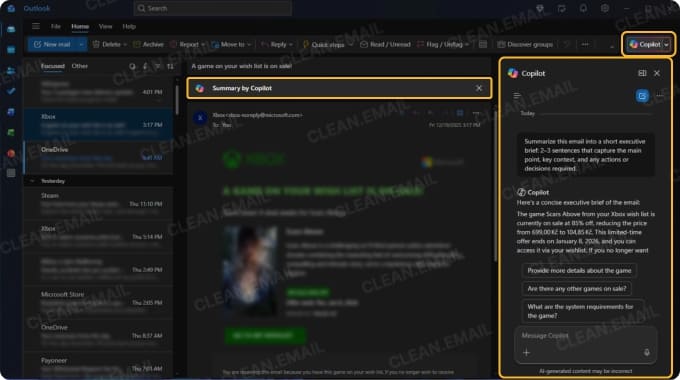
With a Copilot license, you can use AI to draft emails, summarize long conversation threads, get coaching on your writing tone, and more. To understand what Copilot brings to your daily workflow, check out our breakdown of what Copilot is used for in Windows and Office.
Microsoft has made it clear that Copilot development will focus on the new platform going forward, so you can expect Copilot in New Outlook to get better and better over time. Sure, you can always use ChatGPT or another AI in your browser, but having it right there in your mail client is really handy.

Enhanced security by default
New Outlook ships with support for the modern OAuth 2.0 authentication standard, cloud-based threat intelligence, which updates continuously rather than waiting for software patches, and built-in phishing defenses that flag suspicious senders and scan links before you click them.
The app also blocks certain legacy features that posed security risks in Classic Outlook, including COM add-ins and VBA macros. While this improves safety, it does create compatibility issues we'll address shortly.
Old Outlook: Familiar and Feature-Rich
Classic Outlook still has a massive user base for several good reasons that all users who are deciding between Legacy Outlook and New Outlook should know about.
A layout you already know
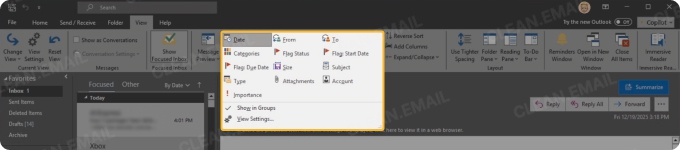
Classic Outlook's interface hasn't changed dramatically in years, and that's actually a strength. The ribbon toolbar puts every feature within reach, and many users have muscle memory built over a decade of daily use that allows them to do what they need to do in Classic Outlook very quickly.
As our guide on how to customize Outlook and personalize your inbox shows, New Outlook does offer some interface customization options, but they are seriously limited compared with Classic Outlook.
Full offline functionality
Classic Outlook downloads your entire mailbox to a local OST file, so you can access years of emails, compose replies, and work through your inbox without any internet connection whatsoever (changes sync automatically once you're back online).
You can also import archives, export mailboxes for backup, and access old emails stored in local data files without restrictions thanks to full read and write support for PST files.
Support for add-ins and macros
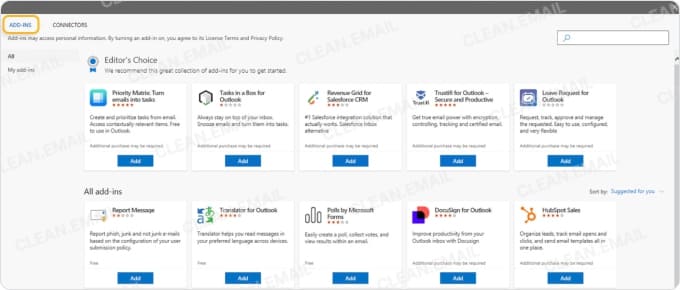
The legacy version of Outlook supports COM and VSTO add-ins, so all those specialized tools your organization relies on will actually work. CRM integrations, custom workflow plugins, document management connectors, and industry-specific extensions all require Classic Outlook.
VBA macros also remain exclusive to the classic version. If you've built automation scripts to handle repetitive tasks or your company uses custom forms, New Outlook simply cannot run them. Microsoft has indicated these legacy technologies won't be coming to the new platform.
Multiple profile support
If you need to keep work and personal email completely separate, then Classic Outlook lets you create distinct profiles, each with its own set of accounts, settings, and data files. You can switch between profiles or run them simultaneously in different windows.
On the other hand, New Outlook combines all accounts into a single interface, which works well for many users but doesn't create strict separation between different email identities.
Choosing Between the Two Outlook Versions
| Feature | New Outlook | Classic Outlook |
|---|---|---|
| Interface | Simplified toolbar, web-like design | Full ribbon with extensive options |
| Startup Speed | Fast, cloud-based loading | Slower with large mailboxes |
| Offline Access | Limited to recent messages | Full mailbox available offline |
| PST File Support | Read-only (mail items only) | Full read/write capabilities |
| COM Add-ins | Not supported | Fully supported |
| VBA Macros | Not supported | Fully supported |
| Copilot AI | Available with license | Not available |
| Teams Integration | Built-in | Requires add-in |
| Multiple Profiles | Not supported | Fully supported |
| Folder Colors | Supported | Not supported |
| Support Timeline | Ongoing development | Supported until at least 2029 |
The comparison table above makes the decision fairly straightforward once you know your priorities:
- Choose New Outlook if you want a faster, cleaner interface and rely heavily on Microsoft 365 services like Teams, OneDrive, and especially Copilot AI. The new version works best for users who stay connected to the internet, don't depend on legacy add-ins, and prefer a consistent experience across Windows, Mac, and web browsers.
- Stick with Classic Outlook if your workflow depends on COM add-ins, VBA macros, or full offline access to years of email history. Organizations using CRM integrations, custom workflow tools, or PST archives for compliance should wait until Microsoft closes these feature gaps. The same applies if you need multiple profiles to keep different email identities completely separate.
Clean Email works with both versions
One factor you can cross off your decision list is inbox management because Clean Email, a safe third-party inbox organizer, works with both New Outlook and Classic Outlook by connecting directly to your mail account through secure protocols rather than relying on the Outlook application itself.
With Clean Email, you can:
- Bulk clean old messages by grouping emails by sender, date, size, or type and removing thousands with a few clicks.
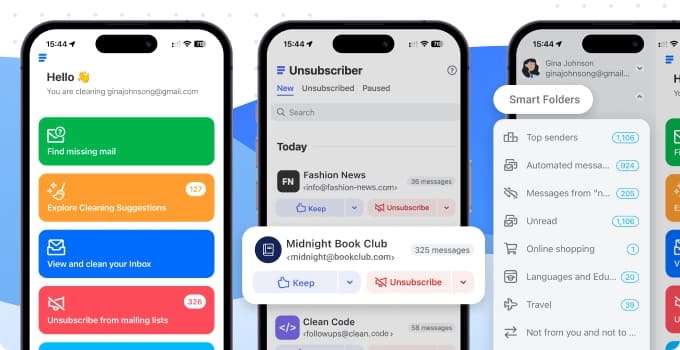
- Unsubscribe from unwanted newsletters using the Unsubscriber tool, which actually removes you from mailing lists rather than just filtering messages.
- Automate routine inbox tasks with Auto Clean rules that move, label, archive, or delete emails as they arrive.
- Block unknown senders using the Screener feature, which quarantines messages from new contacts until you approve them.
- Organize emails into Smart Folders that automatically group messages by category like Online Shopping, Travel, Finance, and Social Notifications.
Using Clean Email, your inbox can stay organized regardless of which Outlook version you use, and you won't lose any cleanup rules or preferences when you eventually make the switch. Moreover, Clean Email works on macOS, mobile, and as a web app, so your settings stay in sync across all devices.
If anything, having Clean Email in place before transitioning makes the move less stressful since your inbox will already be decluttered and under control.
How to Switch Between New Outlook and Old Outlook
The good news is that Microsoft lets you move freely between both versions with just a few clicks. Below you'll find instructions on how to change Outlook to the new version as well as how to switch back to Classic if needed.
📌 Note: Email accounts, favorites, categories, signatures, and web-based add-ins all transfer automatically. However, PST file contents, local inbox rules, Quick Steps, custom forms, VBA macros, and COM add-in configurations do not migrate. If your workflow depends on any of those features, you'll need to either recreate them manually in New Outlook or stick with the Classic version.
Switching from Classic Outlook to New Outlook
Before you switch to New Outlook, it's best to clean up your inbox using Clean Email. A clean inbox makes for a faster and smoother migration. Once your inbox is clean, you can follow these steps:
- Open Classic Outlook and look for the "Try the new Outlook" toggle in the upper-right corner of the window.
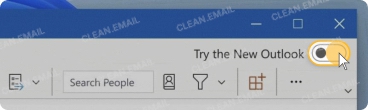
- Click the toggle to begin the transition. Outlook will download any necessary components.
- When prompted, choose whether to Import Settings (recommended) or skip this step.
- Wait for the new version to load. Your accounts and basic settings will carry over automatically.
Both versions can run side by side during this period, so you can compare them directly before making a final decision.
Switching back to Classic Outlook
Should you change your mind, then you can follow these steps to change Outlook to classic view:
- In New Outlook, click the Help menu in the top toolbar.
- Select "Go to Classic Outlook" from the dropdown options.
- Alternatively, look for the toggle switch (same location as before) and turn it off.
- Confirm when prompted, and Classic Outlook will reopen.
💡 For a more detailed walkthrough with screenshots, our guide on how to change Outlook to classic view in 2025 covers additional methods, including registry fixes if the toggle disappears.
Conclusion: Use the Version That Works for You
Microsoft isn't forcing anyone to abandon Classic Outlook until 2029, so you have plenty of time to evaluate which version works best for you at the moment. That said, New Outlook represents the future of Microsoft's email platform, so it's smart to familiarize yourself with its interface now.
Whichever version you choose today, keeping your inbox organized makes everything easier. A cluttered mailbox feels overwhelming in any interface, while a clean one lets you focus on what actually matters. Consider setting up Clean Email now so your inbox stays manageable through whatever changes come next. When you do eventually make the switch, you'll transition without years of digital clutter.
💡 For more ways to get the most out of your email setup, explore our guides on Outlook email management best practices and how to use Outlook effectively.
FAQs
What is New Outlook?
New Outlook is Microsoft's completely rebuilt mail client that runs on web-based technology and functions essentially as Outlook.com wrapped in a native Windows app. Microsoft designed it to provide a consistent experience across Windows, Mac, and web browsers.
Why does Outlook look different?
If your Outlook suddenly looks unfamiliar, you've likely been switched to the New Outlook, either by clicking the toggle yourself or through a Microsoft update. That could be a problem depending on what your needs are because New Outlook lacks some important features that Classic Outlook has, such as full support for PST files.
Is the New Outlook better?
It depends on your needs. New Outlook offers faster performance, a modern interface, native Teams integration, and Copilot AI features that Classic Outlook lacks. However, it doesn't support COM add-ins, VBA macros, full offline access, or PST file management.
Can I switch back to classic Outlook?
Yes. Click the Help menu in New Outlook and select "Go to Classic Outlook," or use the toggle switch in the upper-right corner.
Is Outlook going away?
Classic Outlook is not disappearing anytime soon. Microsoft has committed to supporting it until at least 2029 to give users and organizations plenty of time to transition.
What version of Outlook do I have?
Look for the "Try the new Outlook" toggle in the upper-right corner of your window. If you see it, you're running Classic Outlook. You can also check your Start menu, where Classic Outlook appears as "Outlook" or "Outlook (classic)" while New Outlook may show a "New" badge.












