


Key Takeaways
- Phishing emails impersonate trusted brands — over 70% of attacks in 2025 involve brand spoofing.
- Scam emails are illegal; spam emails are legal but annoying. They need different responses.
- If you clicked a phishing link, act within minutes: disconnect, don't enter any data, change passwords.
- Sextortion emails are almost always bluffs — but incidents rose 137% in early 2025.
- Reporting scam emails to Gmail, Outlook, or your national authority helps protect everyone.

Scam Emails vs. Spam Emails: Why the Difference Matters
People use "spam" and "scam" interchangeably, but legally and practically they are different things.
Spam is unsolicited bulk email — promotional messages, newsletters you never signed up for, cold outreach. In the US, spam is regulated by the CAN-SPAM Act. It is annoying but legal, provided the sender includes an unsubscribe link and a physical address.
➡️ The right response is to unsubscribe or use a bulk-mail cleaner.
Scam emails are illegal. Their purpose is to deceive you — to steal your money, your credentials, or your personal data. No legitimate unsubscribe link will help here.
➡️ The response is to report and block.
Phishing is the most common type of scam email: an attacker impersonates a trusted entity (your bank, Amazon, PayPal, a government agency) to trick you into handing over login credentials or financial information.
Why Email Scams Are Getting Harder to Spot in 2026
Email fraud is not getting better — it is getting more sophisticated. A few numbers that explain why:
- Americans lost a record $12.5 billion to fraud in 2024 — a 25% jump over the prior year — with impersonation scams alone accounting for $2.95 billion of that total.
- Over 72% of phishing attacks in 2025 involve brand spoofing — fake emails that look identical to messages from Amazon, Microsoft, PayPal, or your bank.
- AI-generated phishing is now widespread. Attackers use large language models to write grammatically perfect, contextually convincing emails — eliminating the spelling errors that used to be a warning sign. Phishing and spoofing scams nearly doubled in 2025 as AI-powered fraud surged, according to the National Consumers League.
- Email remains the #1 contact method used by scammers for the second year running, ahead of phone calls and text messages, according to FTC 2024 data.
The practical implication: you can no longer rely on "it looks professional, so it must be real." Verification has to happen at the link and domain level, not the writing quality level.
Check out our Email Hacking Statistics: AI Phishing, Quishing, Deepfakes, Breach Trends
The Most Common Phishing and Scam Email Types
Brand impersonation (lookalike domains)
The attacker registers a domain like paypa1.com or amazon-support-billing.com and sends emails that are visually indistinguishable from the real thing. The email asks you to verify your account, confirm a charge, or unlock suspicious activity — all designed to get you to a fake login page.
Red flags: hover over every link before clicking. If the domain doesn't match the brand's official domain exactly, treat it as phishing.
Fake subscription renewal scams
One of the fastest-growing scam types in recent years is the fake renewal notice — most commonly impersonating Geek Squad (Best Buy's tech support), Norton, McAfee, or similar services.
The email says your annual subscription has auto-renewed for $299–$499 and provides a phone number to cancel. Calling the number connects you to a scammer who then attempts to gain remote access to your computer or extract payment card details.
What to do: never call the number in the email. Log into your actual account directly in a browser to check your subscription status.
CEO / executive impersonation (Business Email Compromise)
Business Email Compromise targets employees, not just consumers. The attacker spoofs a senior executive's email address and requests an urgent wire transfer or gift card purchase. BEC caused $2.9 billion in losses in 2023 per FBI IC3 data — and it remains underreported.
Sextortion emails
Sextortion emails claim to have recorded you through your webcam and threaten to send the footage to your contacts unless you pay in cryptocurrency. Financial sextortion reports jumped roughly 71% in the first half of 2025 compared to the same period the prior year, according to Thorn's research.
The attacker typically has no footage — they bulk-send the same template to millions of addresses. In 2025, attackers increasingly use AI to personalize these emails with your name, a real password from an old data breach, or your street address (sourced from leaked databases) to make the threat seem more credible.
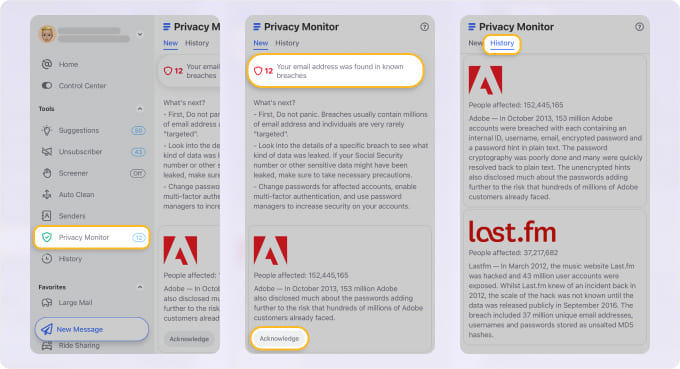
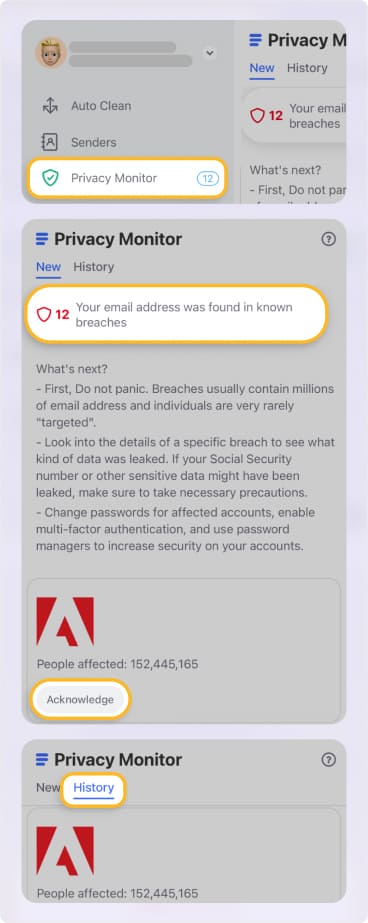
What to do: do not pay. Do not reply. Check HaveIBeenPwned.com or Privacy Monitor to see if the password they reference came from a known breach — it almost certainly did. Report to the FBI IC3 or your local cybercrime authority.
How to Spot a Phishing Email
Even in the era of AI-generated phishing, several structural signals remain reliable:
- Check the sender domain, not just the display name
- Hover before you click any link
- Watch for urgency and threats
- Avoid opening unexpected attachments
- Check for generic greetings
The display name can say "Amazon Customer Service" while the actual sending address is noreply@amazon-orders-verify.net. Expand the sender header and verify the domain character by character.
The visible link text may say "click here to secure your account" while the actual URL goes to a completely different domain. On mobile, press-and-hold to preview the URL before tapping.
Phrases like "Your account will be suspended in 24 hours," "Immediate action required," or "Unauthorized access detected" are pressure tactics. Legitimate companies do not threaten account closure over email and ask you to act in hours.
Unsolicited invoices, shipping notifications with attachments, or "your document is ready" emails with ZIP or .exe files attached are high-risk. Do not open attachments from senders you didn't proactively contact.
"Dear Customer" or "Hello User" instead of your actual name suggests a bulk send — phishers typically don't know your name when they start.
How to Stop Phishing Emails From Reaching You
No filter is 100% effective, but the combination below stops the vast majority of phishing before it reaches your inbox.
- Enable advanced phishing protection in your email client
- Check your email domain's authentication setup
- Be selective about where you publish your email address
- Use a password manager + MFA everywhere
Gmail's Enhanced Safe Browsing and Outlook's Defender for Office 365 add a layer of URL-scanning and sandboxed attachment analysis that basic spam filters don't provide. Both are on by default in consumer accounts but may need to be enabled explicitly in Google Workspace or Microsoft 365 configurations.
If you send email from a custom domain (e.g., your business), SPF, DKIM, and DMARC records are mandatory. Without them, your domain can be spoofed — attackers send email that appears to come from you.
Scraping publicly posted email addresses is how most spam and phishing lists are built. Use a contact form rather than a bare yourname@yourdomain.com link on public-facing pages. Use a separate address for signups and online shopping.
A password manager means that even if you enter your credentials into a fake site for Site A, you haven't exposed Site B. MFA means credential theft alone doesn't translate to account takeover.
How Clean Email Can Help You Spot Fraud Faster
Clean Email is primarily an inbox organizer, but several of its features double as practical phishing defenses.
- Use the Screener to quarantine unknown senders.
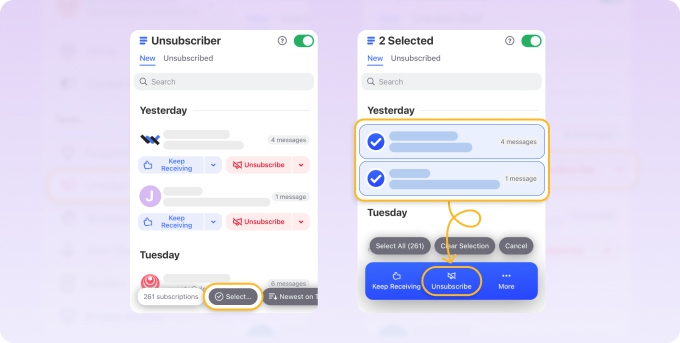
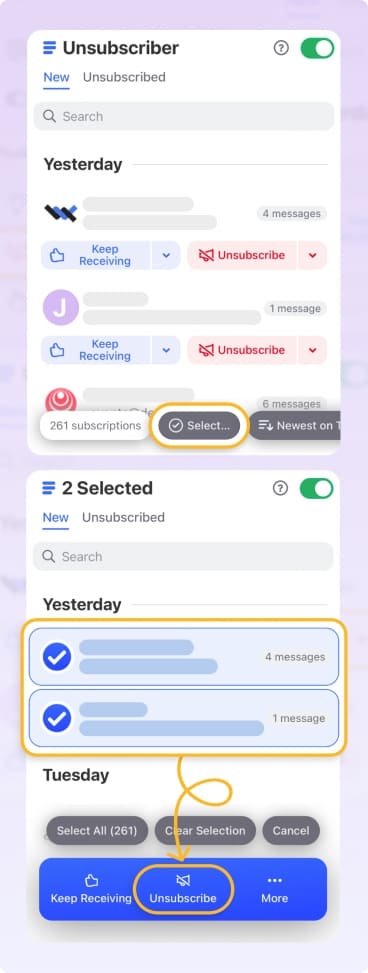
- Reduce your attack surface by unsubscribing from unwanted mail.
- Block persistent scam senders.
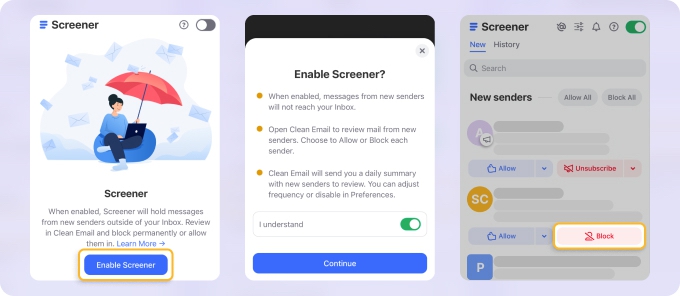
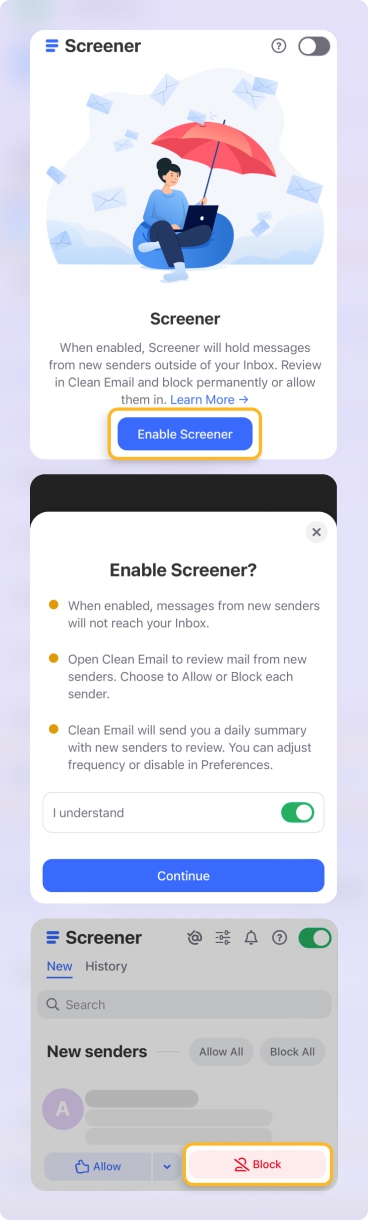
Screener intercepts emails from senders you've never received mail from before and holds them for review rather than delivering them straight to your inbox.
This is particularly useful for phishing: a first-time "PayPal" or "Amazon" email that arrives via Screener — rather than joining your existing thread of real emails from that sender — is a prompt to verify the sender domain before you open anything.
Legitimate companies you actually do business with will quickly build a track record in your inbox; anything suspicious will keep ending up in Screener, where it's easy to block.
The more marketing and promotional email you receive, the harder it is to notice something suspicious arriving.
Clearing multiple emails with one-click unsubscribe means your inbox contains fewer distractions — and a suspicious-looking "order confirmation" from a company you never subscribed to becomes much harder to miss.
If a scam address keeps sending you sextortion or impersonation emails, a block feature ensures future messages from that address never reach your inbox.
How to Recognize a Scam Email
Scam emails are more overtly manipulative than phishing. Here are the types you're most likely to encounter:
Inheritance or unexpected windfall. A lawyer, foreign official, or distant relative contacts you about a large sum of money you're entitled to — you just need to pay a small "processing fee" to release the funds. The fee is the scam.
Fake lottery or prize claim. You've won a competition you never entered. To claim your prize, provide personal details or a small payment. Neither the prize nor the lottery exists.
Fake invoice or payment demand. An email that looks like an invoice from a supplier, utility, or subscription service you actually use — but with the scammer's payment details swapped in. These are particularly dangerous because the brand, layout, and amounts can look entirely legitimate.
Charity scams. Especially common after natural disasters or emergencies. Fake charity appeals collect donations that go straight to scammers. Always verify a charity at Charity Navigator or GiveWell before donating in response to an email appeal.
Sextortion emails. The sender claims to have installed spyware on your device and recorded you during private moments, demanding cryptocurrency to stay quiet. See the full breakdown — including the 2025 surge in cases and why these are almost always bluffs — in the section above.
Fake security alerts. Spoofed "Your account has been compromised" emails from "Google," "Microsoft," or "your bank" that link to credential-harvesting login pages. These blur the line between scam and phishing — the manipulation is the urgency, the delivery mechanism is a fake login page.
The common thread across all of them: urgency, a demand (money or personal information), and a reason just plausible enough to act without thinking.
What to Do When You Receive Scam Emails
1. Don't click, don't reply, don't call. Links can install malware or take you to fake login pages. Replies confirm your address is active, inviting more attacks. Phone numbers in scam emails go directly to the scammer.
2. Report it to your email provider. This does more than move the email — it trains your provider's filters and helps protect others receiving the same campaign.
- Gmail: Select the email → three-dot menu → Report phishing
- Outlook: Select the email → Junk dropdown → Phishing
- Yahoo Mail: Select the email → Spam button in the toolbar
- iCloud Mail: Right-click the email → Move to Junk
- AOL Mail: Select the email → Spam button above the message list
3. Block the sender. After reporting, block the address so any follow-up attempts go straight to trash. For full step-by-step instructions by provider, see our guides for Gmail, Outlook, Yahoo, and iPhone.
4. Don't click "unsubscribe" on phishing or scam emails. For legitimate newsletters, unsubscribing is fine. For confirmed scam or phishing emails, clicking unsubscribe confirms your address is active and can trigger more attacks.
I Clicked a Phishing Link — What Do I Do Now?
This is one of the most searched questions about phishing, and the answer depends on how quickly you act. Minutes matter.
Step 1: Don't enter any information. If you landed on a fake login page, close the tab immediately without typing anything.
Step 2: Disconnect from the internet. If you downloaded anything or suspect malware was delivered, disconnect from Wi-Fi and ethernet before the malware can communicate back to the attacker's server.
Step 3: Change your passwords immediately. Start with your email account — email access unlocks almost everything else. Then your bank, then any account sharing the same password. Use a password manager to generate unique replacements.
Step 4: Enable multi-factor authentication. Turn on MFA for any affected accounts now. An attacker with your password still can't log in without access to your phone.
Step 5: Report it. Forward the original email as described in the section below, and report the URL to Google Safe Browsing.
If you believe your account was already accessed — emails sent without your knowledge, settings changed, contacts receiving suspicious messages from you — move to full recovery mode. See our complete guide: What to Do If Your Email Is Hacked.
How to Report Phishing and Scam Emails
Reporting takes 30 seconds and directly feeds into spam filters that protect other users.
In Gmail: Right-click the email (or click the three-dot menu) → Report phishing. You can also forward phishing emails to reportphishing@apwg.org (Anti-Phishing Working Group) or spam@uce.gov (FTC).
In Outlook: Select the email → Report → Report phishing. Or forward to phish@office365.microsoft.com.
Report the URL directly to Google: If the phishing email contains a link, report it at safebrowsing.google.com/safebrowsing/report_phish — this flags the URL across Chrome, Gmail, and other Google services for all users worldwide.
To national authorities:
- US: FBI IC3 at ic3.gov; FTC at reportfraud.ftc.gov
- UK: Action Fraud at actionfraud.police.uk
- EU: Your national CERT (e.g., CERT-FR, BSI in Germany)
- Australia: Scamwatch at scamwatch.gov.au
Reporting to your provider improves their filters. Reporting to authorities is particularly important for financial fraud, business email compromise, or if you actually lost money.












