


Key Takeaways
- Gmail is generally secure, with strong protections like TLS encryption, spam filtering, and phishing detection.
- TLS only protects emails in transit, not after they reach Google’s servers.
- Gmail does not provide end-to-end encryption, meaning sensitive data can still be accessed in certain scenarios.
- Highly sensitive information (SSNs, banking details, contracts) should not be sent via standard Gmail without extra protection.
- Safer alternatives include encrypted attachments, password-protected files, or secure sharing platforms.
- User behavior is critical: enabling 2FA, using strong passwords, and spotting phishing attempts matter more than built-in protections.
Is Gmail Safe To Use?
So here’s the million-dollar question — how safe is Gmail?
Gmail is safe and secure, generally. At least if you’re talking about whether Gmail is safe from hackers — I wouldn’t lose sleep over it.
Being one of the big tech giants today, it’s almost tempting to think that, in fact, Gmail is secure. After all, it’s got solid protections that are built into the email system.
So yes, it’s safe to open an email in Gmail. And yes, the Gmail app is safe.
But it's also prudent to think that not everything online is immune to digital disasters. When it comes to highly confidential information, it’s always worth asking the question: How can an electronic mail service provider protect your personal information?
While it’s not necessarily a digital fortress, Gmail's got some serious security features. But are there any limitations to it, and what can we do when it comes to these limitations?

Gmail's Built-in Security: What's Protecting You?
Now let’s understand whether it’s safe to send sensitive information via Gmail in terms of its security features. Just a word of warning: There will be some jargons in the following sections, but we’ll try our best to make it easier for most of us non techy peeps!
Let’s start with Gmail’s mother company: Google. This tech giant invests heavily in security, and your Gmail account benefits from several layers of protection working behind the scenes.
Transport Layer Security (TLS) encryption
Transport Layer Security (TLS) is a standard encryption protocol used by Gmail to secure emails during transit. It ensures that messages are protected from tampering or interception while traveling between email servers.
TLS is automatically applied to all Gmail messages, providing a secure "mail carrier" for your emails. And most major email providers, including Outlook and Apple Mail, use TLS.
Here’s the catch. How effective it is really depends on both the sender and recipient's email services supporting TLS. If, for instance, either party's service lacks TLS, the email may not be encrypted during transit.
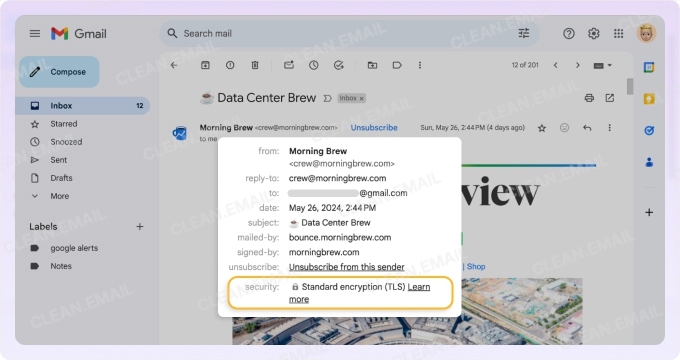
✅ You can see if an email was sent with TLS. In Gmail, open a message, click the small down arrow next to the recipient's name, and you'll see a lock icon if it was encrypted.
⚠️ A red, unlocked icon would mean it was sent over an insecure connection.
📌 Related article: How to Encrypt an Email in Gmail
Advanced anti-spam and anti-phishing protection
Gmail's filters are notoriously effective.
The platform claims to block more than 99.9% of spam, phishing attempts, and malware from ever reaching your inbox. It uses machine learning to analyze patterns and identify suspicious messages.
This is your first line of defense against scams designed to trick you into revealing personal information or clicking on malicious links.
For instance, Google’s got such a thing as “Safe Browsing” that can tell you if there are potentially dangerous links in a message received in your inbox. It gives you a heads up before clicking and landing on the web page.
Especially handy, now that scams and phishing emails are getting more and more sophisticated. Let’s admit, some of us almost fall for them every now and then, right?
Protections for business accounts
For those using Google Workspace (formerly G Suite), there are additional security features like S/MIME (Secure/Multipurpose Internet Mail Extensions).
Sorry if that sounds like a bit of a jargon. But what it basically means is that S/MIME encrypts the email's content itself and can only be decrypted by the recipient with the correct key.
That’s a big difference from the TLS that we’ve talked about, which only encrypts the email in transit.
S/MIME also allows for digital signatures, verifying that the email actually came from you. However, this feature is only available in paid business accounts and requires configuration on both ends to work.
There’s the Rub: Gmail Has Got Some Limitations
Like anything in this world, Gmail is not perfect. And so are its security features. There are a couple of things you need to know.
No end-to-end encryption
📌 Here's the part that gives security experts pause. Standard Gmail does not offer end-to-end encryption.
What this essentially means is that while your email is encrypted in transit (thanks to TLS), Google can access the contents of your messages once they arrive on its servers. It scans your emails to provide features like Smart Reply, categorize your inbox, and display targeted ads.
For most day-to-day emails, this is a non-issue. But for sending a copy of your passport or a signed contract, oof — it presents a privacy problem.
Because Google’s got your personal data, they could potentially be accessed in a few scenarios:
- A government agency serves a warrant for your data.
- A malicious actor gains unauthorized access to Google's internal systems. Real bad luck and a lot of us will be screwed!
- A Google employee with high-level access abuses their privileges.
While these scenarios are rare (and yes, the worst case), they’re not impossible. This is why security professionals argue that for truly sensitive information, Gmail's standard service isn't enough.
Standard encryption is no magic shield
So is it safe to send SSN over Gmail? Is Gmail safe for personal information? Is Gmail safe to send confidential documents? All these questions might be in your 3am thoughts! We can’t blame you, really!
Especially that “standard encryption” is no magic shield for your most sensitive documents — like your Social Security number, banking info, or confidential contracts.
When you send a PDF, spreadsheet, or any personal data through Gmail, it’s protected in transit (thanks to TLS), but it’s not locked down end-to-end.
Once it hits Google’s servers, that document isn’t just your business. The data is accessible to Google and potentially vulnerable if someone gains access to your account or, in rare cases, if Google’s infrastructure is breached.
📌 If you absolutely must share critical personal info, use password-protected files, encrypted attachments, or secure file-sharing platforms — then you’re better off sending access details through a separate channel.
Here’s How You Can Make Your Gmail Experience Safer
You don't need to abandon Gmail altogether. I mean, who’s got the time to create another email on a different service provider from scratch?
There are ways (some of them you can easily do today) to strengthen your account’s security and boost Gmail security.
1. Enable two-factor authentication (2FA) (or use an Authenticator)
Two-factor authentication requires a second form of verification in addition to your password, like a code sent to your phone. Even if a scammer steals your password, they can't get into your account without your phone. It's a simple step that neutralizes the most common type of account breach.
You can either use the text code option or download the Google authenticator app.
This is probably the single most important action you can take to protect your account. It’s super easy, too!
2. Always pick strong passwords and find a system to manage them
Here’s another thing you can start doing, stat.
A strong password is long, complex, and unique. Don't reuse passwords across different sites. If one site is breached, those evil, digital fiends will try that same password everywhere else.
Use a mix of uppercase letters, lowercase letters, numbers, and symbols. Better yet, use a password manager (like Google’s, or even third-party apps like Lastpass) to generate and store incredibly strong, unique passwords for all your accounts.
3. Links and attachments that don’t seem quite right? Your spidey senses could be right
Phishing scams are more sophisticated than ever. Be wary of any email that creates a sense of urgency, asks for personal information, or contains unexpected attachments.
Look out for wrong grammar and misspelled words (or names).
Hover over links before clicking to see the actual destination URL. If an email looks suspicious, even if it appears to be from a trusted source like your bank, don't click anything. Instead, go directly to the company's website by typing the address into your browser.
If the email seems to be coming from a colleague at work, pick up the phone or walk over to them to double-check if the message’s really from them.
A Crowded Inbox Increases the Chances of a Mistake — So Tidy Up
A cluttered inbox isn't just annoying; it's a security risk. The more clutter there is, the less you can focus on the tiny details. And when it comes to cybersecurity, sometimes the devil is in the details.
This is where Clean Email enters the picture. While it’s not an antivirus tool, it can simplify your digital life — which, to be honest, directly impacts your security posture. Here’s how Clean Email could help:
Declutter your inbox
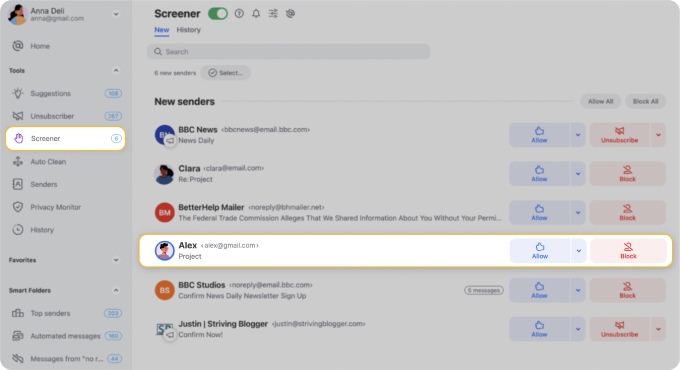
Protect your inbox with the Screener tool that quarantines emails from unknown senders until you approve or block them.
Reduce your exposure surface
By unsubscribing from mailing lists you no longer read, you reduce the number of incoming emails, shrinking the potential for malicious messages to reach you. Clean Email is available on macOS, mobile devices, and the web, so you can manage this process consistently across all your devices.
Offer a safer inbox environment
This style of inbox management helps you to focus on the emails that matter and reduces the mental fatigue that leads to security errors.
📌Lighter mental load = less likely to make a mistake (like sending a very sensitive information to a journalist.)
FAQs
Is Gmail safe for banking?
Gmail is generally safe for banking as it uses TLS encryption to protect emails in transit and has strong anti-phishing measures. However, avoid sharing sensitive banking details over email unless absolutely necessary, as Gmail lacks end-to-end encryption.
Is it safe to open a PDF in Gmail?
Opening PDFs in Gmail is safe if the sender is trusted and the file doesn’t seem suspicious. Always avoid opening attachments from unknown senders or those that prompt you to enable macros or download additional files.
Is it safe to email credit card info Gmail?
Don’t do it! It’s not recommended to email credit card information through Gmail, as it doesn’t provide end-to-end encryption, leaving your data vulnerable. Instead, use secure file-sharing services or encrypted messaging platforms for sensitive information.
Is Gmail Confidential Mode safe?
Gmail’s Confidential Mode adds security features like expiration dates and restricted access, which can help protect sensitive emails. However, it doesn’t prevent screenshots or determined attackers, so it’s not foolproof for highly confidential information.












