Break the Habit: Stop Checking Email So Often
There was a time when emails consumed my life. I’d stop working on my current task to check my emails every time that notification dinged. Along with doing this in the office for nine hours a day, I did the same on my off hours. Before and after dinner, during a TV show, before bed, even in the middle of the night and on the weekend — no time was sacred!
Some may say that’s an email addiction, but others (like my boss) believe it’s just “part of the job.”

Whatever you call it, the problem is that this behavior actually reduces productivity. No matter how good you are at multitasking, switching between tasks means the need to refocus. How many times have you gotten distracted from a task, taken care of the interruption, and returned to the task with “okay, where was I?”
Additionally, don’t dismiss the fact that checking email less frequently reduces stress. A study conducted by Kushlev and Dunn at the University of British Columbia found that “limiting the frequency of checking email throughout the day reduced daily stress.” The 124 participants spent one week checking email only three times a day and another week checking as often as they liked. The researchers also found that “lower daily stress predicts greater well-being.”
The habits below help you stop checking email in the evenings and on weekends without falling behind at work. For the emotional side of the problem, see our guide on how to lower email anxiety.
The Email Batching Technique: How to Check Email Twice a Day
One way to get your feeling of email overload under control is to use the Email Batching technique. This involves managing messages only a couple of times per day. It allows you to control your schedule, rather than letting your inbox manage your time.
It also lets you give your messages your full attention instead of bouncing back and forth between your inbox and other tasks.
To make the method more effective, consider the following:
- Set a schedule to manage messages at specific times such as 9 AM and 3 PM.
- Create time limits for each batch like 30 or 60 minutes.
- Prioritize messages in each batch or use a system like the Four D’s (below).
- Work on similar or related emails in a batch.
- Close your email app or browser tab between batches so new messages can’t pull you back in.
- Tell colleagues when you check email and how to reach you for anything urgent, such as a call or chat message.
One important action to take before you tackle this technique is to clean your inbox. Once you clear the backlog of messages, you can start fresh which puts you in a position to make the method a success.
Organize, Clear Your Inbox, and Unsubscribe
To set a solid foundation for effective mailbox management, use the following Clean Email tools to declutter your inbox, organize your emails, and unsubscribe from unwanted messages.
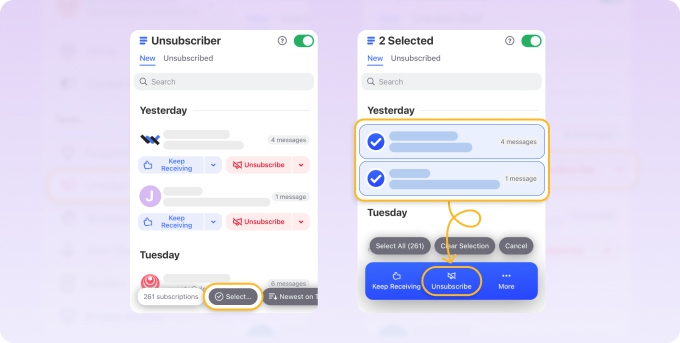
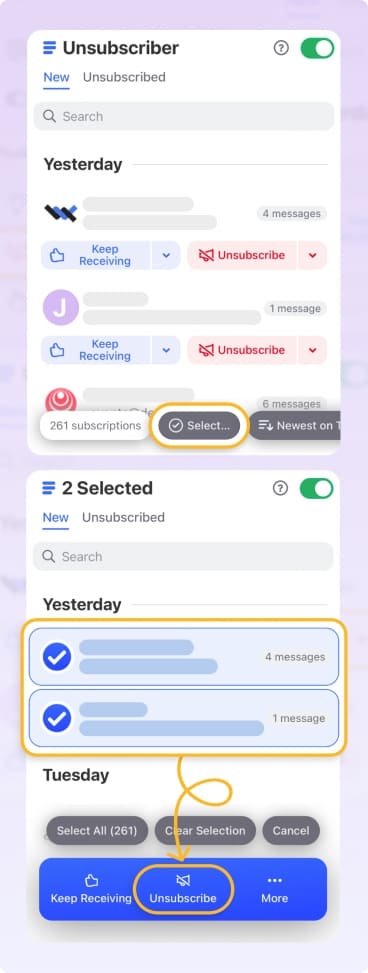
Unsubscriber Feature: Use Unsubscriber to remove yourself from multiple mailing lists at once. You can also pause subscriptions temporarily while you clear out your inbox.
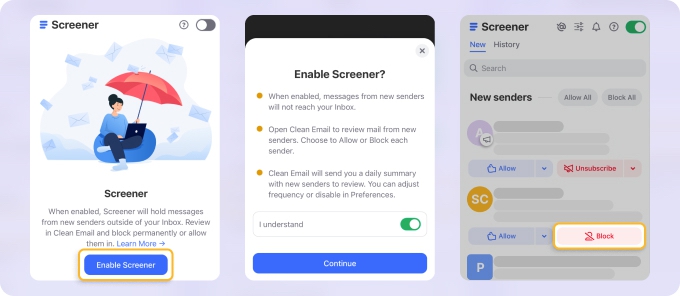
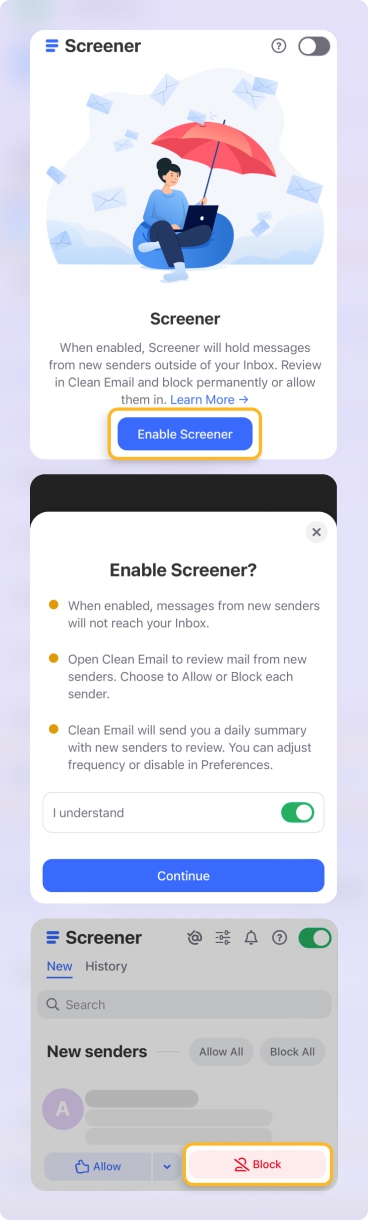
Screener Feature: View all emails from unknown senders in one place. This lets you stop junk before it reaches your inbox.
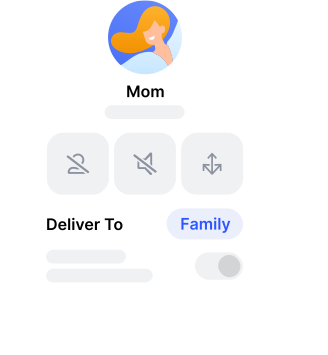
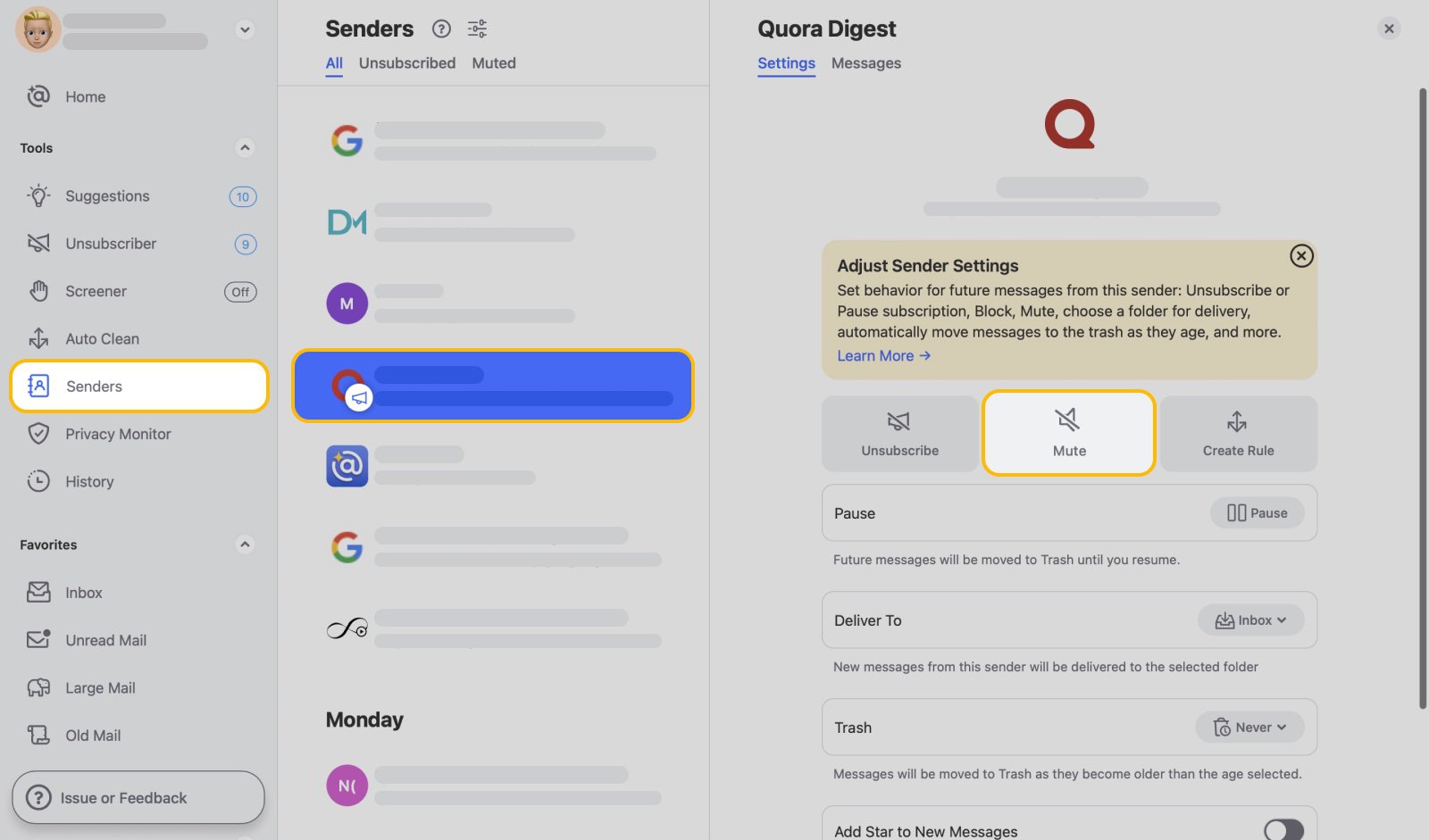
Mute Function and Mark as Read: Silence or mark messages as read to reduce distractions.
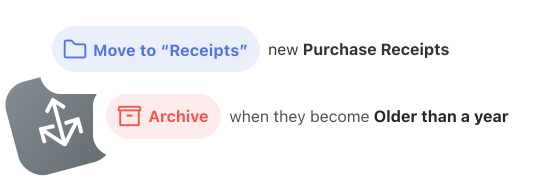
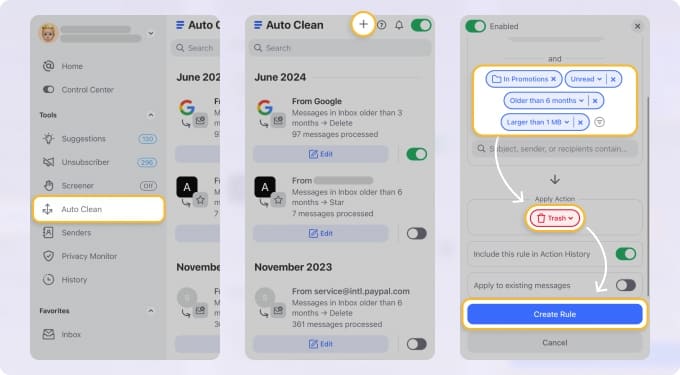
Auto Clean Feature: Create rules to automatically declutter your mailbox and organize incoming messages moving forward.
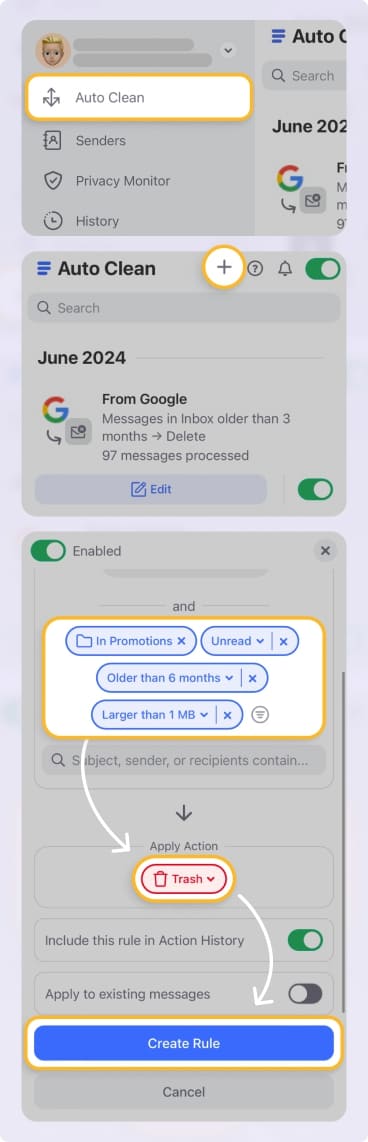
Cross-Device Syncing: Clean your inbox from anywhere. You can use all features across devices and those actions sync seamlessly.
Clean Email is committed to your privacy and security by not selling your data and ensuring it remains safe. The application has been on the market for more than 10 years and cleans 5 billion emails each year! It works with all IMAP email accounts and is available on the web, desktop, and mobile devices.
Turn Off Push Notifications
Every new-message alert is an invitation to check your inbox outside your scheduled batches, even when you’ve decided to stay away.
To prevent this, turn off your email notifications in your device’s system settings or in your mail app. If switching them off completely feels risky, limit them to important messages instead. For example, the Gmail app on Android, iPhone, and iPad has a High priority only notification setting.
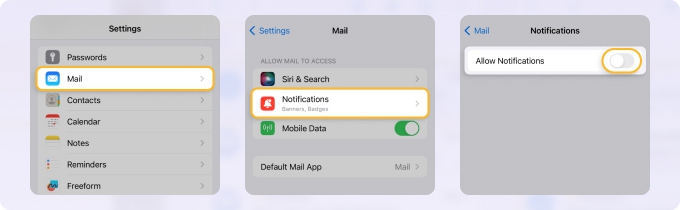
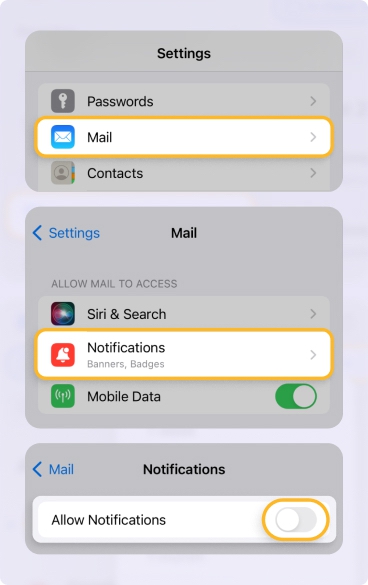
On Apple devices, you can also set up a Focus for your time away, such as meals, family time, and weekends. A Focus silences notifications, including new-mail alerts, while still letting through the people and apps you choose, like messages from your partner, and you can schedule it to turn on automatically. On Android, Modes such as Do Not Disturb let you allow specific people and apps in the same way.
Schedule Time for Email
To reduce email anxiety and put the Email Batching technique to work, consider scheduling events on your calendar and/or using tools that enforce the time limits you set.
Time Blocking
Time Blocking is a time management technique where you create blocks of time on your calendar to take care of tasks. Combined with Email Batching, you can set up recurring events to manage your inbox twice per day, each day. You simply block your calendar for those timeframes, set reminders so that you know when to begin, and work on nothing else during those times.
You can create time blocks with the calendar you already use for events like Google Calendar, Outlook Calendar, or Apple Calendar, so you don’t need any special software.
App Limiting Tools
On Android devices, you can use the Digital Wellbeing tool and on Apple devices, you can use Screen Time. With App timers in Digital Wellbeing or App Limits in Screen Time, you set a daily limit for the time you can spend in your email app.
If you’re interested in third-party options, apps like Freedom and RescueTime can block your email app or webmail during the focus sessions you set, limiting the time you spend checking email. RescueTime also tracks how much time you spend in each app.
When an app timer runs out, Digital Wellbeing closes the app and dims its icon until the timer resets at midnight. On iPhone, Screen Time shows a time limit screen instead, but you can choose to ignore the limit, so treat it as a firm reminder rather than a lock.
Process the Batch (the Four D’s)
Many who seek to reach inbox zero swear by the Four D’s for handling incoming messages. But you don’t have to strive for zero emails or spend zero time on messages to use this technique — it works perfectly with the Email Batching method.

Using the Four D’s, you review each new message and then do one of the following with it:
- Do: Reply to the email right away, especially if it’ll only take a couple of minutes.
- Delegate: Forward the message to another team member to handle.
- Defer: Delay acting on the email until you have time to determine the correct action.
- Delete: Remove an unnecessary message by deleting it or moving it to the trash.
By triaging messages using the above actions, you should be able to handle each new email in the batch and move onto the next task.
Use the One Touch Inbox Strategy
One final technique you can use for email stress management is the One Touch Inbox Strategy. This is similar to the Four D’s above but without the Defer action and also works well with Email Batching.
The intent here is that you handle each message only once. This means you reply, delegate, or delete the email immediately. This cuts the time you lose revisiting the same messages and reduces the overall time you spend managing your inbox.
A Balanced and Effective Approach to Email Management
Using both Clean Email and the Email Batching technique, you can create an efficient mailbox management system.
Clean Email provides features for task automation and long-term organization while Email Batching helps prevent interruptions and allows for better focus. Together, these tools can help you maintain a clutter-free inbox, reduce email anxiety, and free up time for things you enjoy like family, hobbies, and personal interests.