How to Check Gmail Storage on the Web
You can easily view your email storage space along with the amount of space your other Google apps use from any web browser on your desktop. Depending on if you only want to see Gmail storage space or that used for Drive and Photos as well, you can use either Gmail or Google Drive.

View email storage in Gmail on the web
To see the Gmail space you’re using for messages, do one of the following:
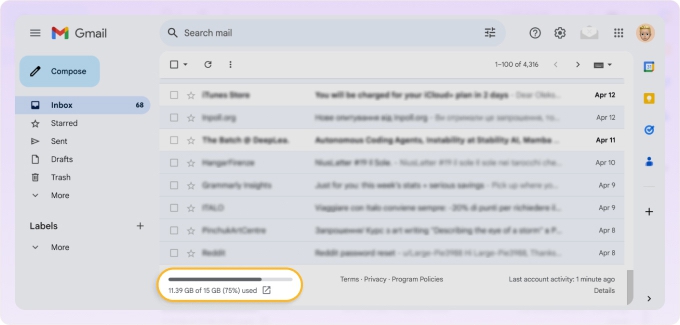
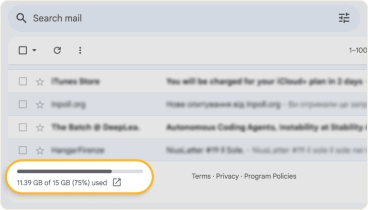
- Visit Gmail, sign in, and you should automatically land in your Inbox. Do not select any messages and you’ll see the amount of space used along with your limit at the bottom of the left side.
- Alternatively, open the Settings:
- Select the gear icon on the top right and pick See all settings in the side panel.
- Go to the Accounts and Import tab.
- Scroll to the Add additional storage section to see how much space you’re using along with your limit.
Note that the above steps may not work if you have a Google Workspace account. In this case, use the next set of instructions for Google Drive.
💡 Tip: If your mailbox is nearly full, follow these steps to clean up Gmail storage.
View Gmail storage in Google Drive on the web
To see the space used by Google email along with Drive and Photos, as well as manage inbox storage, do one of the following:
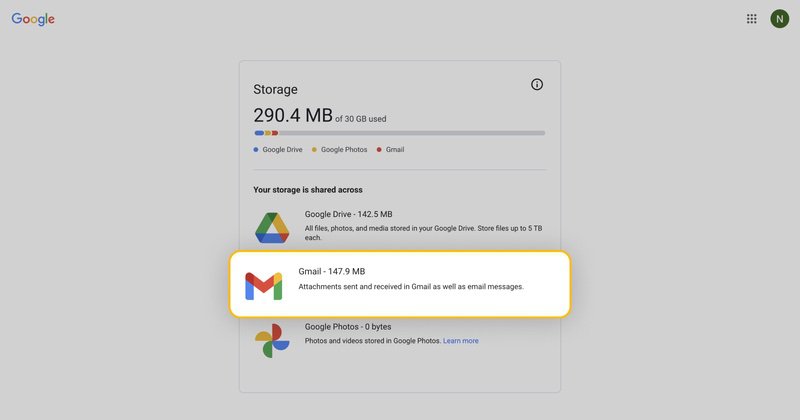
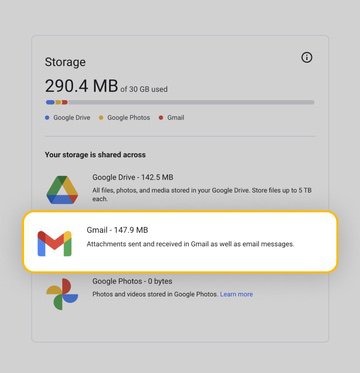
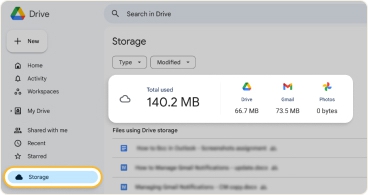
- Go directly to the Storage page within the Google Drive Settings to see the total used and the amounts for Drive, Gmail, and Photos.
- Alternatively, head to Google Drive:
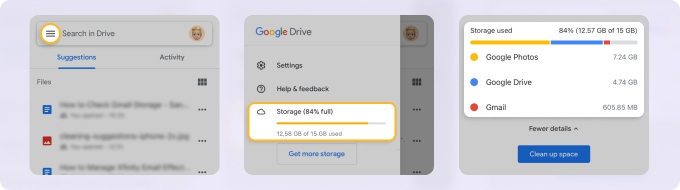
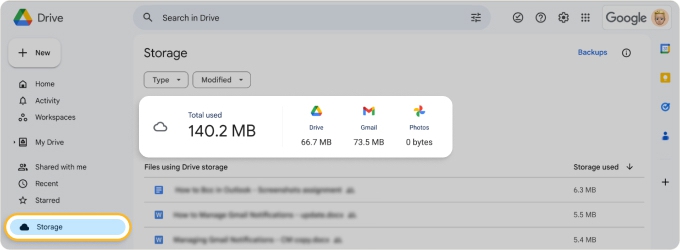
- Visit Google Drive, sign in, and you’ll see your used space and total limit on the bottom left.
- Select Storage for a breakdown. To the right, you’ll see the total used along with the amounts used by Drive, Gmail, and Photos.
- You’ll also see your list of Drive files sorted by largest to smallest.
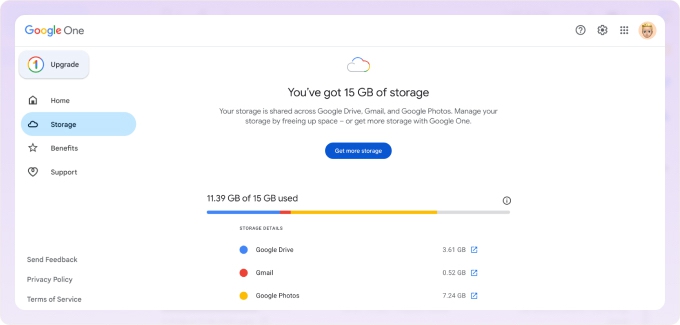
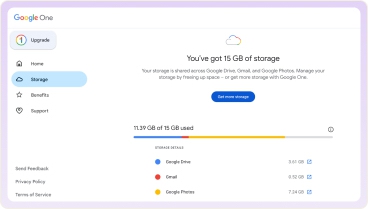
📌 Tip: If you use Google One, sign into your Google One account and choose Storage in the left-hand menu to see your details for Drive, Gmail, and Photos.
How to Check Gmail Storage on Mobile
You can check Gmail storage on iPhone and Android using the same methods and steps. And you can do so for just email or your entire Google account.
View email storage in Gmail on mobile
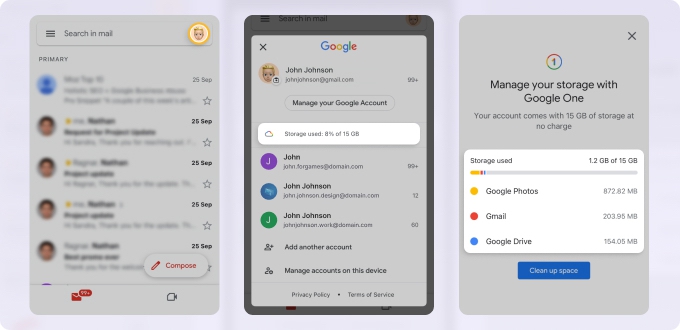
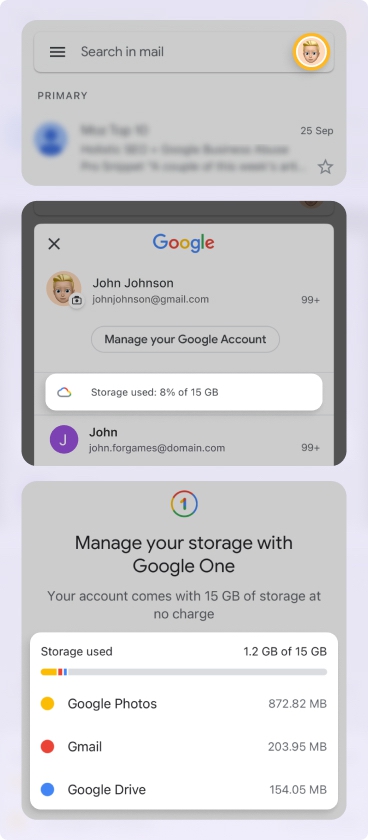
- Open the Gmail mobile app and tap your profile icon on the top right.
- Next to Storage used, you’ll see the amount used along with your limit.
- To see a breakdown by app, tap the Storage used option.
- You can then view the amounts used by Drive, Gmail, and Photos.
Again, the above instructions may not work if you have a Google Workspace account. Instead, use the next set of steps for the Google Drive app.
View Gmail storage in Google Drive on mobile
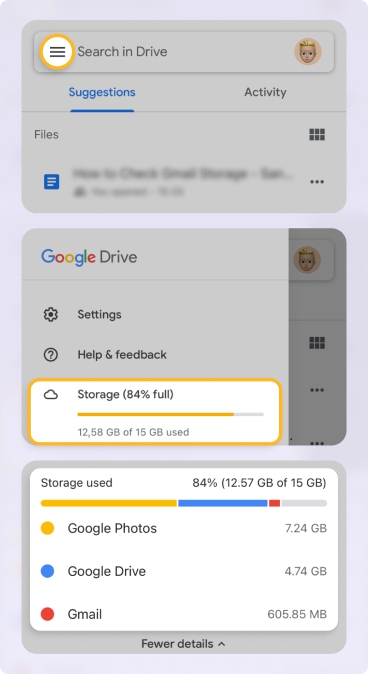
- Open the Google Drive mobile app and display the left-hand menu.
- Below Storage, you’ll see the amount of space used.
- To see a breakdown by app, tap the Storage option.
- Below the meter, tap More details and you can then view the amounts for Drive, Gmail, and Photos.