Email Automation Goals
When it comes to email automation, there are four main actions that can help you better organize your mailbox.
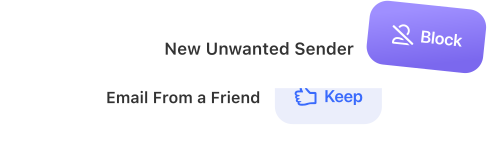
- Sorting new emails: Incoming messages that you can sort using folders or labels.
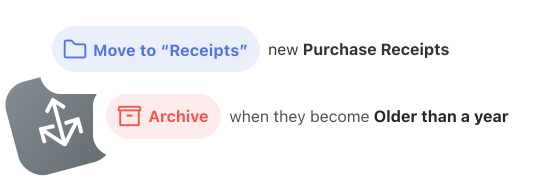
- Auto-archiving: Emails you don’t need now, but may need later.
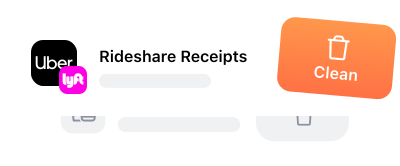
- Auto-deleting: Messages that you don’t need now, nor will you need later.
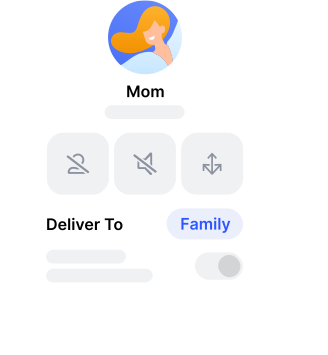
- Forwarding to others: Emails requiring action from someone else.
With these four simple automations, you can not only rid your inbox of clutter but continually maintain a clean and efficient mailbox.
What to Automate First
Choosing which email automation to start with can be tough. On one hand, you want to take care of the noise. But on the other hand, you want to improve your efficiency.
To help decide, ask yourself a few questions:
- Which emails do you spend the most time organizing?
- Which messages are the most distracting?
- Which emails require little to no decision-making?
- Which messages create the most clutter?
One of the best strategies you can use is to begin with the quick wins – the low-hanging fruit. Then, move onto emails requiring frequent actions, followed by unimportant messages that affect your focus.
Here are some example email types that fit well into the four automation goals:
Sort: Messages you want to keep like newsletters, receipts, and confirmations
Auto-archive: Emails from low-priority senders, those you’re copied on, or messages for reference
Auto-delete: Messages you will never need like trivial notifications, company promotions, or junk not caught by spam filters.
Forward: Emails prompting tasks or actions from someone other than you or those mistakenly sent to you rather than a coworker.
Email Automation Tools by Provider
Before you make a firm commitment to automating your messages, it’s important to understand your email service provider’s capabilities.
Gmail
Gmail provides email rules in the form of “filters.” Using these filters, you can automatically sort by applying labels, delete or archive new emails that arrive, and forward messages to another email address.
Outlook
Outlook offers inbox rules that let you automatically sort into folders, archive or delete incoming emails, and forward Outlook messages to someone else.
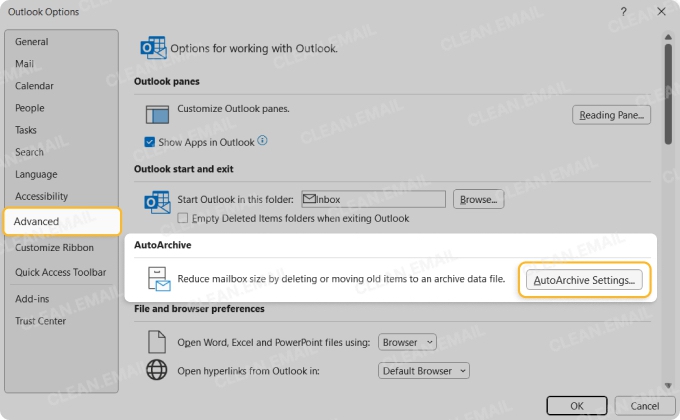
If you use the classic Outlook version on Windows, you can take advantage of the AutoArchive feature allowing you to automatically archive or delete emails based on age.
Yahoo Mail
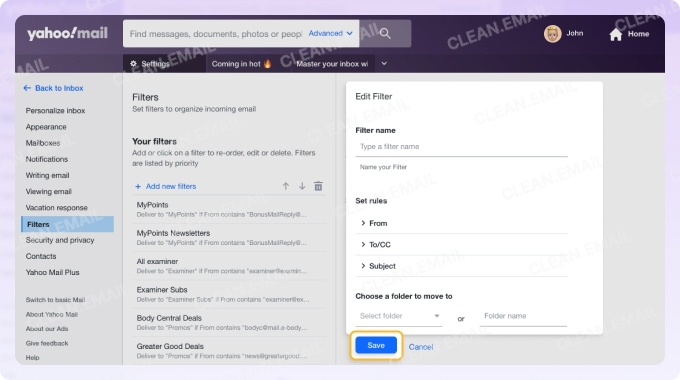
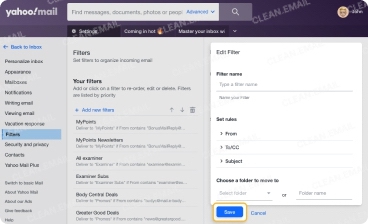
Yahoo Mail gives you email filters for automations, similar to Gmail. These allow for very basic conditions and let you automatically sort Yahoo emails into folders. This includes automatically moving messages to the Archive or Trash folder.
Apple Mail
Apple Mail provides inbox rules to automatically sort into folders, move to the archive, delete, or forward emails to another address.
You can create rules in Mail on Mac for any connected email account; however, these rules only run locally on your Mac.
Email Provider Automation Comparison Table
| Goal | Gmail | Outlook | Yahoo Mail | Apple Mail |
|---|---|---|---|---|
| Auto-sort incoming emails | Yes — filters | Yes — rules | Yes — filters | Yes — rules |
| Auto-forward to another address | Yes — filters | Yes — rules | Upgrade feature only | Yes — rules |
| Auto-delete by age | No — no time-based option; filters delete by sender or keyword, not by age | Limited — Classic Outlook for Windows AutoArchive only | No native time-based option | Limited/local rules only |
| Auto-archive | New incoming mail only | Limited — Classic Outlook for Windows only | No true auto-archive | Limited/local rules only |
| Works on mobile | No native rule creation | No full rule automation | No full automation | No full automation, iCloud Mail only |
| Acts on existing email | Upon initial filter setup only | Manual only — rules don't run automatically on existing mail | No | Limited/manual |
Provider Automation Limits
While most providers offer some form of automation, it may not fully meet your needs. For instance, you might want to auto-delete emails older than five years with Gmail as your provider. Unfortunately, you cannot automate Gmail to delete messages based on age.
To better understand your provider’s limitations and help you overcome them, let’s break them down.
- Gmail filters: Can only apply filters to existing emails upon setup, no age-based filters, no mobile management
- Outlook rules: Can only apply rules to existing emails during setup or manually, no mobile management
- Yahoo filters: Cannot apply filters to existing emails, filters can only move to folders, no mobile management, no third-party mailbox setup
- Apple Mail rules: Cannot apply rules to existing emails, Mac rules only run on Mac, mobile rules only apply to iCloud Mail
To bypass the above limitations, consider a tool like Clean Email. Using the Auto Clean feature, you can apply rules to both new and existing emails for any connected IMAP account, set up age-based rules, choose from numerous conditions and actions, and create, edit, and manage rules on any device.
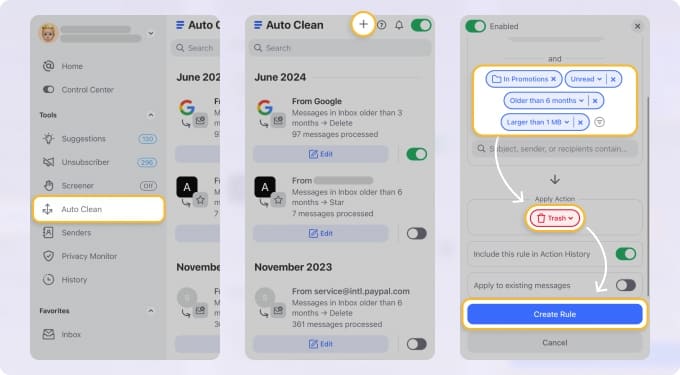
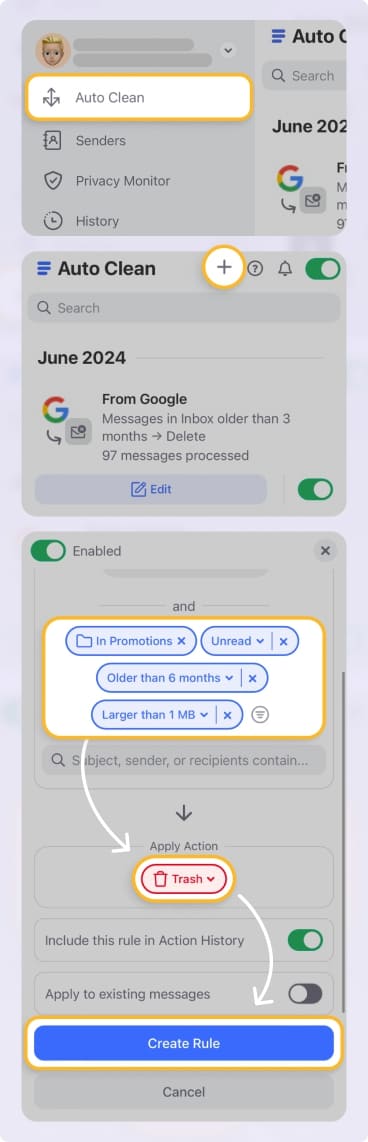
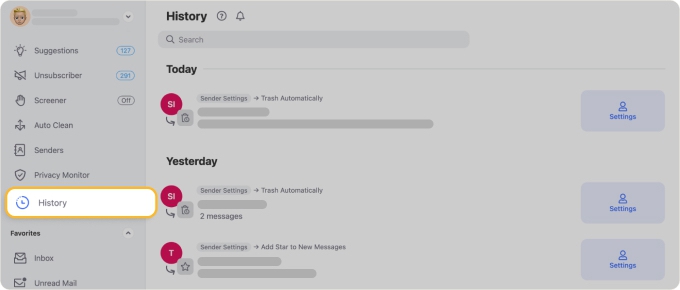
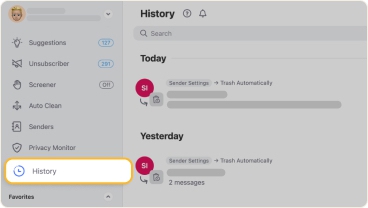
Additionally, you can pause rules at any time, view an Action History Summary for all rules that run, and receive a weekly update of your Automated Actions History.
Conclusion
Deciding which email automations give you the biggest bang for your buck is easier after you review your inbox and take an inventory of the types of messages you receive.
Consider emails that require repetitive actions, messages you receive frequently, and emails that are just taking up space. Then, create your automation system with the tools your provider offers and pick up the slack with third-party apps that let you automate emails with advanced features.
FAQ
Does email automation work on mobile?
Many email providers that offer automations require you to set them up using their web-based or desktop application rather than mobile. However, once you create the automation, it should work when signed into your account in their corresponding mobile app.
One known exception is Clean Email which allows you to create, edit, and manage automations on both desktop and mobile devices.
Can email automation rules apply to emails already in my inbox?
In most cases, email rules and filters only work on incoming messages, not existing ones. For rules that consistently work on both new and existing messages, consider Clean Email and its Auto Clean rules.
What is the difference between auto-archive and auto-delete?
Auto-archive and auto-delete both remove emails from your inbox; however, they each have a different purpose. You should auto-archive emails that you don’t currently need, but might need again later and you should auto-delete emails that you don’t need now and won’t need later.