Gmail’s Not Letting Me Attach Files: a Common Scenario
Gmail's inability to attach files can quickly disrupt your workflow and result in needless delays when you are under pressure to send an important document.
To prevent this from happening, this article covers common issues with Gmail attachments, steps to resolve the situation immediately, and how to attach a file in Gmail without any drama.

Issue 1: Gmail’s Not Allowing Attachments
Gmail is personally my favorite email service. Everything is so clean and intuitive. That said, it isn’t always perfect. And one of the common issues that irks me is when Gmail’s not letting me attach files.
I’ve put together a list of common reasons why Gmail sometimes just won’t let you attach files and easy troubleshooting you can do.
Exceeding max file size
Gmail’s got some email limits — and for attachments, it’s got a 25 MB cap. If your file’s bigger than that, no dice. So the solution is pretty simple: make sure your attachment is less than 25 MB.
If your attachments are too large, Gmail makes things easier by automatically converting your file into a Google Drive link.
If you prefer the old school way or got extra time in your hands — preferring your recipient to see the attachments straight away than downloading a Google Drive link — you can compress the file (say a heavy PowerPoint deck) into a PDF format or remove high resolution images from within the document.
Browser drama
Your browser may be the reason why Gmail is acting up. The good news is that this issue has an easy fix: clear the browser cache.
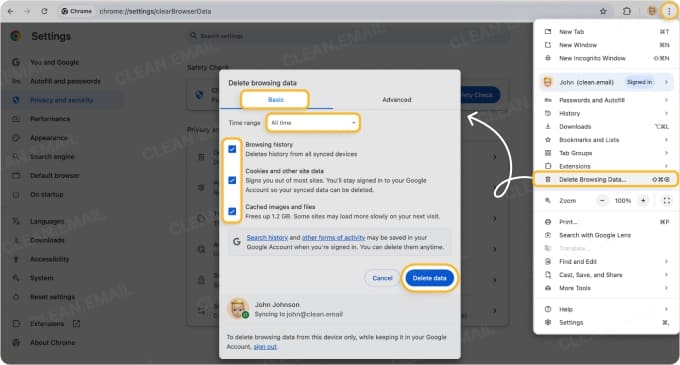
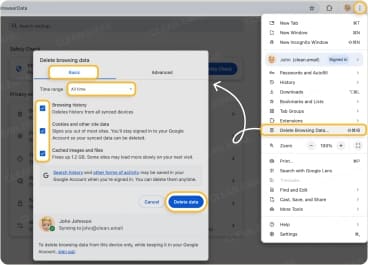
If you’re using Chrome, all you need to do is click on the three vertical dots on the upper rightmost corner of your window, then go to Delete browsing data… (or go to Settings → Privacy and security → Delete browsing data).
You can proceed with your preferred way of deleting the cache — in terms of time range and which data you like to delete.
To ensure all bases are covered, I’d suggest going for the Basic tab. Under the “Time range”, choose “All time”. Then tick all three boxes, like so:
Device drama
Sometimes, the problem boils down to the app on your smartphone. Make sure your Gmail app’s up to date. If you’re using Android, check the Google Play Store. If you’re using an iPhone or any iOS device, check the App Store.
Firewall or proxy
These can block Gmail’s attachment function, leaving you stuck. You might need to tweak them to let Gmail upload attachments, or just switch them off temporarily to see if they’re the troublemakers.
File type no-gos
Gmail blocks certain file types (like .exe files) for security reasons. There’s no other way to fix this but to attach a file that Gmail deems safe.
⚠️ File types blocked by Gmail are: .ade, .adp, .apk, .appx, .appxbundle, .bat, .cab, .chm, .cmd, .com, .cpl, .diagcab, .diagcfg, .diagpkg, .dll, .dmg, .ex, .ex_, .exe, .hta, .img, .ins, .iso, .isp, .jar, .jnlp, .js, .jse, .lib, .lnk, .mde, .mjs, .msc, .msi, .msix, .msixbundle, .msp, .mst, .nsh, .pif, .ps1, .scr, .sct, .shb, .sys, .vb, .vbe, .vbs, .vhd, .vxd, .wsc, .wsf, .wsh, .xll
Dodgy internet
A shaky or slow connection can mess with your ability to attach files. A quick fix is to either restart your modem or find an alternative Wi-Fi connection.
Account woes
If your Google account is locked or restricted, attachments might be off the table. You can start fixing the issue by trying to sign out, then logging into your Google account again. If this doesn’t sort things out, you may want to get in touch with Google’s customer or tech support.
Settings shenanigans
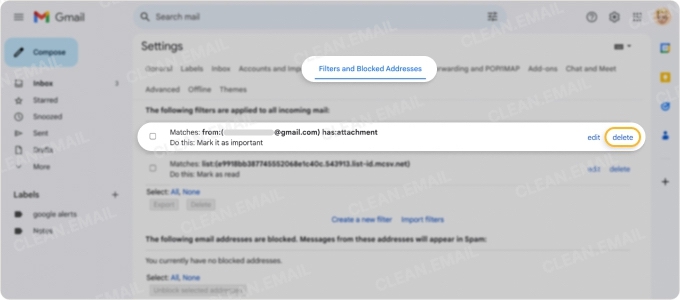
If you’ve tweaked your Gmail settings or added filters, they might be blocking attachments. Have a squiz at your settings by doing the following:
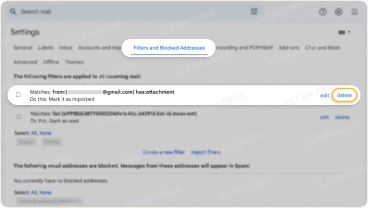
Head to Settings (the gear icon) and check the Filters and Blocked Addresses tab for anything dodgy blocking attachments—tweak or delete as needed.
While you’re there, have a scroll through the General tab to make sure nothing weird, like email forwarding, is messing things up.
Lastly, double-check options like “Chat and Meet” and “Keyboard shortcuts” to keep everything running smoothly. Just make sure they’re all configured correctly.
Can’t Attach a File in Gmail? Clear Out Clutter with Clean Email!
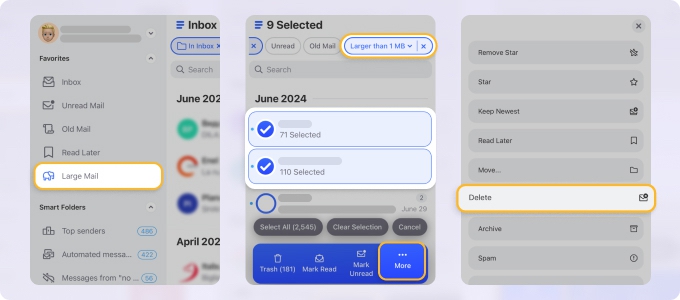
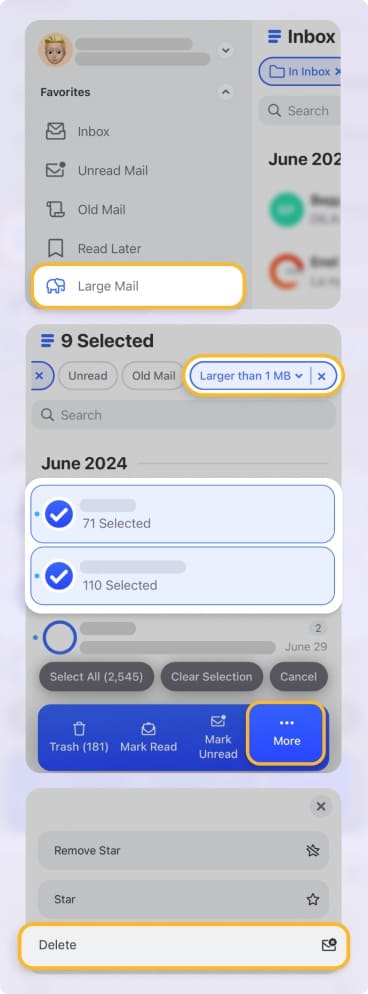
Sometimes, the reason why you’re experiencing attachment issues on Gmail is the amount of large files and buildup of attachments that only slow down the performance of your inbox.
Technically speaking, you can fix this “storage full” issue by removing emails that take up space but no longer serve you. However, if you have thousands of messages in your inbox, doing this could take forever.
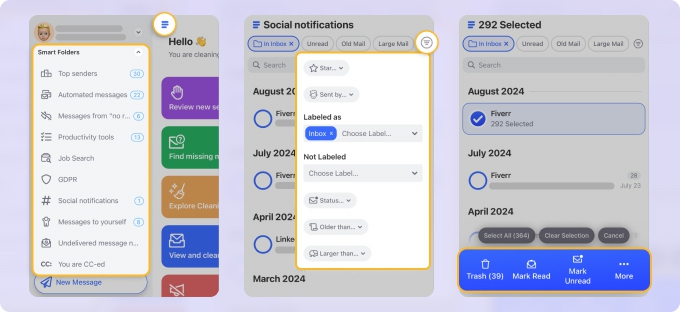
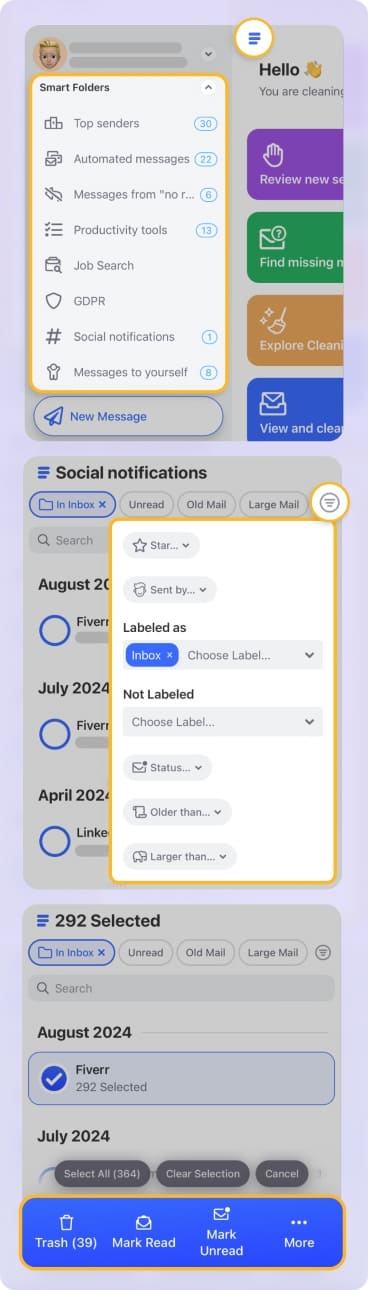
Clean Email makes light work of decluttering your Gmail inbox, and it’s available on iOS, Android, Mac, and as a web app for easy inbox management anywhere.
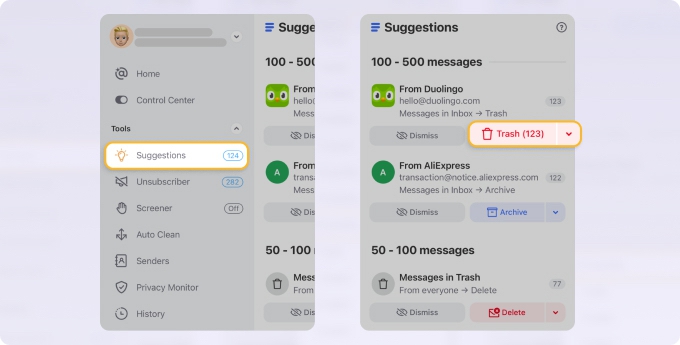
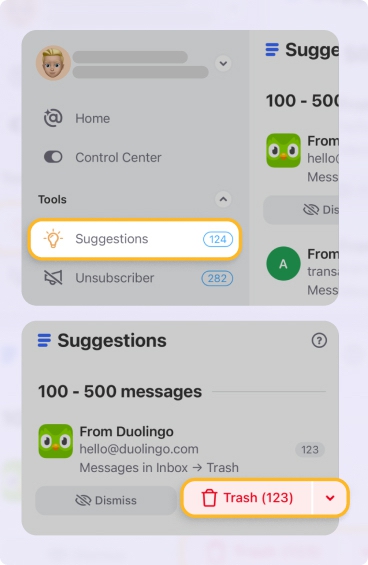
The Cleaning Suggestions tool gives you smart tips based on how you’ve handled similar emails before or what’s popular with other users. The best bit? It sorts suggestions by the number of messages from each sender, so you can tackle the biggest inbox offenders first — whether that’s trashing, deleting, or organizing them in bulk.
Smart Folders also make managing large emails and active senders easy. These pre-set filters group emails by common parameters like size, sender, recipient, and other factors.