


What Does Queued Mean?
If you are looking for the ‘queued’ meaning in Gmail, it means your email is in a waiting list and currently cannot be sent.
This may be due to issues with the mail service provider, or problems on your end. For example, your mobile device might have technical glitches, insufficient bandwidth, or a disrupted internet connection.
Why Are My Emails Queued?
Your emails are getting lined up in Gmail queued list for various reasons. The challenge is determining which factor is responsible for your queued email.
Some common reasons may be:
- Weak or unstable internet connection: Emails rely on a stable connection. Gmail holds your message until your Wi-Fi comes back on or the signal gets stronger.
- Large attachments: Gmail only lets you send attachments of 25 MB or less. If your files are bigger than this, your email can be queued.
- Gmail sending limits or low storage: Google limits the number of emails you can send per day. Queuing can happen if you go over this limit or run out of storage space.
- App glitches or outdated software: Bugs in the Gmail app, old OS versions, or SMTP authentication issues can all stop emails from sending.
- Spam filters or full recipient mailbox: Your email might be flagged by outgoing spam filters, or the recipient's mailbox might be full.

How To Fix Queued Email in Gmail (for all devices)
If the common reasons haven’t resolved your queued email sending challenges, consider these troubleshooting steps:
- Ensure your Gmail app is up-to-date with the latest version available.
- Verify you haven't exceeded Gmail's storage quota* which can impede email sending
- Check if the attachments do not exceed the 25MB size limit and consider uploading large files to Google Drive or sending a compressed (archived) version.
- Have you activated Gmail's "Offline Mode"? Make sure you're online to send the email stuck in the queue.
- Review your "Send Mail As" settings, particularly if you're using another email address through Gmail.
- Are you using a VPN or proxy? It might be hindering Gmail's connection, so consider disabling them to test.
- Make sure Gmail is syncing correctly between your devices. On your phone, go to Settings → Data usage → Sync settings, and set the days of mail to sync for the past 30 days. Then, restart your phone.
- Try the classic troubleshooting technique: sign out and then sign back in.
How to send queued email on iPhone
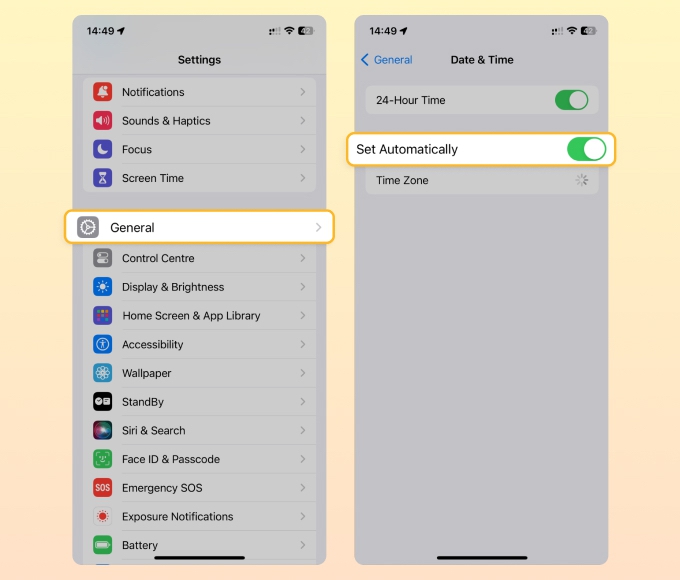
1. Ensure Correct Date & Time Settings
Incorrect date and time settings can cause synchronization issues with Gmail's servers, potentially leading to queued emails.
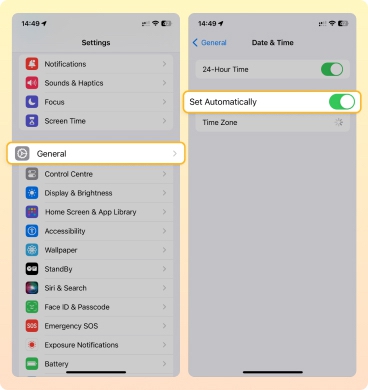
- Tap on the Settings icon on your iPhone's home screen.
- Scroll down and choose General.
- Tap on Date & Time.
- Ensure the toggle next to Set Automatically is turned on (green).
2. Reset Network Settings
Network-related issues can interfere with the Gmail app's ability to send emails. Resetting network settings can help reestablish a stable connection.
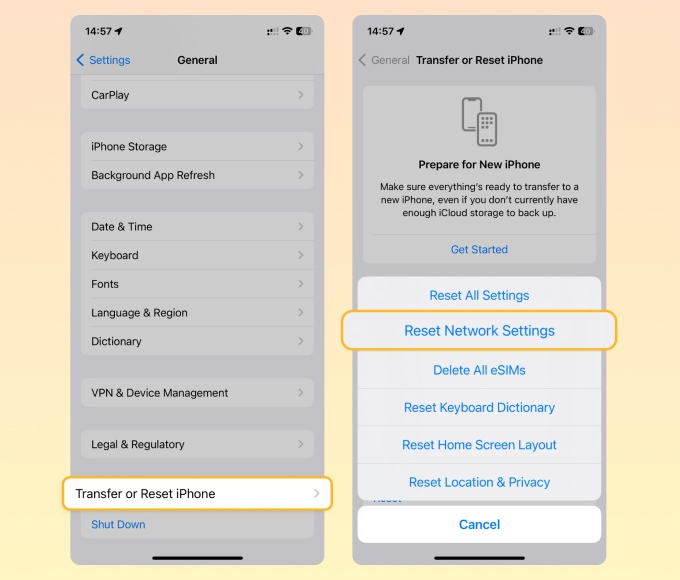
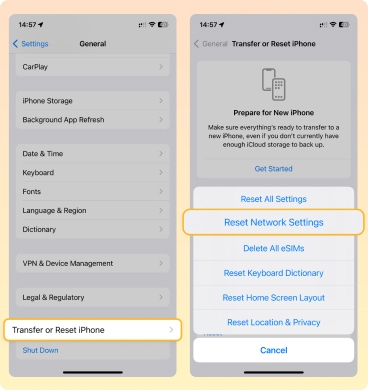
- Open the Settings app.
- Scroll down and tap on General.
- At the bottom, click Transfer or Reset iPhone.
- Tap on Reset Network Settings.
- You'll be asked for your iPhone's passcode. Enter it.
- Confirm the reset. Remember, this will delete all network settings, including saved Wi-Fi networks and passwords.
3. Check for iOS Updates
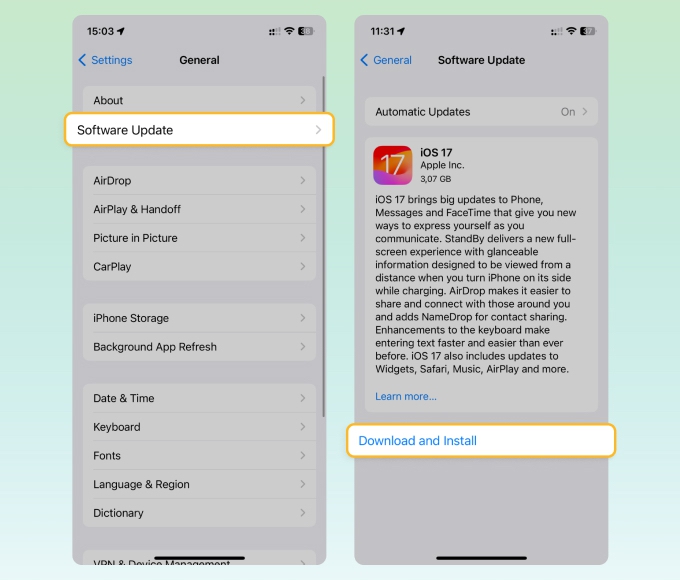
An outdated iOS version can have bugs that hinder apps like Gmail from functioning properly. Keeping your software up to date ensures optimal performance.
- Go to Settings from your home screen.
- Scroll down and tap on General.
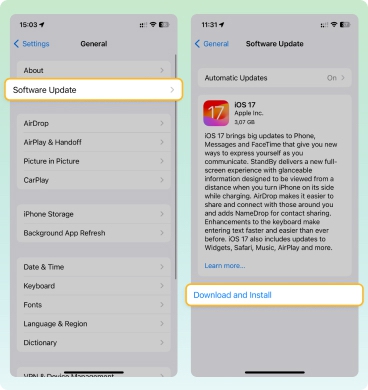
- Tap on Software Update.
- If there's an update available, you'll see the option to download and install it. Follow the on-screen instructions.
How to fix queued email on Android
1. Clear Gmail cache
Sometimes cache can accumulate causing problems with your applications. To fix this, you will need to clear it.
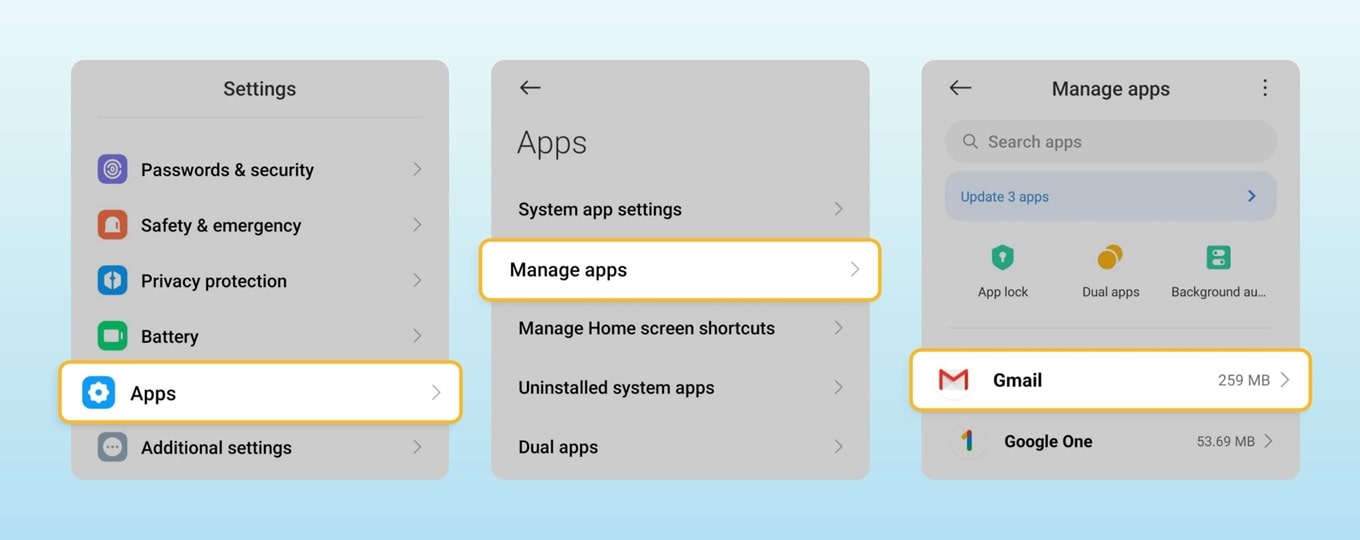
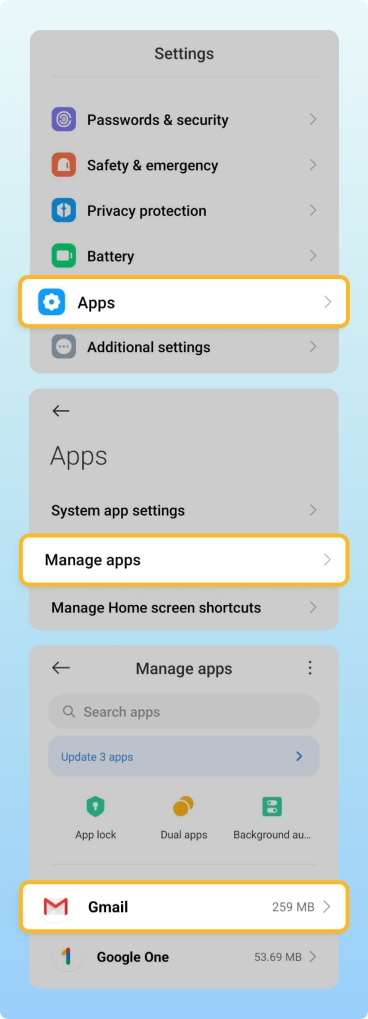
- Head into Settings on your Android device.
- Click Apps (from here you can manage default apps and app permissions)
- Choose All or Manage apps. Scroll until you find Gmail.
- Click Storage.
- Click Clear data button.
- Click Clear all data and Clear cache buttons to clear the app’s cache.
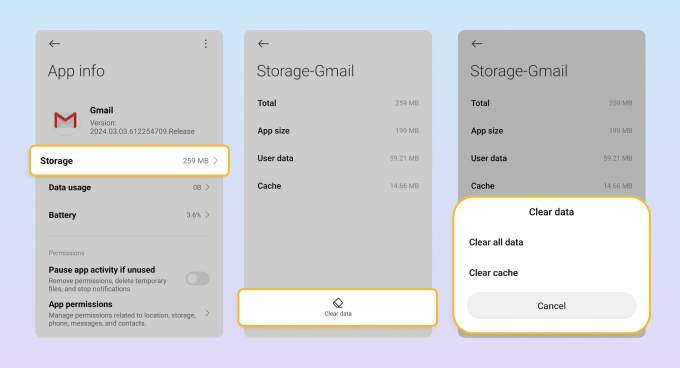
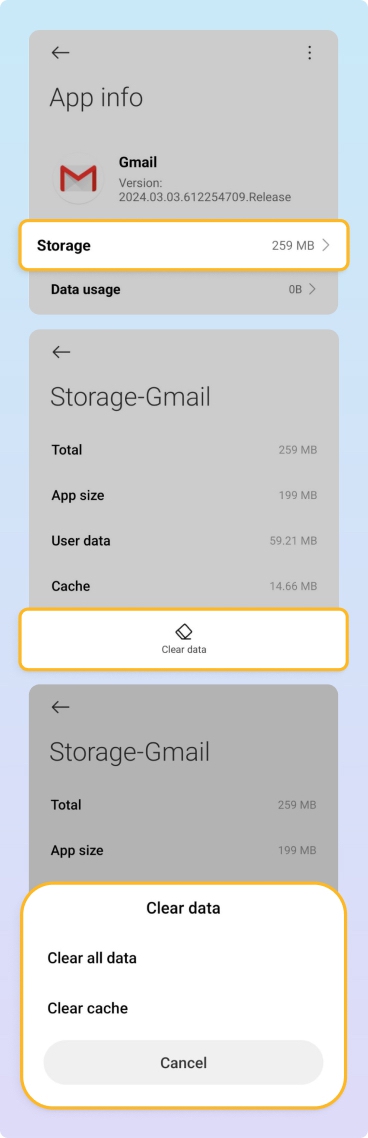
💡 Note: After performing this action, you might be logged out of your email account on the device. In such a case, you'll need to re-add and sign into your Gmail account.
Learn more about how to clean up Gmail storage.
2. Check if Gmail can use background data
A queued email may not be sent due to the lack of data. You can enable Gmail to use background data to avoid this.
- Head into Settings on your Android device.
- Click Apps and choose All.
- Find Gmail and click Mobile Data.
- Make sure the Allow background data usage and Allow app while Data saver on toggles are on.
How to solve queued in Gmail on the web
1. Make sure Gmail isn’t in offline mode
Of course, if Gmail is in offline mode, emails will be sent straight to your Gmail queued outbox.
Here’s how to check if your Gmail is in offline mode:
- Open Gmail on the web.
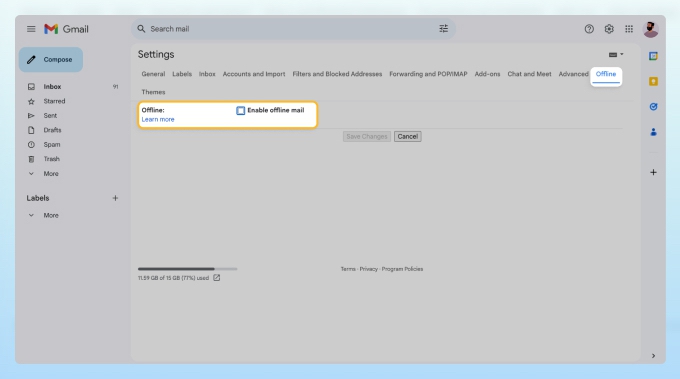
- Go into Settings. Click See all settings.
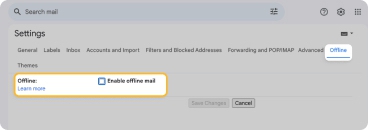
- Select the Offline tab and make sure the Enable offline mail checkbox is unchecked.
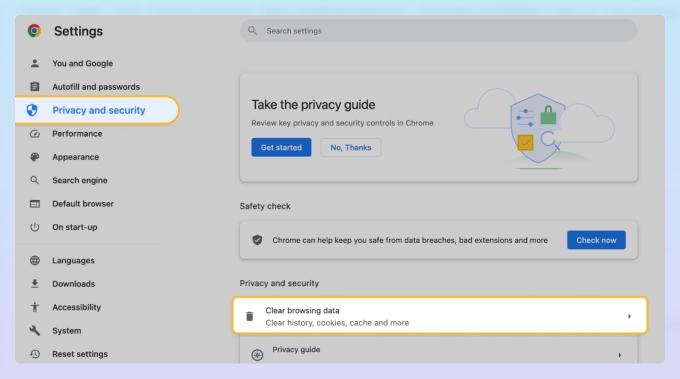
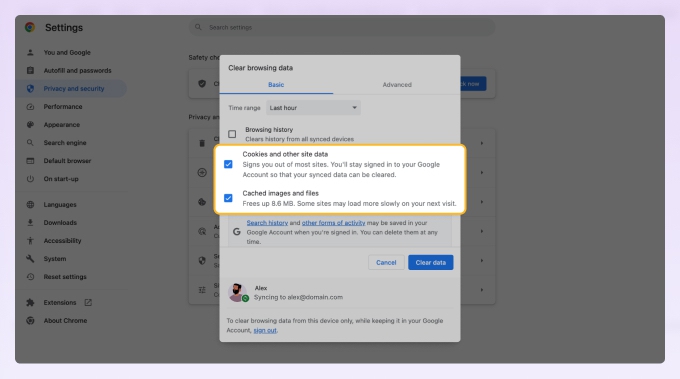
2. Clear browser cache and cookies
Over time, your browser accumulates cache and cookies, which may lead to performance issues and unexpected errors in Gmail.
- Open your browser and navigate to its settings or preferences menu.
- Look for a section named Privacy and security (in Chrome) or similar.
- Find the option to clear browsing data or cache and cookies.
- Ensure you select both cache and cookies for deletion and confirm the action. Restart your browser after this.
3. Use Gmail in Incognito/Private mode
Running Gmail in a private browsing mode can help determine if the issue is with stored data in your browser.
- Open a new incognito or private browsing window. The method varies by browser, but it's commonly accessed via the File menu or pressing ⌘ + Shift + n on Mac, and by right-clicking the browser icon or pressing Ctrl + Shift + n on Windows.
- Log into your Gmail account.
- Check if you still experience the same email queue issue.
4. Send a compressed version of the attachments
If you are sending videos or large presentations, make sure your attached files meet the Gmail restrictions of up to 25 MB attachments to per email
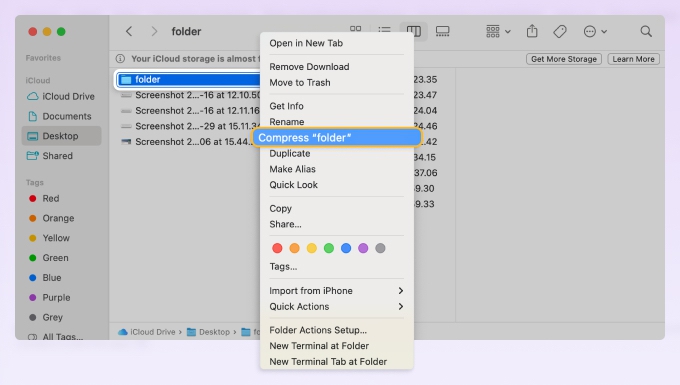
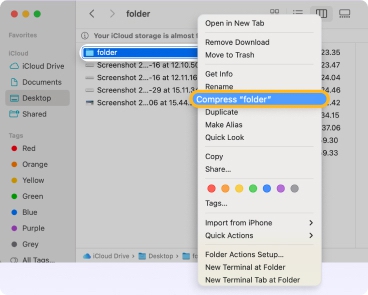
Compressing large files for Gmail on a Mac:
- Select the files or documents you are going to send.
- Double-click or Ctrl + click on the selection.
- Choose Compress from the menu.
- Attach the resulting compressed file to your email.
Compressing large files for Gmail on Windows:
- Select the files or documents you wish to send.
- Right-click on the highlighted group.
- Go to Send To and choose Compressed (zipped) folder.
- Attach the compressed folder to your email.
Free Up More Gmail Storage With Clean Email
If your messages are failing to send due to a lack of storage, Clean Email can effectively clear out your mailbox to free up more space.
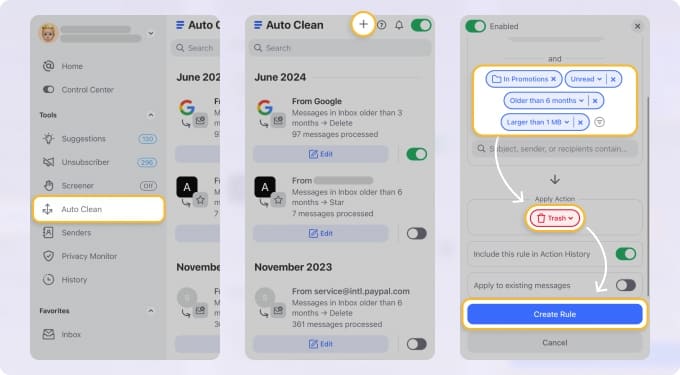
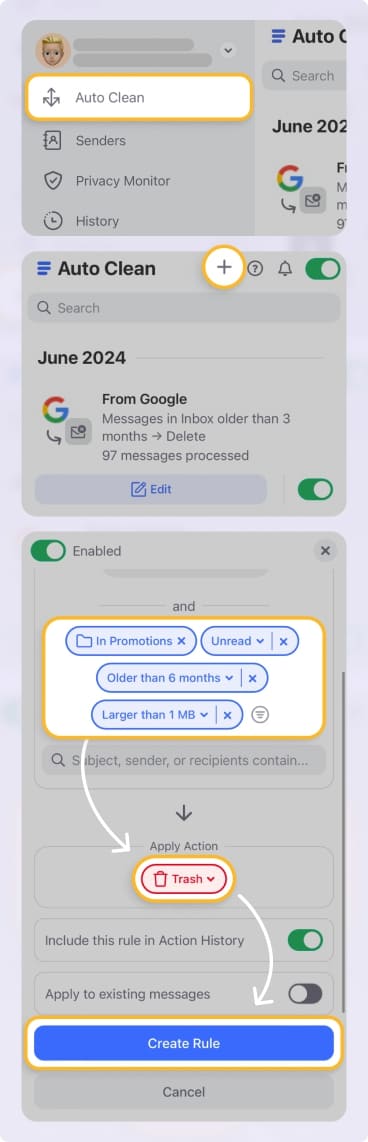
First of all, enhance your email efficiency daily with the app's Auto Clean feature. This tool lets you set up custom email rules to sort and manage emails automatically while you take care of other important things, saving you time on every message check.
For example, you can create a rule to send emails to Trash or archive them as soon as they hit your inbox, automatically clearing out and organizing your mail.
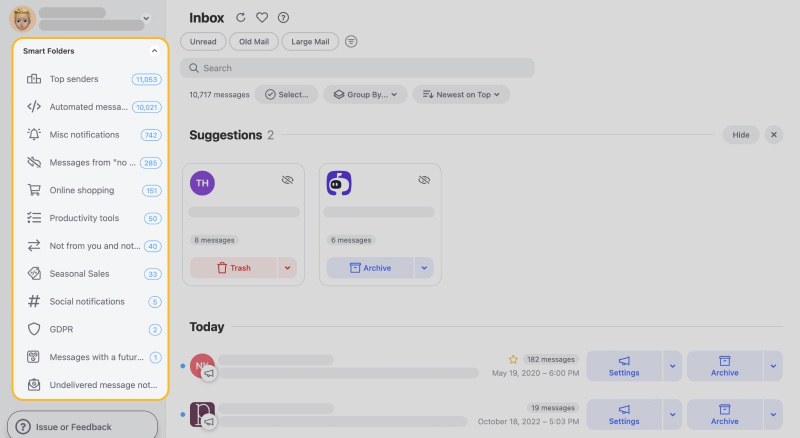
With Smart Folders, Clean Email organizes your messages without physically relocating them, similar to Gmail's "labels". Using 33 custom filters such as Online Shopping and Seasonal Sales, you can easily categorize and manage your messages, quickly find important emails from specific senders, or remove unwanted messages in bulk.
All this, and much more, is available on macOS, iOS, Android, and the web, making email organization simpler. Users can explore the app for FREE and discover how its premium features enhance their email management experience during the trial period.
Having more issues with your emails? Check out our other guides that may help:
- Why have my emails disappeared from my Inbox?
- Why is my Gmail not receiving emails?
- Correct Gmail email settings to configure your mail client.
- How to Clean Up Gmail Inbox Quickly in 2026
How to Fix Gmail Queued Emails - FAQs
What does queued mean on Gmail?
"Queued" in Gmail simply means your emails cannot be sent, and they’re waiting in a queue until they can. This generally occurs due to connectivity issues or when Gmail's servers are experiencing high traffic.
Will a queued email eventually send?
Yes, a queued email will eventually be sent once the issue causing it to queue, such as connectivity problems or server delays, is resolved.
Why is my email queued in Gmail?
You can see an email queued in the outbox for a variety of reasons, from an internet connection to sending an email with an attachment that is too large. This means they are lined up to be sent as soon as the server can process them.
How to solve queued in Gmail?
To resolve the queued emails in Gmail, ensure you have a stable internet connection and try manually sending the messages by opening the "Outbox" or "Sent" folder and clicking on the "Send" button next to each message. If the issue persists, restarting the Gmail app or your device might help.
Can I delete a queued email?
Yes, you can delete a queued email in Gmail both on mobile and web. Simply navigate to the "Sent" folder, find the queued email, open it, and select the delete or trash option.
What happens if you delete an email in your Outbox?
If you delete a queued email from your Outbox or "Sent" folder before it gets the chance to be sent, it will move to the trash or deleted items folder. The recipient will not receive the message, as it has been withdrawn from the sending queue.












