Definition
💡Email triage is a decision-making system for sorting incoming emails by urgency, importance, and required action, so you can respond to critical messages quickly, defer lower-priority work, and remove emails that do not need attention.
Unlike a one-time inbox cleanup, email triage is an ongoing method for handling work as it arrives across desktop, mobile, and multiple inbox-checking moments during the day.

What Email Triage Actually Means
To triage email means to make a clear decision about each message instead of simply opening it, reading it, and leaving it in your inbox for later.
A good email triage system helps you decide whether an email needs a reply, should be delegated, can be deferred, or should be deleted or archived. This makes the email triage method practical for real work situations, where messages arrive asynchronously and not always when you have time to fully process them.
The main goal of email triage is not to reach inbox zero instantly. It is to prevent messages from getting stuck in a half-processed state, where they are read but not handled.
How is email triage different from inbox zero?
Email triage is different from inbox zero because triage focuses on making decisions, while inbox zero focuses on the final inbox state. You can use email triage without reaching inbox zero every day, but a good triage habit makes inbox zero easier to maintain.
Why Most Email Triage Attempts Fail
Most triage email advice assumes you have uninterrupted time to sit at your desk and process everything properly. That is not how work email usually arrives.
In reality, many people check email between meetings, on their phone, while commuting, or while doing other tasks. This creates the half-processed problem: you open a message, mark it as read, clear the notification badge, but do not actually decide what to do with it.
That is where inbox overload starts. The email is no longer new, but it is also not resolved. Later, you must remember what it was, reread it, and decide again.
A practical email triage system should account for this by separating quick decisions from full processing sessions.
The Core Email Triage Framework
Use this 4-decision model when triaging email:
| Decision | What It Means | Best Use Case |
|---|---|---|
| Reply | Respond now because the message needs your input | Urgent client emails, team questions, approvals, time-sensitive updates |
| Delegate | Forward or assign the message to someone better suited to handle it | Requests for another department, shared team tasks, support or billing questions |
| Defer | Save the email for a scheduled time when you can act on it properly | Longer replies, research-heavy tasks, non-urgent project updates |
| Delete or Archive | Remove the email from your active inbox because no action is needed | Promotions, old notifications, irrelevant updates, completed conversations |
This framework keeps triage simple: every email should leave the moment with a decision, even if the decision is “handle this later at a specific time.”
How to Triage Email by Device Context
The strongest email triage method is one that matches how you actually check email. Desktop and mobile should not be treated the same.
Desktop: Full Processing Session
Use desktop sessions for deeper email triage. This is where you should handle emails that require writing, reviewing attachments, checking project details, or making decisions that need focus.
During a desktop triage session, move through your inbox and apply the 4-decision model: reply, delegate, defer, or delete/archive. This is also the best time to clean up older emails that were saved for later.
How often should I triage my inbox?
Most people should triage email in scheduled sessions instead of reacting to every notification. A practical setup is to use desktop time for full processing and mobile time only for obvious decisions like delete, archive, or quick replies.
Mobile: Quick Obvious Decisions Only
Mobile email triage should be limited to fast, obvious actions. Use swipe actions to archive, delete, mark as unread, or move messages when the decision is clear.
Avoid opening complex emails on mobile just to read them. If you cannot decide what to do with the message right away, leave it unread or defer it properly so it does not disappear into a half-processed state.
The Half-Processed Rule
Never open an email on mobile unless you can make a decision.
That decision can be small: delete it, archive it, reply quickly, mark it for later, or leave it unread. What matters is avoiding the trap of reading messages just enough to lose the notification but not enough to resolve the task.
Setting Up Email Triage Automation
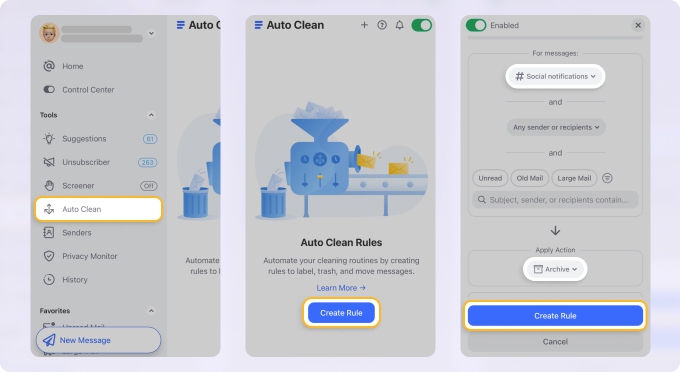
Automation makes email triage easier because it reduces the number of messages you need to manually review. Clean Email works well as the automation layer around your triage system, helping recurring decisions happen once instead of every time a similar email arrives.
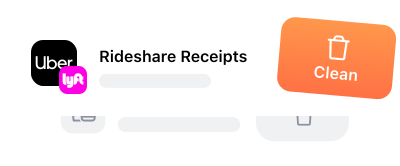
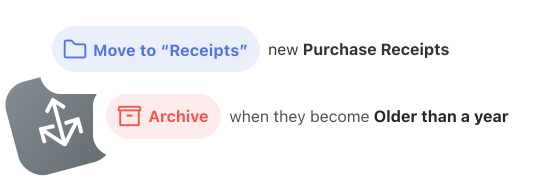
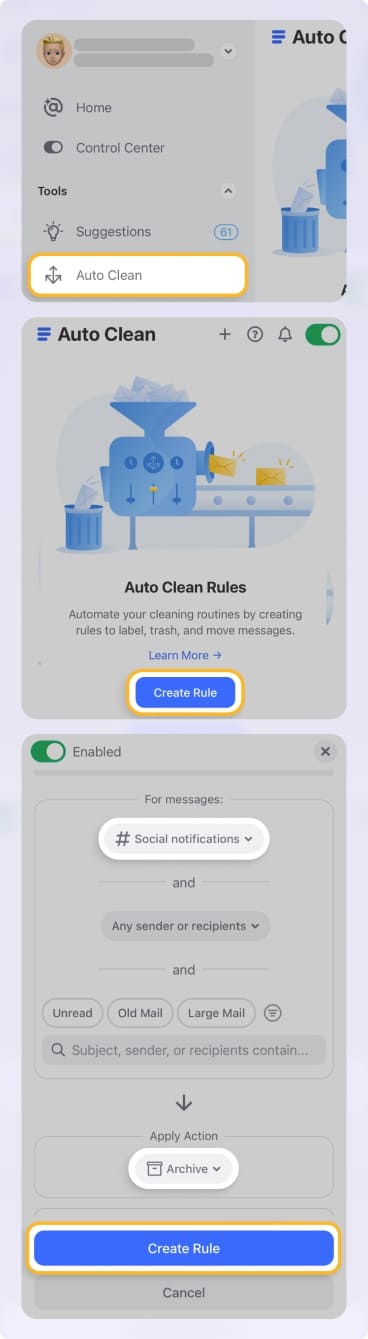
With Auto Clean, you can create rules for repetitive email decisions, such as automatically archiving routine notifications, deleting old promotional emails, or moving certain messages out of the inbox. This keeps your active triage queue smaller and more focused on emails that actually need human attention.
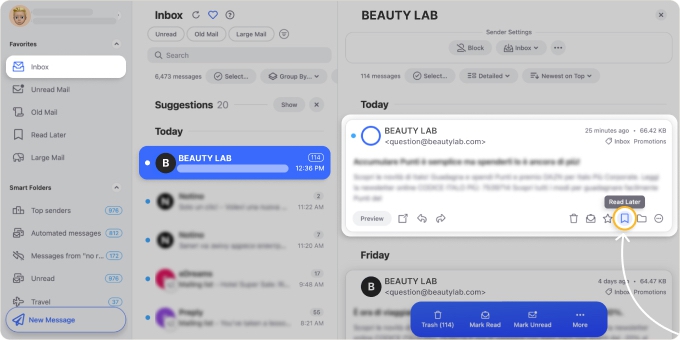
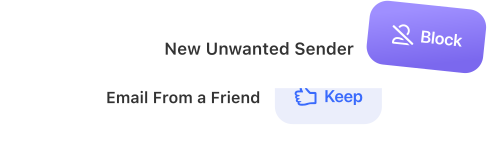
The Screener feature helps with new senders by letting you approve or block them once, before they become a repeated inbox problem. Read Later is useful for newsletters and non-urgent reading because it moves them out of the daily triage queue permanently.