How Can I Block Spam Emails?
You cannot always stop spam emails from being sent to your address, but you can stop them from reaching your inbox. In Clean Email, you can block unknown senders, block specific senders in bulk, or create Auto Clean rules for spam patterns such as suspicious domains, repeated words, or unusual sender addresses.
Way 1: Use Screener to block unknown senders
To block spam emails:
- Open the Clean Email app.
- Go to Screener.
- Review the quarantined messages from new senders.
- Choose Block next to those message groups where the senders look like spam.
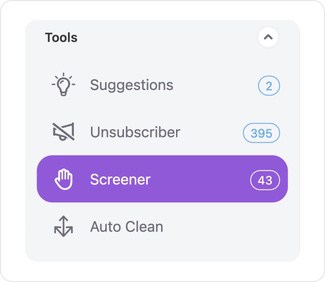
💡 Tip: From the Screener view, you can also select multiple senders and block them in bulk, or click Block All to block all new senders currently listed in Screener.
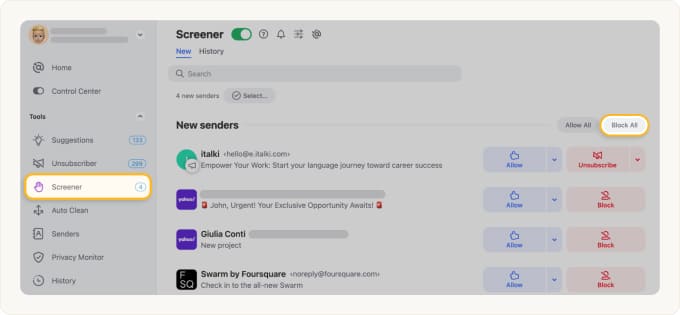
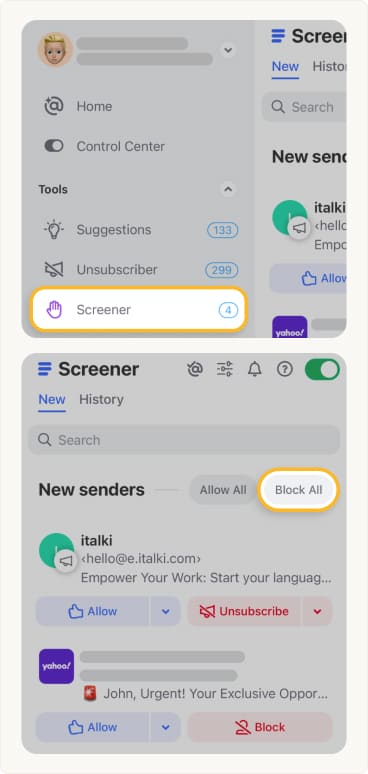
When you block a sender in Screener, Clean Email will block future messages from that sender before they appear in your inbox.
Way 2: Block one or multiple senders
- Open Senders in the Tools section of Clean Email.
- Find the sender you want to block and select it.
- Click Block.
- Confirm the action if requested.
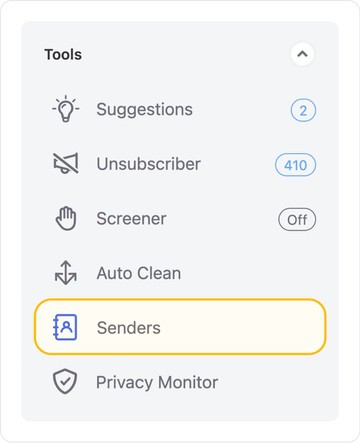
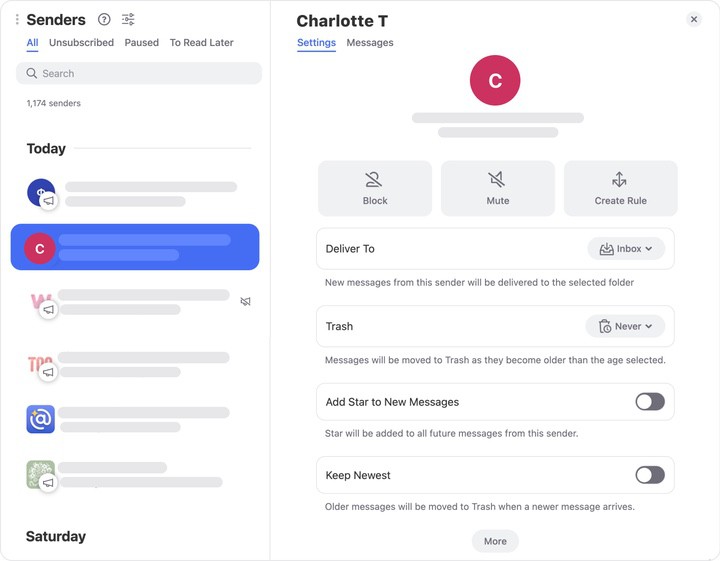
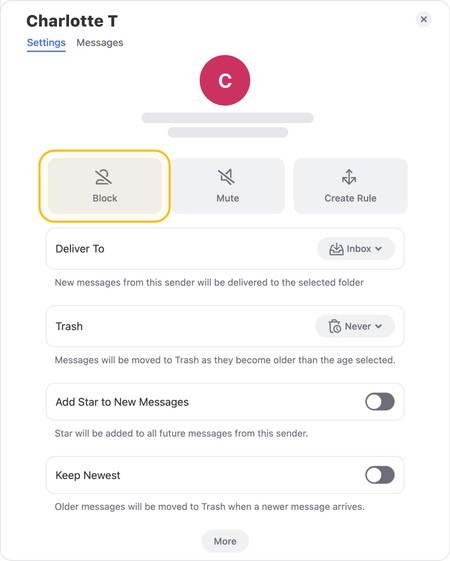
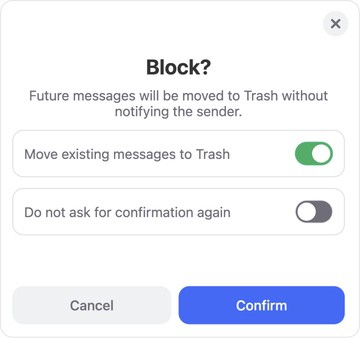
This is useful when several spam senders are already visible in your mailbox and you want to block them in bulk.
Way 3: Block spam patterns with Auto Clean
Use Auto Clean when you need to deal with persistent spammers who keep changing addresses but use a similar domain, word, or pattern.
- Open Auto Clean in Clean Email.
- Click Create Rule.
- In the search field, enter the spam pattern, such as a domain, sender text, or subject keyword.
- Choose the action, such as Trash.
- Click Create Rule.
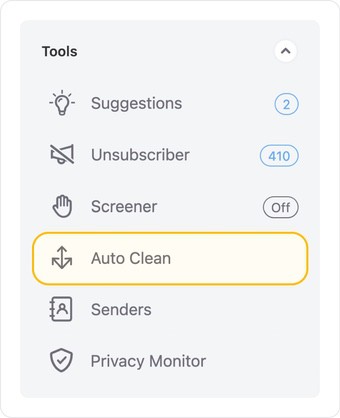

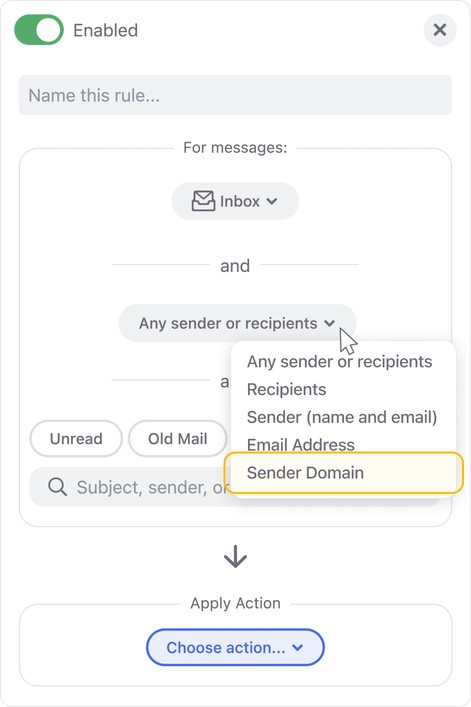
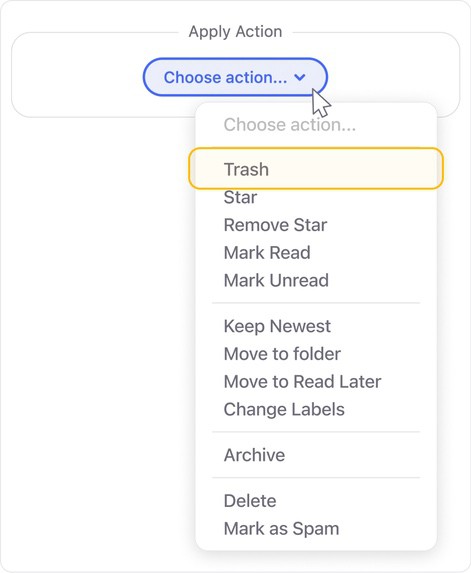
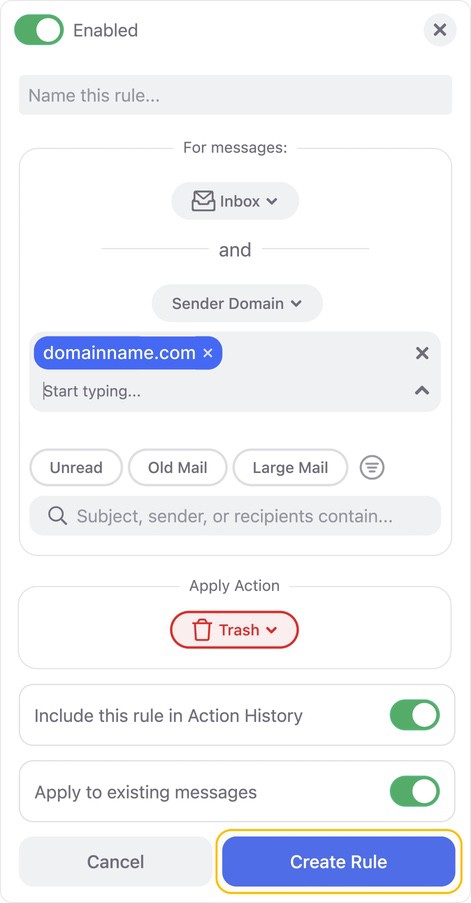
For example, you can create a rule for messages that include a suspicious domain ending, repeated sender text, or a specific word in the subject line.
📌 Note: Use precise rule criteria. Avoid common words that may also appear in legitimate emails.
Please contact us and we will be happy to help.