Key Takeaways
- Block routes future emails to Spam: old emails from the same sender stay in your inbox unless you move them.
- No notification, no bounce: the sender sees no error and gets no signal — to them, your inbox just goes silent.
- One address at a time: blocks apply to the exact address you targeted, not the person. Rotated addresses, mailing-list relays, and spoofed From headers slip through.
- Per-account, not per-Google-login: if you have multiple Gmail accounts, you have to block in each.
- Mobile vs. desktop is uneven: the Gmail mobile app cannot create or fully manage filters and cannot block by size — only the web app can.
- Gmail filters do more than Block does: Block sends to Spam; a filter can delete, label, archive, or skip the inbox entirely.
For the basic one-click block path across all major providers — Gmail, Outlook, Yahoo, iCloud, AOL, and more — see our guide on how to block an email address. This article goes deeper into Gmail-specific behavior, edge cases, and what to do when blocking isn’t enough.
What actually happens when you block someone on Gmail
Gmail’s block runs on the server, so it’s effectively immediate — the next message from that address routes to Spam without you doing anything else. Here’s what it does, and just as important, what it doesn’t:
- Future emails go to Spam, not deleted. Gmail still receives the message; it just files it under Spam instead of Inbox.
- Old emails are not touched. Every message from that sender already in your Inbox, All Mail, or Sent folder stays put. Gmail doesn't retroactively move history.
- Spam empties itself. Anything in Spam — including newly arrived blocked emails — is auto-deleted after 30 days. If you ever need the messages for a record, move them out before the 30-day mark.
- No bounce, no failure notice. The sender’s outgoing message looks delivered. Their inbox shows no error.
- Unblock is one click. You can reverse the block from any message from that sender, or from Settings → Filters and Blocked Addresses. Full steps in our guide on how to unblock someone on Gmail.
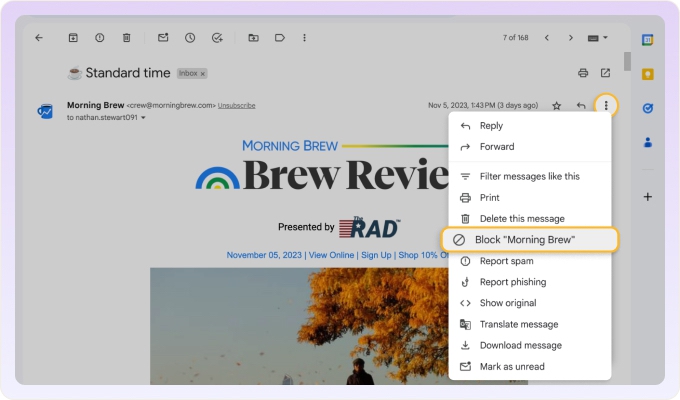
Here's the quickest way to block an email on Gmail:
- Open a message from the person you want to stop.
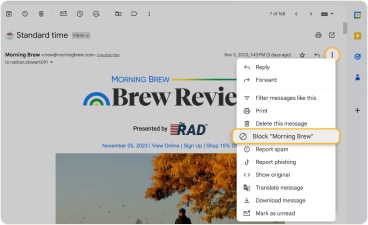
- Select More (the three vertical dots next to the Reply button) and choose Block "sender's name" from the menu.
- In the Block this email address dialog, select Block.
Will the person know I blocked them?
No. Gmail doesn’t notify the blocked sender, doesn’t bounce their message, doesn’t change their read-receipt status, and doesn’t show a "blocked" indicator anywhere on their side. From the sender’s perspective, the message looks delivered and they simply get no reply — which is the same signal as you being busy or having missed it.
One Workspace caveat: in Google Workspace accounts that use read receipts, the sender will not see a read receipt because the message went to Spam (and Spam doesn’t fire a "Read" event unless you actually open the message there). Determined senders may notice that pattern over time.
Why am I still getting emails from a blocked sender on Gmail?
This is the most common Reddit complaint about Gmail’s block. Four reasons it happens — and the fix for each:
- You blocked an address, but the person has a second address. A block applies to the exact email address, not to the human. Anyone determined to reach you can sign up for a new Gmail/Outlook/Yahoo address in 60 seconds.
- The From header is spoofed. Scammers can put any name and address in the From field, so Gmail’s block (which matches on From) is sidestepped. Note that Reply-To is also forgeable in phishing — relying on it alone isn’t a fix.
- The sender uses a mailing-list relay (Mailchimp, Substack, Constant Contact, Beehiiv). The visible From is the platform’s domain, not the person’s. Block one campaign and the next one arrives because the campaign ID changed.
- You blocked from the Gmail mobile app right after the message arrived. The block is server-side, but the message had already been pushed to your phone before the sync caught up. If you read it from the lock screen first, it can briefly look like the block "didn’t work."
Fix: block the domain with a Gmail filter. Click Show search options in the search bar, put @spammydomain.com in the From field, click Create filter, and choose Delete it.
Fix: filter on subject-line keywords, on combinations of From + subject, or report the message as Phishing so Google can act on the underlying signals.
Fix: block the relay’s sending domain (e.g. @mail.beehiiv.com) or use the in-email Unsubscribe link, which talks directly to the platform.
Fix: re-block from Gmail on the web to confirm, then check Settings → See all settings → Filters and Blocked Addresses for the entry.
When Gmail blocking isn’t enough: Clean Email
Gmail works well for blocking one sender, but it gets frustrating when spam comes from rotating addresses, whole domains, newsletters, or multiple accounts.
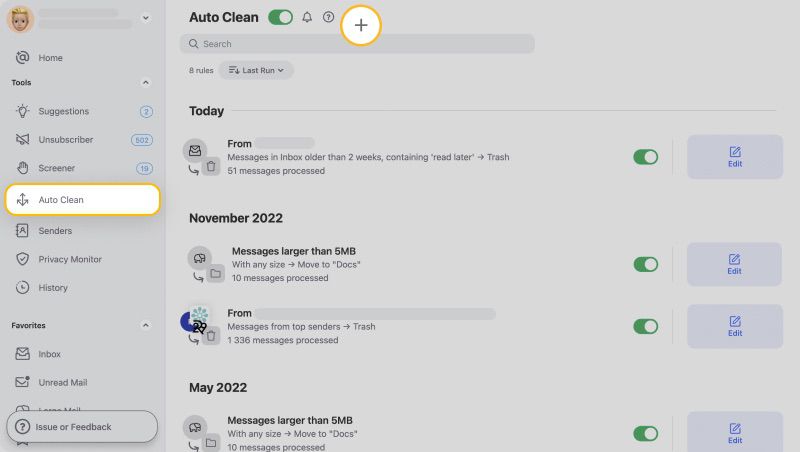
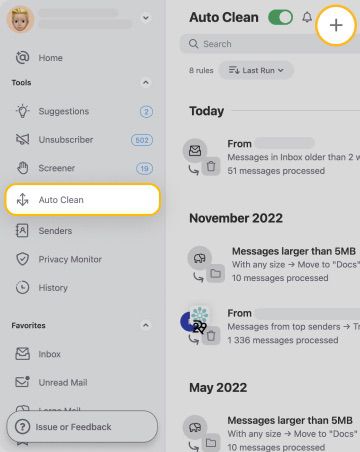
Clean Email has the Auto Clean feature where you can block senders in bulk, and block entire domains.
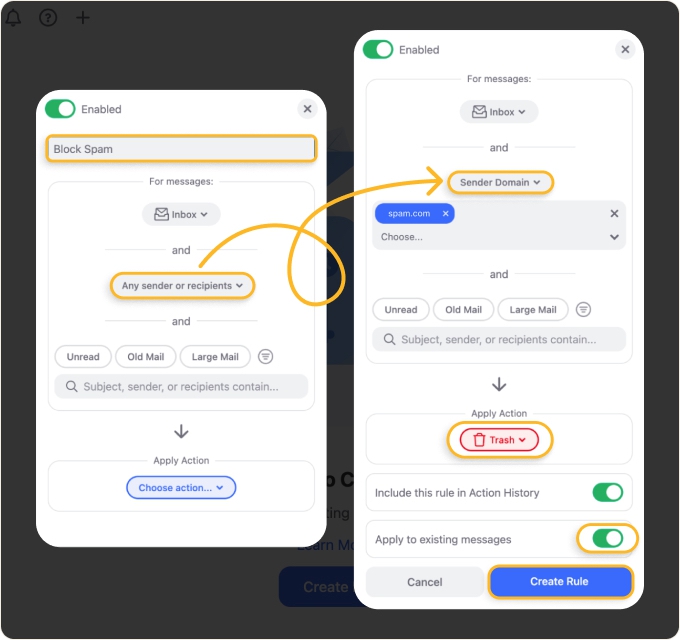
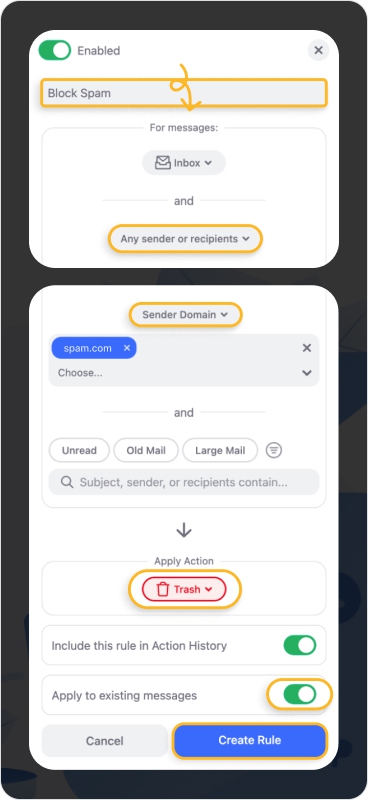
You can also use Screener to keep unknown senders quarantined out of your Inbox before they reach it.
How long does the Gmail block take to apply?
For the exact address you blocked, the block is effectively immediate — the next message from that address routes to Spam. Rare server-sync delays aside, you don’t have to wait.
For Gmail’s broader spam detection — which is what catches a rotating spammer using new addresses on the same template — Google needs multiple reports over time to lock onto the pattern. Each time you receive a similar message from a new address, click Report spam, not just Delete. Reporting trains the filter; deleting does not.
Block a Gmail sender without opening the email
If you suspect a message is phishing or carries a tracking pixel, you don’t want to open it. The native Block button isn’t reliably available from the message-list view across all Gmail interfaces, so the safer route is a Gmail filter — which blocks future messages without ever touching the content:
- In your inbox, hover the cursor over the sender’s name. Gmail shows a card with their address — copy it from there.
- Click Show search options in the top search bar.
- Paste the address into the From field and press Search.
- Click Create filter at the bottom of the search panel.
- Tick Delete it or choose Skip the Inbox + Mark as read if you want a silent archive instead of Trash routing. Then check Also apply filter to matching conversations.
- Click Create filter to save.
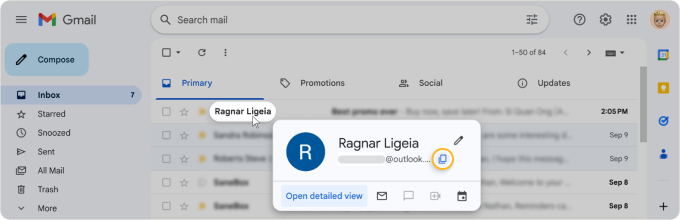
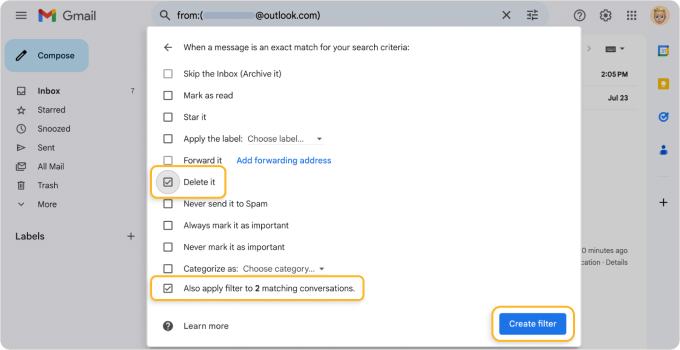
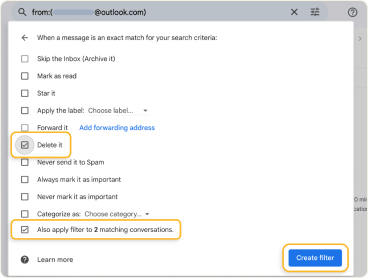
This creates a persistent rule tied to that exact address, which is closer to blocking in effect than just reporting messages as spam. One thing to know: a filter created this way lives under Settings → See all settings → Filters and Blocked Addresses → Filters, not under Blocked Addresses, so don’t expect to see it in both places.
Reporting individual messages as spam trains Google’s spam filter but does not create a per-sender rule — for that, you need the filter route above.
Block by size, attachment, or keyword
Gmail’s Block button only knows about one thing: the sender. Gmail’s filter system knows about everything else, and it’s where the more useful blocks live.
Example 1 — block oversized promotional emails. Open Show search options, set Size to greater than 5 MB, leave From blank, click Create filter, and choose Skip the Inbox (Archive it). Every oversized newsletter is auto-archived without ever appearing in your inbox.
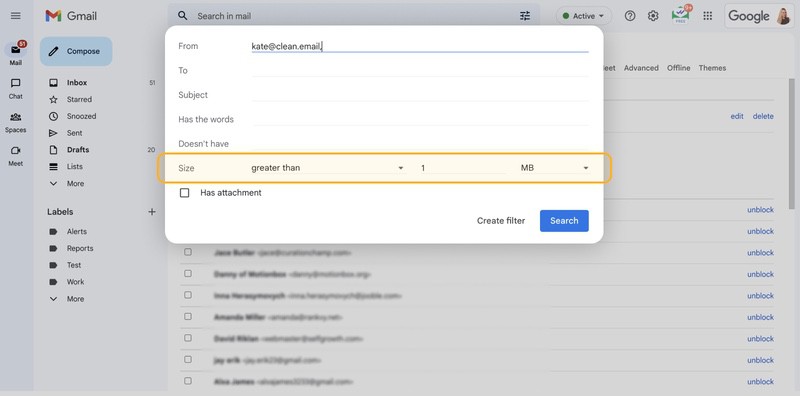
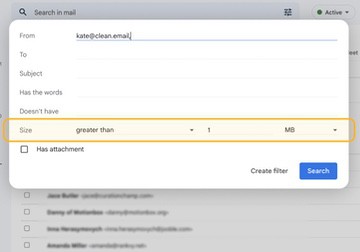
Example 2 — block by subject keyword. Open the same panel, put crypto OR lottery OR "you’ve won" in the Subject field, click Create filter, then tick Delete it. Every email with one of those words in the subject — regardless of sender — goes straight to Trash.
You can also filter on the Has attachment checkbox, on Reply-To, on whether the message is part of a chat thread, and on combinations of all of the above. A single well-built filter often replaces dozens of individual blocks.
Block when you don’t have a recent email from the sender
Gmail’s Block button is only available from inside a message, so you need at least one email from the sender to block them directly. If you have at least one historical email from that sender — in Inbox, All Mail, or even Spam — follow these steps:
- Open Settings → See all settings.
- Go to the Filters and Blocked Addresses tab and click Create a new filter.
- Enter the address in the From field and click Search. Gmail surfaces whatever historical messages it can find.
- Open any matching message, click the three-dot menu, and choose Block [sender].
- Or stay in Create filter and select Delete it for stronger handling than Spam routing.
If no message from that address exists in your account at all, Gmail’s Block UI has nothing to hook into. The workaround is to create a filter on the address anyway: Show search options → From → Create filter → Delete it. The filter will take effect when their first message arrives.
Block on Gmail web vs. mobile app vs. third-party clients
The Gmail block feature is uneven across surfaces. Here’s what works where:
| Action | Gmail web | Gmail mobile (iOS / Android) | Apple Mail or Outlook desktop via IMAP |
|---|---|---|---|
| Block from an open email | ✔ | ✔ | ✖ (uses the client’s own block, which only acts locally) |
| Create or fully manage filters | ✔ | ✖ (in the Gmail apps)* | ✖ |
| Block without opening (via filter) | ✔ | ✖ | ✖ |
| Block by size, attachment, or keyword | ✔ | ✖ | ✖ |
| Manage / review the blocked list | ✔ | ✖ | ✖ |
| Block an entire domain | ✔ (via filter) | ✖ | ✖ |
The takeaway: if you’re going to block more than once or twice, do it on Gmail.com on a desktop browser. The mobile app is for one-off blocks only.
⚠️ The Gmail iOS and Android apps can’t create or fully manage filters natively, but you can open Gmail.com in a mobile browser (request Desktop site on iOS) and reach the full Settings → See all settings → Filters and Blocked Addresses panel from there.
Why blocked Gmail emails are still triggering phone notifications
If you blocked someone on Gmail but your phone is still buzzing every time they email you, the culprit is almost always a third-party email app — Apple Mail, Outlook, Spark, Edison, or another app connected to your Gmail account via IMAP.
The Gmail block puts the message in Spam, and Gmail’s own iOS/Android app does not notify for Spam. But IMAP clients may treat the Spam folder like any other folder and still send a notification when a new message lands there.
Two ways to silence it:
- In the third-party app, exclude the Gmail Spam folder from sync and notifications. The setting is usually under Accounts → Folders → Notifications.
- Or replace the Gmail block with a Gmail filter that selects Delete it. A deleted message never enters Spam in the first place.
Can I block multiple Gmail senders at once?
Not natively — Gmail’s Block button works one address at a time. But you can fake a bulk block with a single Gmail filter:
- Click Show search options in the search bar.
- In the From field, paste multiple addresses separated by OR:
a@x.com OR b@x.com OR c@x.com - Click Create filter.
- Tick Delete it or Skip the Inbox.
- Click Create filter to save.
This won’t add each sender to Gmail’s native Blocked Addresses list, but it creates the same practical result: future messages from those addresses are automatically removed from the inbox.
The search bar can hit length limits with very long OR chains, so this works best for short batches. For larger blocked lists, bulk-delete Gmail emails by sender and switch to a per-domain filter, or use a third-party tool that supports bulk Sender management.
Do I have to block in each Gmail account separately?
Yes. Filters and Blocked Addresses live per account, not per Google login. Two Gmail accounts under the same Google profile still maintain independent block lists.
What if I blocked the wrong person — or want a good sender protected from Spam?
Two distinct problems, same root cause: Gmail’s spam routing is sometimes too aggressive.
To unblock a sender: open Settings → Filters and Blocked Addresses → click Unblock next to the address. Full steps in our unblock guide for Gmail.
To pre-protect an important sender so they can never land in Spam — even if Gmail’s filter mistakes them — use a Never send to Spam filter:
- Click Show search options.
- Put the sender’s address in the From field.
- Click Create filter.
- Check Never send it to Spam and click Create filter.
This is one of the most underused features in Gmail. If you’ve ever missed a client email, a school notice, or a 2FA code because it got Spam-filtered, this is the fix.
Why blocking isn’t always the best option
If the reason you’re searching this is harassment, stalking, or workplace abuse, think twice before clicking Block. Blocking sends the messages to Spam, and Spam auto-empties after 30 days. You lose the evidence trail.
A safer approach:
- Keep the emails. Create a Gmail filter on the sender's address, tick Apply the label (create one called Evidence or Harassment), tick Skip the Inbox, and uncheck Mark as read. The emails are out of your inbox but archived under the label, indefinitely.
- Don’t reply. A reply can constitute consent in some jurisdictions and resets a "no contact" intent.
- Report to your provider via Google’s abuse reporting form. For Workspace accounts, route through your admin.
- If it’s criminal harassment, threats, or stalking, contact local law enforcement before deleting anything. The full message header (via Show original) is what investigators ask for.
Block is for noise. Filter-and-archive is for evidence.
Tools that block at a level Gmail alone can’t
| Tool | What it does that Gmail Block doesn’t |
|---|---|
| Gmail filter (built into Gmail, free) | Block by domain, size, attachment, keyword, or Reply-To. Can route to Trash instead of Spam (tick Delete it). Per-account. |
| Block Sender (Chrome extension) | Optional fake-bounce reply to the sender. Free up to a monthly cap. Desktop browser only. |
| Clean Email (paid, multi-provider) | Higher address ceiling than the per-provider caps Outlook (1,024) and Yahoo (500) enforce. Quarantines unknown senders via Screener before they reach the inbox. |