Können Sie alle E-Mails auf einmal löschen?
Die meisten E-Mail-Dienste verfügen nicht über eine einzige Schaltfläche, mit der sich alle E-Mails in Ihrem Posteingang auf einmal löschen lassen. Stattdessen werden große Bereinigungen des Posteingangs in der Regel über Massenaktionen durchgeführt, wie das Auswählen aller Nachrichten in einem Ordner oder das Löschen von E-Mail-Gruppen, die bestimmten Filtern entsprechen.
In der Praxis leeren die meisten Menschen ihren Posteingang mit einer der unten beschriebenen Methoden.

Die wichtigsten Methoden zum Leeren des E-Mail-Posteingangs
Ein paar Nachrichten aus Ihrem Posteingang zu löschen, ist einfach. Hunderte oder sogar Tausende auf einmal zu löschen, ist eine andere Sache. Mit der Zeit sammeln sich in Posteingängen Newsletter, Benachrichtigungen, Werbung und alte Konversationen an, die sich schnell summieren und die Verwaltung von E-Mails erschweren.
Es gibt mehrere Möglichkeiten, große Mengen an Nachrichten zu entfernen. Der richtige Ansatz hängt von der Größe Ihres Posteingangs, dem von Ihnen verwendeten E-Mail-Anbieter und davon ab, ob Sie alle Nachrichten oder nur bestimmte Typen entfernen möchten.
Tabelle 1: Methoden zum schnellen Löschen von E-Mails
| Methode | Am besten geeignet für | Schwierigkeit | Funktioniert mit |
|---|---|---|---|
| Mehrere E-Mails auswählen | Kleine Posteingangsbereinigung | Einfach | Alle E-Mail-Dienste |
| Suchfilter | Entfernen bestimmter E-Mails (Absender, Datum, Kategorie) | Mittel | Gmail, Outlook, Yahoo |
| Massenauswahl (Alles auswählen) | Löschen von Hunderten oder Tausenden von E-Mails | Mittel | Die meisten Webmail-Clients |
| Tools zur Posteingangsbereinigung | Große Posteingänge mit Tausenden von Nachrichten | Einfach | Mehrere E-Mail-Anbieter |
1. E-Mails manuell auswählen und löschen
Die meisten E-Mail-Dienste ermöglichen es Ihnen, mehrere Nachrichten auszuwählen und gemeinsam zu löschen. Diese Methode eignet sich gut, wenn Sie nur eine kleine Anzahl von E-Mails entfernen müssen.
Normalerweise umfasst das Bereinigen des E-Mail-Posteingangs:
- Mehrere Nachrichten in Ihrem Posteingang auswählen
- Die Option zum Löschen oder Verschieben in den Papierkorb verwenden
- Die Aktion bestätigen, falls erforderlich
Dieser Ansatz ist einfach, kann jedoch zeitaufwendig werden, wenn Ihr Posteingang Tausende von E-Mails enthält.
Wenn Sie viele Nachrichten auf einmal entfernen oder erweiterte Filter anwenden möchten, sind andere Methoden in der Regel effizienter.
2. Suchfilter verwenden, um E-Mail-Gruppen zu löschen
Eine weitere gängige Methode, um Ihren Posteingang zu bereinigen, besteht darin, Suchfilter zu verwenden, um bestimmte E-Mail-Typen zu finden und in großen Mengen zu löschen.
Sie können beispielsweise nach E-Mails suchen:
- von einem bestimmten Absender
- älter als ein bestimmtes Datum
- mit großen Anhängen
- die zu Kategorien wie Werbung oder sozialen Updates gehören
Nachdem Sie einen Suchfilter angewendet haben, können Sie alle übereinstimmenden Nachrichten auswählen und gemeinsam löschen. Diese Methode hilft dabei, unerwünschte Nachrichten zu entfernen, ohne wichtige E-Mails zu löschen.
3. Ein Tool zur Posteingangsbereinigung verwenden
Wenn ein Posteingang Tausende von Nachrichten enthält, kann die manuelle Bereinigung lange dauern. Tools zur Posteingangsverwaltung wie Clean Email können den Prozess beschleunigen, indem sie Ihnen helfen, große E-Mail-Gruppen automatisch zu finden und zu entfernen.
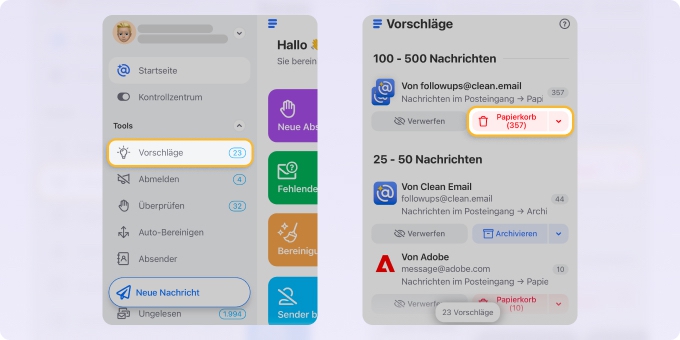
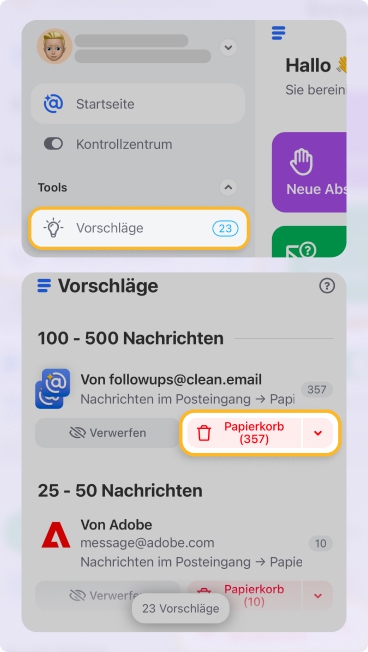
Die Funktion Bereinigungsvorschläge bietet beispielsweise personalisierte Empfehlungen auf Basis Ihrer üblichen E-Mail-Gewohnheiten und denen anderer Nutzer. Sie hilft Ihnen, Ihren Posteingang schnell zu organisieren, indem sie Aktionen wie das Archivieren oder Löschen von Massen-E-Mails anbietet.
Die Intelligente Ordner heben die E-Mail-Organisation auf die nächste Stufe, indem sie Ihre E-Mails automatisch in über 30 intuitive Kategorien sortieren, wie Benachrichtigungen von Sozialen Medien, Online-Shopping oder Finanzen und Versicherungen.
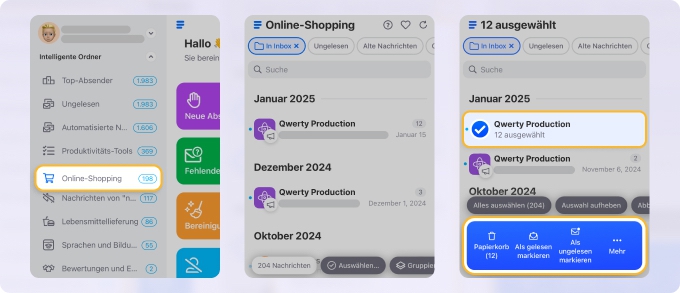
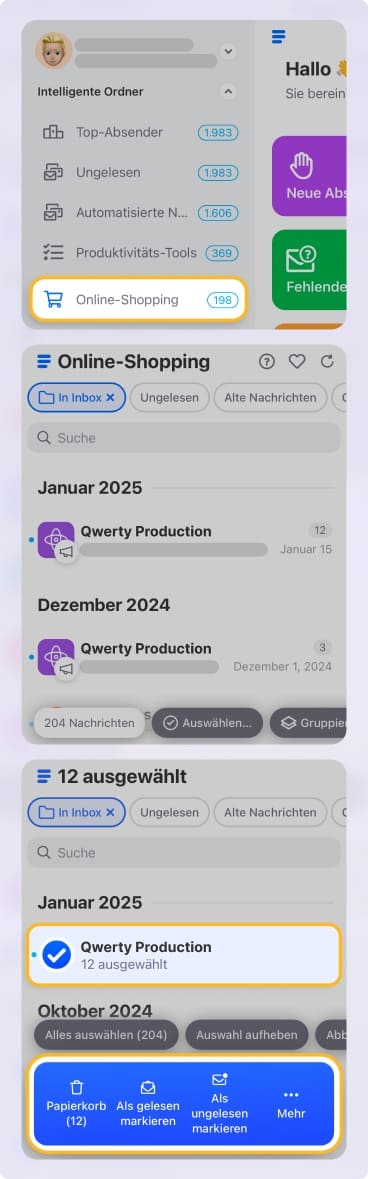
Anschließend können Sie ganze E-Mail-Gruppen mit nur wenigen Klicks löschen, anstatt Nachrichten einzeln zu entfernen.
Clean Email kann außerdem die Posteingangspflege automatisieren, mit Regeln, die unerwünschte Nachrichten bereits beim Eingang entfernen. Sie können es kostenlos im Web, auf dem Mac, unter iOS oder auf einem Android-Gerät ausprobieren.
Anweisungen für Ihren E-Mail-Dienst finden
Jeder E-Mail-Anbieter hat seine eigene Benutzeroberfläche und Einschränkungen, was bedeutet, dass die Schritte zum Löschen aller E-Mails variieren können.
Nutzen Sie die folgenden Anleitungen, um detaillierte Anweisungen für Ihren speziellen E-Mail-Dienst zu finden.
Gmail
- Alle E-Mails in Gmail löschen
- E-Mails in Gmail in großen Mengen löschen
- Tausende E-Mails in Gmail löschen
- Alte E-Mails in Gmail löschen
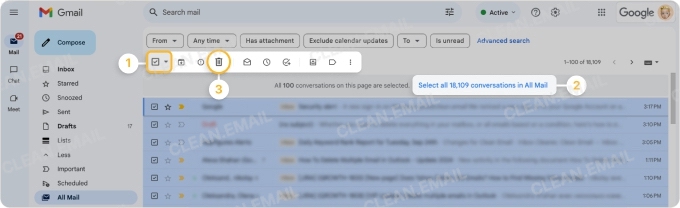
Diese Anleitungen erklären verschiedene Möglichkeiten, große Mengen an Gmail-Nachrichten zu entfernen, je nachdem, was Sie bereinigen möchten.
Outlook und Hotmail
- Mehrere E-Mails in Outlook löschen
- E-Mails endgültig aus Outlook entfernen
- E-Mails löschen, die älter als ein bestimmtes Datum sind
- Hotmail-E-Mails löschen
Diese Tutorials zeigen verschiedene Methoden zur Bereinigung von Outlook- oder Hotmail-Posteingängen.
Yahoo Mail
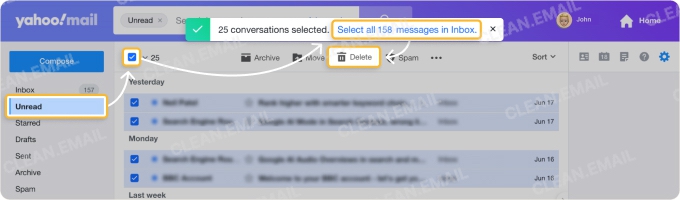
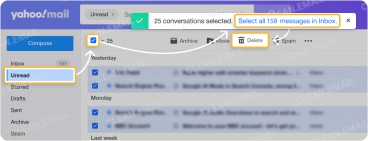
Yahoo-Nutzer können große Mengen an E-Mails manuell entfernen oder den Prozess mithilfe von Filtern und Bereinigungsregeln automatisieren.
Andere E-Mail-Anbieter
Wenn Sie einen anderen E-Mail-Dienst verwenden, können die folgenden Anleitungen hilfreich sein:
E-Mails auf Telefonen und Computern löschen
Viele Menschen verwalten ihren Posteingang hauptsächlich über mobile Geräte oder E-Mail-Apps. Während die Grundprinzipien zum Löschen aller E-Mails plattformübergreifend ähnlich sind, hängen die genauen Schritte vom verwendeten Gerät und der App ab.
Nachfolgend finden Sie Anleitungen für die gängigsten Geräte.
iPhone und iPad
Apple Mail und viele Drittanbieter-E-Mail-Apps ermöglichen es Nutzern, mehrere Nachrichten auszuwählen und zu löschen. Wenn Sie Ihren Posteingang auf einem iPhone oder iPad verwalten, erklären diese Anleitungen verschiedene Ansätze:
Android-Geräte
Die meisten Android-E-Mail-Apps ermöglichen es Nutzern, mehrere Nachrichten auf einmal zu entfernen, aber der Vorgang kann je nach App und E-Mail-Dienst unterschiedlich sein.
Für detaillierte Anweisungen können Sie dieser Anleitung folgen:
Mac-Computer
Wenn Sie E-Mails über Apple Mail unter macOS verwalten, können Sie Nachrichten ebenfalls in großen Mengen löschen.
Weitere Details finden Sie hier:
Gängige Methoden zum Löschen großer Mengen an E-Mails
Manchmal möchten Sie nicht jede Nachricht in Ihrem Posteingang löschen. Stattdessen möchten Sie vielleicht bestimmte E-Mail-Gruppen entfernen, um Unordnung zu reduzieren und dabei wichtige Konversationen zu behalten.
Tabelle 2: Beliebte Aufgaben zur Massenbereinigung von E-Mails
| Aufgabe | Beschreibung | Anleitung |
|---|---|---|
| Nachrichten von einem Absender entfernen | Newsletter oder wiederkehrende Nachrichten entfernen | Alle E-Mails von einem Absender löschen |
| Ungelesene Nachrichten bereinigen | Benachrichtigungen und Hinweise löschen | Alle ungelesenen E-Mails in Gmail löschen |
| Soziale E-Mails löschen | Benachrichtigungen von sozialen Netzwerken entfernen | Alle sozialen E-Mails löschen |
| Werbung bereinigen | Marketingnachrichten bereinigen | Alle Werbe-E-Mails in Gmail löschen |
| Große Nachrichten entfernen | Speicherplatz freigeben | Große E-Mails in Gmail löschen |
Häufig gestellte Fragen
Ist es möglich, alle E-Mails schnell zu löschen?
Ja. Sie können Tausende von E-Mails löschen, indem Sie alle Nachrichten in einem Ordner (Posteingang oder Alle Nachrichten) auswählen oder Suchfilter verwenden, um große E-Mail-Gruppen auf einmal zu entfernen.
Gibt es eine App zum Löschen von E-Mails?
Ja, Tools zur Posteingangsverwaltung wie Clean Email können E-Mails ganz einfach in großen Mengen löschen, indem sie Nachrichten in Kategorien organisieren und es Ihnen ermöglichen, ganze Gruppen mit wenigen Klicks zu löschen.
Gibt das Löschen von E-Mails Speicherplatz frei?
Ja. Das Entfernen von E-Mails – insbesondere solcher mit großen Anhängen – kann Speicherplatz im Postfach freigeben. Nachrichten, die im Papierkorb gespeichert sind, können jedoch weiterhin auf das Speicherlimit angerechnet werden, bis sie endgültig gelöscht werden.
Was passiert, nachdem E-Mails gelöscht wurden?
In den meisten E-Mail-Diensten werden gelöschte Nachrichten zunächst in den Papierkorb verschoben. Sie verbleiben dort für einen bestimmten Zeitraum, bevor sie automatisch endgültig entfernt werden. In der Regel können Sie den Papierkorb manuell leeren, wenn Sie die Nachrichten sofort löschen möchten.