




Sort Emails in Gmail, Outlook, Yahoo, and More

sort emails with Clean Email

Most email apps give you little or no control over how your inbox is sorted: Gmail has no sort button at all, and mobile apps are even more limited. Clean Email lets you sort by sender, date, size, subject, or label across all your accounts, with the same full capabilities on desktop and mobile.

Try for Free

Why Your Email App Can't Sort the Way You Want

Gmail has no inbox sorting by design. There are no column headers to click, no sort by sender or subject, and the only native option is an oldest/newest toggle that resets every time you refresh the page. On Gmail mobile, even that is gone.

Outlook and Yahoo Mail offer more, but their sorting is limited to what's on screen in a single account. There's no way to take bulk action on sorted results without selecting emails one by one, no cross-account view, and no way to save sorted configurations.

Mobile is the weakest point across all providers. Gmail mobile has no sorting at all. Outlook and Yahoo mobile have basic sort buttons but no filtering or bulk actions.

Sort by Anything – Across Every Account

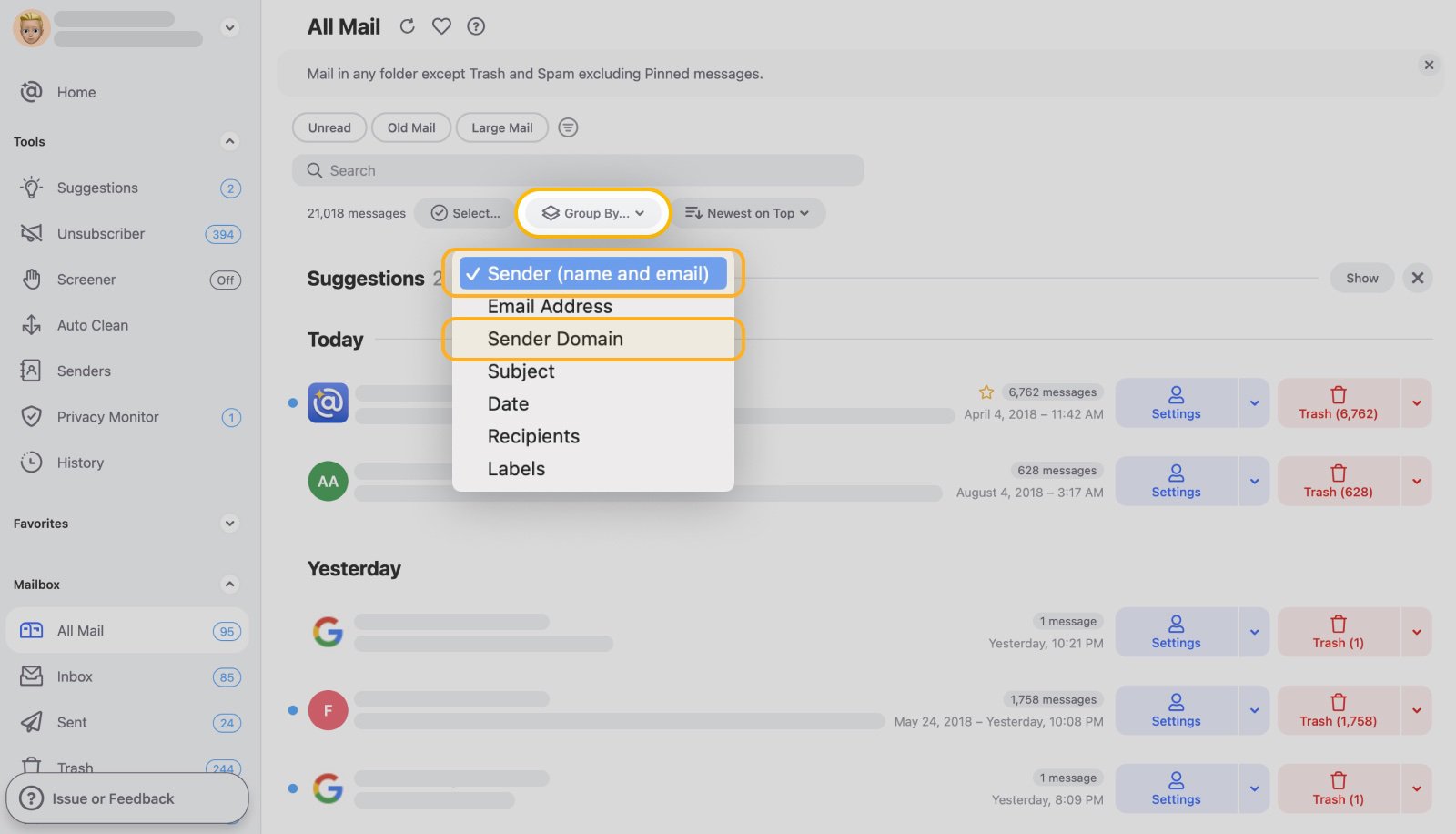
Clean Email lets you group and sort your inbox by parameters no native email app provides, and applies the same controls across every connected account.
sort emails
callout arrow

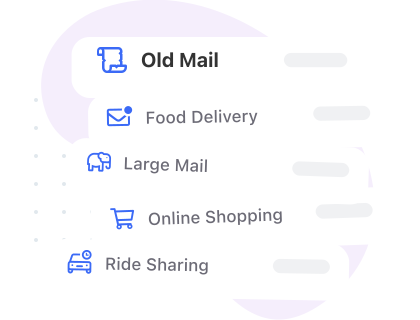
What You Can Group and Sort By

Sort order options: Newest on Top · Oldest on Top · Name (A-Z) · Email Address (A-Z)

Smart Folders

Smart Folders: Automatic Sorting Without Any Setup

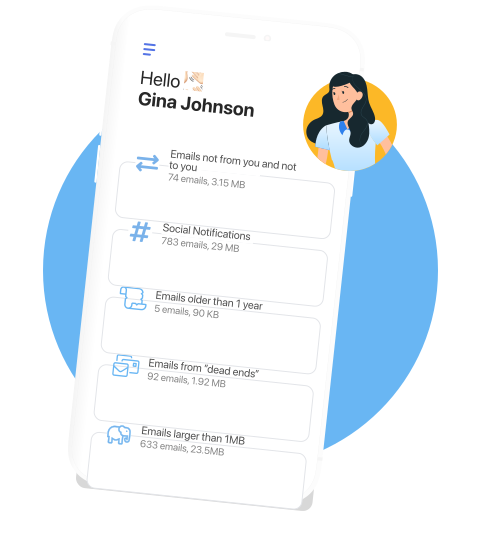
Smart Folders are predefined filters that automatically group messages matching common patterns across all your labels and folders. They surface message types you'd otherwise have to search for manually.

Smart Folders update automatically as new messages arrive. You don't configure anything – Clean Email identifies the patterns and creates the groups.

From any Smart Folder you can review messages, apply bulk actions, or set Auto Clean rules to handle that category automatically going forward.

See all Smart Folders →
Auto Clean rules

Auto Clean – Set a Rule Once, Sort Every Future Message

Auto Clean rules act as custom sorting scripts that run automatically on incoming mail. You define the criteria, and set the action. The rule runs on every matching message from that point forward without any manual work.

Rules can trigger immediately on arrival, after a set number of days, or on demand for existing messages. Because Auto Clean is account-agnostic, the same rule structure works across Gmail, Outlook, Yahoo, and any IMAP account.

Set up Auto Clean →
Sender Settings, Read Later, and Screener

Sender Settings and Read Later – Control Where Email Lands

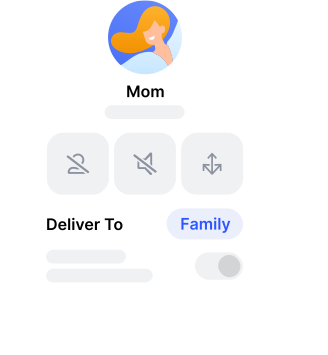
Sender Settings let you configure specific senders to skip the inbox entirely and be delivered to a folder or label of your choice.

For newsletters and non-urgent mail, Read Later is a dedicated folder that keeps those messages out of your inbox until you're ready. Senders can be routed there automatically so subscriptions arrive without interrupting your day.

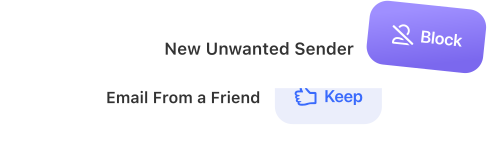
Screener intercepts all messages from senders who have never contacted you before and holds them for review.

Together these three tools sort your mail before it reaches your inbox, not after.

Learn about Screener →
Sort Your Inbox

How Clean Email Sorts Your Inbox

Clean Email organizes your inbox through three layers working together. Smart Folders automatically categorize incoming messages into groups, with no setup needed.

Manual controls let you group by sender, subject, date, label, or recipients and set the sort order at any time. And automated rules handle sorting before messages ever reach your inbox.

If you save a Favorites view, Clean Email remembers it. If you create a rule, it runs on every matching message automatically.

It connects using read-only OAuth: no password stored, no email content analyzed, no data sold.

Try it for free Get Started

How it works

Clean Email's Group By controls and Auto Clean rules give you the sorting your email app doesn't provide, and each takes just a few clicks to set up.

How to Sort Emails by Sender

  1. Connect your email account to Clean Email.
  2. Open any folder or your full inbox in Clean Email.
  3. Click the funnel icon and choose Group By → Sender.
Group By Sender menu in Clean Email
  1. Use the sort control at the top right to set the order.
  2. Click any sender group, select all messages, and apply the desired action.


How to Set Up Automatic Sorting

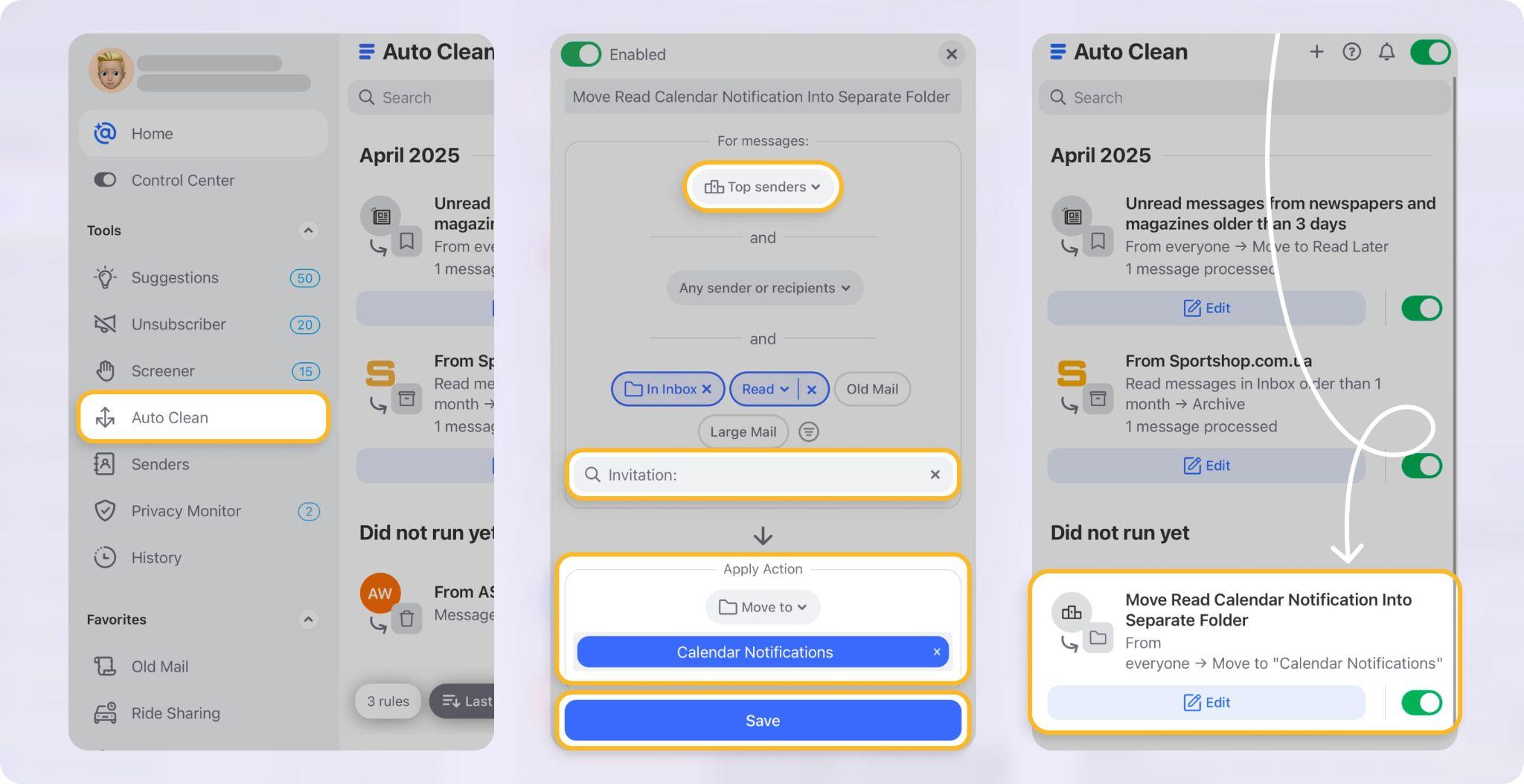
  1. Open Auto Clean in Clean Email and click Create Rule.
  2. Set your criteria: sender domain, subject keyword, message size, or other parameters.
  3. Set the action, such as move to a folder, apply a label, archive, or delete.
  4. Set the trigger: on arrival, after a set number of days, or immediately for existing messages.
  5. Save by clicking Create Rule.
Creating an Auto Clean sorting rule in Clean Email

4 Reasons to Use Clean Email for Sorting


auto clean
cross-account
Cross-account
Smart Folders, Group By, and Auto Clean work identically across Gmail, Outlook, Yahoo, iCloud, and any IMAP account.
mobile-ready
Mobile-ready
Full Group By, Sort, and Auto Clean capabilities on iPhone and Android, not limited by what Gmail or Outlook mobile provide.
flexible
Flexible
Group by Sender, Subject, Date, Label, or Recipients, then sort by date, name, or email address, and act on entire groups in bulk.
automatic
Automatic
Smart Folders categorize incoming mail without setup; Auto Clean rules handle ongoing sorting without any manual work.

One-Click Sorting Actions

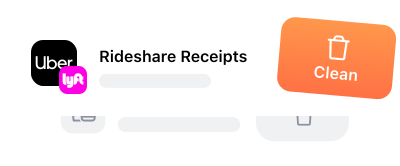
Clean Email comes with a set of pre-built sorting actions you can activate instantly, no rule setup required:

sorting actions

Frequently Asked Questions

What is Group By and how does it work?

Group By is a manual sorting control in Clean Email that lets you group all messages in your inbox or any folder by sender, sender's email, subject, date, labels, or recipients. You access it via the funnel button in any view. Once grouped, you can set the sort order, and take bulk action on any group in one click.

What are Smart Folders?

Smart Folders are predefined filters that automatically group messages matching common patterns. They update automatically as new messages arrive and require no configuration. You can apply bulk actions or create Auto Clean rules directly from any Smart Folder.

Can I save a sorted view so I don't have to redo it each time?

Yes. Any combination of Group By, sort order, and search filters can be saved as a Favorite. Saved Favorites appear in the left-hand navigation bar for one-click access in every session, across all your connected accounts.

Can I sort emails across multiple accounts at once?

Some email apps offer a unified inbox for sorting messages across multiple accounts at once. Clean Email keeps each connected account separate, which prevents messages and rules from being mixed across accounts. To sort or clean messages, simply switch to the account you want to manage and apply the actions there.

Is Clean Email safe to use?

Yes. Clean Email uses read-only OAuth to connect to your account, no password is stored. Access tokens are encrypted and can be revoked at any time from your settings. Clean Email does not store, sell, or analyze your email content beyond applying the rules you set.

Try Clean Email for Free
*****4.5based on 3,700 user reviews
Get Started
InboxClean Your Mailbox

Use tools like Cleaning Suggestions and Smart Folders to help you quickly clean out an overloaded inbox

Mute unwanted emailsUnsubscribe

Keep unwanted emails out of your inbox by unsubscribing—even from email lists that don’t have an unsubscribe link

Clean your emailsKeep it Clean

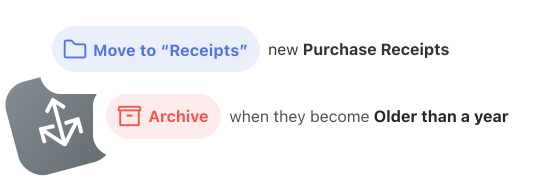
Automate repetitive tasks with Auto Clean rules to archive emails as they become old or to sort them into folders

Background
Use filters to find emails you want to clean.Arrow
Screener FeatureArrow
UnsubscribeArrow
Auto CleanArrow
Sender SettingsArrow