


Email Spam Blocker
for Gmail, Outlook, Yahoo, and More

email spam blocker

Block repeat senders, stop unwanted domains, and automate cleanup for future junk mail—with the same powerful tools on web, iPhone, Android, and Mac.

Try for Free

Why Use a Dedicated Email Spam Blocker?

Your email provider's spam filter is built to catch obvious junk: scams, phishing attempts, and suspicious bulk emails. But it often lets through the grey-area messages—brands you bought from once, newsletters you forgot about, cold outreach, and promotional emails that are technically legitimate but no longer wanted.

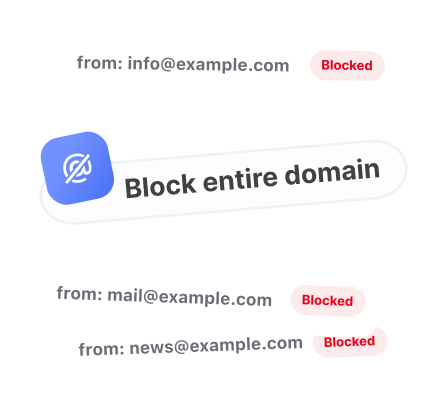
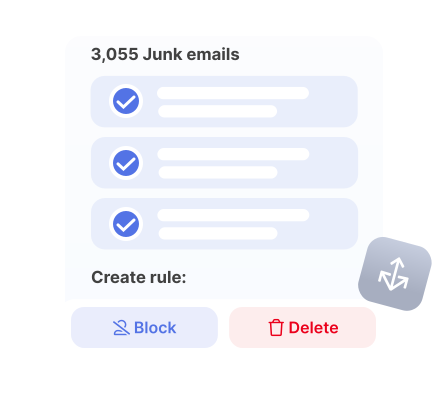
Clean Email helps you control that repeat inbox clutter. You can block a specific address, block an entire domain, and choose what should happen to future matching emails automatically—without setting up provider-specific rules one by one.

Use it alongside your provider's spam filter to keep your inbox focused on the emails you actually want to see.

Block Persistent Spam More Easily

Here's how you can stop unwanted senders across the most popular email providers.
block spam
callout arrow

Start With Your Email Provider

gmail

Gmail

Gmail catches a lot of obvious spam, but it can still let through senders you interacted with before—stores, services, newsletters, and brands that keep showing up in your inbox long after you stopped caring.

Clean Email lets you block individual addresses or entire domains in Gmail, then create Auto Clean rules to move future matching emails to Trash, Archive, or another folder. You also get Screener and Unsubscriber as part of the same toolkit when blocking alone is not enough.

Block emails in Gmail →
outlook

Outlook

Outlook gives you basic blocking tools, but managing persistent unwanted senders can still become manual—especially when emails come from different addresses under the same domain or when you manage more than one account.

Clean Email blocks junk emails, applies automatic actions to future matching emails, and manages old mail from one dashboard on web, iOS, Android, and Mac.

Block emails in Outlook →
yahoo

Yahoo Mail

Yahoo Mail can block individual addresses, but junk often comes from sender variations, promo domains, and old signups that are tedious to handle one by one.

Clean Email helps you deal with all of them from one place. Instead of chasing individual senders, you can create rules that automatically handle future emails, clean up existing messages, and use tools like Unsubscriber and Screener to reduce inbox clutter faster.

Block emails in Yahoo Mail →

Need to Block Emails Somewhere Else?

Clean Email also works with iCloud, AOL, and other IMAP-supported accounts. You can use the same blocking toolkit on iPhone, Android, Mac, and web—so you're not limited to Gmail, Outlook, or Yahoo.

By email provider By device Special cases
Block emails on AOLBlock emails on iPhoneBlock no-sender emails
Block emails on Mail.comBlock emails on Android
Block emails on XfinityBlock emails on Mac
Automate Your Inbox

How Clean Email Handles Blocked Senders

Clean Email works at the email address and domain level. Blocking a sender in Clean Email affects how future emails from that sender are handled in your mailbox; it does not block phone contacts, calls, texts, Messages, or FaceTime.

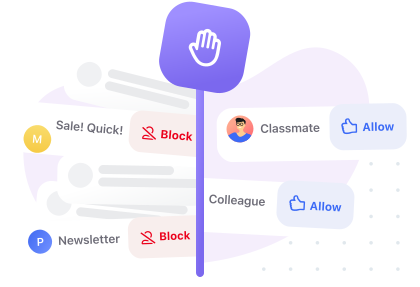
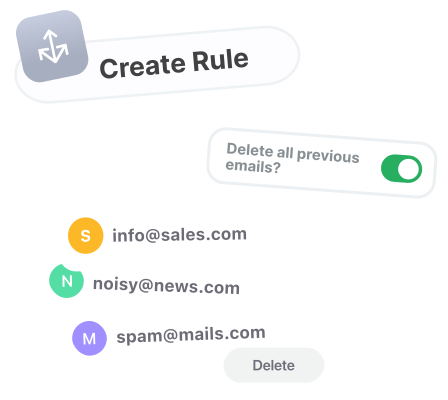
Once you block a sender or domain, you can choose what happens next: move future emails to Trash, Archive, or another folder. You can change or remove the rule later.

Try it for free Get Started

More Than Blocking: A Full Toolkit for Unwanted Email

Clean Email gives you more than a basic block button. Along with sender and domain blocking, you also get tools for the other types of unwanted email that blocking alone cannot solve.

use unsubscriber
Use Unsubscriber when blocking is not the best fit
Opt out of newsletters, promo lists, and marketing emails you no longer want.
use screener
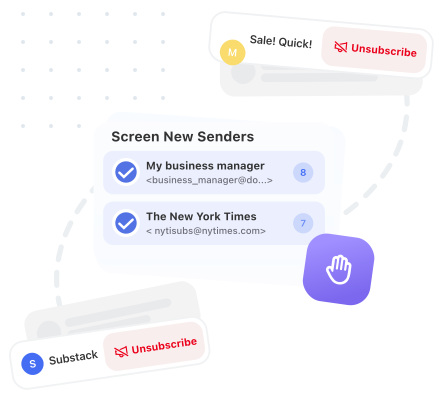
Use Screener for new senders
Review first-time contacts before they become inbox noise.
automate cleanup
Automate cleanup with Auto Clean
Move, archive, trash, label, or mark future matching emails automatically.
clean old emails
Clean old emails too
Remove existing emails from the same sender and control what arrives next.

How it works

Clean Email lets you block repeat senders or domains, then apply an automatic action to future matching emails. Screener and Unsubscriber help with first-time senders and mailing lists.

How to Block a Spam Sender

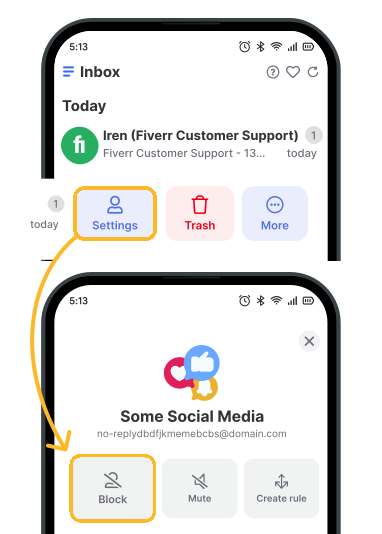
To block a spam sender:

  1. Connect your email account.
  2. Go to Inbox.
  3. Swipe left on a message from the sender.
  4. Choose Settings.
  5. Click Block.

See the list of all blocked senders in SendersBlocked. You can unblock from there any time.

how to block spam

more than blocking

Need More Than Blocking?

Some unwanted emails are better handled with other Clean Email tools. Use Unsubscriber for newsletters and promo lists you no longer want. Use Screener to review first-time senders before they reach your inbox.

Learn about Unsubscriber →
Learn about Screener →


Why Use Clean Email for Spam Blocking

Most email apps give you only part of the toolbox on mobile. Clean Email gives you the same core blocking and cleanup features across web, iPhone, iPad, Android, and Mac, so you can stop unwanted senders without switching to a desktop browser.

privacy
Privacy, security, and compliance

Frequently Asked Questions

Does Clean Email actually block spam or just filter it?

Clean Email does block unwanted senders by automatically sending their future emails to Trash. It doesn't stop emails from being delivered to your mailbox at the server level, but it prevents them from reaching your inbox.

Can I block an entire domain, not just one address?

Yes. When you block a sender, you can choose to block just that address or every address at that domain. This is useful for stopping an entire newsletter service, company mailing list, or spam operation in one step.

What is Screener and how does it help with spam?

Screener holds emails from new or unknown senders in a review queue before they reach your inbox. For recurring senders and domains, use Clean Email's blocking features and Auto Clean rules.

Does Clean Email work with my email provider?

Clean Email works with Gmail, Outlook/Hotmail, Yahoo Mail, iCloud, and any account that supports IMAP—including custom business domains. You can add multiple accounts and manage unwanted senders on web, iOS, Android, and Mac.

Is Clean Email safe to use?

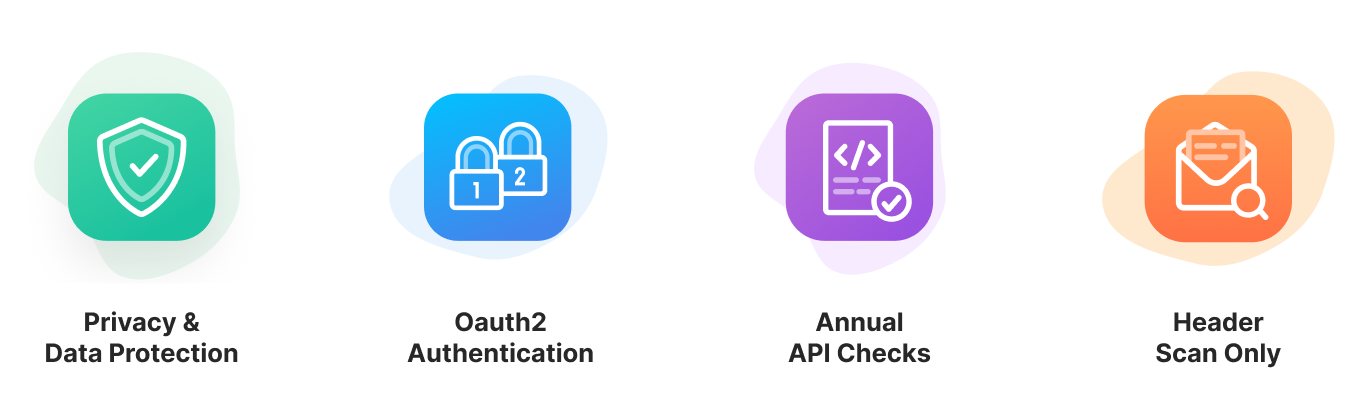
Yes. Clean Email uses read-only OAuth to connect to your account—no password is stored. Access tokens are encrypted and can be revoked at any time from your settings. Clean Email does not store, sell, or analyze your email content beyond applying the rules you set.

Try Clean Email for Free
*****4.5based on 3,300 user reviews
Get Started
Block repeat sendersBlock Repeat Senders

Stop emails from unwanted addresses or entire domains and choose what happens to future messages.

Unsubscribe or screenUnsubscribe or Screen

Use Unsubscriber for mailing lists and Screener for first-time senders when blocking is not enough.

Automate cleanupAutomate Cleanup

Create Auto Clean rules that archive, trash, label, or skip the inbox for future matching emails.

Background
Use filters to find emails you want to clean.Arrow
Screener FeatureArrow
UnsubscribeArrow
Auto CleanArrow
Sender SettingsArrow