


How to Set Up Out of Office in Gmail
You can set up an out-of-office reply (OOO) for situations when you'll be away and unable to respond to emails.
Follow these steps to set OOO in Gmail on the desktop or mobile:
Desktop
Here is how to set out of office in Gmail using the desktop app:
- Log in to the Gmail desktop app.
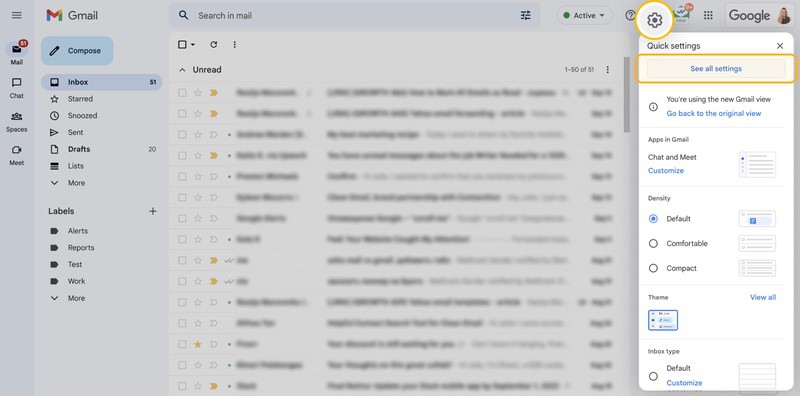
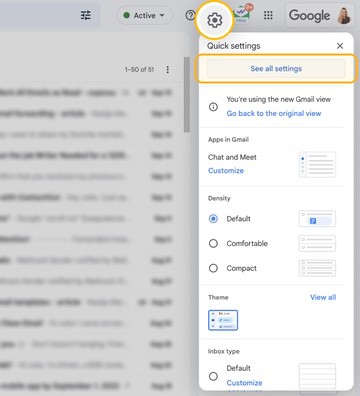
- Click the gear icon to open Settings → See all settings.
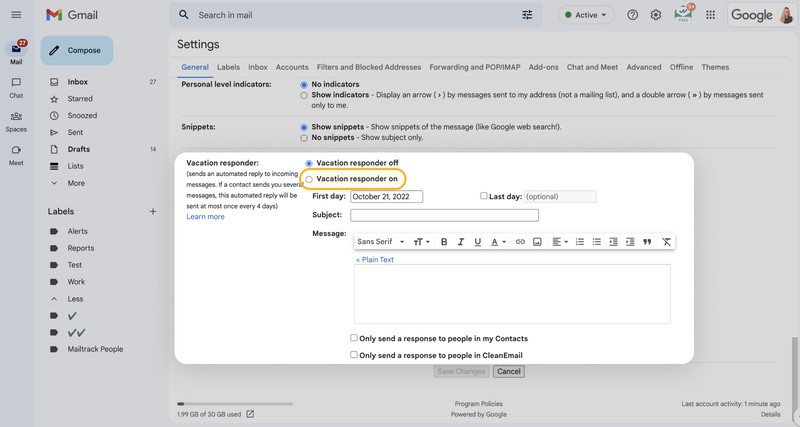
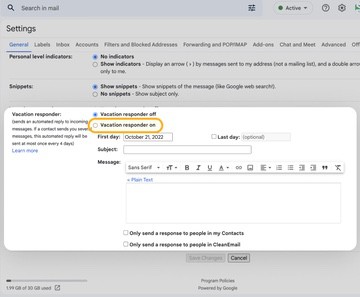
- Scroll down until you see Vacation Responder.
- Click the circle to turn it on.
- Now choose the first day and the last day of being OOO using the boxes and drop-down calendar.
- Type your vacation message into the text box.
- You can choose to only send to Contacts (if you don’t want others to know why you are away, keep your privacy!)
- Click Save Changes.

Mobile
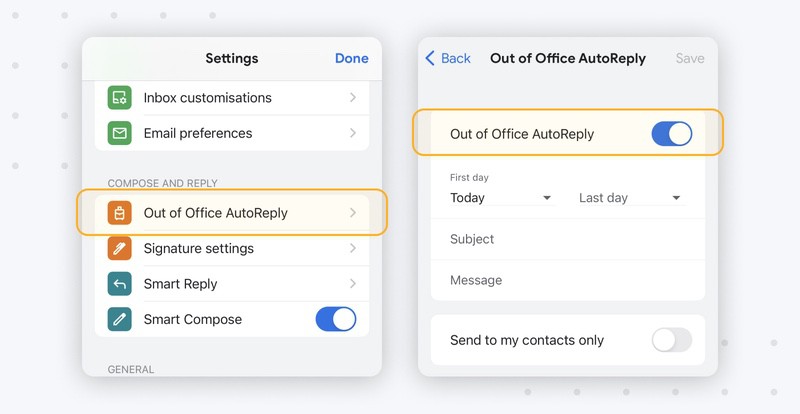
Here’s how to set up out-of-office in the Gmail mobile app:
- Open the Gmail app on your mobile.
- Tap the three lines at the top to open the menu.
- Tap Settings.
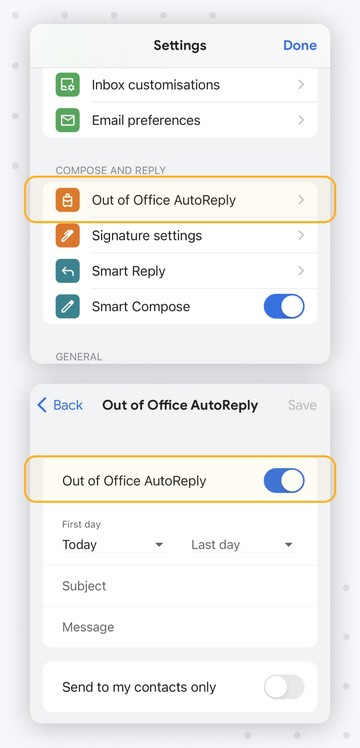
- Scroll down to the Out of Office AutoReply.
- Now tap the toggle to turn the Out of Office AutoReply on.
- Set the start and finish date.
- Type in your OOO message.
- Choose to only send to contacts or not (keep your information private, not everyone needs to know you are out of the office).
- Click Save.
💡 Note: Within your vacation response include whom the sender should contact instead if the message is urgent. This ensures business doesn’t slow down, customers are not upset, and work should continue smoothly once you get back!
Learn more about canned responses and how to set up an automatic reply in Outlook.
When To Use Out of Office In Gmail
It’s a good idea to set up out-of-office (OOO) when you're going to be away from work and cannot respond to emails for some time.
For example, you might be going on holiday, having surgery, or out of the office because you are sick. The fine details don’t matter to those who are trying to contact you, it's just important to let them know you will not respond until you are back.
Gmail uses a feature called Vacation Responder to automatically notify anyone who emails you that you're unavailable and when they can expect a reply.
How Gmail Vacation Responder Works
Out of office in Gmail (Vacation Responder) allows you to create a message to send whilst you are on vacation. However, you can create an OOO message for any reason.
A vacation message on Gmail works by sending an automated response to anyone who sends you an email during this time.
- Gmail will send one vacation response, and another one four days after if the sender tries to contact you again.
- If you edit your response, Gmail will send that again too.
- You can manually end your out-of-office period, or it will finish itself by midnight on the date set.
- Messages that automatically end up in your spam or trash folder will not be sent a vacation response.
You can choose to send your message to just your contacts, or to anyone who messages you.
If your absence isn’t particularly important but you'd like others to know you're away, just send this message to your contacts.
If your absence is important, create a helpful vacation response, and keep the details of your time away minimal.
Clean Up Your Inbox Before Going On Vacation
Clean Email is an inbox management app that works with Gmail and other providers to help you organize and automate email tasks. Here’s how it can help before, during, and after your vacation.
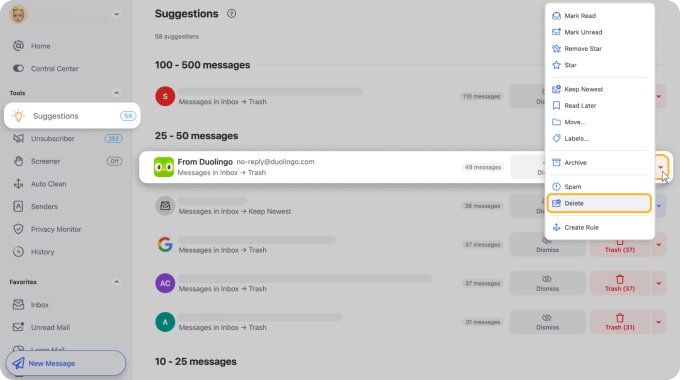
Before you leave, open Clean Email on the web, Mac desktop, or mobile, and review Cleaning Suggestions. This feature recommends items to clean based on your previous actions and common patterns from other users. Review the suggestions and apply the ones that make sense, so your inbox stays organized while you're away.
Use Auto Clean to create automated rules that run during your vacation. For example, you can automatically archive newsletters, move promotional emails to a specific folder, or keep only the newest message from certain senders. These rules run continuously, preventing your inbox from piling up while you're gone.
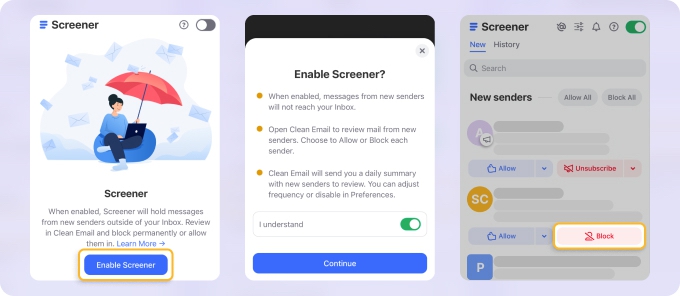
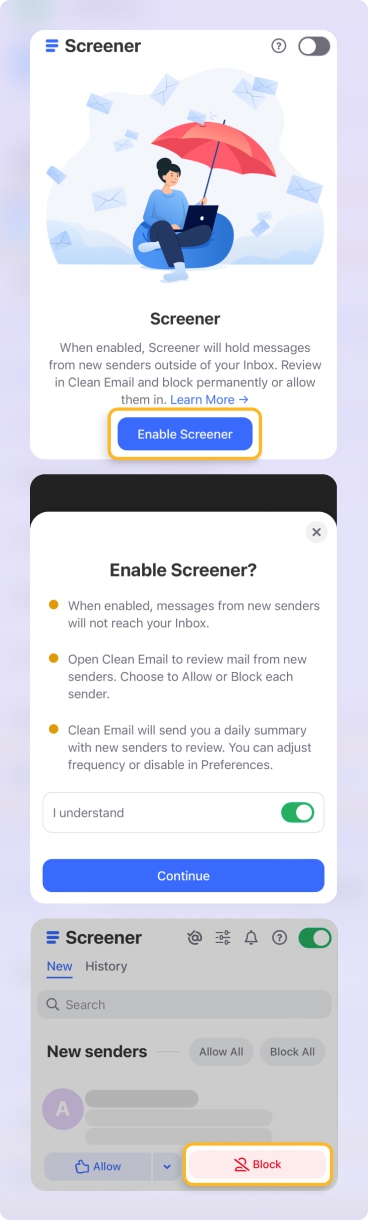
Set up the Screener feature so you can review messages from new or unknown senders when you return. This helps reduce junk and lets you focus on the emails that actually matter.
Out of office in Gmail - FAQs
How do I turn on out-of-office in Gmail?
To turn on out of office in Gmail you need to open Settings. Scroll to find Out of Office Auto-Reply and fill in the criteria. Now your message will be automatically sent until the end date.
How do I set an out-of-office message in the Gmail app?
To set an out-of-office message in the Gmail app you need to head into Settings and locate Vacation Responder. Here you can select dates and type in your OOO message.
Why is my Gmail auto-reply not working?
If your auto-reply isn’t working, go back and check the criteria you filled out. It’s a good idea to test your OOO message first before relying on it to work whilst you are away.












