Quick Summary
Deleted emails can sometimes be recovered. It depends on where the message is stored, how long ago it was deleted, how it was deleted, whether the account still exists, and whether encryption applies.
Most providers keep deleted messages in Trash for a limited time (often 30 days) before erasing them permanently. Once a message is permanently deleted or the account has expired, it can’t be recovered.
Emails can also vanish without being deleted, through filters, sync issues, or account compromise. Check those before assuming a message is gone for good.

What to Do First When an Email Goes Missing
Before assuming a message is lost, work through these checks in order. The earlier a step succeeds, the faster you’re done, and acting quickly matters because recovery windows close fast.
- Check the Trash or Deleted Items folder.
- Check Spam or Junk.
- Open your webmail directly: it shows what’s actually on the provider’s server, which can differ from an out-of-sync app.
- Check your other synced devices.
- Use your provider’s recovery option.
Recover Your Emails by Provider
Each email service has its own retention practices and limitations that affect recovery options. Learn how to find and restore your deleted messages step by step, whichever provider you use:
- Recover deleted Gmail emails
- Recover deleted Outlook emails
- Recover deleted emails from iCloud
- Recover deleted emails in Yahoo
- Recover deleted AOL emails
- Recover deleted emails in Zoho Mail
- Recover Proton Mail deleted emails
Manage your inbox before important emails get lost
Most deleted-email emergencies start the same way: an overloaded inbox and a quick cleanup that catches the wrong message. Clean Email is an inbox organizer that helps reduce that risk and makes deleted emails easier to recover.
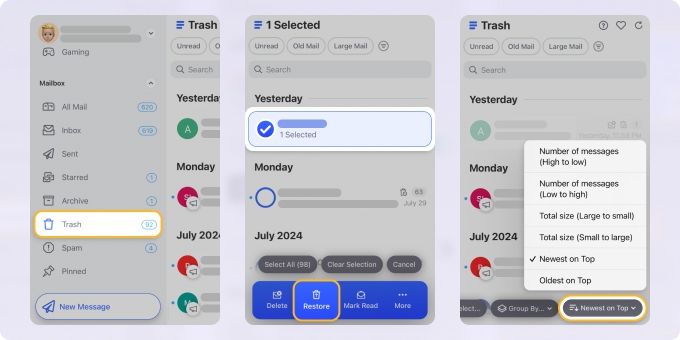
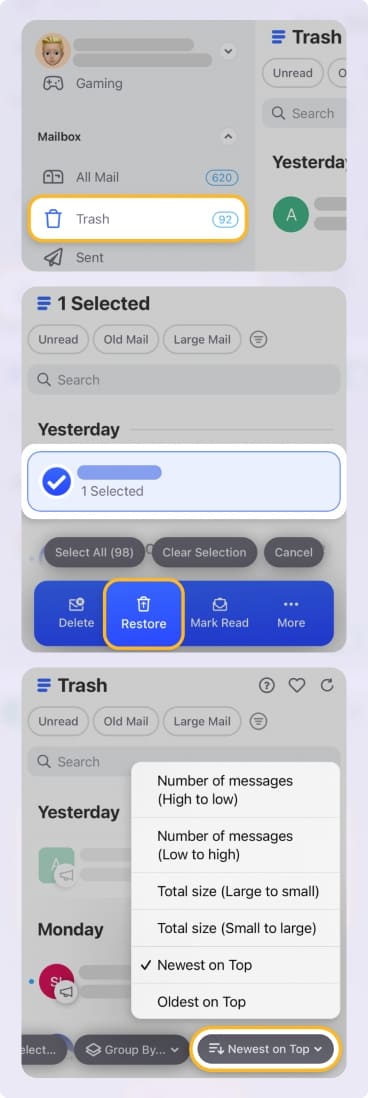
Get to Trash before the window closes. Clean Email can’t restore permanently deleted messages. What it does is give you quick access to your Trash view, so you can find and restore messages within your provider’s retention window.
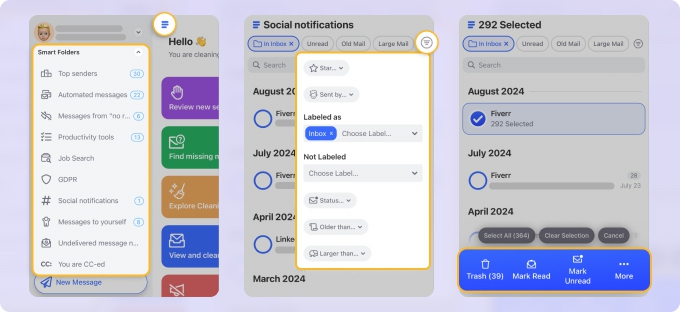
Find "missing" emails with Smart Folders. Smart Folders automatically group messages by type, such as Finance and Insurance, Social Notifications, Travel, Online Shopping, and pull from every folder, not just the inbox. If a message was misfiled or auto-filtered rather than deleted, this is the fastest way to surface it.
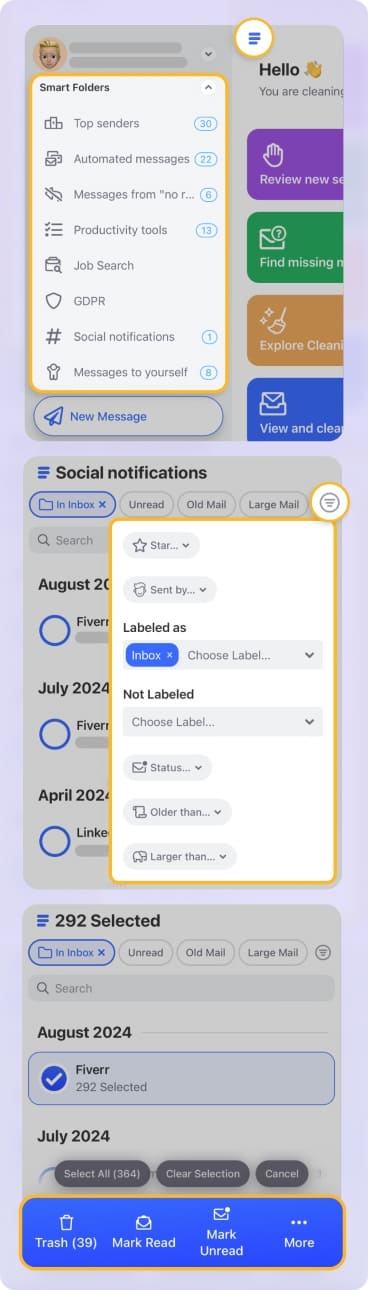
Cut the clutter that causes accidental deletions. Unsubscriber stops unwanted newsletters at the source, Cleaning Suggestions recommends safe bulk actions, and Screener intercepts mail from new senders, so there’s less noise to sift through and less chance of trashing something important.
Clean Email applies your provider’s own deletion rules and never sells or shares your data. It works on the web, macOS, iOS, and Android.
How to recover deleted emails from Gmail
You have 30 days to recover deleted emails from Gmail trash back to your inbox.
To recover any deleted email, you first need to log into your account and find your trash or bin folder. You can locate the trash folder by scrolling through your list of labels, you may have to click More to view all Gmail labels.
How to retrieve deleted Gmail emails on web
- Find the deleted messages within your Trash folder.
- Click the checkboxes next to the messages you want to recover.
- Click move to, located at the top of the page.
- Select a folder from the drop-down menu or return it to the Inbox.
Messages will now be recovered and back within your folder of choice, or in the inbox.
How to retrieve deleted emails from Gmail on mobile
You can restore messages the same way on either Android or iPhone.
- Open the mobile app, locate the Trash folder, and open it.
- Open the email you want to recover.
- Tap the three-dot or line menu in the top right corner.
- Press move to and select a folder.
Your email will now be recovered from deletion, and back in your mailbox.
How to recover permanently deleted emails from Gmail
Unfortunately, you cannot restore messages sent to trash once the 30-day period is up.
Once an email lands in the trash folder, the 30-day timer starts. After this time, the mail service provider will delete the messages forever. So, be sure to only move messages to Trash you don’t need.
There is also a way to recover email if you’re an admin and use the Admin Console. You have an additional 25 days past deletion to restore your deleted Gmail emails.
💡 Note: Instead of deleting, you can download Gmail emails or forward multiple Gmail emails to another mailbox to check them later.
Recovering Outlook deleted emails across platforms
Your first port of call for recovering deleted Outlook emails should be the "Deleted Items" folder. It’s the virtual recycling bin where your emails end up being permanently removed. From this folder, you can effortlessly undo delete in Outlook by moving the emails back to their respective folders.
Outlook on the web
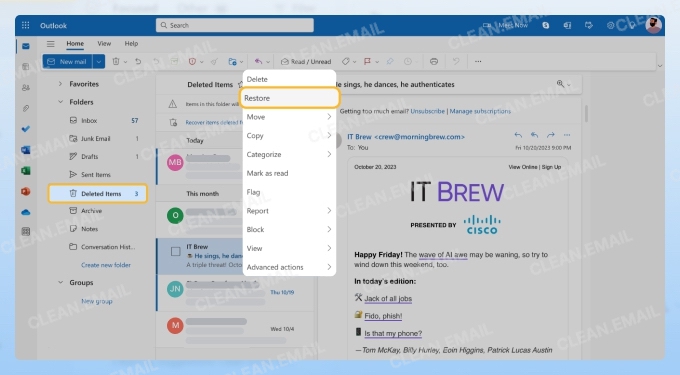
If you find that an email disappeared from your inbox while using your mail on the web, don’t panic. The web version offers a straightforward way to restore Outlook emails:
- Login to your account and go to the Deleted Items folder. You can find it listed in the left pane under Folders.
- Find the deleted message you would like to recover.
- Right-click on the message and choose Restore or Move to folder. The former option will place the email back in its original location, while the latter option allows you to specify where you’d like the recovered email to go.
Outlook for Windows
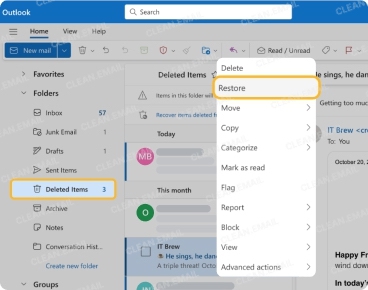
Even though the Outlook client for Windows is far more complicated and feature-packed than its web counterpart, the steps to restore Outlook emails with it are virtually the same:
- Open the desktop application and locate the Deleted Items folder in the left sidebar.
- Scroll through to find your Outlook deleted email.
- Right-click on the desired message and choose Restore or Move to folder. We recommend you use the Restore option only if you’ve deleted the message recently and remember where it was stored. Otherwise, it could end up in some random folder.
Outlook for Mac
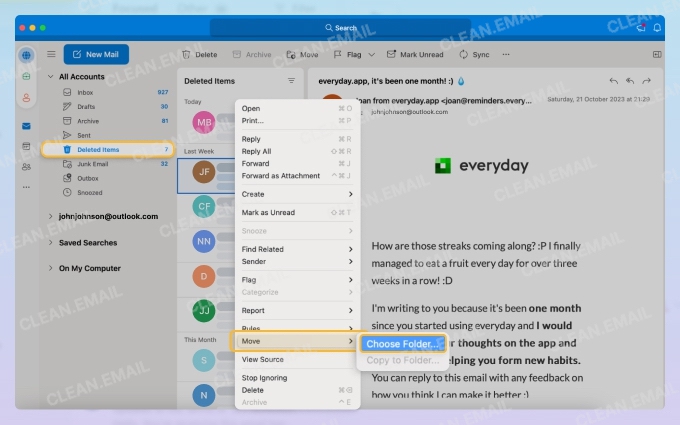
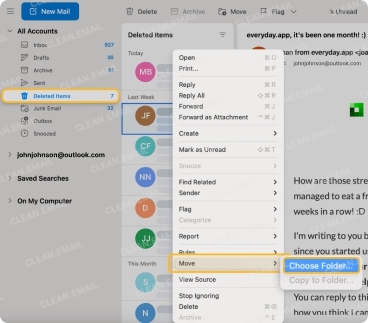
If you’ve noticed that an email disappeared while using the Outlook for Mac desktop application, you can follow these steps to bring them back:
- Launch the desktop application on Mac and click on the Deleted Items folder.
- Right-click the message you want to recover.
- Select the Move option from the context menu and then click on Choose Folder. Specify where you want to recover the message and confirm by clicking Move again.
Outlook mobile app
The good news is that you can recover messages from the Deleted Items folder even when you’re on the move. This is what you need to do:
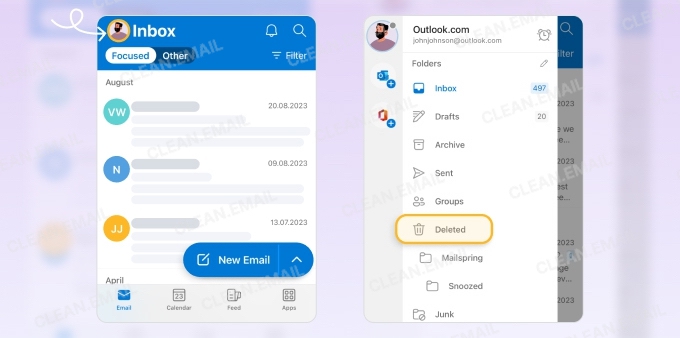
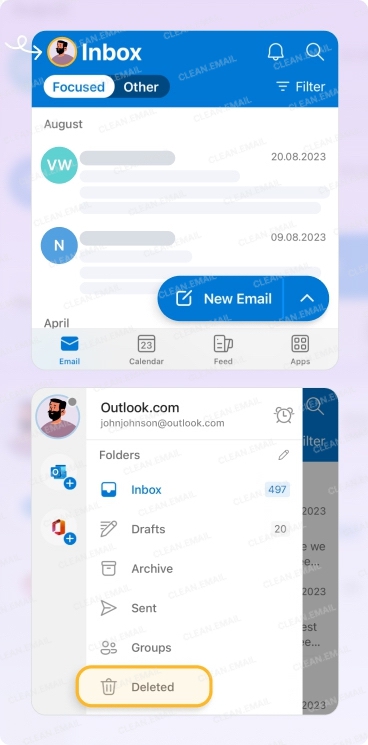
- Open the Outlook mobile app and tap your profile picture in the top left corner.
- Select the Deleted folder. This is the Delete Items folder you’re looking for. It’s just that Microsoft shortened the name for better display on mobile screens.
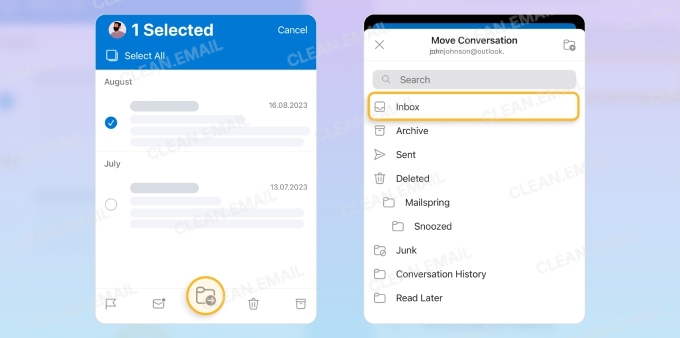
- Long-tap on the email you wish to restore, then tap the Move icon and choose your Inbox or any other location you want.
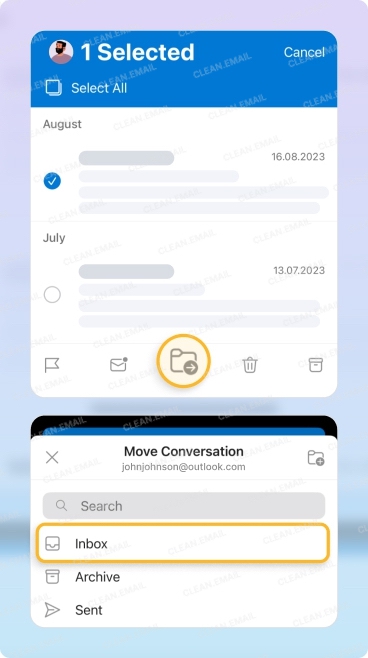
Recovery from the “Recover Deleted Items From Server Folder”
⚠️ Note: This method works for Legacy Outlook for Windows only
If you’re using the Legacy version of Outlook for Windows and find that your needed emails are no longer in the Deleted Items folder, then you can turn your attention to the Recover Deleted Items From Server folder.
This recovery method fetches deleted messages directly from the email server associated with your inbox, essentially serving as a last-resort safety net.
How to restore emails in Outlook from the Recover Deleted Items From Server folder:
- Launch the Legacy version of Outlook for Windows and navigate to the Deleted Items folder.
- Click on the Recover Deleted Items From Server button on the Home tab. If the option is not available, your account does not support recovering items that are no longer in your Deleted Items folder.
- Choose the items you want to recover, click on Restore Selected Items, and then hit OK.
How to recover deleted emails from iCloud Mail
If you want to recover your deleted emails, you can do so by using your iCloud backup. If you haven’t backed up your phone in a while, you may need some extra support in retrieving lost data.
The following methods will teach you how to recover emails deleted from the Trash and how to recover permanently deleted emails from iCloud.
Recover from Trash in Mail
Recently deleted iCloud messages first end up in your Trash folder in the Mail app, where they stay for up to 30 days before they’re erased forever. If a message is still in there, you can just drag it back into your inbox or wherever else you want it.
On iPhone or iPad:
- Open the Mail app and tap Mailboxes.
- Choose your iCloud account, then tap Trash (or Bin).
- Find the email, tap it, then tap the folder icon and move it back to Inbox or another mailbox.
On Mac (Apple Mail):
- Open Mail, and select your iCloud mailbox in the sidebar.
- Click the Trash folder.
- Right‑click the message and choose Move to → Inbox (or drag it to the desired folder).
💡 Tip: If you have just accidentally sent an email to Trash, shake your mobile device to undo the action!
Recover via iCloud.com Mail
If you can’t find a deleted email in your Mail app, try checking iCloud.com, which shows you what’s actually stored on Apple’s servers for your account. This can be handy if your devices are out of sync or you’ve set them up to only sync a bit at a time.
Steps on iCloud.com:
- Go to icloud.com, sign in with your Apple ID, and open Mail.
- In the left sidebar, select Trash.
- Select the message(s), click Move, and choose Inbox or another folder.
Check Junk and “Not Junk”
Sometimes perfectly legit emails get filtered to Junk instead of actually being deleted, so they don’t even show up in your Trash. Marking them as Not Junk not only gets them back where they belong but also helps to train your junk filter so it does a better job in the future.
To restore from Junk on iCloud.com:
- Sign in to icloud.com and open Mail.
- Click the Junk folder in the Mailboxes list.
- Select the message, choose Move to Inbox, or use Not Junk/Move so future messages from that sender are not treated as spam.
Recover emails with iCloud backup (iOS 16 and later)
To do this, you will need to erase all data from your mobile device to replace it with the backup file.
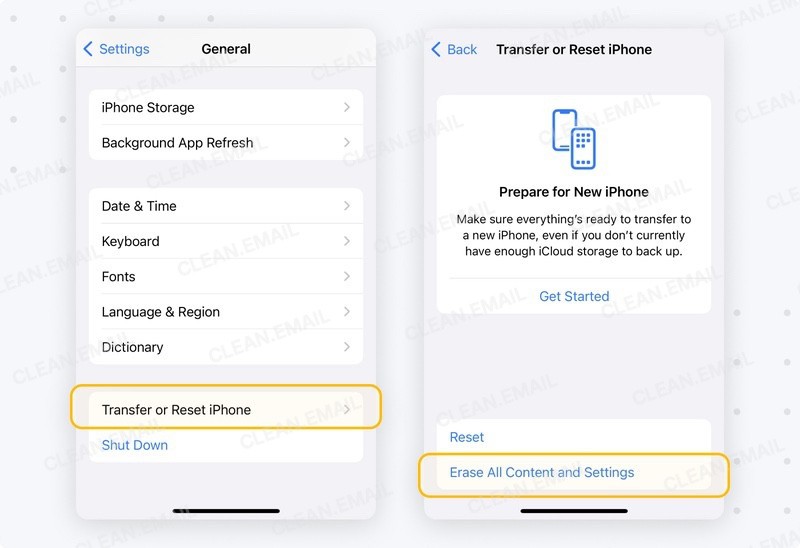
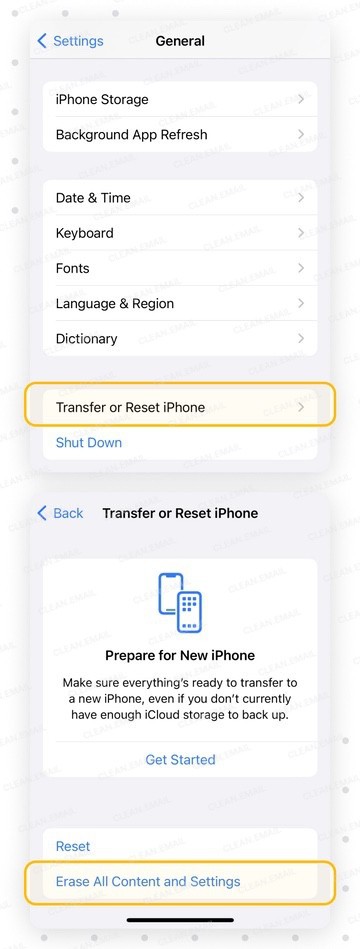
- To erase your device, go to Settings → General.
- Then click Transfer or Reset iPhone → Erase All Content and Settings.
- You will have a clean iPhone after the process is done. Now follow the steps on the setup screen, and make sure you are connected to Wi-Fi.
- Once you reach the Apps and Data section, tap Restore from iCloud Backup.
- Sign in to your iCloud, select the latest backup file, and follow the steps to finish the process. Your lost emails should now be back in your mailbox.
How to recover deleted Yahoo emails
Yahoo removes items from the Trash folder after seven days, though, so you have to recover deleted emails quickly. Below, we’ll break down how to retrieve deleted emails from Yahoo and improve your mailbox management.
How to recover deleted emails on the Yahoo web app
Follow these steps from any web browser to perform a Yahoo email retrieval:
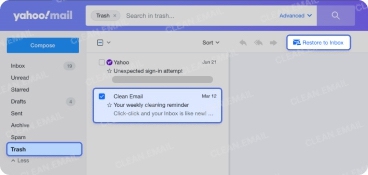
- Go to your Yahoo Mail account.
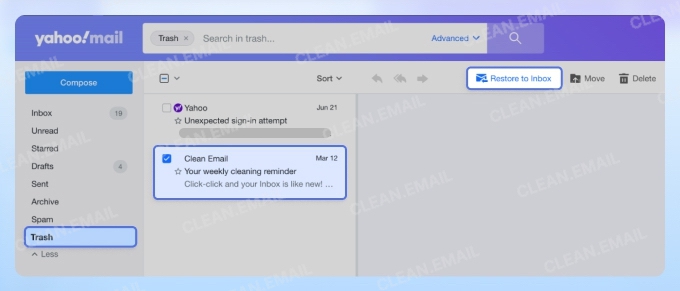
- Click on Trash in the folder list on the left side.
- From here, you can do one of two things:
- Scroll and locate the deleted message.
- Use the search bar at the top to find it.
- Once you find the email, click the checkbox next to the sender’s name.
- Next, choose Restore to Inbox from the options in the upper right.
- The messages will be restored.
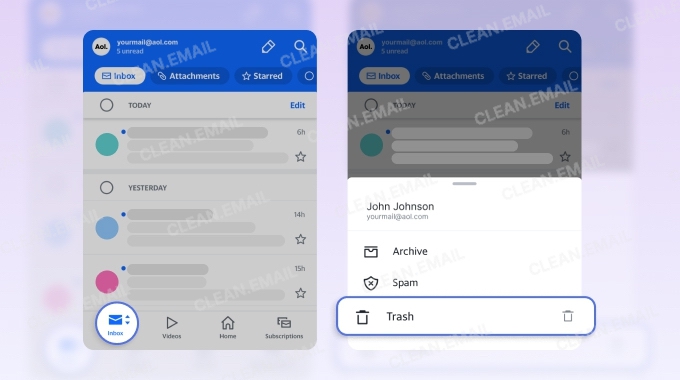
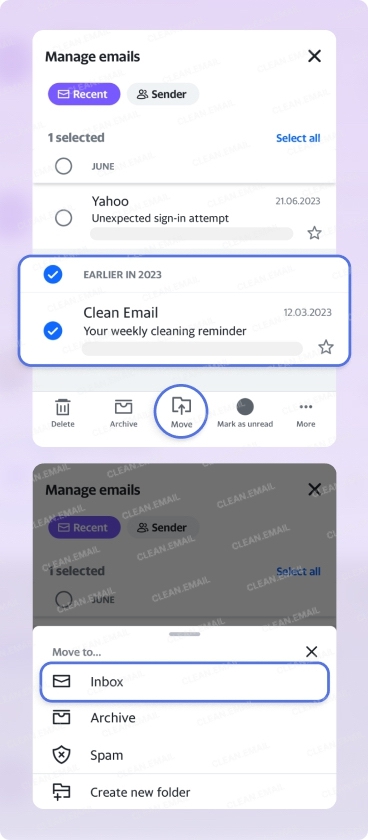
- Open the Yahoo Mail app.
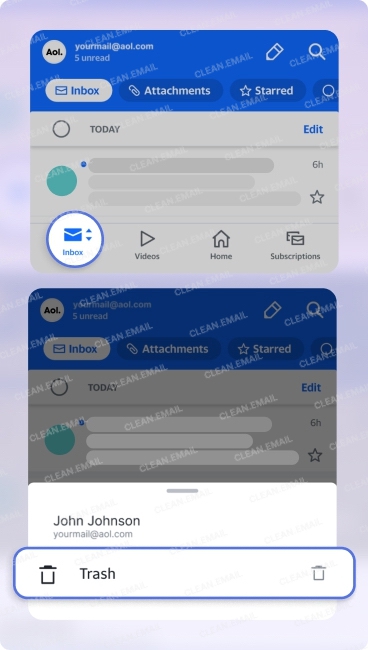
- Tap on the folder options button in the bottom left corner.
- Choose Trash to view your deleted items.
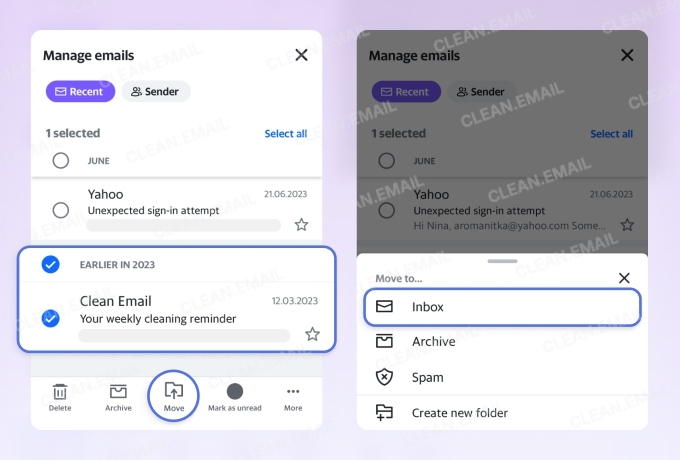
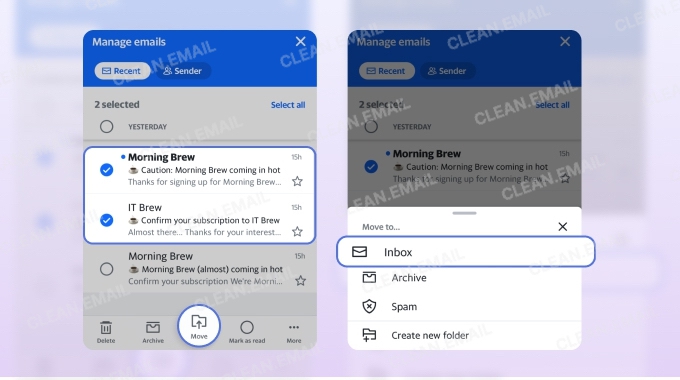
- Find the message(s) you want to recover and tap the logo on the left side to select it.
- Tap the Move option at the bottom of the screen.
- Select Inbox (or another folder if you prefer).
- The message(s) will be recovered.
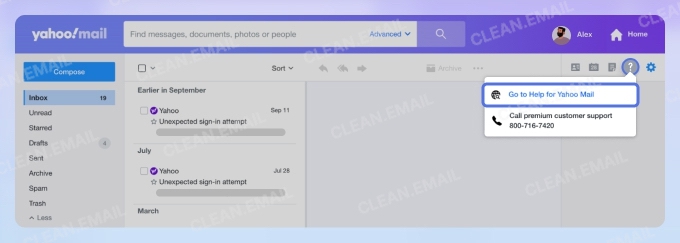
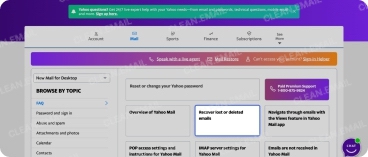
- From your inbox, click on Help (question mark in the upper right).
- Choose Go to Help for Yahoo Mail.
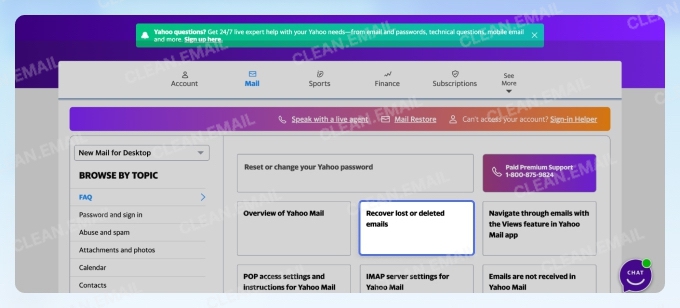
- From the topics list, select Recover Lost or Deleted Emails.
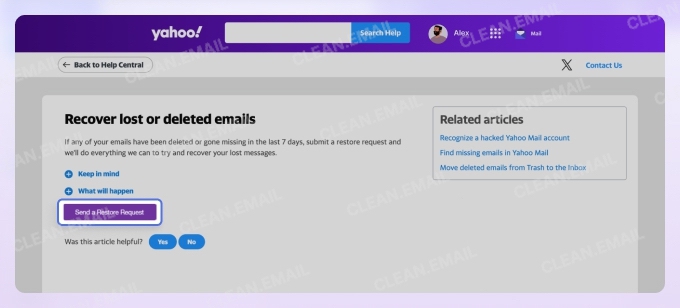
- Next, click the button that says Send a Restore Request.
- Choose the appropriate answers in the drop-down menus.
- Complete the reCAPTCHA and press Create Request.
💡 Tip: If you have trouble finding deleted emails, you can check your account settings to ensure all your folders are visible.
Recover deleted Yahoo emails from mobile
Here’s how to retrieve deleted Yahoo emails on iPhone or Android:
Send a Yahoo email restore request
Unfortunately, there are times when you need to recover deleted Yahoo emails after they have vanished from your Trash folder. In that case, you can submit a Yahoo Mail restore request or contact their support.
Contact Support for Yahoo deleted email recovery
If you pay for Yahoo Premium or opt-in for 24/7 tech support, you can contact Yahoo support directly for your issue. However, anyone who uses the free version of this email provider cannot utilize any form of tech support.
💡 Learn more about how to recover a Yahoo account.
How to recover AOL email in any scenario
When you delete AOL emails, they move into your Trash folder for seven days. If you notice you deleted a message or two by mistake, these steps will teach you how to retrieve deleted email from AOL Mail.
Recover AOL email on the web
- Access your inbox.
- Click on Trash from the folder list on the left.
- Locate the email(s) you wish to restore, then click the checkbox to select the message.
- Choose Restore to Inbox from the options in the top menu.
- Your message will be restored to the inbox.
💡 Note: You can also select Move from the top menu options and restore the message to another folder if you prefer.
AOL deleted email recovery for Android and iOS
- Open your AOL mobile app.
- Next, tap the Inbox button at the bottom of the screen and go to the Trash folder.
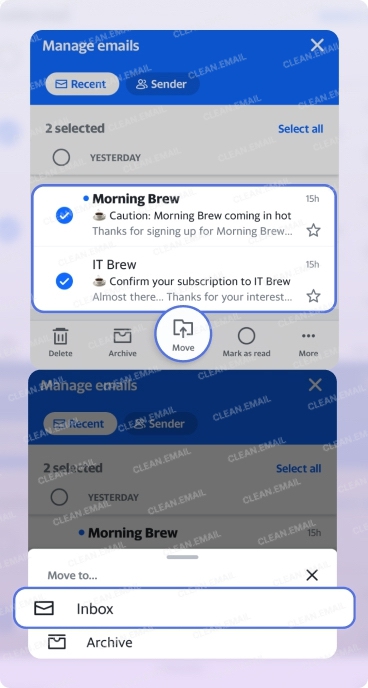
- Long tap to select the message you want to recover. If you wish to restore multiple messages, select the checkboxes next to them.
- Choose Move from the options in the bottom menu. Then, select Inbox (or another folder of your choice).
- The message(s) will return to your inbox.
How to retrieve deleted emails from AOL server
Many people wonder how to recover deleted AOL emails older than 7 days. It’s not impossible to perform AOL email recovery on messages after they leave your trash folder since AOL stores all of your messages on their servers. A server administrator can recover the mail for you. However, you must have a Desktop Gold subscription. This paid subscription includes 24/7 technical support for issues just like this.
If you have a Desktop Gold membership, you can follow the steps below to request an AOL recover email procedure.
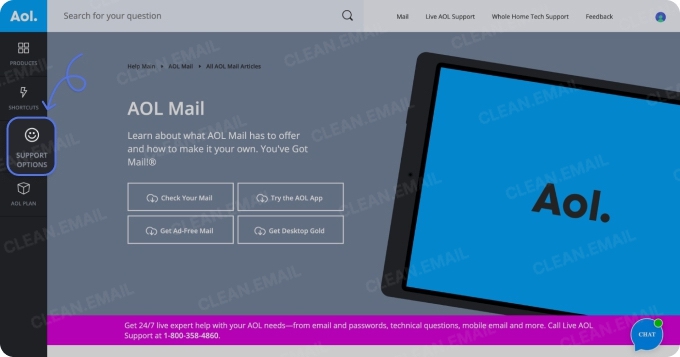
- Visit the AOL Help site.
- Select Support Options on the left.
- Click Live Support and select the option that best meets your needs or enter your inquiry directly.
- Wait for chat support to begin talking to you.
If you don’t like online chat support, you can also call 800-827-6364 anytime to request live assistance.
How to recover deleted mails from Zoho Mail
When you delete a message in Zoho Mail, it moves to the Trash folder, where it stays until the account’s cleanup interval runs. During that window you can restore it in a couple of clicks. After it leaves Trash, recovery depends on your admin and your organization’s backup settings.
How to recover deleted Zoho emails on the web
- Sign in to Zoho Mail and open the Trash folder from the left folder list.
- Locate the message you want to restore. You can scroll or use the search bar to find it.
- Select the checkbox next to the message (or select several at once).
- Click Move to in the top toolbar and choose Inbox or another folder.
Your message returns to the folder you selected.
How to recover deleted Zoho emails on mobile
- Open the Zoho Mail app and tap the menu icon to view your folders.
- Tap Trash to see your deleted messages.
- Tap and hold the message you want to recover to select it.
- Tap Move, then choose Inbox or another folder.
📌 Note: Unlike most providers, Zoho Mail doesn’t use a single fixed Trash retention period. Deleted messages stay in Trash anywhere from about 5 to 180 days, depending on when the email was received and the Junk/Trash cleanup interval set for the account. Because the window varies, restore important messages as soon as you notice they’re missing rather than assuming you have a set number of days.
Proton Mail: Recoverable in Trash, Final Once Deleted
Like other providers, Proton Mail lets you restore messages that are still in Trash or Spam. What sets it apart is what happens after permanent deletion. Proton’s zero-access encryption means it stores only an encrypted copy of your messages and holds no readable version, so once a message is permanently deleted, not even Proton’s support team can bring it back.
How deletion works:
- In Trash or Spam: recoverable. Open the folder, select the message, and move it back to your Inbox.
- Emptying Trash or Spam: permanent and immediate, with no grace period and no undo.
- Auto-delete: an optional feature (paid plans, off by default) that erases Trash and Spam messages 30 days after they arrive. Check your settings if you’re unsure it’s on.
📌 Note: With most providers, a permanently deleted email may still be retrievable briefly via an admin console or support request. With Proton’s zero-access encryption, that fallback doesn’t exist. Once a message leaves Trash, it’s gone.
Why Emails Disappear (It’s Not Always Deletion)
When an important email goes missing, more often than not, we assume that it’s been deleted. We’ve been there before: we check our inbox, click this and that, and suddenly we’re scrambling to recover very important emails.
You’re not alone. Data from Veritas Technologies found that 56% of workers accidentally deleted cloud-hosted files. Yes, they may not be emails per se, but they’re still important files like business documents and spreadsheets. According to an old (think 2014) survey conducted by Kroll Ontrack, the most common IT request is restoration requests, aka restoring deleted emails.
But, while a common occurrence, accidental deletion is only one of several causes. Emails can disappear due to background systems designed to protect users, manage storage, or synchronize data across devices.
Understanding these causes matters because disappearance doesn’t always mean permanent loss.
💡 For additional context, check out our explanation of why emails disappear from inboxes.
When Email Recovery Is Still Possible
Email recovery follows a predictable hierarchy. The earlier you are in the deletion lifecycle, the better your chances. The longer you wait, the more likely the message has been overwritten.
Recovery depends on four factors, evaluated in order:
1. Where the email is stored
Storage location matters most. A message still sitting in Trash or Spam is usually recoverable, since the provider has not erased it yet.
If it is gone from every recoverable folder, such as Outlook’s Recoverable Items, it has passed into permanent deletion, and no amount of urgency will bring it back.
📌 Why this matters: Providers use temporary folders as a buffer before permanent removal.
2. How much time has passed
Every provider enforces a retention window that sets how long deleted messages are kept. Recovery works only inside that window. Once it expires, the provider removes the data automatically.
📌 Why this matters: Retention limits are enforced automatically, and most cannot be changed. Outlook is an exception: you can extend the default 14 days to 30 for the Recoverable Items and Deletions subfolder.
3. How the deletion occurred
Manual deletions, automated cleanup rules, and provider-level enforcement produce different outcomes.
Emails removed by rules or system processes are often deleted more thoroughly than those you delete by hand, which lowers your chances even inside the retention window.
📌 Why this matters: Some deletion methods skip intermediate storage stages or trigger retention policies faster.
4. Whether the account still exists and is accessible
Recovery requires an active account. If the account was deleted, deactivated, or expired through inactivity, its email data is usually gone with it.
Even inside a retention window, recovery fails if the provider no longer recognizes the account.
📌 Why this matters: Deleted accounts lose their storage context, which makes message-level recovery impossible.
Provider policy and encryption can override all four factors. Some providers keep limited administrative recovery options under strict conditions. Services built on end-to-end encryption store no readable copy of your messages, so server-side recovery is technically impossible once deletion completes, especially if you lose your keys (zero-access encryption).
📌 Why this matters: Even when timing, location, and account status look favorable, provider design can still block recovery.
How the hierarchy works in practice
Each step down lowers your odds. An email in Trash, deleted yesterday, removed by hand, stands a far better chance than one deleted weeks ago by an automated rule or wiped from an encrypted service.
If the answer at the top of the hierarchy is no, everything below it only gets harder.
How to Prevent Email Loss
Recovery is never guaranteed, so the most reliable protection is avoiding loss in the first place. A few habits keep important messages out of Trash and inside your recovery window.
- Archive instead of deleting. Archiving removes a message from your inbox without starting a deletion timer, so it stays fully searchable and never expires. Use it as your default for anything you might need later.
- Slow down on bulk actions. Most accidental deletions happen during fast cleanups, when selecting all and deleting sweeps up messages you meant to keep. Scan the selection before you confirm, especially in a crowded inbox.
- Back up or forward important mail. Auto-forward key messages to a second account, or connect your mailbox to a desktop client like Outlook or Thunderbird for a local copy. This matters most on providers with short retention, such as Yahoo and AOL.
- Review your filters and rules. Filters and auto-clean rules run silently and can move or delete messages long after you set them up. Check them periodically so they still match what you actually want.
- Keep your account secure. Unauthorized access can lead to emails being deleted without your knowledge. A strong password and two-factor authentication remove an entire category of unexplained loss.
Conclusion
Whether you can recover a deleted email depends on four things: where the message currently is, how long ago it was deleted, how it was deleted, and whether your account is still active. Recovery is usually possible while a message sits in Trash, Bin, or Deleted Items, and becomes impossible once it’s permanently removed or the retention window closes.
Retention windows vary by provider. Gmail and iCloud keep deleted messages for about 30 days; Yahoo and AOL keep them for about 7 days; Outlook keeps them in Deleted Items and then a Recoverable Items folder (14 days by default, extendable to 30).
Some providers offer a second chance after Trash is emptied, for instance, Gmail admins get an extra 25 days via the Admin console, Legacy Outlook for Windows has "Recover Deleted Items from Server," Yahoo accepts restore requests, and AOL Desktop Gold users can contact support. End-to-end encrypted services such as Proton Mail cannot restore deleted messages at all.
Once a message is permanently deleted, the retention window has expired, or the account has been closed, no provider or third-party tool can bring it back. That’s why prevention matters more than recovery: archive instead of deleting, review bulk actions carefully, and keep your inbox organized so important messages don’t get lost in the first place.
FAQs
How can I recover my deleted Gmail emails after 2 years?
You cannot restore messages after 30 days of them being in the trash folder. The mail service provider will remove them forever.
How to recover permanently deleted emails in Outlook?
Open the Deleted Items folder and select Recover items deleted from this folder (on Outlook.com) or Recover Deleted Items From Server (Legacy Outlook for Windows), then choose your messages and click Restore. This works for roughly 30 days after the items leave Deleted Items; after that they’re gone for good.
How to recover deleted Junk mail in Outlook?
Junk mail isn't deleted, just filtered, so open the Junk Email folder, select the message, and choose Not junk (or Move it to your Inbox). Marking it as "Not junk" also trains the filter so future messages from that sender aren’t flagged.
Does iCloud keep deleted emails?
iCloud will keep your removed messages within its backup file. If you regularly back up your iPhone, that is.
How do I retrieve a deleted email from iCloud?
To retrieve a deleted email from iCloud, you may have to erase all your iPhone’s current settings and restore it. By restoring it, you can choose a previous backup file that hopefully contains your removed messages.
How to recover deleted emails from iCloud after 30 days?
To recover emails after 30 days, you will have to restore your mobile with a previous backup file. This may get rid of any new data.
How to recover old AOL emails?
To recover old AOL mail, check the Trash folder for recently deleted items. For emails older than 7 days, contact the customer support if you have an AOL Desktop Gold subscription.
How to recover permanently deleted emails from AOL on iPhone?
To recover permanently deleted emails on an iPhone, you may need to contact AOL customer support for assistance. Emails no longer in the Trash folder may still be retrievable from AOL’s servers. However, this option is available only with a paid subscription.