What Does Encrypting an Email Actually Do?
Encrypting an email turns readable text into scrambled code called ciphertext. Only someone with the right decryption key can turn it back into the original message. Anyone who intercepts it along the way sees meaningless characters.
There are two main types:
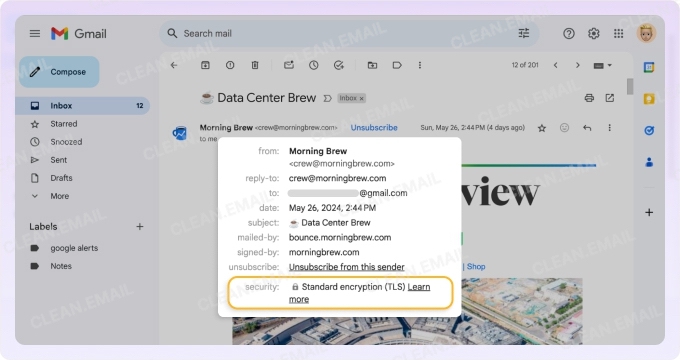
- In-transit encryption (TLS). Transport Layer Security protects the message while it travels between mail servers, like a sealed envelope. Gmail, Outlook, and Yahoo apply it by default.
- End-to-end encryption (E2EE). The message is encrypted on the sender's device and decrypted only on the recipient's. Even the email providers in between can't read it. S/MIME and PGP work this way.
TLS stops snooping on public Wi-Fi. End-to-end encryption protects the message even if a server or inbox is breached.
When Should You Encrypt an Email?
Not every email needs encryption. Use it when a message could cause real harm if exposed:
- Personal sensitive data: Social Security numbers, passwords, passport scans, or banking details.
- Legal and financial documents: contracts, tax returns, invoices with account numbers, or court filings.
- Health information: medical records, test results, or insurance details.
- Confidential business communication: trade secrets, unreleased financials, HR files, or client data.
Email was never designed to move sensitive data, which makes it a common target alongside other cloud security risks. If your message fits a category above, encrypt it or use another way of sending a secure email.
How to Encrypt an Email Containing PHI
Protected Health Information (PHI) is any health data that can be linked to a specific person. Under HIPAA, that includes diagnoses, lab results, insurance numbers, and billing records tied to a name, birth date, or email address.
Standard email is not HIPAA-compliant by default. TLS alone isn't enough, and HIPAA also requires a Business Associate Agreement (BAA) with your email provider, which free consumer accounts don't offer.
The main options for sending PHI:
- S/MIME: certificate-based encryption supported by Outlook, Apple Mail, and Google Workspace.
- Encrypted email services: Microsoft 365 Message Encryption, Google Workspace with a signed BAA, or dedicated HIPAA email services.
- Password-protected attachments: encrypt the file itself and share the password through a separate channel, such as a phone call.
Healthcare organizations are responsible for approved tools and policies, and staff must use them. Patients sending their own records aren't bound by HIPAA, but encryption still protects them.
Does Encrypting an Email Encrypt the Attachments?
It depends on the method. TLS protects everything in transit, attachments included, but the files sit unencrypted once they arrive. End-to-end methods like S/MIME, PGP, and Microsoft 365 Message Encryption cover attachments, but only if the tool supports them.
To protect an attachment specifically, you have two options:
- Password-protect the file before attaching it. Microsoft Office, Adobe Acrobat, and 7-Zip can do this. Share the password separately.
- Use an end-to-end method that covers attachments. S/MIME and Microsoft 365 Message Encryption encrypt files together with the message body.
A password-protected file stays locked even after it's downloaded or forwarded.
Can You Encrypt an Email After Sending It?
No. Once you hit Send, the message is delivered and stored on the recipient's mail server in whatever form it was sent.
What you can do instead:
- Protect future messages before sending. Turn on encryption, or use Gmail's confidential mode to set a passcode and expiration date.
- Undo or recall it quickly. Gmail's Undo Send gives you up to 30 seconds. Learn how to recall an email in Gmail and how to recall an email in Outlook, where recall works only in some Microsoft 365 setups.
- Follow up and limit the damage. Ask the recipient to delete it, and change any passwords or details you shared.
How to Encrypt Email by Provider
Gmail
Gmail encrypts messages in transit with TLS by default when the recipient's server supports it. For stronger protection, Google Workspace Enterprise Plus, Frontline Plus, and Education plans can turn on S/MIME. Personal accounts get confidential mode, which adds a passcode and expiry but isn't true encryption. For more on its built-in protections, see how safe Gmail is overall.
To enable S/MIME (admins):
- Open the Google Admin console.
- Go to Menu → Apps → Google Workspace → Gmail → User settings.
- Select your organization and check Enable S/MIME encryption for sending and receiving emails.
- Click Save. Users will see a lock icon next to the recipient's address when a message is encrypted.
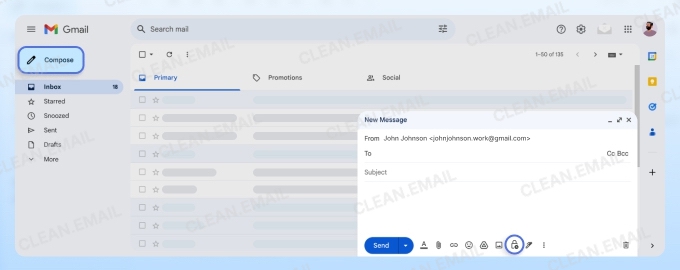
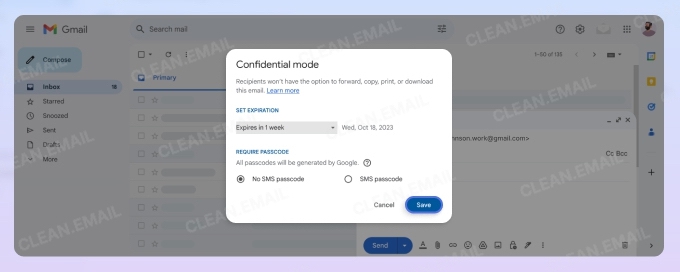
To send a confidential message:
- Click Compose.
- Click Toggle confidential mode (the lock-and-clock icon) at the bottom of the window.
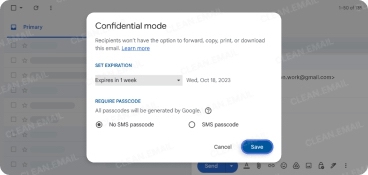
- Set an expiration date and passcode, then click Save.
- Write your message and click Send.
Outlook
Outlook uses TLS for every message and supports S/MIME and Microsoft 365 Message Encryption. Microsoft 365 Personal, Family, and business subscribers can use message encryption in Outlook.com and the Outlook apps.
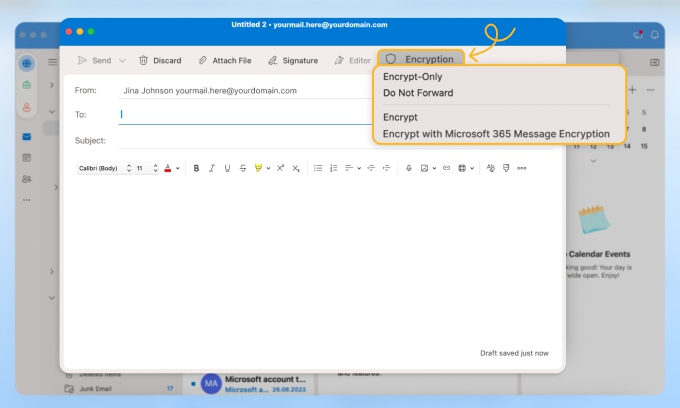
To send an encrypted message with Microsoft 365:
- Compose a new message.
- Open the Options tab and select Encrypt.
- Choose Encrypt or Do Not Forward, which also blocks copying and forwarding.
- Click Send. Recipients outside Microsoft 365 get a link and a one-time passcode.
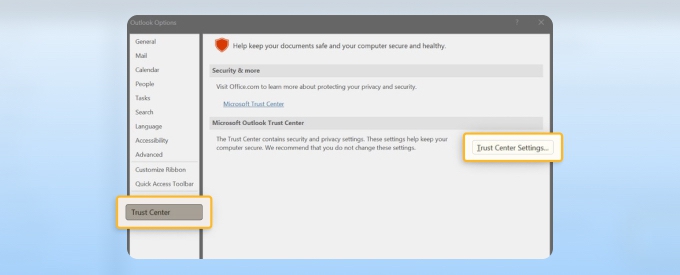
To use S/MIME in Outlook for Windows, go to File → Options → Trust Center → Trust Center Settings → Email Security, then pick your certificate under Encrypted email. You need a digital ID installed first.
Yahoo Mail
Yahoo uses TLS in transit but has no native end-to-end encryption. For sensitive messages, add PGP with a free extension like Mailvelope, or use a secure email service.
To encrypt a Yahoo email with Mailvelope:
- Install Mailvelope for Chrome, Edge, or Firefox and create your PGP key.
- Open a new message in Yahoo Mail.
- Click the Mailvelope icon in the compose window.
- Write your message, add the recipient's public key, and click Encrypt.
- Send the message. The recipient needs PGP to read it.
Apple Mail and iPhone
Apple Mail supports S/MIME natively on Mac and iPhone. You need an S/MIME certificate from a certificate authority or your employer, plus the recipient's certificate, which Mail saves once they send you a signed email.
To encrypt an email in Apple Mail on Mac:
- Double-click the certificate file to add it to Keychain Access.
- Restart Mail and compose a new message.
- Click the lock icon next to the subject field to encrypt it.
To encrypt an email on iPhone:
- Install the certificate profile, then open Settings → Mail → Accounts (on iOS 18 and later, Settings → Apps → Mail → Mail Accounts).
- Select your account and tap Account → Advanced.
- Under S/MIME, turn on Encrypt by Default.
- In a new message, tap the lock icon next to the recipient's address to switch encryption on or off.
Third-Party Tools That Work Across Any Email Provider
If your provider lacks native end-to-end encryption, these tools fill the gap:
- PGP/GPG: an open encryption standard. Others encrypt messages with your public key, and only your private key unlocks them. Mailvelope brings PGP to Gmail, Outlook.com, and Yahoo in the browser, and Thunderbird has it built in.
- Virtru: a Gmail and Outlook add-on that encrypts messages and attachments with one click. You can revoke access or set an expiration after sending.
- Proton Mail Bridge: lets desktop clients like Outlook, Apple Mail, and Thunderbird send and receive through an encrypted Proton Mail account. It requires a paid Proton plan.
If you'd rather switch to a service with encryption built in, compare the most secure email providers.
Clean Email and Inbox Security
Encryption protects what you send, but your inbox is a separate risk. Every unknown sender and forgotten subscription is another way for phishing to reach you.
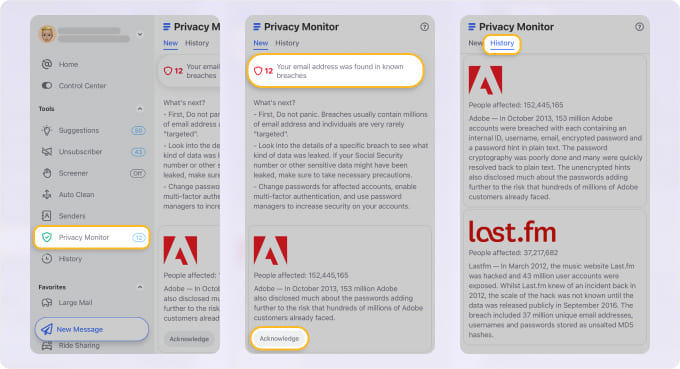
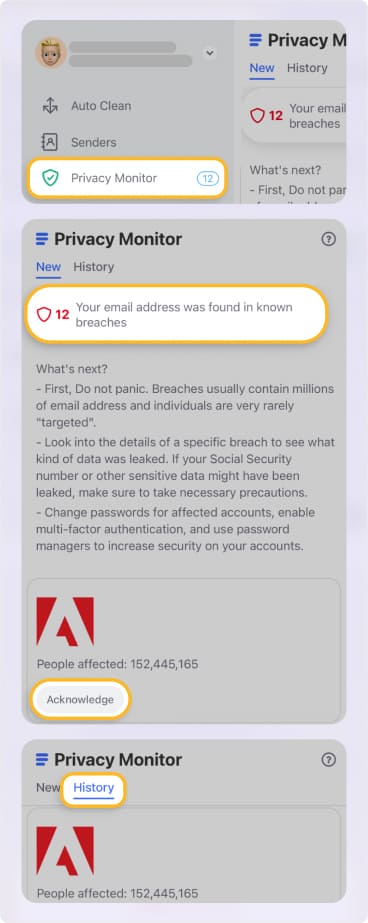
Clean Email reduces that exposure by unsubscribing you from unwanted lists, blocking senders, and screening new senders before they reach your inbox. Its Privacy Monitor also checks whether your address has appeared in known data breaches.
FAQs
What does it mean to encrypt an email?
It means converting the message into unreadable ciphertext so only someone with the right key can read it.
When should I encrypt an email?
Encrypt emails that contain personal identifiers, passwords, financial or legal documents, health information, or confidential business data.
Does encrypting an email encrypt the attachments?
With end-to-end methods like S/MIME or Microsoft 365 Message Encryption, yes. TLS protects attachments only in transit. For extra safety, password-protect the file too.
Can you encrypt an email after sending it?
No. A sent message is already stored on the recipient's server. You can try to undo or recall it, then change any exposed information.
How do I encrypt an email for free?
Use Mailvelope or Thunderbird with PGP, or a free end-to-end encrypted provider.
What is PHI and why does it need to be encrypted?
PHI is health information tied to an identifiable person. HIPAA requires safeguards for it, and encryption keeps it unreadable if a message is intercepted or sent to the wrong address.
What is the difference between TLS and end-to-end encryption?
TLS protects a message only between servers. End-to-end encryption keeps it locked from sender to recipient, so no one in between can read it.