5 Ways to Manage Inbox Storage Space Using Clean Email
Once you see your Gmail storage usage and limit, you may realize that you’re getting close to filling up your email space. When this happens, you won’t be able to send or receive messages. Those emails you receive are returned to the sender as undeliverable.
Before this happens and you’re stuck without the ability to communicate via email, use Clean Email to quickly find and manage messages to free up Gmail account storage space.
1. Quickly identify large emails or sort emails by size
Finding and sorting emails by size isn’t an easy task in Gmail, but in Clean Email, it’s a breeze!
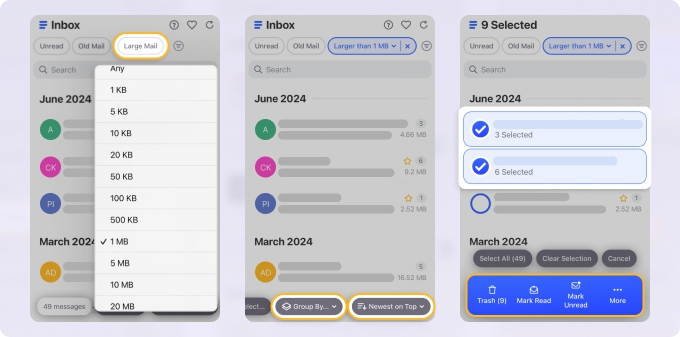
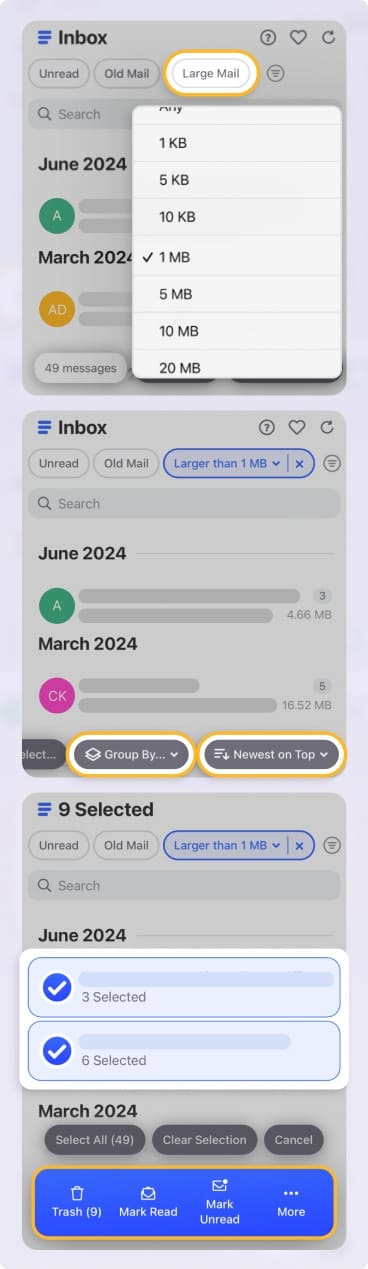
First, you can select Large Mail at the top of your mailbox and pick the size. Second, you can use the sorting drop-down menu to view messages from large to small. These features work perfectly for locating large emails.
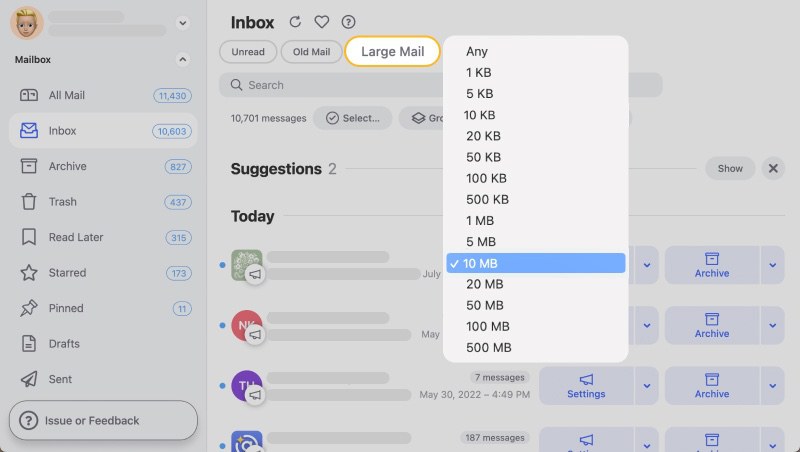
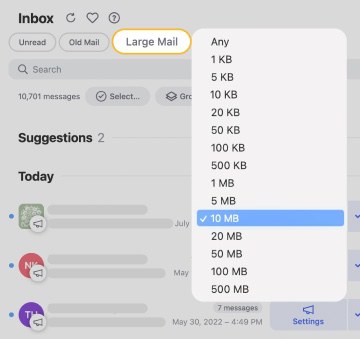
Afterward, you can quickly select the largest ones and delete them to free up Gmail storage in just a matter of seconds. The best part is that this functionality is available on both desktop and mobile.
2. Perform bulk actions
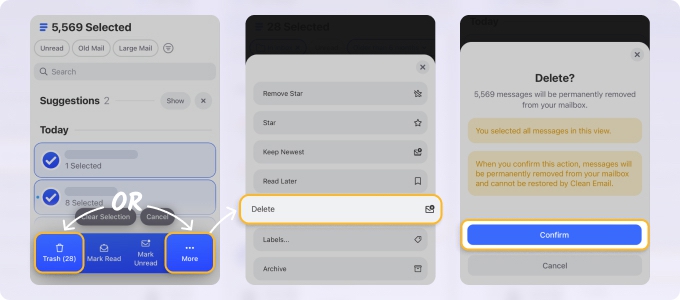
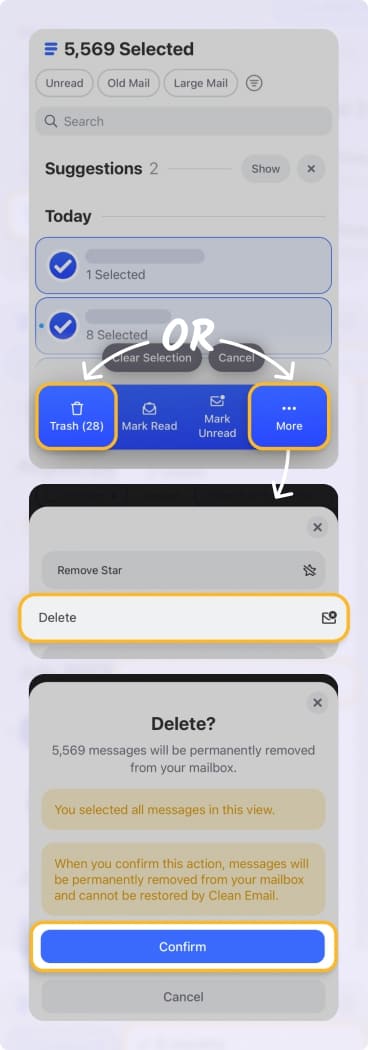
Once you track down those messages consuming the most space, you can act on them in bulk with Clean Email. Using the Select option at the top, you can choose those you want and move them to the Trash or permanently Delete a mass number of emails at once.
3. Use the Unsubscribe feature
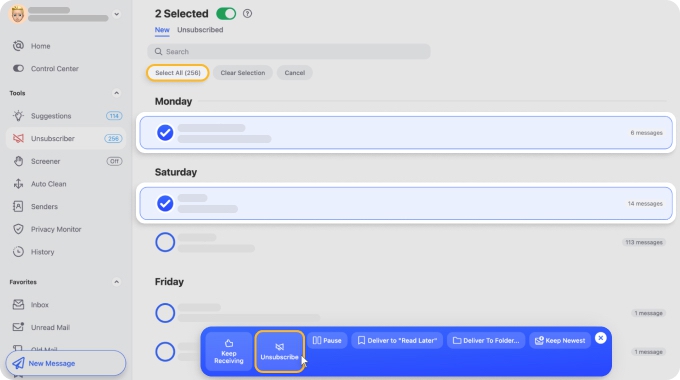
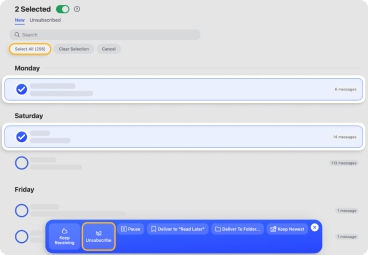
Another great way to rid your mailbox of unwanted or unneeded messages is to unsubscribe from them. Whether newsletters or marketing emails, those communications can build up over time and take up space. Using Unsubscriber in Clean Email, you can remove yourself from multiple mailing lists at one time.
4. Automate email organization
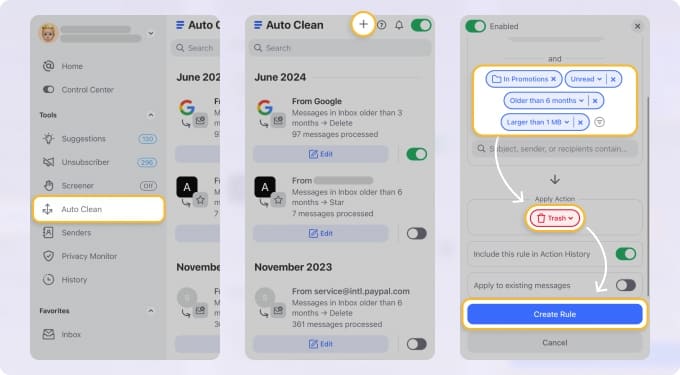
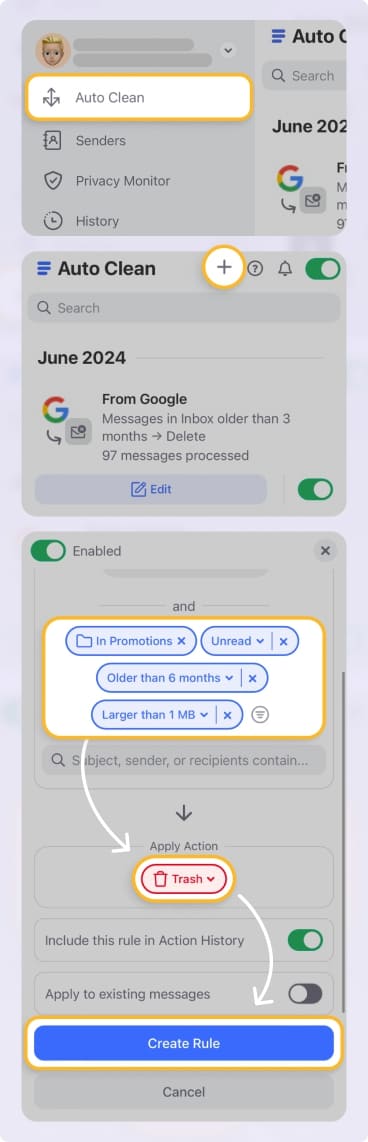
You don’t always have to spend time manually moving or managing messages. With Auto Clean in Clean Email, you can create rules that automatically handle emails for you. Do things like move large messages to the Trash or permanently delete old emails. Once you set up an Auto Clean rule, those messages are managed for you.
5. Take advantage of cross-device functionality
One more feature that you won’t find with many mailbox management apps is the ability to perform all tasks the same way on any device. Each of the above features is available in the web, desktop, and mobile apps.
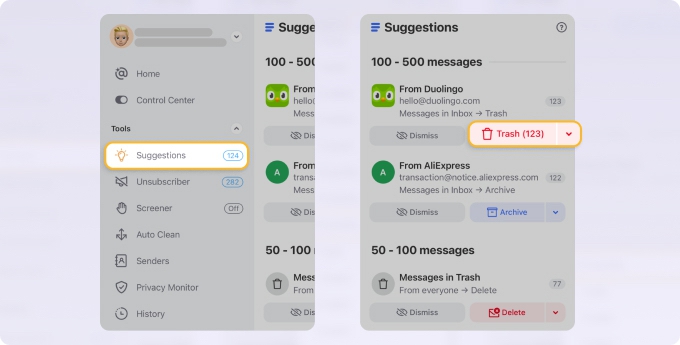
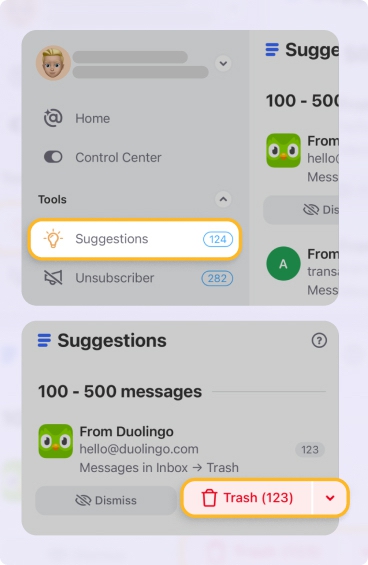
Plus, you can regain Gmail storage space using the Cleaning Suggestions for a tidy inbox, and the Screener feature to quarantine emails from unknown senders before they reach your inbox.
Please contact us and we will be happy to help.