Can I Open an Email Without Getting a Virus?
Simply opening an email usually does not infect your device, but it can still create privacy and security risks. For example, tracking pixels may tell the sender that you opened the message, which can confirm your address is active.
The bigger risks come from opening suspicious attachments, clicking unsafe links, downloading files, or interacting with malicious content inside the email.
Some advanced attacks may try to exploit security flaws, so it is still safer to preview suspicious emails carefully and keep your device, browser, and email apps updated.
How to Preview a Message in Clean Email Without Opening an Email
Clean Email lets you inspect a message before opening it fully to avoid any sort of risk.
- Open the Clean Email app.
- Go to Inbox, All Mail, or any Smart Folder.
- Find the email you want to check.
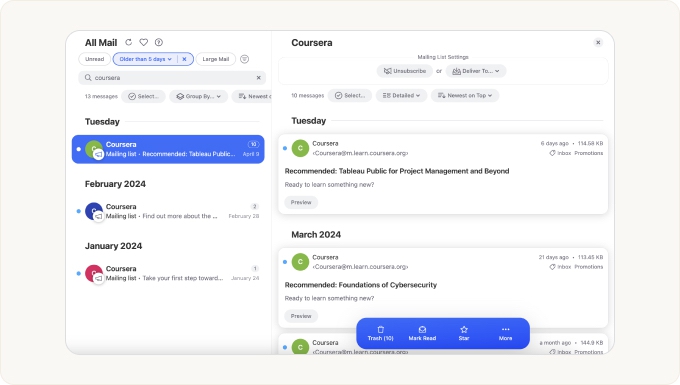
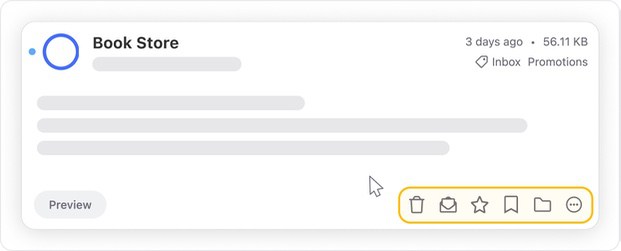
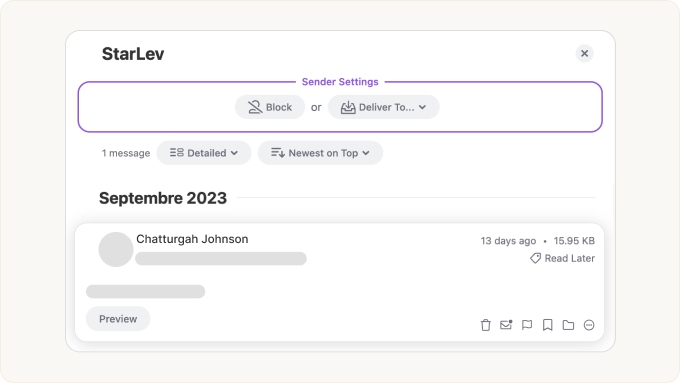
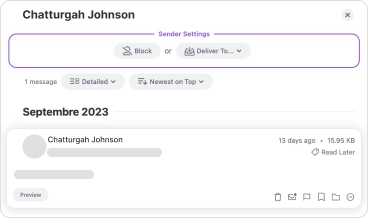
- Click Preview on the message card.
- Review the visible details.
- Use the action buttons to delete, move, mark, or report the message as spam without opening it fully if the email looks suspicious.
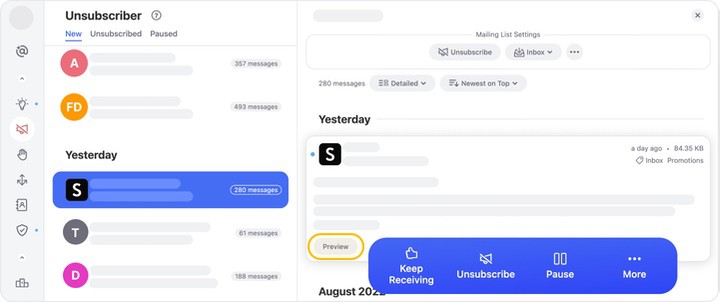
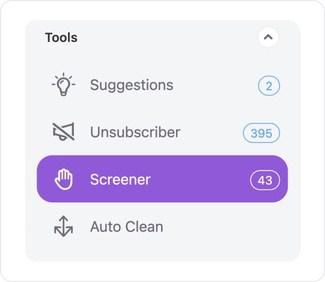
📌 Note: You can also preview messages in Auto Clean, Unsubscriber and Screener tools.
How to Preview New Senders in Screener
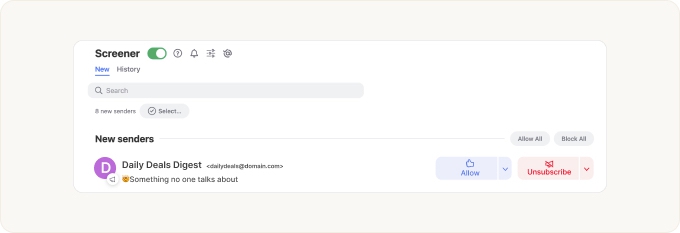
Use Screener to review messages from senders who have never contacted your address before. When Screener is enabled, Clean Email keeps messages from new senders quarantined for review instead of delivering them directly to your inbox.
- Open Screener in Clean Email.
- Select a new sender from the list.
- Click Preview to inspect the message.
- If the sender looks safe, choose Allow to receive future emails from them.
- If the sender looks suspicious or unwanted, choose Block to stop future emails from that sender.
What Should I Do with Suspicious Emails?
If an email looks unsafe, do not open attachments, click links, reply, or provide personal information. Use Clean Email actions such as Trash, Delete, mark as Spam, or Block instead.
Learn more:
Please contact us and we will be happy to help.