How Can I Clean Out My Gmail Inbox Quickly?
The fastest way to clean your Gmail inbox is to connect Gmail to Clean Email and use Cleaning Suggestions, bulk actions, and Unsubscriber instead of deleting messages one by one.
Way 1: Use Cleaning Suggestions
To quickly review Gmail clutter and delete all emails from one sender or message group, start with Cleaning Suggestions in Clean Email:
- Open the Clean Email app.
- Connect your Gmail account.
- Go to Cleaning Suggestions.
- Review suggested actions for inbox clutter, old messages, unread emails, subscriptions, and other groups.
- Click the recommended cleanup action, or choose a different action from the drop-down menu, then confirm if requested.
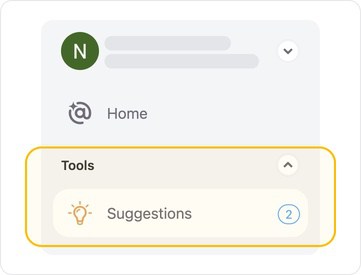
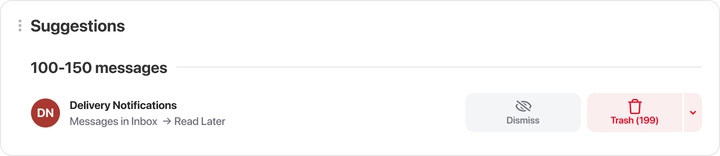
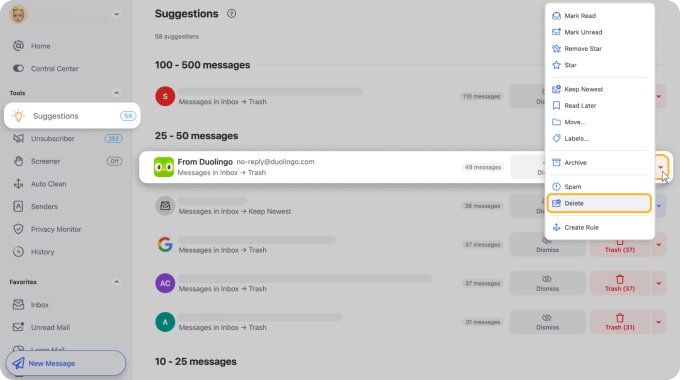
This is often the best way to clean up Gmail if you want a guided cleanup instead of building Gmail searches manually.
Way 2: Use Bulk Actions
To filter, sort, and clean multiple messages or get rid of old emails in bulk:
- Open Inbox, All Mail, or a specific Smart Folder in Clean Email.
- Use filters such as Unread, Old Mail, or Large Mail.
- Click Select.
- Choose specific groups or click Select all.
- Apply Trash, Archive, Delete, or another action.
- Confirm the action.
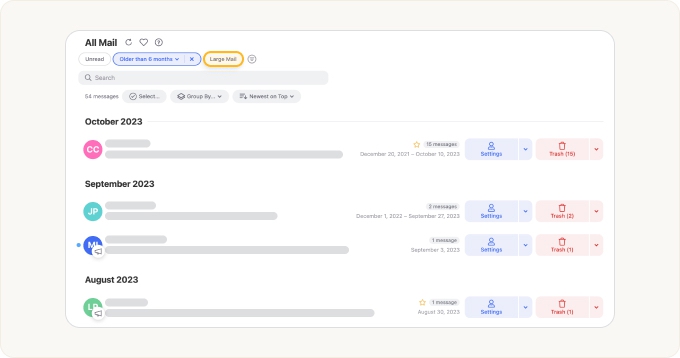
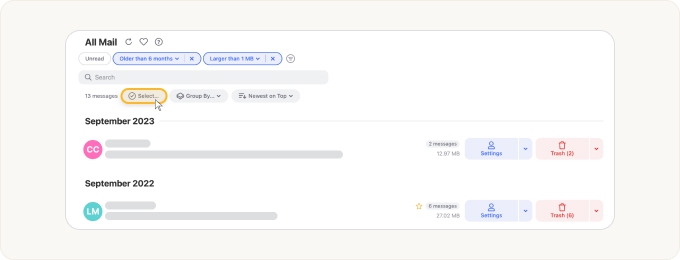
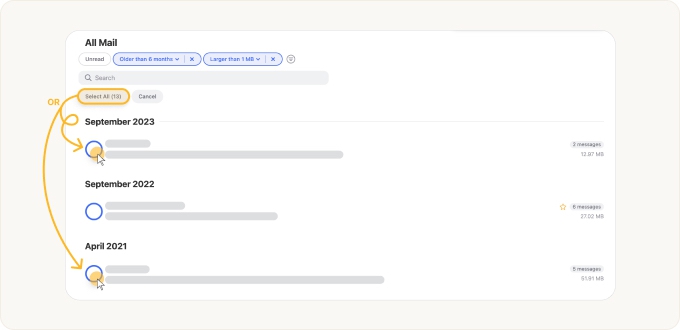
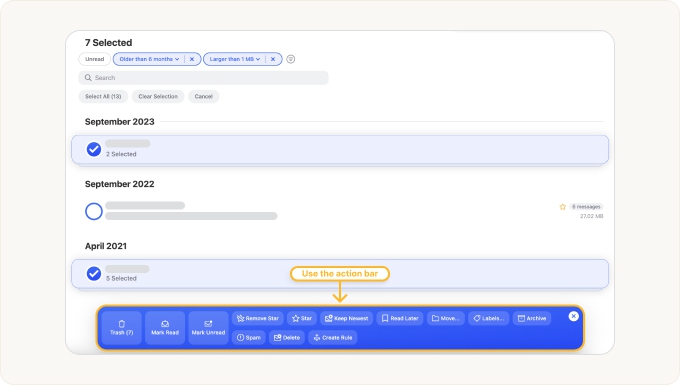
This is a fast way to clean Gmail inbox clutter when you already know what you want to remove, such as unread messages, old emails, or large emails.
Way 3: Bulk Unsubscribe From Gmail Subscriptions
To avoid unsubscribing from each email list separately, use bulk unsubscribe feature in Clean Email:
- Open Tools in Clean Email.
- Select Unsubscriber.
- Review detected Gmail subscriptions.
- Click Unsubscribe.
- Confirm the action if prompted.
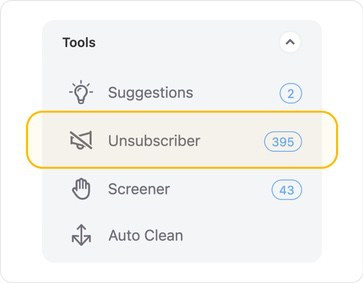
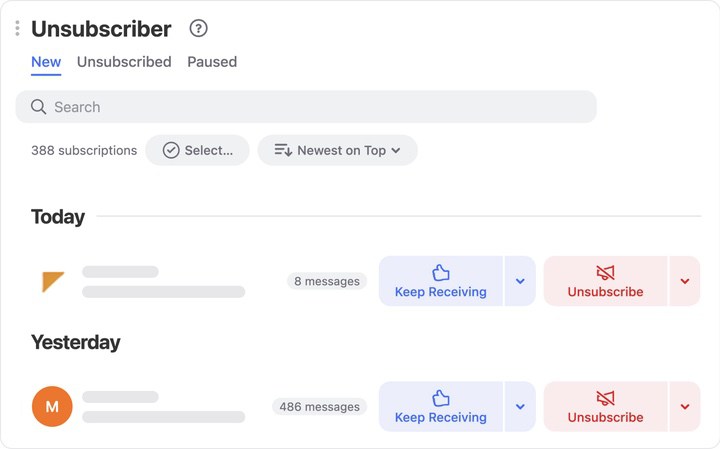
📌 Note: You can also select multiple unwanted mailing lists or click Select all → click Unsubscribe.
This helps stop new clutter from returning after you clean the inbox.
Can I clean Gmail directly in Gmail?
Yes, but it is more manual. In Gmail, you can search for messages, select them, and click Delete. Deleted Gmail messages move to Trash and may remain recoverable for up to 30 days before permanent deletion. Gmail also supports selecting messages from a search or label, but bulk cleanup usually requires more manual filtering and review.
- Open Gmail.
- In the search bar, enter the type of emails you want to clean, such as older_than:1y, is:unread, larger:10M, or category:promotions.
- Press Enter to show matching emails.
- Click the checkbox at the top of the message list.
- If Gmail shows the option, click Select all conversations in this search.
- Click Delete or Archive.
- Repeat the same steps with another search if you want to clean a different type of Gmail clutter.
Please contact us and we will be happy to help.