How Can I Filter Emails by Domain?
You can filter emails by domain in Clean Email using Group By → Sender Domain, the search bar, or an Auto Clean rule. This lets you pull together every message from a domain, including its subdomains, and act on them at once instead of searching for each sender individually.
Group by Sender Domain
- Open the Clean Email app.
- Open Inbox, All Mail, or any Smart Folder.
- Click Group By and choose Sender Domain.
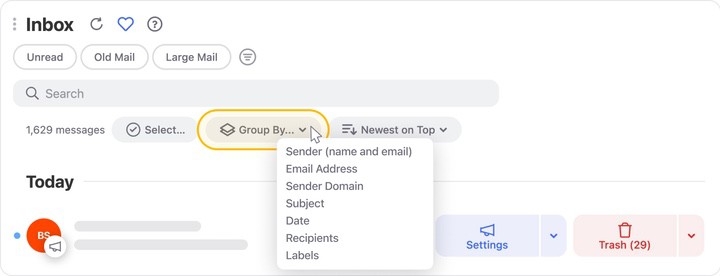
Every message from the same domain is now bundled together. Select a domain group, then apply Trash, Archive, Move, Labels, or another action to the whole group.
Search, Then Narrow With Filters
- Click the search bar at the top and type the domain (for example, store.com).
- Clean Email searches sender and recipient addresses and subjects, then shows matching groups.
- Refine the results with the quick filters above the search bar (Unread, Old Mail, or Large Mail) or click Filters for options like Older than… and Larger than.
This is the fastest way to search and filter emails by domain when you already know the address and want to combine it with other conditions. For the full list of options, see Searching and Filtering.
Filter Incoming Emails by Domain Automatically
To filter incoming emails by domain going forward, create an Auto Clean rule:
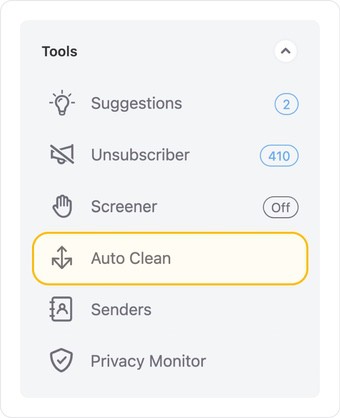
- In the left-hand menu, click Auto Clean and make sure it's toggled on.
- Click + to create a new rule.
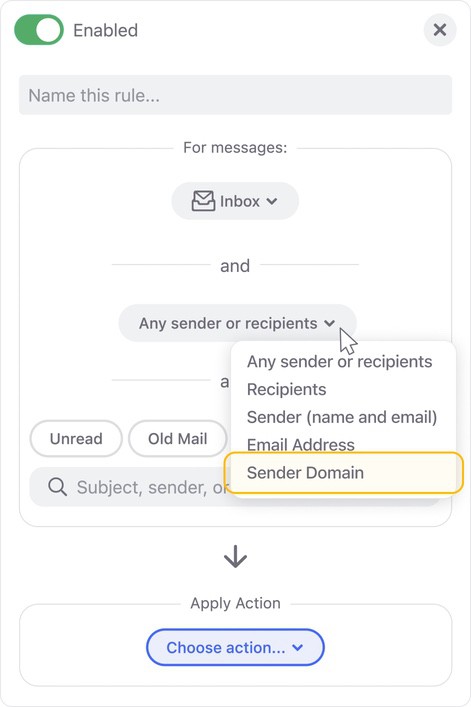
- Open the Any sender or recipients drop-down and select Sender Domain.
- Type the domain and select it from the list Clean Email shows.
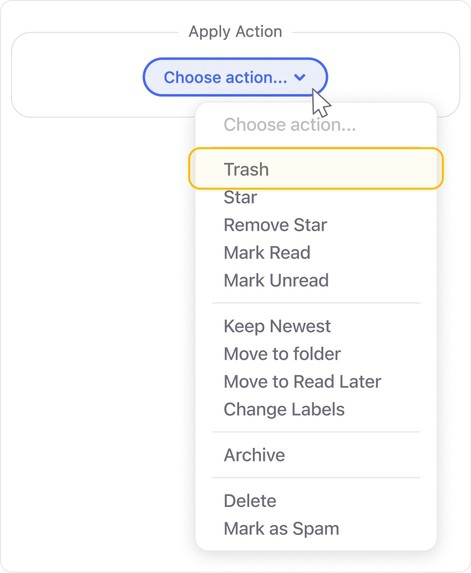
- Click Choose action… and pick Trash, Archive, Move, or another action.
- Turn on Apply to existing messages to include mail already in your mailbox, then click Create Rule.

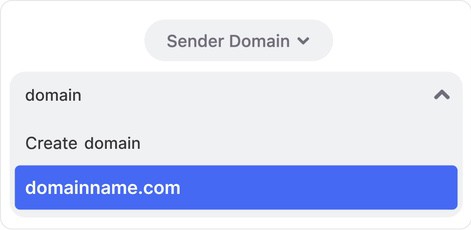
⚠️ Caution: You must click the domain from the suggested list. If you type a domain but don't select it, no filter is stored and the rule could apply to all your messages.
Can I Filter by Domain in Gmail Instead?
You can, but it's limited to manual from: searches and one-off filters, and the steps to filter emails in Gmail have to be repeated for every domain you want to catch. Clean Email centralizes domain filtering across your whole mailbox and automates it, so one rule keeps working on its own.
Please contact us and we will be happy to help.