How Can I Organize My Emails More Efficiently?
You can organize emails more efficiently in Clean Email by using Smart Folders, advanced filters, and Auto Clean rules. This helps you keep your inbox under control without manually sorting every message.
1. Automatic Option: Use Built-in Smart Folders
Clean Email automatically groups messages into Smart Folders, so you can review similar emails together instead of searching through your inbox manually.
Here is how to quickly organize your emails:
- Open the Clean Email app.
- Go to Smart Folders in the left-hand menu.
- Choose a folder such as Top senders, Social notifications, Online shopping, Travel, Finance, or another category.
- Select the messages or groups you want to clean.
- Apply an action such as Archive, Trash, Move, Label, or Mark as Read.
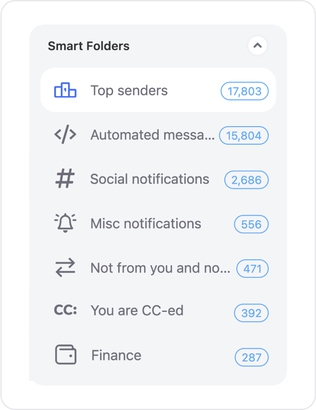
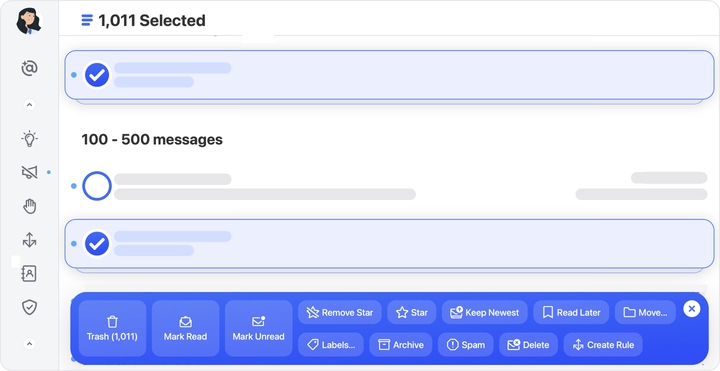
Smart Folders are useful because they give you pre-built views of common email types, so you do not need to create filters from scratch.
2. Save for Later: Use Advanced Filters
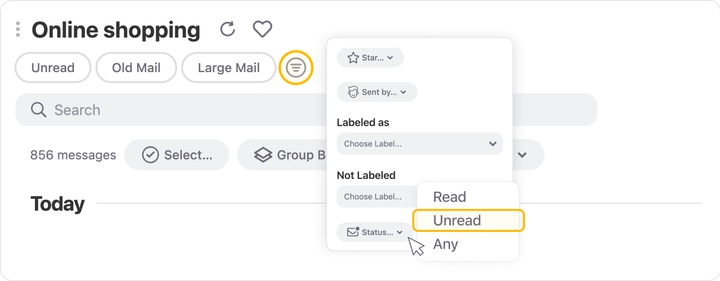
Use filters when you need a more specific view, such as unread emails from one sender, large messages older than a year, or emails with attachments. This is useful when you check the same type of email often and want to reopen that filtered view faster.
- Open Inbox, All Mail, or a Smart Folder.
- Apply the filters you need.
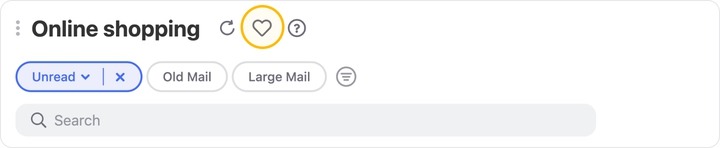
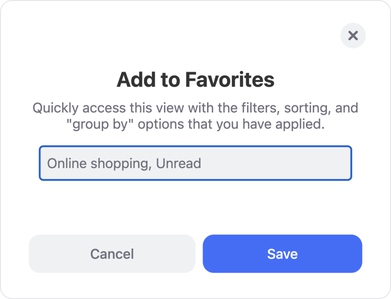
- Click the heart icon to the right of the folder name to save the view as a Favorite and have quick access to it later.
- When the confirmation dialog appears, adjust the suggested name or create your own, then click Save.

3. Set-and-Forget: Use Auto Clean Rules
Use Auto Clean when you want Clean Email to sort messages automatically.
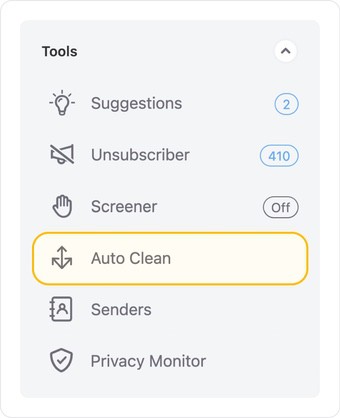
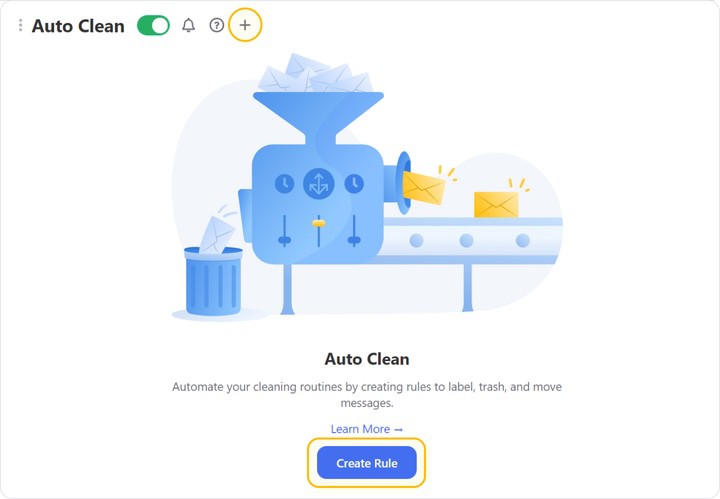
- Open Auto Clean.
- Create a new rule.
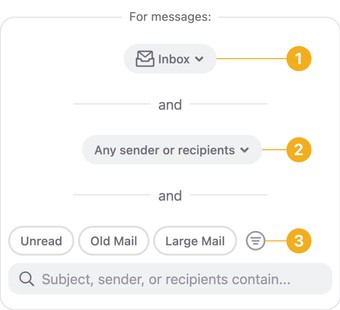
- Set the conditions, such as sender, subject, age, folder, or other criteria.
- Choose the action Clean Email should apply.
- Save the rule.
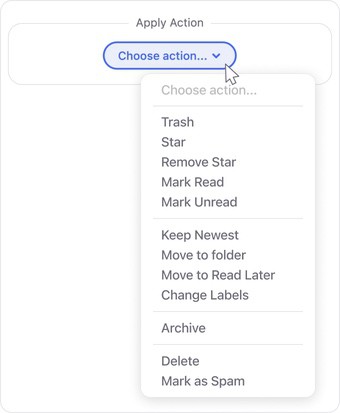
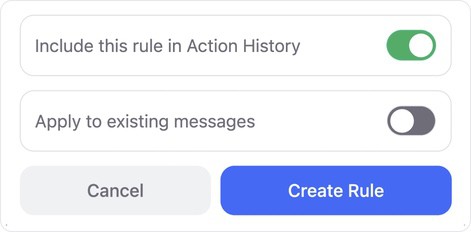
Auto Clean takes some setup, but after that it can keep your email clean and organized automatically by applying the rule to future matching messages.
Rule ideas, just to name a few:
- Newsletters and promos
- Receipts and order updates
- Work notifications
- Old recurring emails
Filter by Smart Folders such as Online Shopping, Seasonal Sales, or Automated Messages, or use sender/subject keywords like “sale,” “newsletter,” “promo,” or a specific store name.
Apply action: Move, Archive, or Trash.
Filter by Smart Folders such as Online Shopping, Food Delivery, Mail and courier services, or by sender domains from stores, delivery services, and payment platforms.
Apply action: Move to folder or Add label.
Filter by senders such as project management tools, calendars, CRMs, or productivity apps.
Apply action: Label, Mark as Read, or Move to a folder to avoid manual sorting.
Filter by sender and message age, such as emails from a specific sender older than 3 weeks, 6 months, or 2 years.
Apply action: Archive, Trash, or Delete.
Please contact us and we will be happy to help.