How Can I Retrieve a Deleted Email?
You can usually retrieve a deleted email if it was moved to your deleted mail folder and is still there. This folder may be called Trash, Deleted Items, Bin, or something similar, depending on your email provider.
To restore the email, open that folder, select the message, and move or restore it back to Inbox or another folder.
Keep in mind that email providers store deleted messages only for a limited time. For example, Gmail and Outlook keep deleted messages for up to 30 days, while Yahoo lets you restore deleted emails only if they were deleted within the last 7 days.
How to Retrieve a Deleted Email in Clean Email
- Open the Clean Email app.
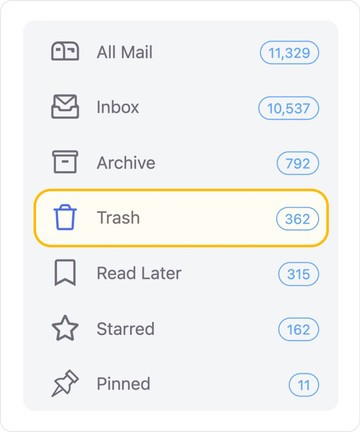
- In the left-hand menu, scroll down to the Mailbox section.
- Open the Trash folder.
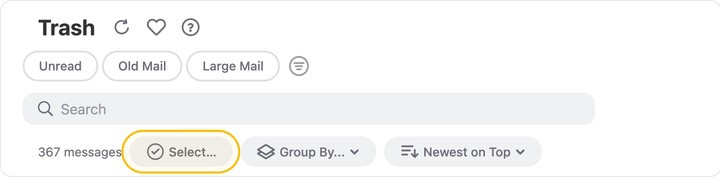
- Select the message or message group you want to restore.
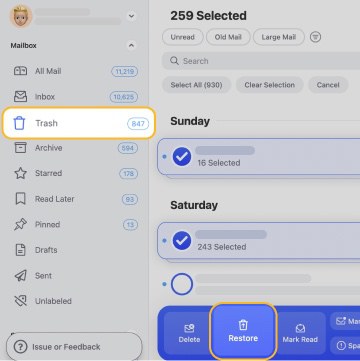
- Click Restore in the action bar.
- Confirm the action if requested.
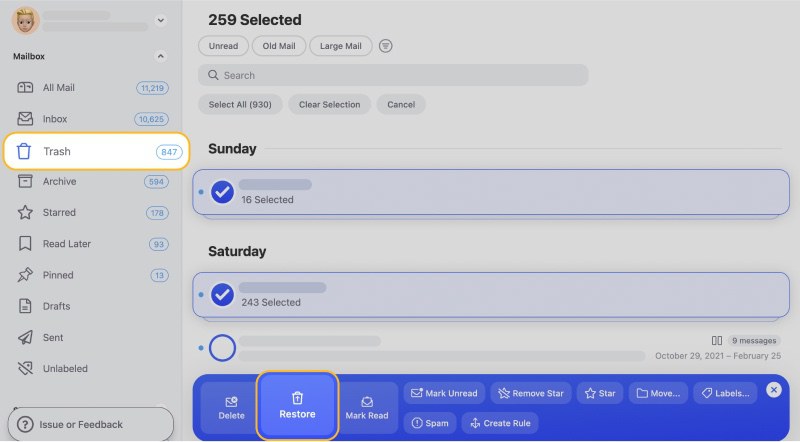
The restored message will be moved out of Trash and returned to its previous folder or location in your mailbox.
What if the Email is Not in Trash?
If the email is not in Trash, first check whether it was moved somewhere else, such as Archive, All Mail, or a custom folder. You can also use Search in Clean Email to look for the sender, subject line, or keywords from the missing message.
Can I Recover a Permanently Deleted Email?
Not directly in Clean Email. If the email was removed from Trash or the provider’s retention period has passed, it is usually treated as permanently deleted. At that point, recovery may require your email provider’s recovery tools, an admin request for work or school accounts, or an available backup.
Please contact us and we will be happy to help.