How Do I Delete All My Emails at Once?
You can delete all emails at once in Clean Email by selecting all messages in All Mail, Inbox, or a specific Smart Folder, then applying Trash or Delete.
Way 1: Delete All Emails at Once from All Mail
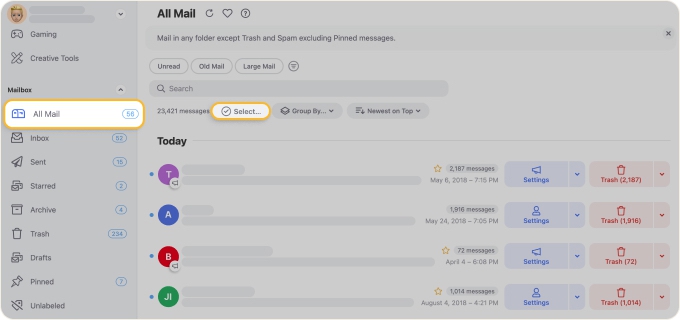
- Open the Clean Email app.
- In the left-hand menu, scroll to Mailbox.
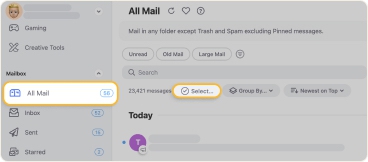
- Click All Mail.
- Click Select at the top of the message list.
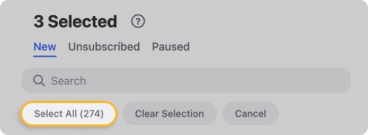
- Choose Select all to select every message in the current view.
- Click Trash or Delete to remove the selected emails.
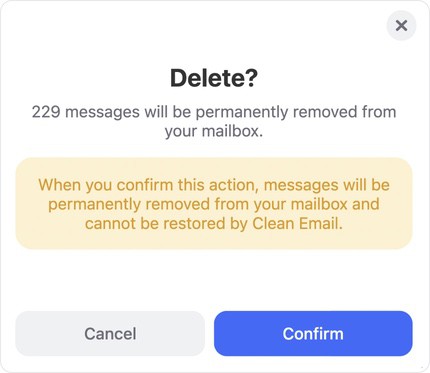
- In the confirmation dialog, review the number of selected messages and click Confirm.

Use Trash if you want a safer cleanup option because messages may still be recoverable from Trash for a limited time, depending on your email provider.


Use Delete only if you want to permanently remove selected messages. This action is more final and may not be reversible.


⚠️ Caution: Deleting all emails at once is a high-risk bulk action. Review the selected mailbox, folder, or Smart Folder carefully before confirming, especially if you are using Delete instead of Trash.
Way 2: Delete All Emails from Inbox Only
- Open Inbox in Clean Email.
- Click Select.
- Choose Select all.
- Click Trash or Delete.
- Confirm the action.
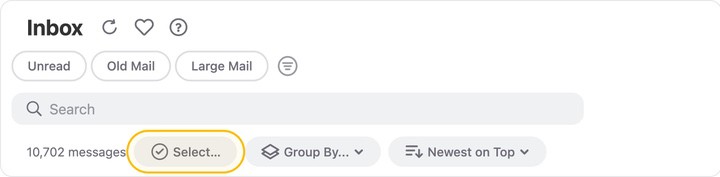
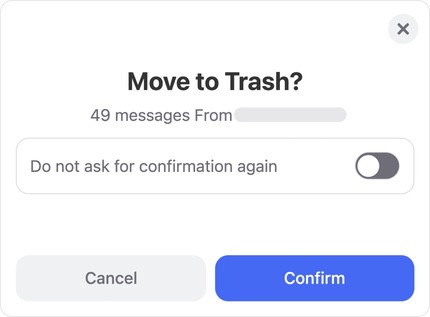
This removes messages from your Inbox view only, instead of selecting emails from the entire mailbox.
Way 3: Delete Emails from a Smart Folder
- Open a Smart Folder, such as Social notifications, Online shopping, Travel, or a filter category like Old Mail or Large Mail.
- Click Select.
- Choose Select all.
- Apply Trash or Delete.
- Confirm the action.
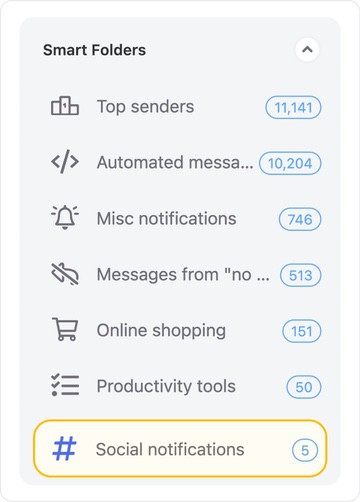
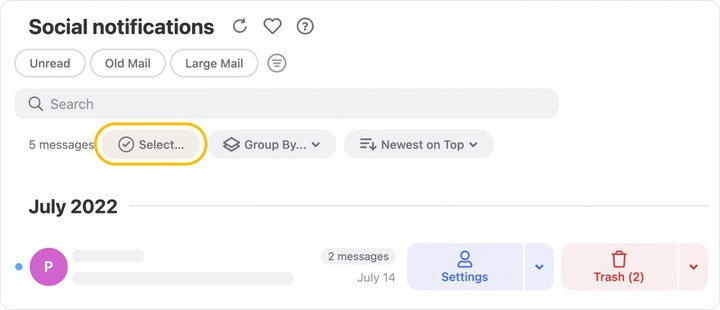
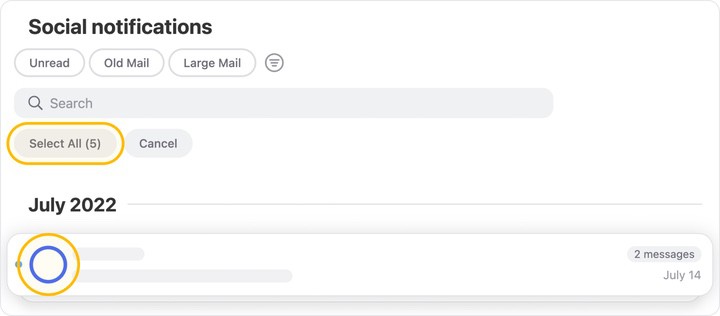
📌 Note: This is the safer option when you want more precision. It helps you clean a specific type of email instead of deleting everything in your mailbox.
Can I Do This for Any Email Provider?
Yes. Clean Email works with IMAP-based providers and is available on web, Mac, and mobile, so you can delete emails in bulk from any supported connected mailbox.
Please contact us and we will be happy to help.