How Do I Empty My Archive Folder in Gmail?
Gmail has no real Archive folder – archived messages sit in All Mail without the Inbox label, which makes them hard to clear out. In Clean Email you get a dedicated Archive folder, so you can select every archived message and empty it in one bulk action.
Empty the Archive Folder in Clean Email
- Open the Clean Email app.
- Connect your Gmail account.
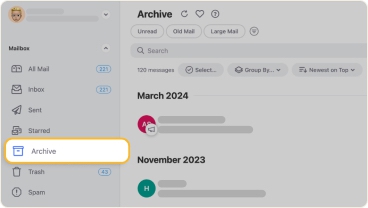
- In the left-hand menu, under Mailbox, click Archive.
- Click Select at the top of the message list.
- Choose Select all to mark every archived email.
- Apply Trash or Delete from the action bar.
- Review the message count in the confirmation dialog and click Confirm.
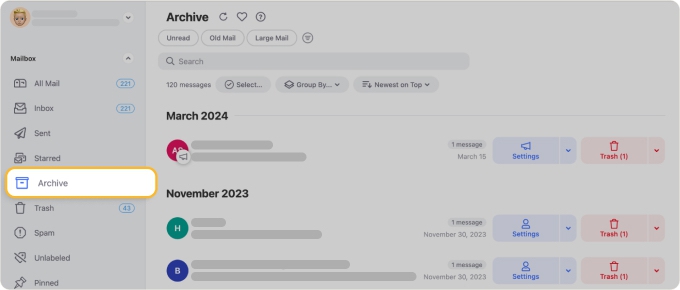

Use Trash for a safer cleanup, since messages can still be recovered for a limited time. Use Delete only when you want to permanently remove them and free up Gmail storage.
⚠️ Caution: Emptying the Gmail archive is a high-risk bulk action. Archived emails often include receipts, confirmations, and records you may still need – scan the list before confirming, especially with Delete.
Empty Only Part of Your Archive
To clear specific archived emails instead of everything:
- Open the Archive folder in Clean Email.
- Apply a filter such as Old Mail or Large Mail, or use Group By → Sender to target one source.
- Click Select, choose the groups you want, or Select all.
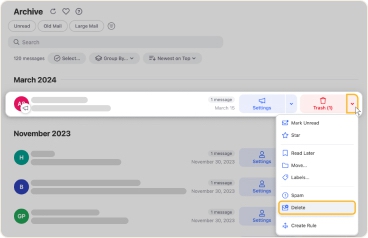
- Apply Trash or Delete and confirm.
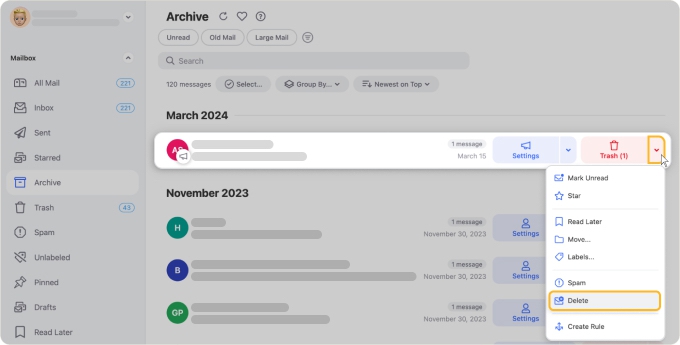
📌 Note: This is the safer option when you only want to remove old or oversized archived messages and keep the rest.
Can I Keep My Archive Empty Automatically?
Yes. Set up an Auto Clean rule so matching messages are trashed or archived as they arrive or age, for example, automatically removing archived emails once they pass a certain age. This keeps your Archive from filling up again.
Does Emptying the Archive Free Up Storage?
Only if you permanently remove the messages. Archived emails still count toward your Google storage. Trashed messages free space after Trash is emptied; Delete removes them right away.
Please contact us and we will be happy to help.