How Do I Get Rid of Old Emails?
You can easily get rid of old emails with the help of Clean Email by using the Old Mail filter, choosing an age range, and applying a bulk action such as Trash, Delete, or Keep Newest.
Method 1: Use the Old Mail Filter
To get rid of multiple old emails in Clean Email:
- Open the Clean Email app.
- In the left-hand menu, click the Old Mail filter.
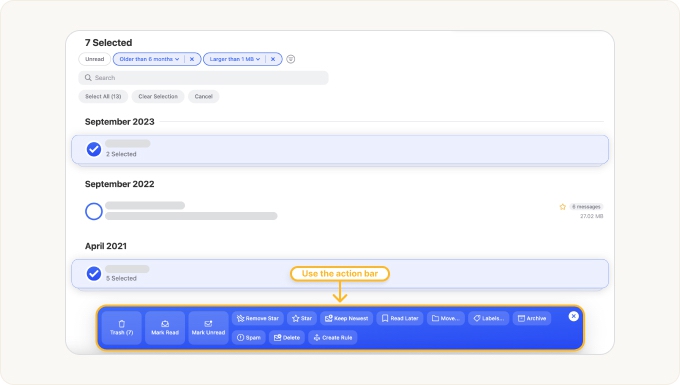
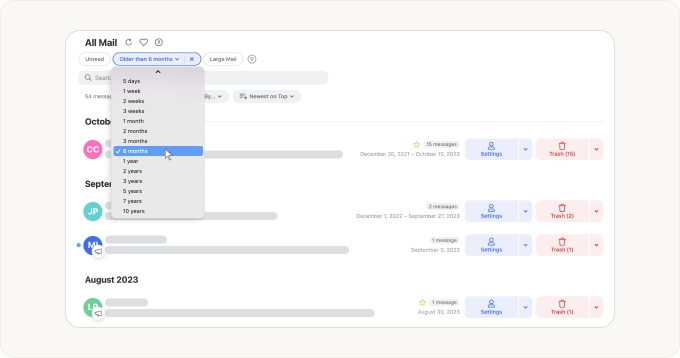
- The filter is set to Older than 6 months by default.
- Click the drop-down if you want to choose another age, such as 1 year, 2 years, 5 years, or 10 years.
- Select the groups you want to clean.
- Use the action bar to apply Trash, Delete, or another action.
Method 2: Clean Old Emails From Folders
To clean up old emails from specific folders with Clean Email:
- Open Inbox, All Mail, or any other folder.
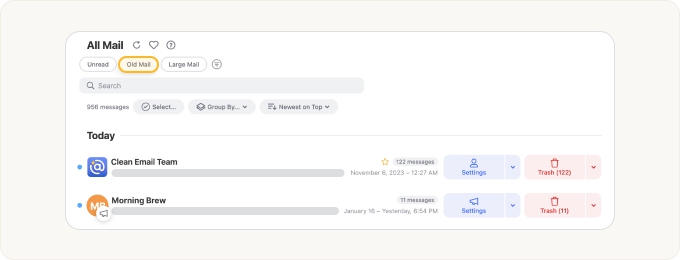
- Click the Old Mail filter.
- Choose how old the emails should be.
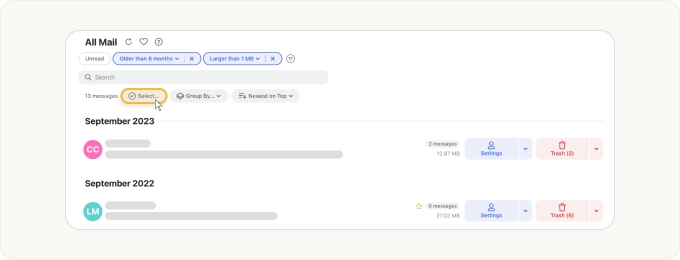
- Click Select.
- Choose one or several message groups, or click Select all.
- Apply the cleanup action you need.
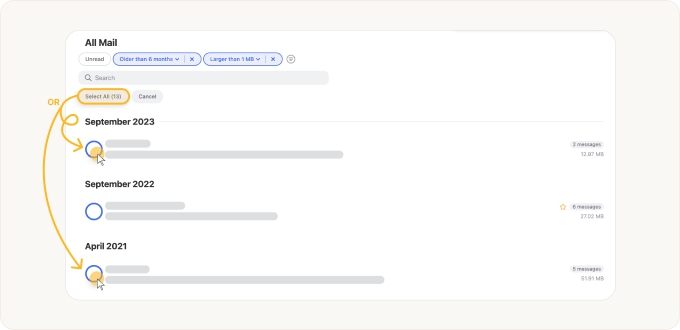
This is useful when you only want to clean old emails from your inbox without touching older messages stored elsewhere.
Method 3: Sort by Date and Clean the Oldest Emails First
- Open Inbox or All Mail.
- Click Group By.
- Choose Date.
- Change the sorting option to Oldest on Top.
- Review the oldest message groups first.
- Select the groups you no longer need.
- Apply Trash, Delete, or Keep Newest.
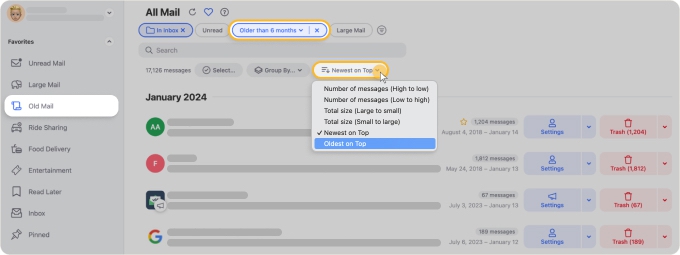
Which action should I choose?
- Use Archive if you want old emails out of your inbox but still available later.
- Use Trash if you may want to recover them before they are permanently removed.


- Use Delete only when you want to permanently remove messages and free up mailbox space.


- Use Keep Newest when you want to keep only the most recent messages in a group and automatically remove older ones.


If your goal is to free up storage, use Delete. Trashing or archiving messages may not immediately reduce mailbox storage.
⚠️ Caution: Review selected message groups before applying a bulk action. Some actions can affect many old emails at once and may not be reversible.
How do I avoid deleting important emails?
Before applying a bulk action, review your filters and selections carefully. You can narrow the results by sender, folder, read status, message size, or other criteria before deleting anything.
Can Clean Email remove old emails automatically?
Yes. After you clean old emails once, you can create an Auto Clean rule to handle similar messages in the future. For example, you can automatically move emails from selected senders to Trash after they become older than a specific age.
Please contact us and we will be happy to help.