How Do I Get Rid of Unwanted Emails?
Connect your mailbox to Clean Email and use Unsubscriber, Sender Settings, and Auto Clean to remove unwanted emails in bulk and keep them from coming back. Instead of deleting one message at a time, you deal with a whole sender or mailing list at once, and you can stop unwanted emails before they ever reach your inbox.
Unsubscribe From Mailing Lists in Bulk
Most unwanted email is newsletters and promotions you once signed up for. To clear them out:
- Open the Clean Email app.
- Go to Tools and select Unsubscriber.
- Select the senders you no longer want and click Unsubscribe.
- In the confirmation dialog, choose whether to also Trash existing messages, then confirm.
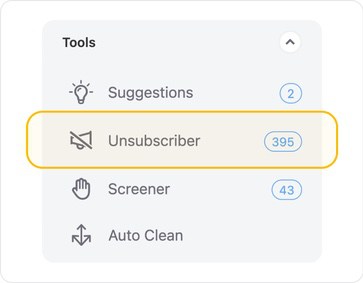

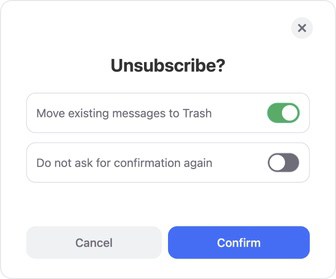
This is the quickest way to unsubscribe from unwanted emails without opening each newsletter and hunting for its link.
Read more: How You Can Unsubscribe From Emails in Bulk
Block Senders or Whole Domains
For persistent senders that are not true subscriptions, blocking sends every future message straight to Trash.
- Open a group from the sender you want to stop.
- Open Sender Settings and choose Block to route all future mail to Trash, or Mute to let it arrive but be marked read automatically.
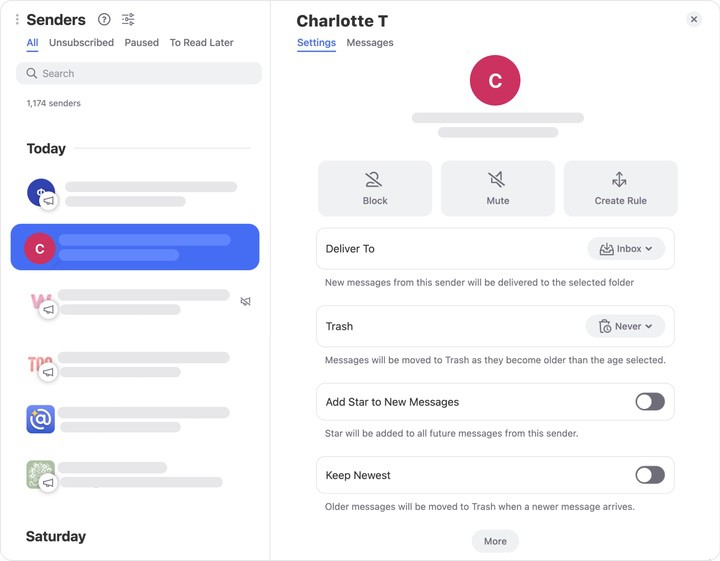
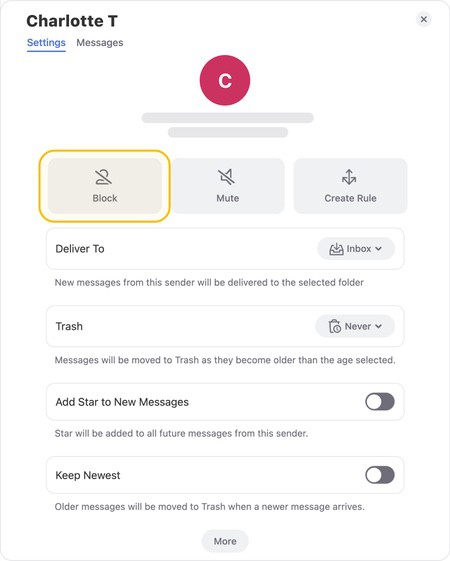
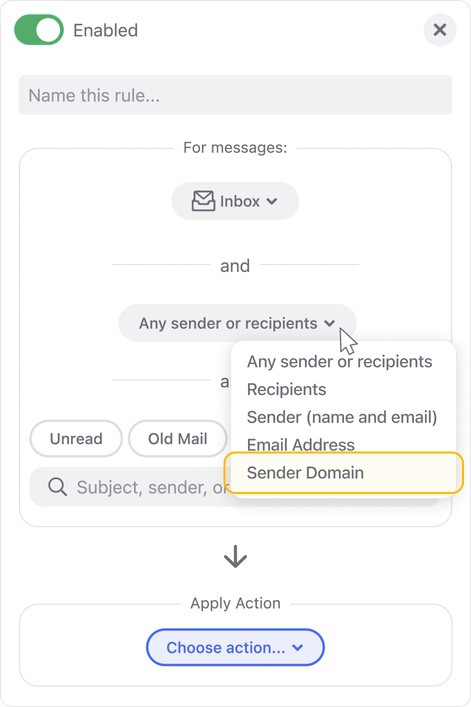
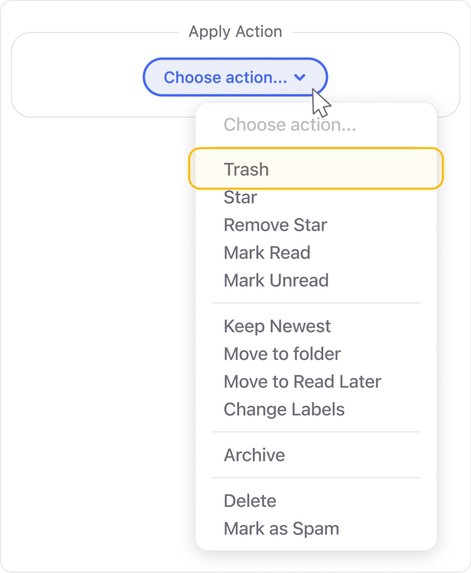
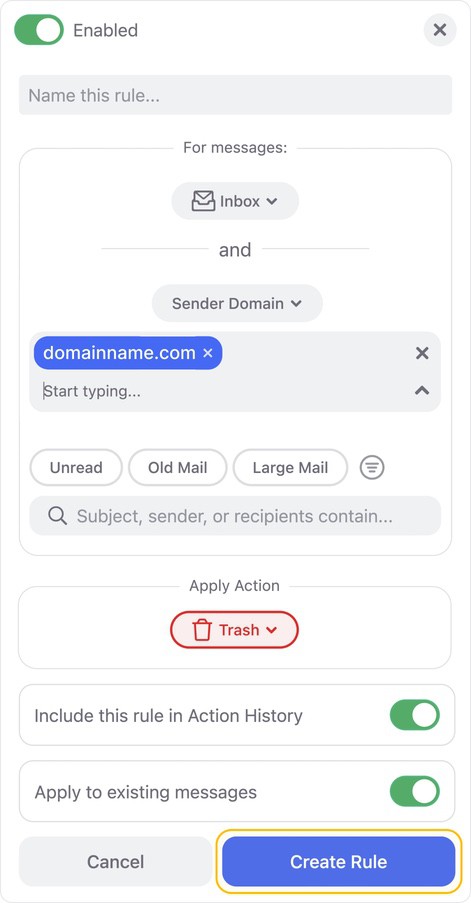
💡 Tip: To stop spam coming from many randomized addresses on the same domain, create an Auto Clean rule using the Sender Domain condition and set the action to Trash.
Auto-Delete Unwanted Emails as They Arrive
To keep unwanted mail out for good, set up an Auto Clean rule:
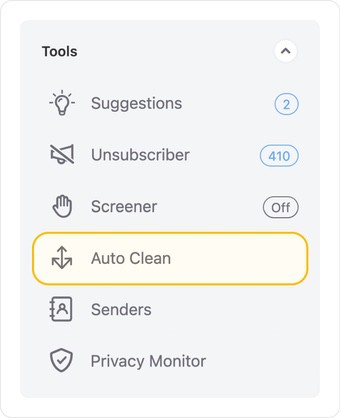
- Click Auto Clean in the left-hand menu and make sure it is toggled on.
- Click + to create a rule.
- Choose a condition such as Sender, Sender Domain, or a word in the subject.
- Pick an action like Trash or Archive.
- Turn on Apply to existing messages.
- Click Create Rule to finalize.


📌 Note: You can also screen first-time senders with the Screener, reviewing previews and deciding to allow or block them before their mail hits your inbox.
Can I Remove Unwanted Emails Without Opening Them?
Yes. Because Clean Email works on grouped messages and previews rather than opening them, you can delete emails without opening them and even unsubscribe from spam without opening it. This is safer, since opening spam can confirm your address is active.
What About Unwanted Emails in Gmail?
Gmail lets you unsubscribe or block senders one by one, but it cannot process them in bulk or automate cleanup across your whole mailbox. If you are on Gmail specifically, this guide on how to stop unwanted emails in Gmail shows where Clean Email fills the gaps.
Please contact us and we will be happy to help.