How Do I Manage Thousands of Emails?
The fastest way to manage thousands of emails is to stop handling them one by one. Clean Email automatically sorts your mailbox into message groups, which bundle related emails by sender, subject, category, age, or size. This lets you review and act on hundreds of messages with a single click.
How Emails Get Grouped
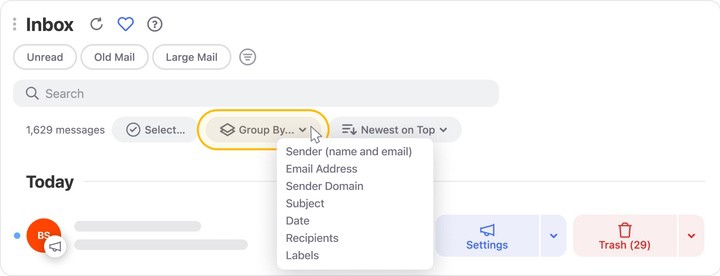
When you connect your account, Clean Email scans message headers and organizes everything into groups. You can reshape these groups at any time with the Group By menu (Sender, Sender Domain, Subject, Date, or Size) and reorder them with the Sort menu. Instead of a wall of individual emails, you see tidy stacks you can clear in bulk.
What You Can Do With a Group
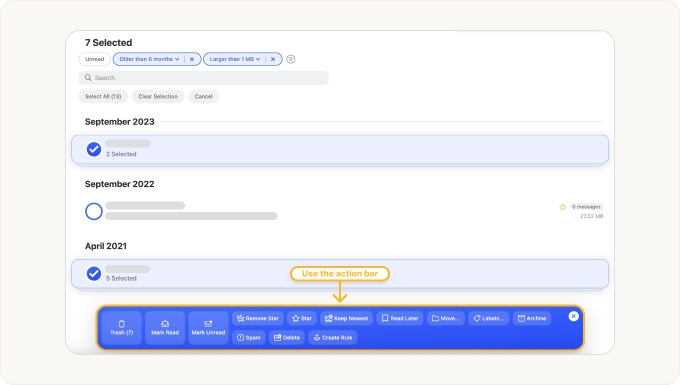
Select one group, several groups, or Select all, then apply any supported action to every message inside at once. The confirmation dialog always shows how many messages you selected before anything happens. Actions that work on groups include:
- Trash, Delete, or Archive to clear clutter.
- Move or Labels to file emails into folders.
- Mark Read / Mark Unread, Star, or Read Later.
- Keep Newest to keep only the latest message in a group and trash the rest.
- Spam to flag unwanted senders.
- Create Rule to turn a one-time cleanup into an automatic one.
⚠️ Caution: With large groups, review your selection before choosing Delete, which is permanent. Use Trash if you might want the messages back.
Which Features Work With Grouped Emails
Grouping powers most of Clean Email's tools:
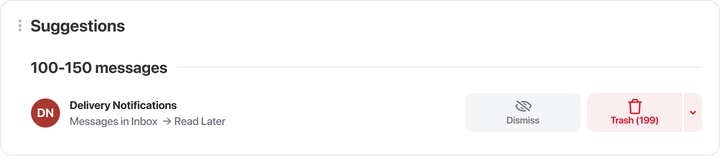
- Cleaning Suggestions recommends which groups to clean next.
- Smart Folders pre-group messages by type: Social, Shopping, Old Mail, Large Mail, and more.
- Auto Clean applies your chosen action to matching groups automatically as new mail arrives.
- Unsubscriber groups your subscriptions so you can leave many mailing lists at once.
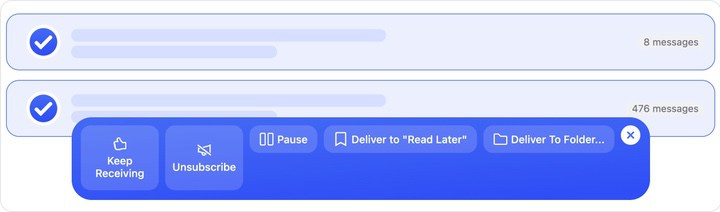
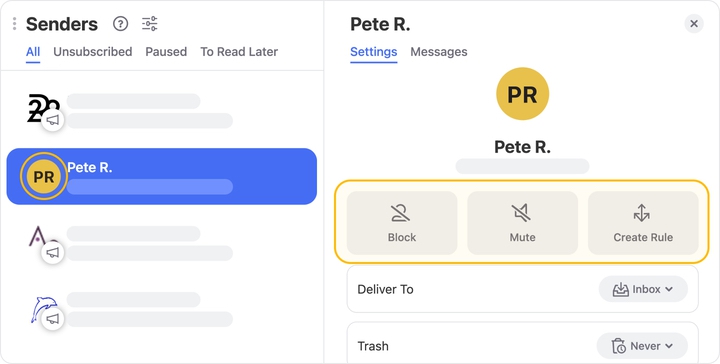
- Senders feature lists every sender by volume so you can bulk-clean your heaviest ones and adjust settings for each of them.
Read more: How Can I Clean Out My Gmail Inbox Quickly?
Please contact us and we will be happy to help.