How Do I Sort Emails in Gmail?
You can't truly sort emails in Gmail. Gmail always displays messages by date (newest first) and doesn't support sorting by sender, subject, size, or other attributes.
You can sort your Gmail messages in Clean Email using the Group By button and the Sort menu to arrange emails by sender, subject, date, or size, then apply a bulk action to the groups you no longer need.
Way 1: Sort by Sender or Domain
- Open the Clean Email app.
- Connect your Gmail account.
- Open Inbox, All Mail, or any folder.
- Click Group By and choose Sender or Sender Domain.
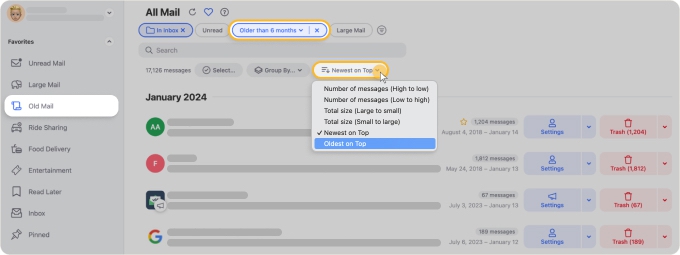
- Open the Sort (set as Newest on Top by default) menu and pick A – Z, Number of Messages, or Total Size to reorder the groups.
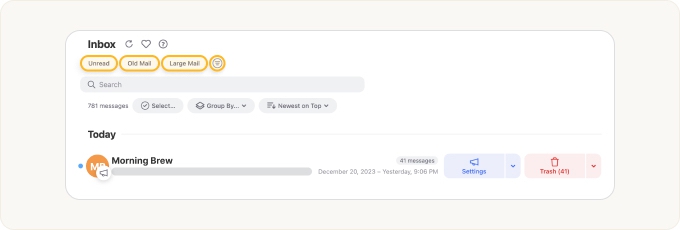
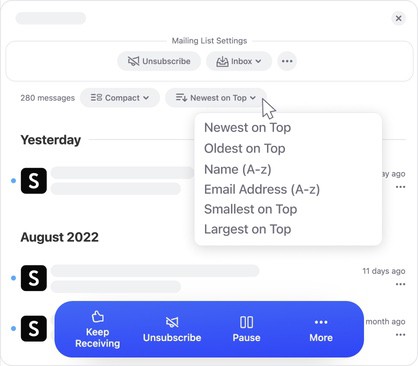
This is useful when you want to find who sends you the most mail and clean those senders in one pass.
Way 2: Sort by Subject
- Open a folder in Clean Email.
- Click Group By and select Subject.
- Open the Sort menu and choose Subject (A – z), or reverse it with Subject (z – A).
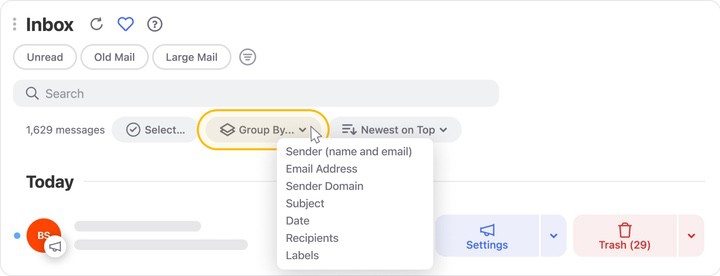
Grouping by subject bundles repeating messages, such as receipts or alerts with the same subject line, so you can review them together.
Way 3: Sort by Date or Size
- Open Inbox or All Mail.
- To sort by age, click Group By → Date, then set the Sort menu to Newest on Top or Oldest on Top.
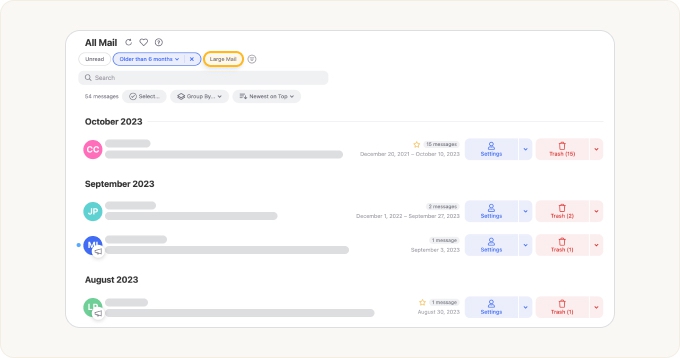
- To sort by size, apply the Large Mail filter and pick a size threshold to surface your biggest emails first.
📌 Note: Sorting only changes how emails are displayed in Clean Email. Nothing is moved or deleted in Gmail until you apply an action.
How Do I Act on Sorted Emails?
Click Select, choose one or more groups (or Select all), then apply Trash, Archive, Move, Label, or Star from the action bar.
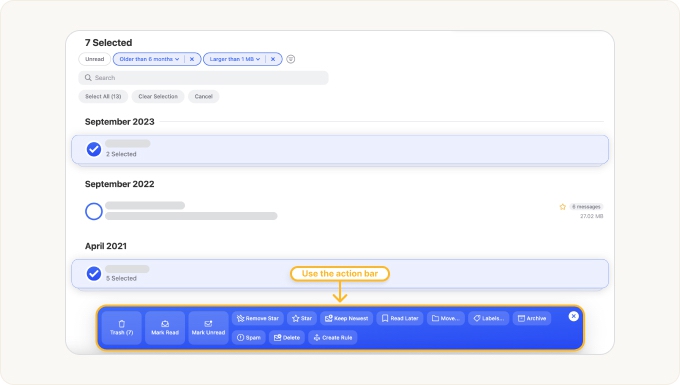
⚠️ Caution: Review your selected groups before applying a bulk action. Some actions affect many messages at once and may not be reversible.
Can I Sort Gmail Directly in Gmail?
No. Gmail has no button to sort by sender, subject, or size – it only lets you search with operators like from: or larger:. Clean Email adds the true sorting and grouping controls Gmail lacks, and works the same way on web, Mac, and mobile.
Please contact us and we will be happy to help.