What is an Archive Folder in Outlook?
An Archive folder is a designated location to store older or less frequently accessed email messages. It helps you declutter your primary mailbox while retaining important information for future reference.
The Archive folder is a secondary storage location for items you want to keep but don't need to be readily available in your primary inbox. Moving such items to the Archive folder allows you to free up space in your mailbox and improve Outlook's overall performance.
Most people place messages that are no longer actively needed but may still hold value for legal, reference, or historical purposes into the Archive folder to file it away. Some emails that may qualify for archiving include messages related to completed projects, old meeting invitations, outdated tasks, or any other data that you want to keep for record-keeping purposes.

How to Archive Emails in Outlook Apps
In Outlook, you can archive emails either manually or automatically. In this article, we will discuss how to archive Outlook emails manually. However, if you find that you are frequently archiving messages from the same sender or after a certain amount of time, you may want to consider using the Outlook auto archive feature for these messages.
Later on, we will also explain how to use the Clean Email app to archive emails in Outlook automatically and manage your mailbox in other ways.
Archiving Emails in Outlook Desktop
- Open the Outlook app on your computer.
- Select the message(s) you wish to store.
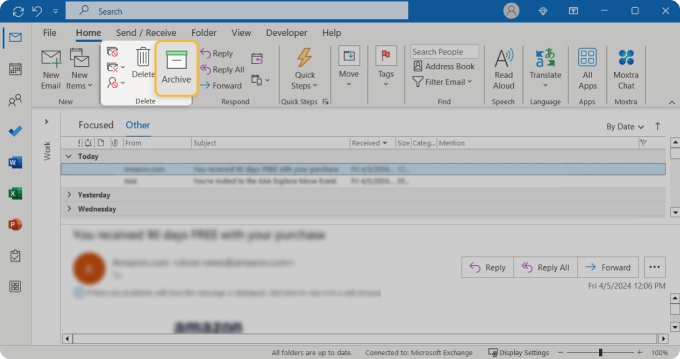
- In the ribbon, locate the Delete section.
- Select Archive.
- Your messages will now move to the Archive folder.
If you need to get to the folder where archived emails can be found after you've moved it, you can locate it in your folder list in the left side panel of the Outlook app. If you can't see the folder list, go to the top menu bar and select View → Folder Pane → Normal.
💡 Note: Although these directions work for both Windows and MacOS, you may also want to know how to archive emails on Mac.
How to Archive Outlook Emails on the Web
- Go to outlook.com and log in with your username and password.
- Select the emails you would like to store.
- Click the Archive button located right below the search bar.
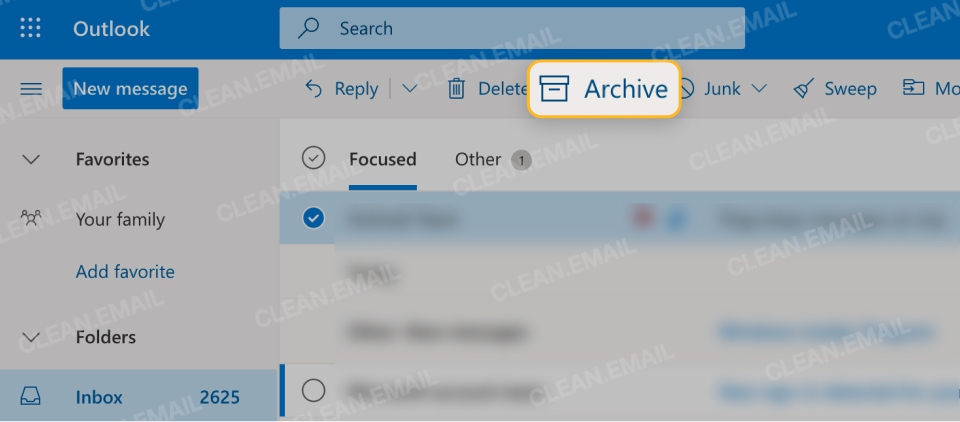
Wondering how to find archived emails in Outlook? To locate a message you've archived, click the Archive folder located in the folder list on the left side of the page. If the Outlook Archive folder isn't visible, click on the arrow next to Folders to expand the list of available folders.
How to Archive in Outlook Mobile
- Open the Outlook app on Android or iOS.
- From the main inbox, select the message(s) you wish to store.
- Tap Archive in the bottom menu.
- A notification will appear at the bottom of your screen to let you know the message was archived.
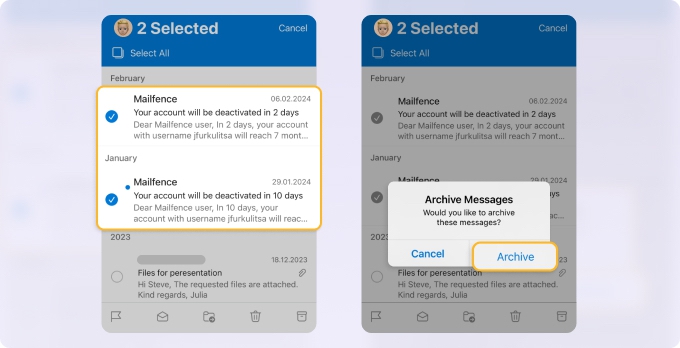
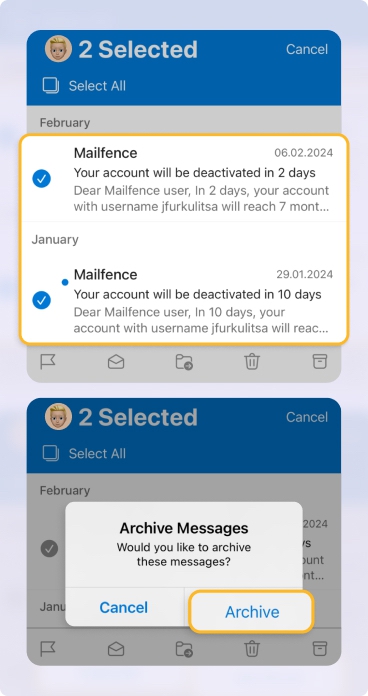
To find an archived message, click on the circle in the top left corner of your screen to open the folder list. From here, tap the folder labeled Archive. This works both when you archive email on iPhone and Android devices.
How to Archive Outlook Emails Automatically with Clean Email
Although archiving emails in Outlook can help you clear out some of the clutter from your inbox, it isn’t a total solution. Luckily, the mailbox management tool, Clean Email, is!
Sorting and filtering. The app makes it easy to sort and move messages anytime. Unlike Outlook, which simply throws all messages into your inbox, sorted by date, Clean Email lets you select how messages are grouped so you can view them in many ways. You can also use the flexible filters to only view messages that meet specific criteria or use the Smart Folders feature to see groups in bundles based on commonalities they share.
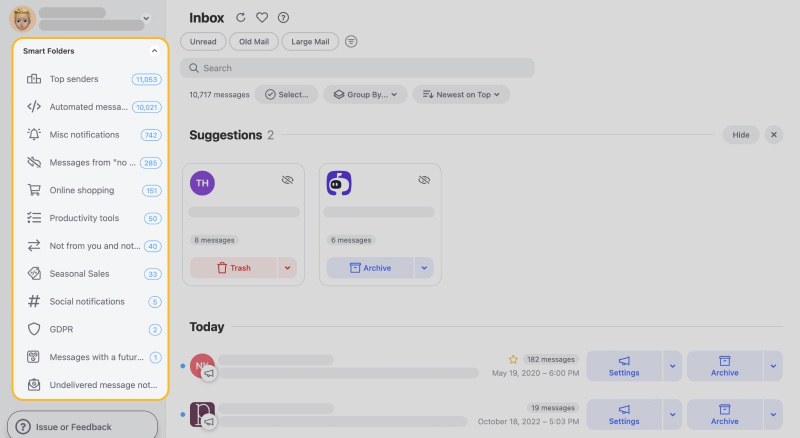
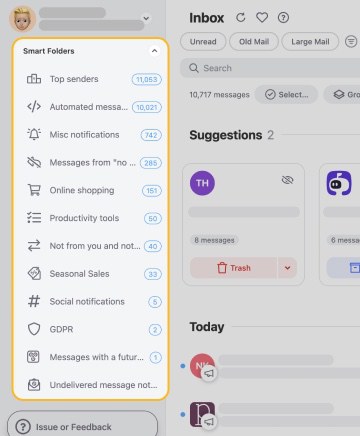
There is an Archive folder in Clean Email with all email messages you archived. You can sort and filter them in many ways and find large emails or old ones—it makes it easier to group by specific criteria and delete once and for all.
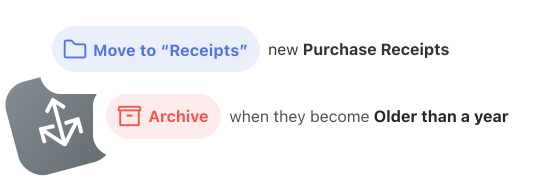
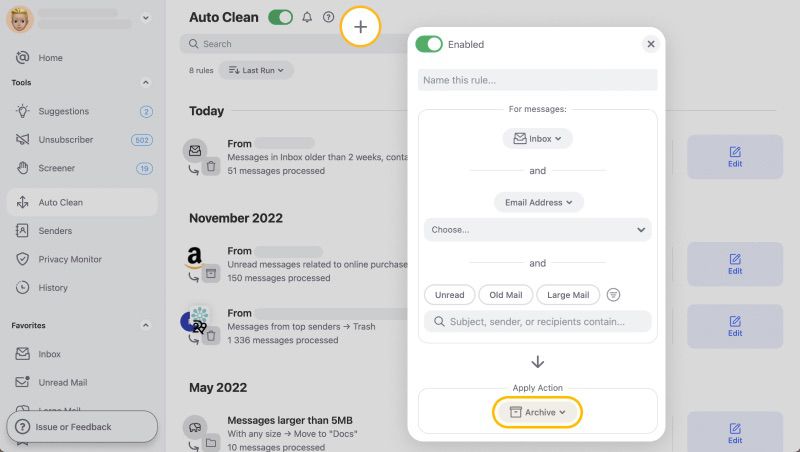
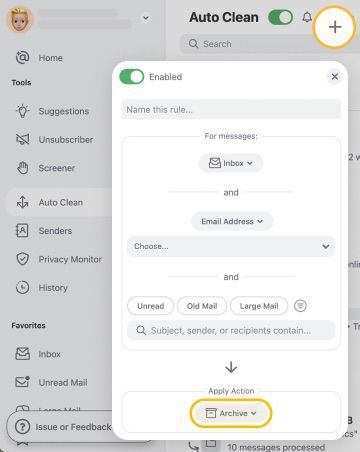
Automation. You can set up Auto Clean rules to automate the whole archiving process. With Auto Clean, you can automatically archive emails as they reach a certain age (older than), size, emails from particular senders (email or even a domain), or emails from a specific Smart folder.
To do so, simply:
- Go to https://app.clean.email/ and log in.
- Choose Auto Clean on the left-hand pane.
- Click ✚ on top.
- When the pop-up window opens, follow the steps to set up the rule.
- Choose Archive under Apply Action.
- Press Create Rule to save the automation.
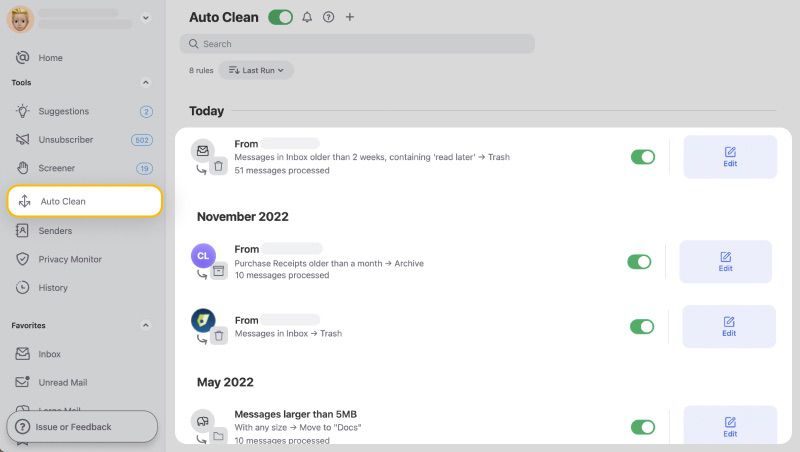
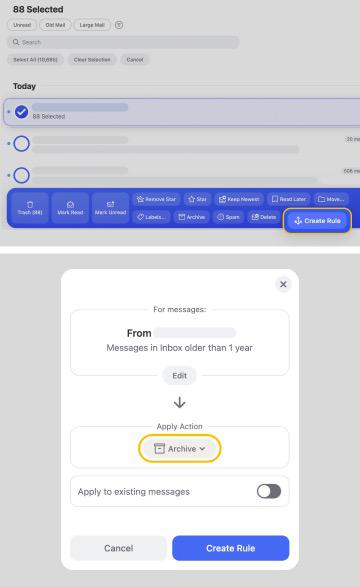
Of course, the app can also help you archive old emails in Outlook. When you open the app, you can go to any inbox view, then follow these steps:
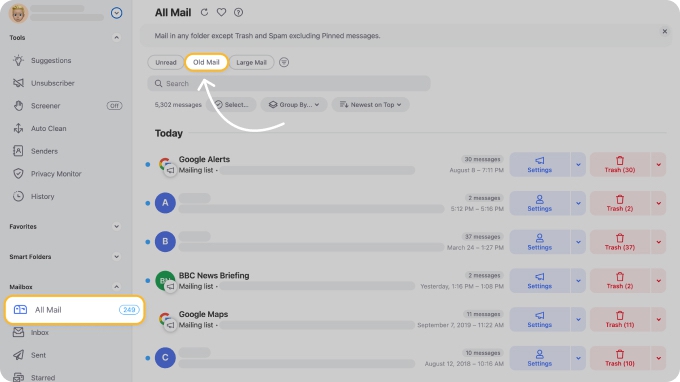
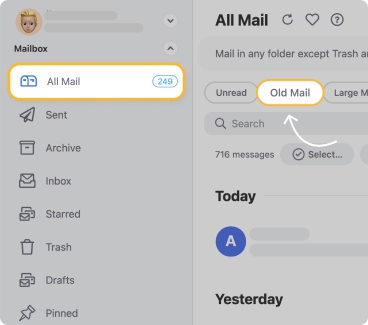
- Choose the All Mail folder from the left panel. Use the Old Mail filter to adjust the age range of the emails.
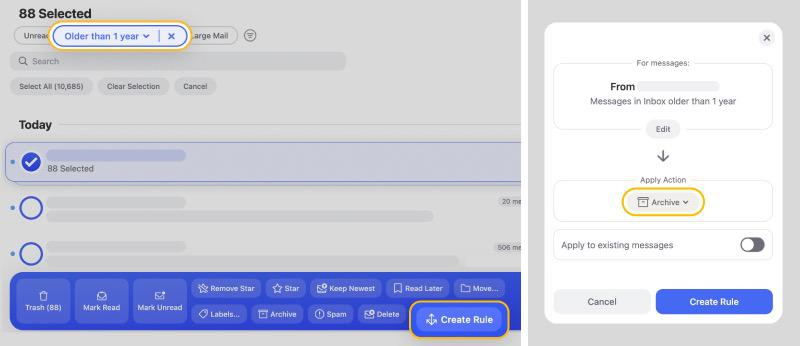
- Select the emails to manage, or Select All for bulk actions.
- Click the Create Rule button on the action bar in blue.
- In the action section, select Archive.
- Confirm by clicking Create Rule again.
Clean Email isn’t just good for archiving Outlook emails. It offers many other features that even the best third-party email archiving solutions don’t have. Features like Unsubscriber help you stop unwanted newsletters and subscription mailings from clogging your mailbox, while Screener places messages from unknown senders in a unique folder that isn’t your main inbox.
Where are the Outlook Archive Files Stored?
By default, Microsoft Outlook creates its own sort of archive of your Outlook data. It saves all of this as Personal Storage Table files (.pst) and stores it on your computer. This file type is not exclusive to items you've personally moved to your Archive folder, but those items are included as well as any other data from your inbox Outlook has recently backed up.
The exact location of these files can vary depending on the version of Outlook and the operating system you are using. However, the default location for PST files on Windows is C:\Users\username\Documents\Outlook Files. You can also search for .pst files on your device by opening a File Search and typing in ".pst" in the search box.
Outlook Archive vs. Delete
Back in the day, most email services offered so little storage space that their users were forced to delete most emails they received. Thankfully, storage space has become very cheap over the years, and virtually all major email services, including Outlook, now give their users gigabytes of email storage for free.
Considering that most emails are not even 1 MB large, it’s easy to see how so many people end up with thousands and thousands of emails just sitting in their inbox, refusing to delete anything because they don’t have time to manually separate important emails from subscriptions, newsletters, notifications, and spam.
That’s where the Outlook Archive folder comes in. When you archive emails in Outlook, the email disappears from your inbox but isn’t deleted. It simply moves from your Inbox to the Archive folder, and you can retrieve it anytime. You don’t even need to know how to create an Archive folder in Outlook because the folder is available by default.
To decide whether you should archive or delete an email in Outlook, try answering the following questions:
- Is there a chance that you'll ever need the email again in the future?
- Yes = archive
- No = delete
- Do you want to free up email storage space?
- Yes = delete
- No = archive
- Do you want the email to disappear from your inbox but not from your email account?
- Yes = archive
- No = delete
If you're unsure, just remember that archiving is easily reversible, but deleting isn't. Even if your Outlook archive becomes obscenely large, you can always quickly and painlessly organize it with the help of a bulk email organizer like Clean Email.
How Clean Email Can Simplify Outlook Email Management
With Clean Email, you can maintain a clean Outlook mailbox using unique features like Cleaning Suggestions, Smart Folders, Unsubscriber, and more. These tools help you quickly and effortlessly declutter your inbox and keep it organized moving forward.
Cleaning Suggestions: See recommendations for cleaning up groups of emails at once. You can move messages you no longer need to the Trash or Archive or even mark them as spam with just a click. These suggestions are based on emails you’ve previously cleaned or those frequently cleaned up by others.
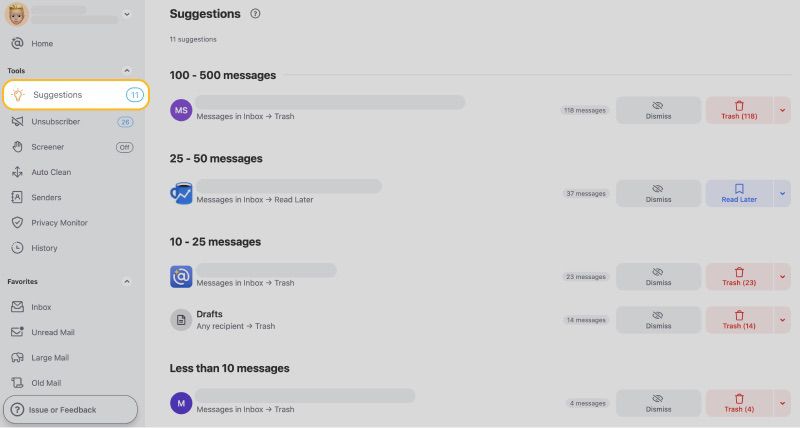
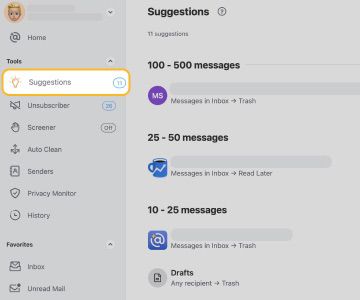
When you’re unsure exactly what to do with a message but don’t want to delete it, look to the Cleaning Suggestions.
Smart Folders: Find related emails and then act on them in bulk using Smart Folders. Clean Email filters your messages and sorts them into folders automatically. With more than 30 Smart Folders, you can view things like upcoming travel arrangements, food delivery orders, or online shopping purchases, all neatly organized for you.
You can then archive, delete, or move emails from a Smart Folder directly to the trash when you finish with them. So, you can take care of multiple messages in bulk.
Unsubscriber: Unsubscribe from mailing lists for newsletters, marketing messages, and promotional emails with Unsubscriber. You can stop those emails from filling up your inbox for good yet hang onto those you still want to receive.
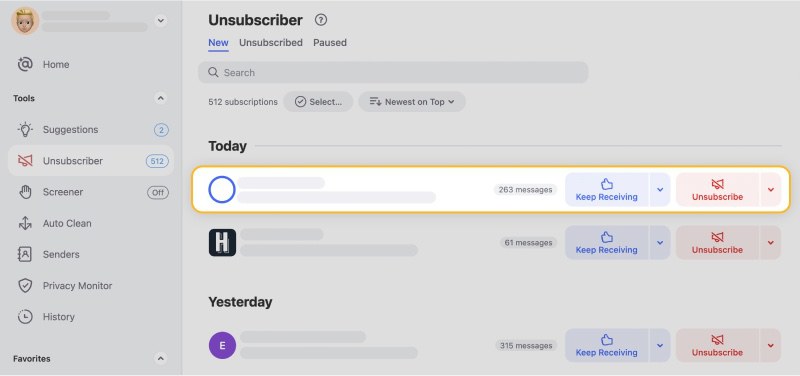
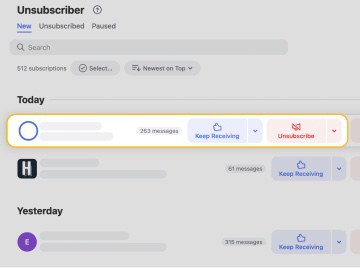
Plus, you can view all emails you unsubscribe from and resubscribe if you make a mistake or change your mind. This is a feature of Unsubscriber exclusive to Clean Email.
Not only can Clean Email help you organize email in Outlook but provides these tools on all your devices. On the web, desktop, and mobile, you can enjoy all premium features during the trial period. All of this along with Clean Email’s commitment to privacy and security, make for a solid and effective email management tool.
With all of these features, Clean Email is the best way to maintain your Outlook email account and automate processes.
FAQs
What does archive mean in Outlook?
Archive in Outlook refers to moving emails from the inbox to the Archive folder, where they're stored away from the primary mailbox but still accessible for future reference.
How to access archived emails in Outlook?
Access archived emails in Outlook by navigating to the Archive folder located in the folder list on the left side of the Outlook app or web interface.
Is archive the same as delete?
No, archiving is not the same as deleting. Archived emails are moved to a different folder for storage, while deleted emails are removed and eventually purged from the account.
Does archiving emails save space in Outlook?
Archiving emails in Outlook doesn't directly save storage space as they are moved from inbox to another folder, not deleted. To truly free up space, consider sorting and deleting older messages from the archive, or use a bulk email organizer like Clean Email for efficient cleanup.
How to archive all emails in Outlook?
To mass archive emails in Outlook, select all messages you wish to remove from Inbox, then click the Archive button. This might require selecting all emails in a folder or using a search filter to select multiple emails across folders. For an easier method, use Clean Email: access the app, select the group of emails, and click the Archive button to easily move them all.
How to unarchive an email in Outlook?
To unarchive an email in Outlook, move it from the Archive folder back to the Inbox or another specified folder within your mailbox.
How do I stop emails from going to archive in Outlook?
To stop emails from automatically going to the Archive folder in Outlook, adjust your Outlook archive settings by going to File → Options → Advanced → AutoArchive Settings, and modify the rules or turn off AutoArchive.