


How to Block an Email on Mail.com (Desktop)
Mail.com only allows blocking from the web interface. There’s no dedicated “blocked senders” button directly on the message list, which already slows things down.
Here’s the process:
- Open the email from the sender you want to block.
- Click the three-dot menu in the message header.
- Select Block sender.
- Confirm the action.
Once blocked, future emails from that address are automatically sent to Spam.
That’s the good news. The limitation is that this works only for exact email addresses, not domains.

Blocking Senders by Domain: What Mail.com Can’t Do
This is where many users get stuck. Mail.com does not support:
- Blocking an entire domain (like @promo.example.com)
- Blocking based on subject lines
- Blocking by message patterns
So if a sender rotates addresses—news@, offers@, updates@—you’re forced to block them one by one. In my testing, this becomes tedious after about five senders. After twenty, it’s unmanageable.
How to Unblock an Email Address on Mail.com
Unblocking isn’t obvious either, but it is possible.
Steps:
- Open Settings in the Mail.com web interface.
- Go to Security Options.
- Find Blocked Senders.
- Remove the email address you want to unblock.
- Save changes.
Mail.com doesn’t restore previously blocked emails to your inbox. Unblocking only affects future messages.
Worth noting: there’s no search or bulk edit here. If your blocked list grows, managing it becomes slow.
Why Mail.com Blocking Often Falls Short
Mail.com’s blocking system hasn’t changed much going into 2026. It’s functional, but basic:
- No bulk blocking
- No sender grouping
- No automation
- No visibility into senders you interact with most
For occasional spam, it works. For ongoing inbox control, it doesn’t scale.
How Clean Email Solves Mail.com Blocking Limitations
This is where Clean Email becomes genuinely useful—not as a replacement for Mail.com, but as a layer on top of it.
Clean Email connects to your Mail.com account and analyzes email metadata only (sender, date, headers). It does not read or store message content, which matters if privacy is a concern. → Try it for Free
In practice, this gives you:
- Block entire domains with one action
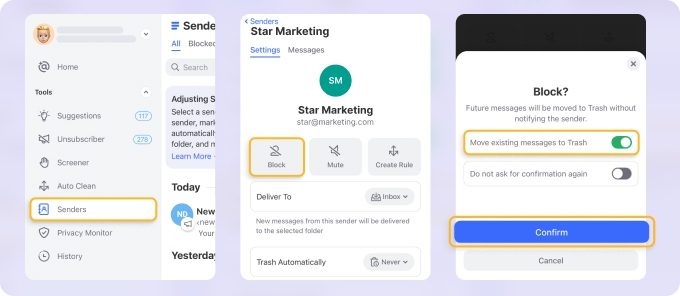
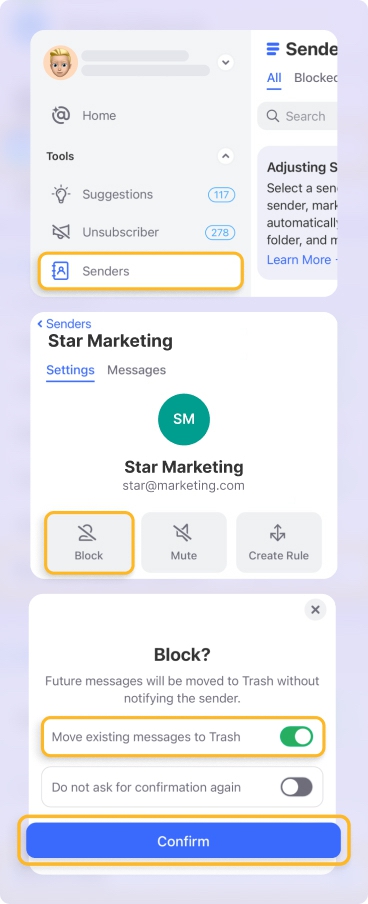
- Group emails by sender automatically
- See all emails from a sender before deciding to block
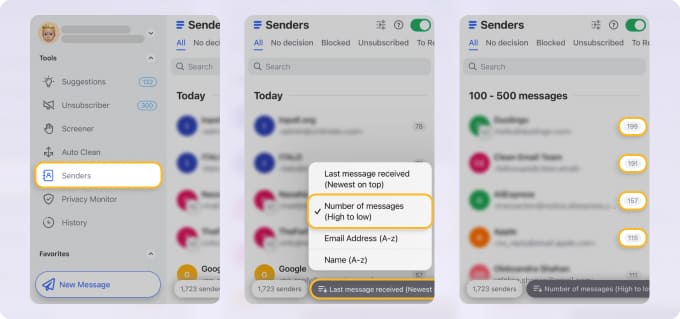
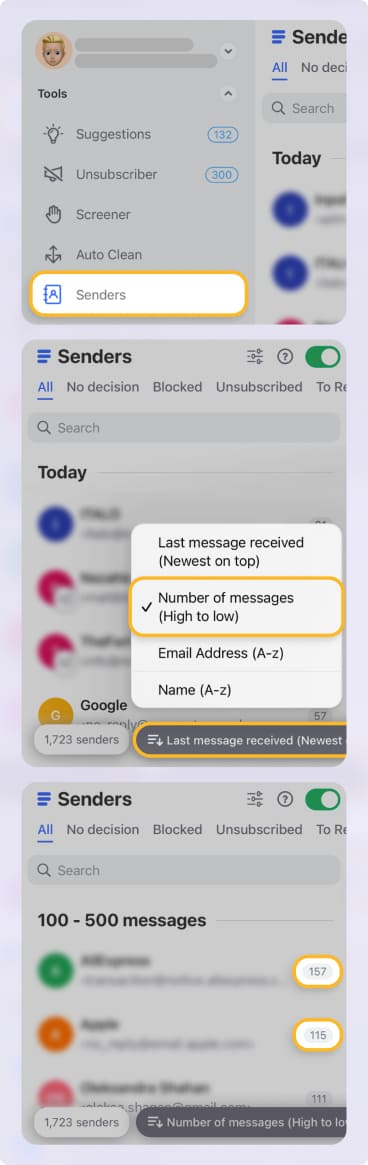
- Create Auto Clean rules to block and move emails going forward
For example, instead of blocking 15 individual marketing addresses, you can block the entire domain once. In my testing, this alone reduced recurring junk by more than half.
It also makes unblocking easier because you can see every rule and sender in one place.
When Blocking Isn’t the Right Tool
Blocking is blunt. Sometimes it’s better to:
- Mute and auto-archive emails
- Mark them as read automatically
- Keep them out of the inbox without deleting them
Mail.com doesn’t offer these nuances. Clean Email does.
Pros and Cons of Blocking on Mail.com
Pros:
✅ Simple one-click blocking for individual senders
✅ Blocks future messages reliably
Cons:
❌ No domain-level blocking
❌ No automation or bulk controls
❌ Blocked list is hard to manage
Final Thoughts
Mail.com’s blocking works, but only at the most basic level. If you’re dealing with a handful of unwanted emails, it’s fine. If you’re managing dozens—or trying to stay ahead of inbox creep in 2026—it quickly becomes a bottleneck.
Using Mail.com’s block feature alongside Clean Email gives you control that actually scales, without sacrificing privacy or reliability.












