


How to Delete a Single Email on Mail.com
The simplest case:
- Open the email.
- Click Delete.
The message moves to Trash, where it stays until you empty it manually or its storage time runs out. By default, Mail.com keeps emails in Trash for only 1 day; to change that, hover over the Trash folder, click the wrench icon, and adjust the storage time. Emails you delete from Spam skip Trash and are gone immediately.
How to Delete Emails on Mail.com Mobile
In the mail.com app:
- On Android, tap the circle next to an email’s subject; on iPhone, tap the checkmark icon above the list, then the checkbox next to the email
- Tap the trash can icon
That’s fine for a few messages. For hundreds, it’s not realistic: Mail.com’s app help doesn’t describe a select-all option, so large cleanups are easier on the web.

How to Delete Multiple Emails on Mail.com (Desktop)
Mail.com allows limited multi-select:
- Use the checkbox next to each email.
- Select several messages manually.
- Click Delete.
There is no reliable “Select all emails” option across folders. At best, you’re selecting what’s visible on the current page.
This is where most users hit the wall.
Can You Mass Delete Emails on Mail.com?
Short answer: only by folder.
On the web, Mail.com can empty an entire folder at once, and each folder has a storage time that automatically deletes emails older than the period you set. Filter rules can also delete future emails from a sender. But Mail.com does not support:
- Deleting existing emails by sender in one step
- Deleting unread emails only
- Deleting a custom date range on demand
You can repeat page-by-page deletion, but it’s slow and error-prone. In my testing, clearing a few thousand emails this way took over an hour.
How to Delete All Emails on Mail.com (What Actually Works)
Use Empty Folder in the Mail.com web app:
- Hover over the folder you want to clear and click the wrench icon.
- Click Empty Folder.
- Confirm with OK.
Repeat this for each folder you want cleared. It’s all-or-nothing, though: you can’t keep important messages in that folder, so move anything you need elsewhere first.
Using Clean Email to Delete Mail.com Emails in Bulk
This is the point where Clean Email stops being optional.
Clean Email connects securely to Mail.com and works on metadata, not message content. That allows bulk actions Mail.com simply doesn’t offer. → Try it for Free
With Clean Email, you can:
- Delete all emails from a sender instantly
- Delete unread emails older than a specific year (for example, everything before 2022)
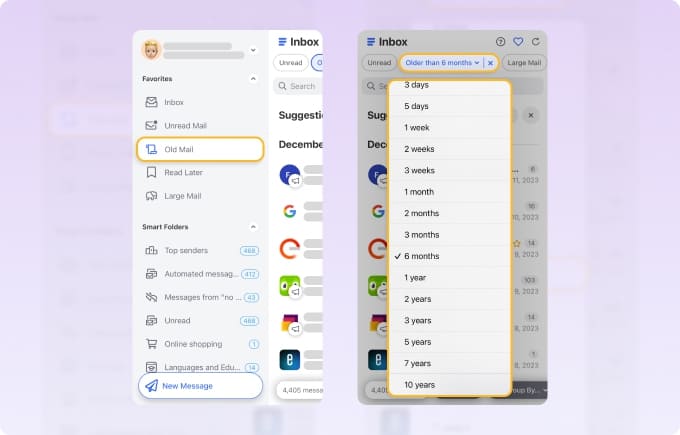
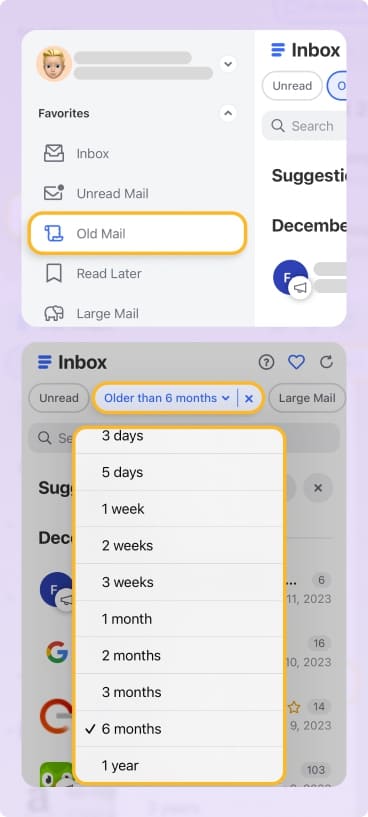
- Delete thousands of emails across folders at once
- Preview grouped messages before deleting
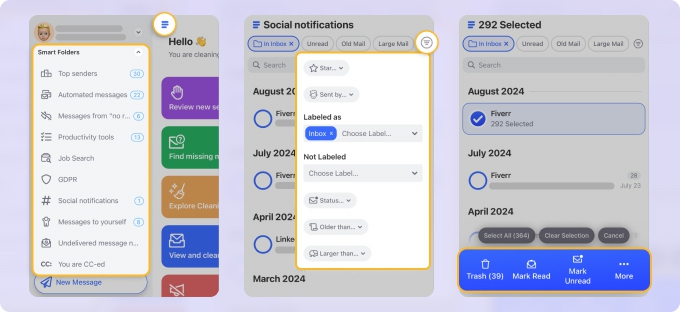
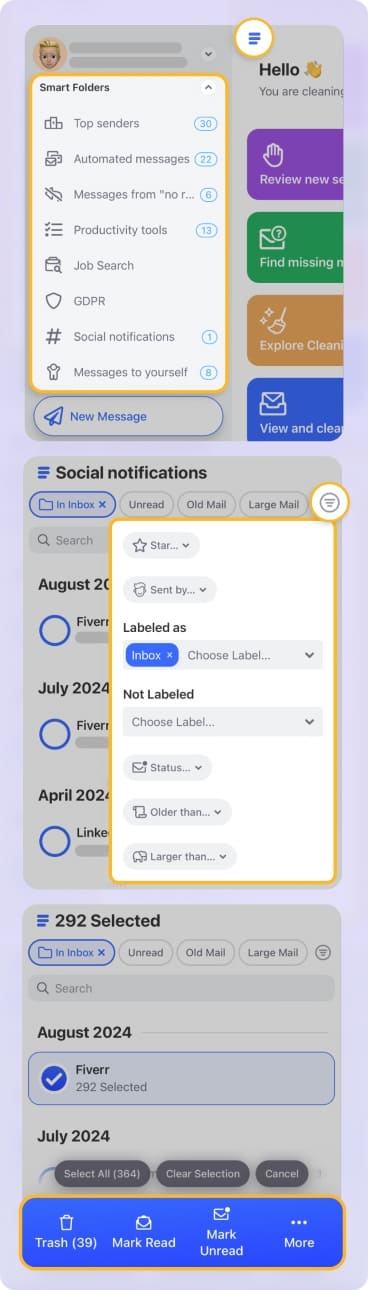
A realistic example: deleting 2,000 promotional emails from five senders took under two minutes in my testing. Doing the same natively wasn’t feasible. → Try it for Free
You can also set Auto Clean rules so future emails matching those criteria are deleted automatically.
Deleting Unread Emails on Mail.com
Mail.com has no built-in filter to delete unread emails in bulk.
Clean Email solves this by grouping unread messages regardless of folder. You can review them, delete them, or archive them in one action. It’s precise, and importantly, reversible before final confirmation.
Free vs Paid Limitations
Mail.com’s deletion tools are the same across plans—limited for everyone.
Clean Email’s free tier lets you test grouping and preview actions. Bulk deletion and automation require a paid plan, which is reasonable given the time saved.
Pros and Cons of Deleting Emails on Mail.com
Pros:
✅ Simple deletion for individual emails
✅ Works consistently for small volumes
Cons:
❌ Bulk delete only by whole folder
❌ No way to delete existing emails by sender or unread status
❌ Extremely slow for large inboxes
Final Thoughts
Mail.com wasn’t designed for large-scale inbox cleanup. In 2026, that gap is more noticeable than ever. If your inbox has grown beyond a few hundred emails, native deletion tools will feel restrictive.
Pairing Mail.com with Clean Email turns deletion into a manageable task instead of a weekend project—and once set up, you rarely need to think about it again.












