


Method 1: Bulk delete emails using Select All (web app)
This is the most common place to start.
- Open a folder (Inbox, Sent, or any custom folder).
- Select individual emails, or click Select All.
- Click the Delete icon.
Zoho allows up to 300 emails per delete action, even after scrolling and re-selecting.
Works best for:
Small, recent cleanups.
Limitations:
Large inboxes turn this into a repetitive process quickly.
📌 Note: This is often where people start feeling friction. When you’re deleting the same kinds of emails in dozens of batches, tools like Clean Email—which remove batch limits and work across folders—can make the process far less tedious. → Try it for Free

Method 2: Empty an entire folder
This is Zoho’s fastest way to clear a specific folder.
- Right-click the folder.
- Choose Empty folder.
- Select how much to delete (all, by date, or keep recent messages).
- Confirm.
Works best for:
Inbox resets and clearing old project folders.
Limitations:
You must repeat this for every folder in the account.
📌 Note: This works well until the number of folders grows. At that point, some users turn to Clean Email, which treats the mailbox as a whole rather than a collection of separate silos.
Method 3: Delete old emails by date
Helpful when storage is the main concern.
- Filter or search for emails before a certain date.
- Select all visible results.
- Delete and repeat as needed.
Works best for:
Gradual cleanup without touching recent mail.
Limitations:
Manual repetition across folders and date ranges.
📌 Note: Date-based cleanup is effective but slow at scale. This is where Clean Email can help by grouping emails by age automatically, so the cleanup doesn’t require constant re-filtering. → Try it for Free
Method 4: Delete unread emails in bulk
Unread emails often represent quiet clutter.
- Filter by Unread.
- Select all visible emails.
- Delete in batches.
Works best for:
Clearing ignored alerts and notifications.
Limitations:
Must be done folder by folder.
📌 Note: Unread status alone doesn’t tell the whole story. Some users prefer how Clean Email surfaces inactive or low-priority emails across the entire account, not just within individual folders.
Method 5: Use Scrub to delete by sender
Scrub helps target high-volume senders.
- Open a folder.
- Launch Scrub.
- Select up to five senders.
- Delete or archive their emails.
Works best for:
Newsletter and promotion cleanup.
Limitations:
Sender limits and per-folder operation.
📌 Note: Scrub works well in short bursts. When sender-based cleanup becomes a recurring task, users often turn to Clean Email, which groups emails by sender across all folders and doesn’t need to be rerun constantly.
Method 6: Bulk delete emails on mobile
On mobile:
- Tap and hold to enter selection mode.
- Select multiple emails.
- Tap Delete.
Works best for:
Quick, light cleanup.
Limitations:
No “select all” makes large cleanups impractical.
📌 Note: Mobile apps are built for triage, not deep cleanup. Many users rely on web-based tools like Clean Email when they need to do real inbox maintenance. → Try it for Free
A Faster Way: Bulk Delete Emails in Zoho Mail Using Clean Email
Zoho Mail’s native tools work, but they’re built around folders, limits, and repetition. Clean Email takes a different approach: it treats your mailbox as one system, not dozens of separate silos.
Once Zoho Mail is connected to Clean Email via IMAP, cleanup becomes less about repeating steps—and more about making a few decisions once.
Delete Emails Across the Entire Mailbox (Not Folder by Folder)
Instead of opening Inbox, then Sent, then Archive, Clean Email lets you bulk delete emails across all folders at once.
You can:
- Select entire groups of emails
- Delete thousands at a time
- Apply actions globally, not per folder
Works best for:
Large, long-neglected inboxes.
Why it’s easier:
There’s no 300-email limit, and no need to repeat the same action in every folder.
Delete Old Emails Automatically by Age
In Zoho Mail, date-based cleanup requires constant re-filtering. In Clean Email, age becomes a built-in grouping.
You can:
- View emails older than 1 year, 2 years, or more
- Delete or archive them in one action
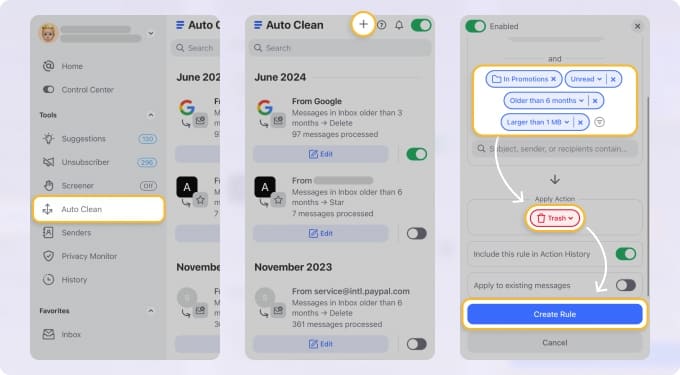
- Set Auto Clean rules so future old emails are handled automatically
Works best for:
Storage cleanup and long-term inbox maintenance.
Why it’s easier:
You don’t have to remember to clean again. Once set, it stays handled.
Delete Emails by Sender (Without Limits)
Clean Email groups emails by sender, not by folder or thread.
That means you can:
- See every email from a sender in one place
- Delete all of them—or keep only recent ones
- Unsubscribe and remove past emails at the same time
Works best for:
Newsletters, SaaS tools, alerts, and recurring system emails.
Why it’s easier:
Zoho’s Scrub tool works in bursts. Clean Email makes sender-based cleanup persistent.
Clean Up Unread and Inactive Emails in One View
Unread emails are often just unattended noise—but Zoho Mail only shows them per folder.
Clean Email surfaces:
- Unread emails across the entire account
- Inactive emails you haven’t opened in months or years
Works best for:
Clearing clutter without touching important conversations.
Why it’s easier:
You’re not guessing based on status alone. Everything is grouped and visible.
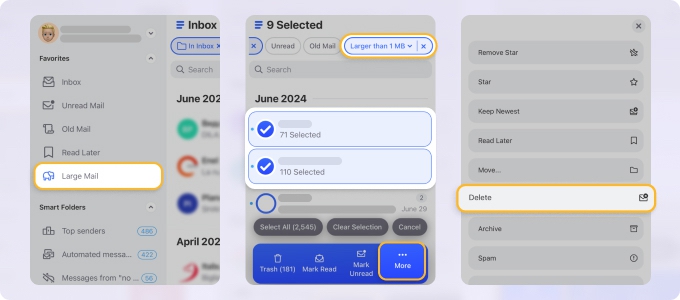
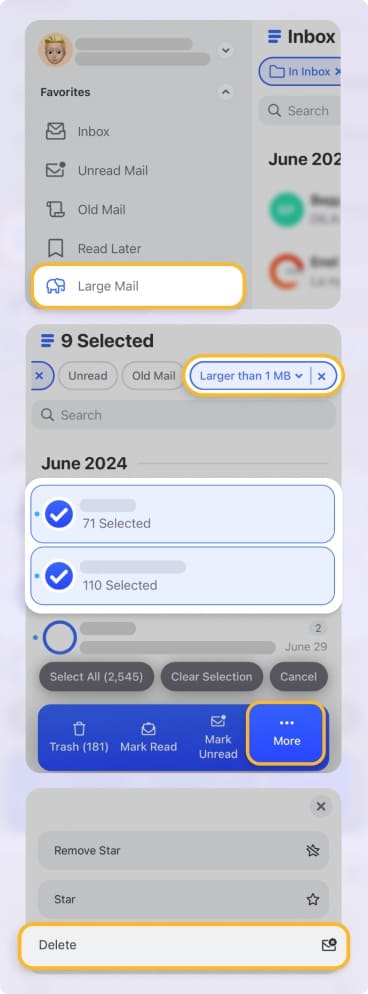
Delete Emails with Large Attachments to Free Storage
Attachments are usually the real storage problem.
With Clean Email, you can:
- Find emails containing large attachments → Try it for Free
- Delete or archive them in bulk
- Prioritize the worst offenders first
Works best for:
Freeing storage quickly without manual searching.
Why it’s easier:
No need to hunt through folders or guess which emails are heavy.
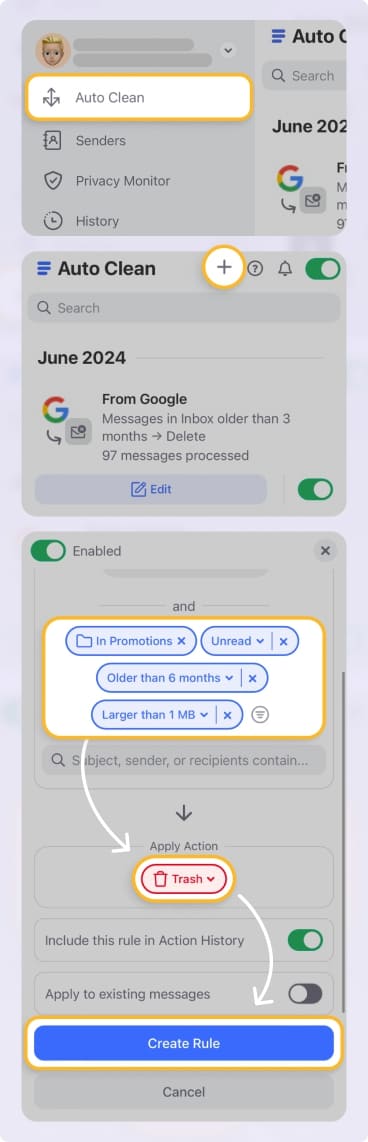
Turn One-Time Cleanup into Ongoing Automation
The biggest difference isn’t speed—it’s repeatability.
Clean Email lets you:
- Create Auto Clean rules
- Screen new senders before they clutter your inbox
- Keep inbox size stable over time
Zoho Mail helps you delete what’s already there. Clean Email helps prevent the same mess from coming back.
Don’t forget: Empty the Trash
Deleted emails remain in Trash and still use storage.
- Open Trash
- Empty it manually, or wait for Zoho’s automatic cleanup
📌 Note: If Trash fills up repeatedly, the issue usually isn’t deletion—it’s lack of long-term structure. That’s often where Clean Email helps by automating cleanup before clutter builds again. → Try it for Free
When Zoho Mail is enough—and when it isn’t
Zoho Mail handles basic bulk deletion well enough for small inboxes or occasional cleanup. Where it starts to struggle is with scale: hard limits, repetition, and minimal automation.
That’s why some users eventually add Clean Email—not because Zoho is broken, but because it wasn’t built for long-term, high-volume inbox management. Clean Email works alongside Zoho Mail, focuses on metadata rather than content, and helps shift inbox cleanup from a recurring chore into something manageable and predictable.
If deleting emails feels like a task you keep postponing, that’s usually the signal—not the size of the inbox itself.












