


Deleting Emails Without Opening Them: Why It Matters
To some, it may seem silly to delete an email without at least opening it to see what it contains. However, in many situations, you can spot unwanted messages just by scanning your inbox. Additionally, there are risks to opening unnecessary emails you should keep in mind.
- Avoid tracking pixels: To signal when you open an email, the sender can include a 1x1 pixel image for tracking. This lets the sender know you’ve opened their message which can trigger future unwanted emails.
- Prevent phishing: A step beyond spam, senders attempt to gather your personal data using what’s called phishing. Opening such emails can be a huge safety risk.
- Save time: Why open emails that you know you don’t want? Instead of wasting time on unnecessary messages, just delete them.
- Improve organization: Deleting unwanted emails can help you focus better on those you do want. You can decrease clutter and increase inbox organization by removing needless messages.
💡 Tip: For more, find out if you can get a virus from opening an email.

6 Ways to Delete an Email Without Opening It
You have several ways to delete an unopened email depending on the provider or application you use. Here are six of the most common methods with examples to help you easily rid your inbox of unwanted messages.
1. Disable the Preview Pane
The preview pane, sometimes referred to as the reading pane, is the area displaying message content when you select an email from your message list. Unfortunately, using this pane when choosing an email can indicate that you’ve opened and read the message. To avoid this, you can disable the preview pane in your email application.
As an example, you can completely hide the preview pane in Apple Mail. Whether you display the pane on the side or bottom, just drag to disable that pane and show only your message list.
Then, select an email and click Delete in the top toolbar.
2. Turn Off Read Message Settings
Oftentimes, this is one of those hidden settings in an email application, but can be quite handy for deleting messages without opening them. You can turn off the setting that automatically marks an email as read after a specific time frame or when moving to the next message. This is a good way to go if you want to continue showing the preview pane.
For instance, in Gmail, you can automatically mark an email as read immediately or after a certain number of seconds. But you can change this to never mark messages as read.
Go to Settings → See all settings → General. Switch the Preview Pane drop-down to Never and hit Save Changes.
You can then safely select an email and click Delete in the toolbar or to the right of the message.
3. Delete in Bulk
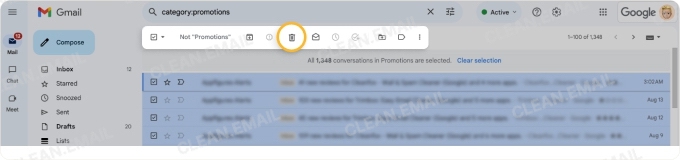
If you let those unwanted emails pile up, the best way to remove them is in mass. You can use bulk actions to select and delete many messages at once, saving you a ton of time and reducing the risk of accidentally opening an email.
As examples, in both Gmail and Outlook, you can select multiple messages using the checkboxes to the left and then click Delete in the toolbar.
4. Set Up Auto-Delete
Maybe there are certain messages you frequently find yourself removing. Setting up a rule or filter to automatically delete those emails is an even bigger time-saver, not to mention giving you an effortless way to keep your inbox organized.
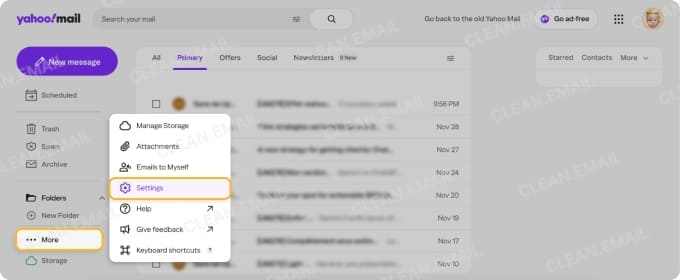
For example, you can use a filter in Yahoo Mail to automatically move messages to the Trash (which is where deleted emails go by default).
Go to More → Settings → Filters. Enter the criteria for matching messages, choose Trash for where to move the emails, and click Save.
Emails moved to the Trash are automatically deleted after seven days, but you can also manually empty the Trash in Yahoo Mail to regain storage space.
5. Swipe to Delete
When it comes to removing messages on mobile, you can take advantage of swipe gestures in many common email apps. This feature allows you to use a simple swipe to delete an unopened email in your message list, and you may find that your desktop email application offers the same feature.
For instance, to delete an email without opening it in Outlook on mobile, you can set up a swipe gesture by going to the menu and choosing Settings → Mail → Swipe Options. Then, pick the right or left swipe to select Delete. When you see an email in your message list that you want to remove, just swipe and delete.
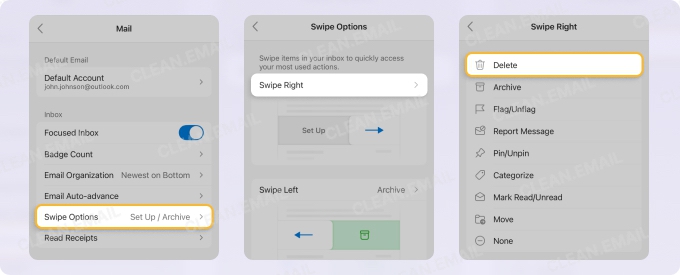
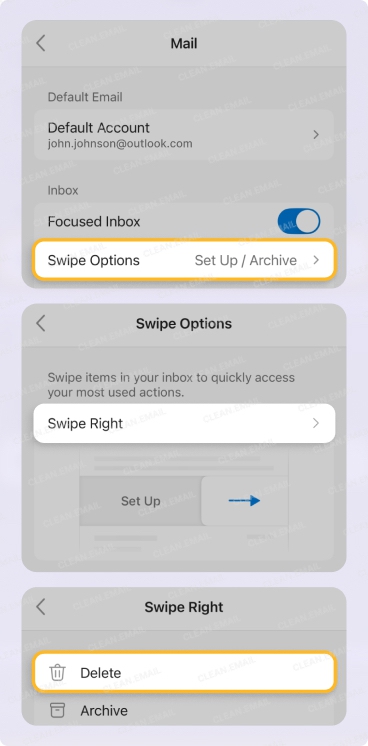
📌 Note: If you want to delete an email without opening it on iPad or iPhone, the Apple Mail app doesn’t currently offer Delete as a swipe action. Instead, you can use Clean Email as described below.
6. Use Multi-Feature Tools
Not every email application offers the features you need to delete emails without opening them, much less, a variety of methods. For example, you may be able to create a filter to automatically delete emails in Gmail, but only in the desktop application and not on mobile.
For this reason, as well as smart features for managing messages with ease, check out Clean Email.
Clean Email offers bulk actions and auto-delete rules for any IMAP provider with a secure interface and the complete feature set on any device, including Mac, iPhone and iPad, Android, and access through a web app.
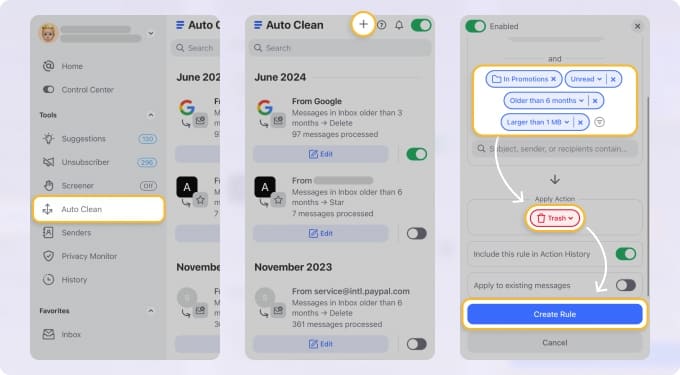
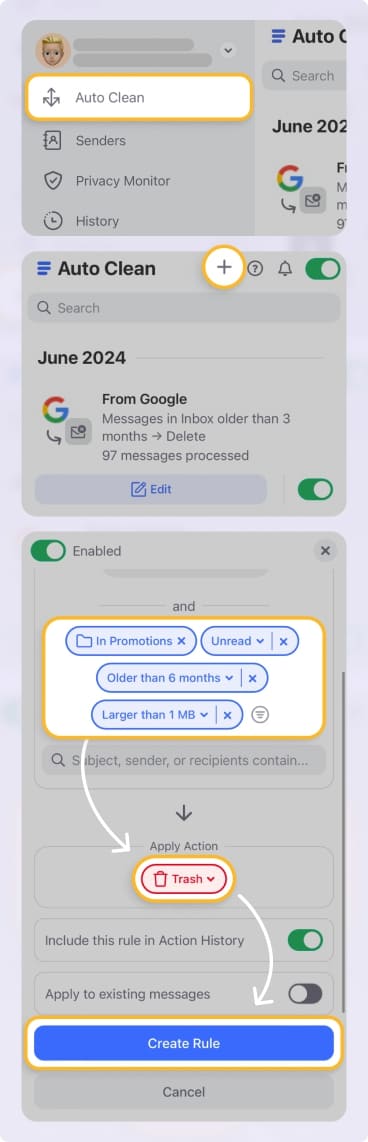
You can preview a portion of the content along with the sender and subject without opening the messages, which isn’t an option in many other email apps. This allows you to see more about a message before you remove it and avoid security risks at the same time.
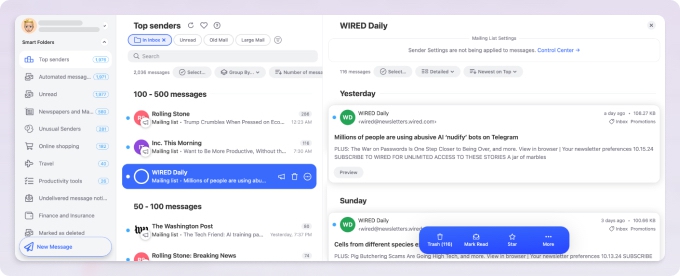
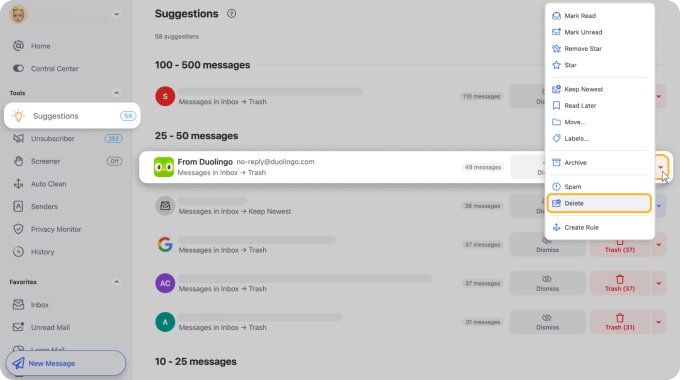
With Clean Email, you can also use additional features for a cleaner and more organized mailbox. This includes Smart Folders for viewing related messages in one spot and Cleaning Suggestions for commonly-used actions to tidy up your inbox.
Conclusion
Whether you’re looking for a secure way to remove multiple messages to save time or delete an email on iPad or iPhone without opening it because of the risks, these solutions should have you covered.
You don’t have to waste time or interact with potentially malicious emails! Use your provider’s feature, or better yet, a tool like Clean Email to stay safe, organized, and productive with a well-maintained mailbox of emails you do want.












