


How to Delete Large Amounts of Emails in Gmail
Let’s start with the basic steps to delete a large number of emails in Gmail. We’ll then explain ways to reduce the risk of accidentally deleting important messages by narrowing your selection and how to delete in bulk on your mobile device.
- Sign into Gmail and go to your Inbox, All Mail, a specific label, or other location.
- Mark the Select checkbox on the top left to select all 50 emails in view.
- Use the link that displays at the top to Select all X messages in [location].
- Click Delete in the toolbar or right-click and pick Delete.
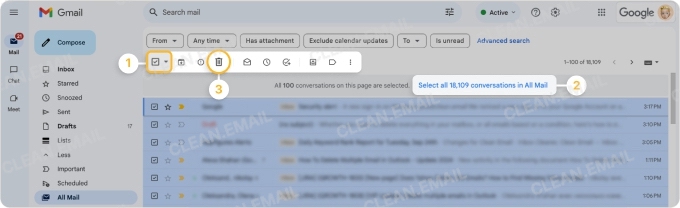
⚠️ Warning: You may not be asked to confirm! If you want to revert this action, quickly click Undo in the message that appears at the bottom.
Keep in mind that it can take a significant amount of time for your emails to be removed, especially when deleting hundreds of thousands of messages.

Narrow Down the Deletion Selection in Gmail
If you want to delete all emails in your Inbox or for a label, the above steps work just fine. But maybe you want to remove certain messages, like those before a particular date or older than a specific timeframe. In this case, you can use Gmail’s search options or search operators to narrow down the results.
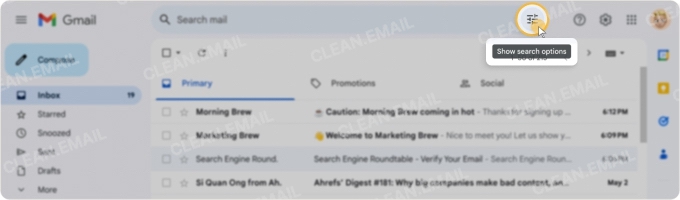
Search options: Click the Show search options button on the right side of the search bar, enter the criteria, and select Search.
Search operators: Enter one or more of the Gmail search operators in the Search box and press Enter or Return. As examples, to find emails before a certain date, use before:YYYY/MM/DD or to locate messages older than, say, one year, use older_than:1y.
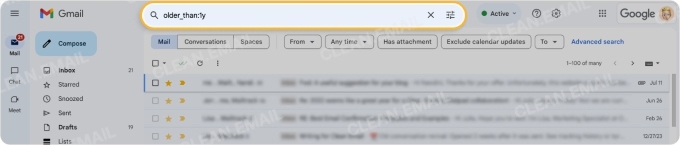
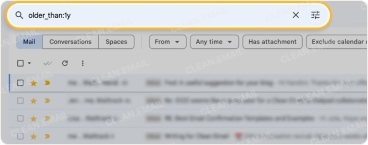
After you filter your results, follow the above steps to delete the messages.
Delete Mass Amounts of Email in the Gmail Mobile App
While it’s a simpler, and oftentimes, quicker process to delete thousands of emails in Gmail on the web, you do have a way to remove messages in bulk using the mobile app.
- Open the Gmail app and go to your Inbox, All Mail, a label, or other location.
- Long-press (tap and hold) the first message you want to delete.
- Mark the Select all checkbox on the top left to select all 50 emails in view.
- Scroll to the bottom of the screen to load more messages.
- Mark the Select all checkbox again to choose the additional messages.
- Continue this process until you’ve selected all emails you want to delete.
- Tap Delete in the top toolbar.
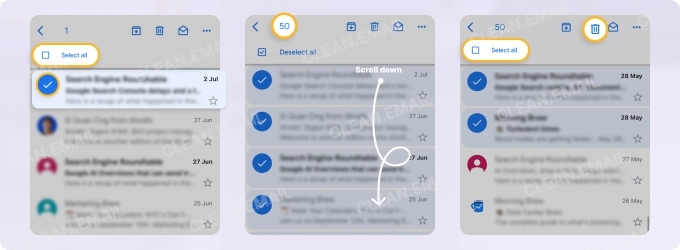
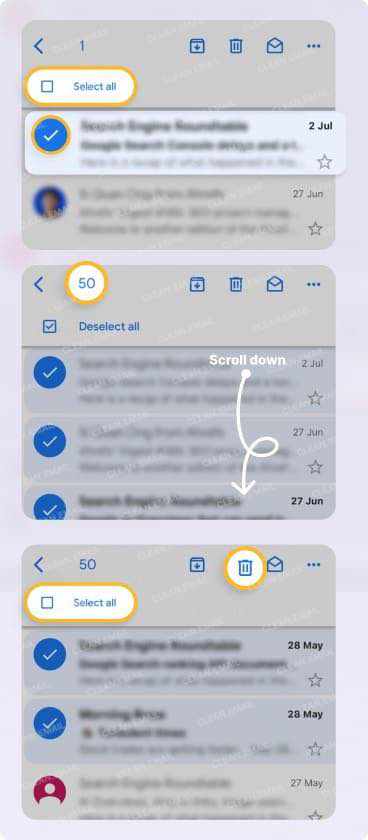
⚠️ Warning: Depending on your settings, you may not be asked to confirm! You can revert the deletion by quickly tapping Undo in the message that appears at the bottom.
Limitations With Gmail Bulk Delete
When you’re looking to delete 100,000 emails in Gmail or even three times that, there are some limitations to be aware of before you begin.
50-email per page limit: You can only see and select 50 emails at a time by default. You can look for the message at the top to select all emails and speed up the process on the web, but there isn’t currently an effective workaround in the mobile app.
Delete means Trash: Emails you Delete aren’t permanently removed. Instead, they go to the Trash where they remain for 30 days before they’re automatically and permanently deleted. This is important to keep in mind as emails in the Trash still contribute to your storage space. For more, check out Delete Vs. Trash: What’s the Difference?.
Slowdowns with large selections: You may experience a slowdown in Gmail, like this Reddit user, when you try to delete many, many emails at once. This can occur because of data propagation and server load. Additionally, a Gmail community member mentions that Google may consider this a compromised account — they suggest restricting the number of emails you delete at once and spacing out the process over hours.
To bypass these Gmail limitations, you can look at other tools like IFTTT. Unfortunately, these can be either too technical or unreliable at a large scale. And automations like Google’s Gemini AI are not useful for inbox cleanup.
Instead, consider Clean Email which is a safe, intuitive, and efficient mailbox management tool.
Overcome Gmail Bulk Delete Limits with Clean Email
Clean Email provides a fast, effective way to delete mass amounts of emails in Gmail as well as overcome Gmail’s limitations. This supplementary tool works alongside services and apps like Gmail, Outlook, Yahoo Mail, and more to help you better manage and clean up your mailbox.
It offers safe bulk actions, including deletions, without limits. Plus, you can preview messages before you delete them, process actions faster, especially for those massive deletions, and use the entire feature set with the same swiftness on both desktop and mobile devices.
Clean Email benefits:
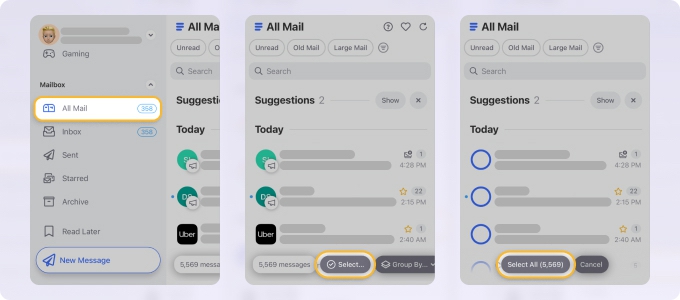
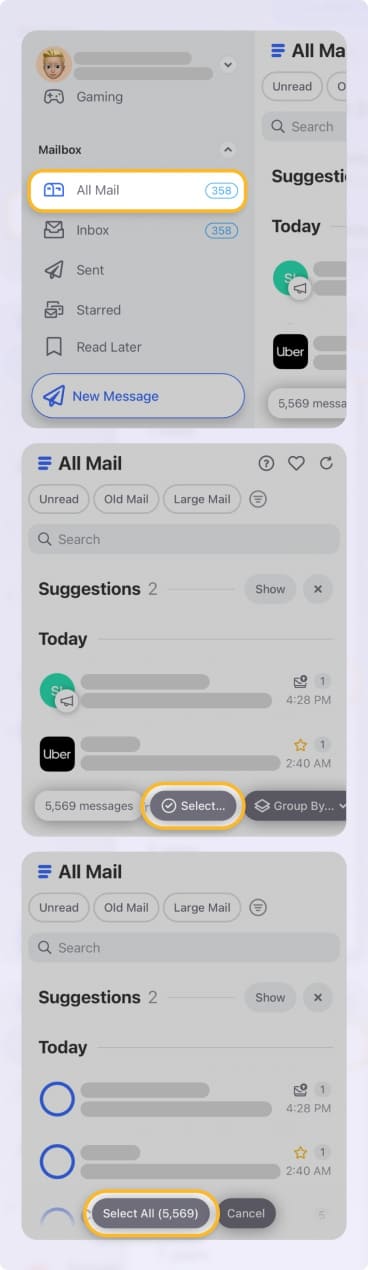
- Select and delete hundreds, thousands, or tens of thousands of Gmail emails at once without restrictions.
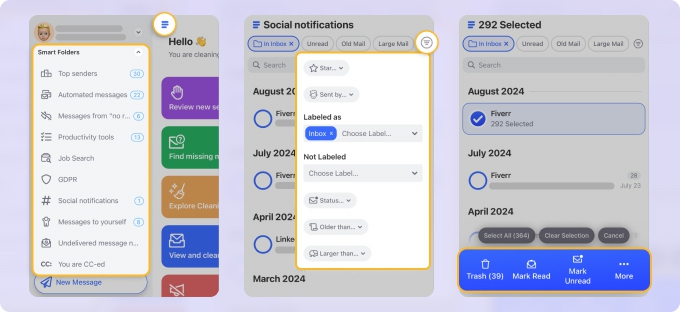
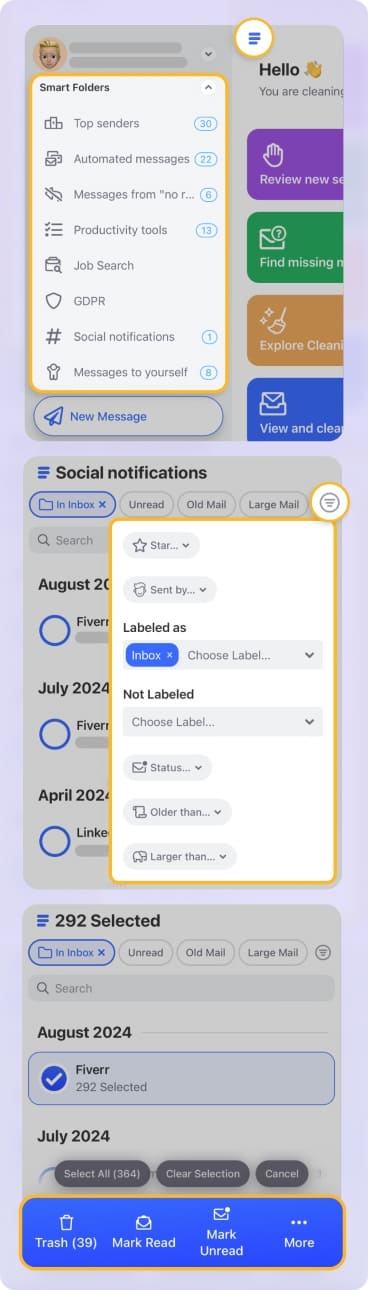
- Protect important messages with premade Smart Folders which automatically filter related emails.
- Enjoy faster processing with fewer delays or errors compared to Gmail.
- Complement tools like Google Gemini in Gmail using advanced features.
📌 Note on large-scale deletions with Clean Email:
Although Clean Email starts deleting messages instantly, email apps like Gmail may still display some of these emails until the full deletion process and syncing complete.
Conveniently, you can track the progress of your bulk deletion at the bottom of Clean Email’s interface!
Clean Email is safe to use with a commitment to users’ security and privacy. It’s available for all IMAP service providers on the web, Mac desktop, and mobile.
Gmail vs Clean Email for Mass Deletions
For a simple way to see a few key differences between Gmail and Clean Email when it comes to deleting a large number of Gmail messages, check out this comparison.
| Gmail | Clean Email | |
|---|---|---|
| One-step delete | ❌ No – emails go to Trash | ✅ Yes – emails can be immediately deleted* |
| Email selection limit | 50 per page by default | No limit |
| Progress tracking for deletions | ❌ No | ✅ Yes |
| Consistent deletion process on mobile | ❌ No | ✅ Yes |
*All selected messages are completely removed from your mailbox and cannot be recovered. Be sure to double-check selections before choosing Delete.
Conclusion
Whether you’re curious how to delete 20,000 emails at once in Gmail or go a step further by removing 300,000 or even more, it can certainly be done. Just remember that the process has its limitations, and patience is key.












