


Delete Vs Permanently Delete
In most email services, deleting a message doesn’t remove it right away. It’s moved to Trash or Deleted Items, where it stays for a limited time and can still be restored.
Permanently deleting an email skips this step or removes it from Trash, meaning it can’t be recovered afterward and no longer takes up space.

Delete Forever in Gmail
When you delete an email in Gmail, it moves to the Trash and stays there for about 30 days before being permanently deleted. In Google Workspace accounts, admins can extend this period, but it’s never shorter than 30 days.
If you want to permanently delete a message in Gmail without waiting 30 days, you can do it directly from the Trash:
- Single email: Go to the Trash, right-click the email, and choose Delete forever.
- Multiple emails: Go to the Trash, check the boxes for the messages you want to remove, right-click the emails, and choose Delete forever.
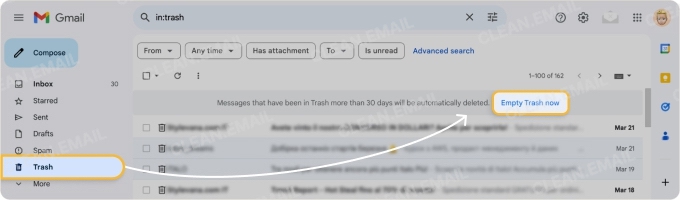
💡 An email was deleted by mistake? Learn how to restore permanently deleted emails in Gmail.
Delete Forever in Outlook
When you delete an email in Outlook, it goes to the Deleted Items folder where it remains for approximately 30 days. After that timeframe, the email goes to a hidden Recoverable Items folder where it stays for about 14 days (unless extended by an administrator) before it’s permanently deleted.
Learn more about how to permanently delete an email in Outlook in our dedicated guide.
Delete Forever in iCloud Mail
Like Gmail and Outlook, when you delete an email in iCloud Mail, it goes to a holding location. Deleted messages stay in that Trash folder for 30 days before they’re permanently removed unless you specify a different timeframe in the Apple Mail Settings.
To permanently remove emails after you delete them, you have a few options, just like the above providers.
- Single email: Go to the Trash, select the email, and choose Delete in the toolbar.
- Multiple emails: Go to the Trash, hold Command to select the messages you want to remove, and choose Delete.
- All emails: Right-click the Trash, select Erase Deleted Items, and confirm with Erase. In iCloud Mail on the web, select Settings (gear), choose Empty Trash, and confirm with Empty Trash.
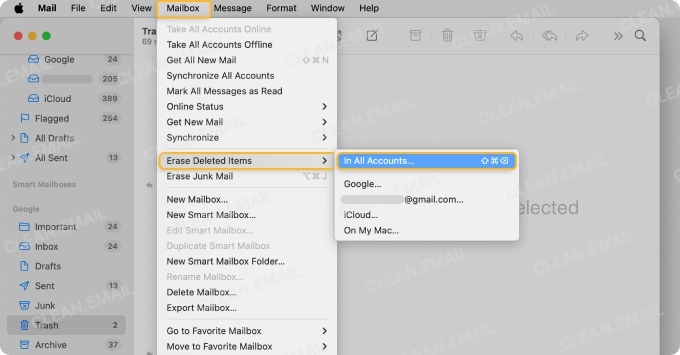
💡 Want to quickly delete emails on mobile? Check out how to change the email swipe to delete setting on iPhone.
Clear the Confusion: Delete Forever in Clean Email
While it’s convenient that providers like Gmail, Outlook, and iCloud Mail temporarily hold your deleted emails before they permanently remove them, it’s not always necessary. Whether for security, privacy, or regaining storage space, you might simply want “Delete” to mean “Delete!”
This is where tools like Clean Email can help. You can skip the trash or other recoverable location for those messages you want to delete for good and in just a single step.
- Single email: Choose Delete in the drop-down menu.
- Multiple emails: Mark the emails and choose Delete in the action bar.
- All emails: Pick Select → Select All and choose Delete in the action bar.
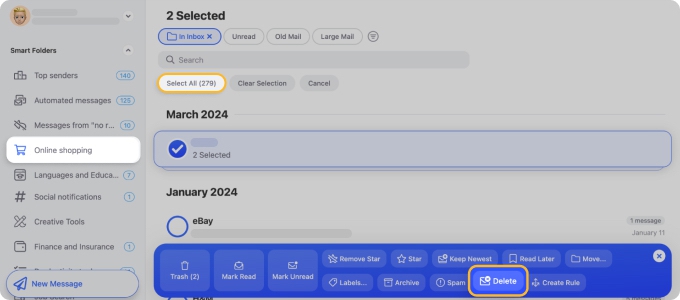
You can also easily find those messages you want to remove with smart features or simple sorting and grouping options which is ideal for bulk deletions.
And, if you do want to remove an email but hold onto it just in case you need to recover it later, you can choose Trash instead of Delete. The Trash then retains your message according to your provider’s rules.
Clean Email works with all major email providers on any device without limits – macOS, iOS, Android, and the web, and is committed to your privacy and security.
Permanent Deletion Comparison Table
For a quick view of the deletion processes and options you see above, check out this handy provider comparison table.
| Provider | Permanent Delete Available? | One-Step Permanent Deletion? | Steps to Permanently Delete | Retention Limitations |
|---|---|---|---|---|
| Gmail | ✅ Yes – “Delete Forever” | ❌ No | Delete → Go to Trash → Click “Delete Forever” | Emails in Trash are kept for 30 days before deletion |
| Outlook | ✅ Yes (manual or purge) | ❌ No (except with purge rules) | Delete → Go to Deleted Items → Empty/Purge folder | Emails can remain until folder is emptied; Recoverable Items may still store them temporarily |
| Apple Mail (iCloud) | ✅ Yes (via settings) | ❌ No | Delete → Go to Trash → Manually delete or auto-remove | Trash auto-deletion timing depends on user/device settings |
| Clean Email | ✅ Yes – One-click Delete | ✅ Yes | Select emails → Click “Delete” (permanently removes) | Emails are immediately and fully deleted, no Trash step |
Conclusion
If you’ve been wondering, “What does delete forever mean in Gmail?” or “How do I permanently purge emails in Outlook,” you should now have a good understanding of how it works for your particular provider.
If you want more control over how your emails are deleted, tools like Clean Email can simplify the process with faster deletion and automation features.












